 13326879f0
* Render chart tooltips in the same way as standard tooltips

* Move OpenChartTooltip method to TooltipService to avoid code duplications

* Avoid partially hiding of chart tooltip near top of page

* Make some of the types internal.

---------

Co-authored-by: Atanas Korchev <akorchev@gmail.com>
8.2 KiB
Interactivity and SSR
All interactive features of the Radzen Blazor components require interactivity for the container .razor file to be enabled or the @rendermode
attribute of the component to be set to one of the following values: InteractiveServer, InteractiveAuto or @InteractiveWebAssembly.
More info is available in the rendering mode article from the official Blazor documentation.
Install
The Radzen Blazor components are distributed via the Radzen.Blazor nuget package.
You can add the nuget package to your Blazor application in one of the following ways:
- Via Visual Studio's Nuget Package Manager
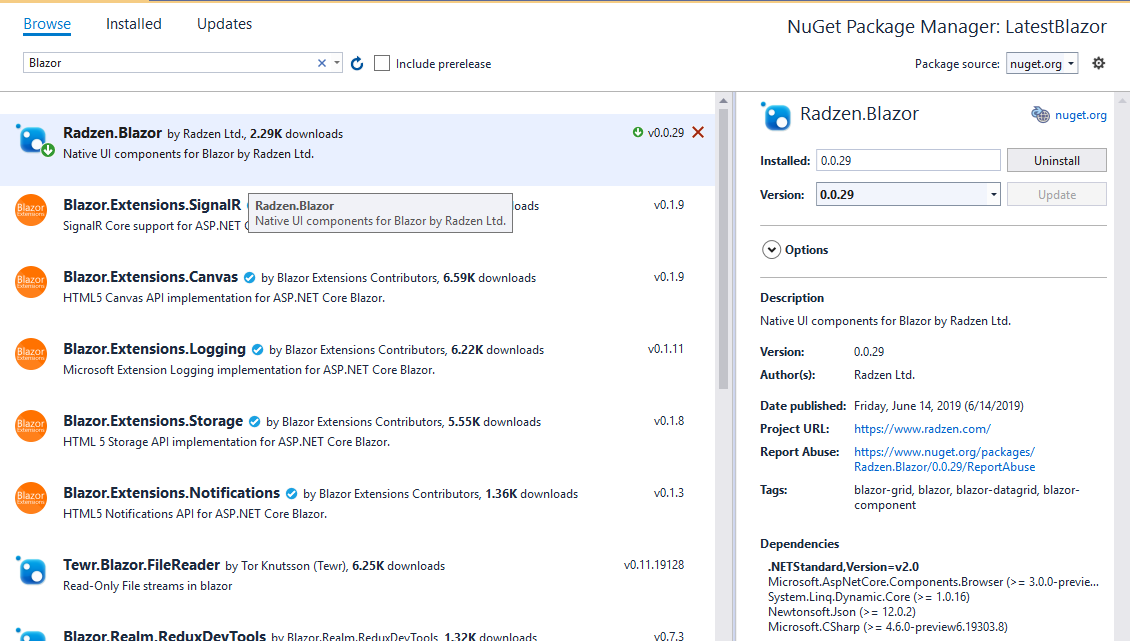
- Via command line
dotnet add package Radzen.Blazor - By editing your application's
.csprojfile and adding a package referencelt;PackageReference Include="Radzen.Blazor" Version="*" />
Import the namespaces
Import the namespaces by adding the following lines to _Imports.razor:
@using Radzen
@using Radzen.Blazor
Set the theme
Open the App.razor file of your application. Add this code within the <head> element:
<RadzenTheme Theme="material" @rendermode="InteractiveAuto" />
@rendermode attribute if you don't need interactive theme features such
as changing the theme at runtime.
Pages\_Host.cshtml file of your application. Add this code within the <head> element:
<component type="typeof(RadzenTheme)" render-mode="ServerPrerendered" param-Theme="@("material")" />
Pages\_Host.cshtml file of your application. Add this code within the <head> element:
<component type="typeof(RadzenTheme)" render-mode="WebAssemblyPrerendered" param-Theme="@("material")" />
Pages\_Layout.cshtml file of your application. Add this code within the <head> element:
<component type="typeof(RadzenTheme)" render-mode="ServerPrerendered" param-Theme="@("material")" />
Pages\_Layout.cshtml file of your application. Add this code within the <head> element:
<component type="typeof(RadzenTheme)" render-mode="WebAssemblyPrerendered" param-Theme="@("material")" />
index.html file and add this code within the <head> element:
<link rel="stylesheet" href="_content/Radzen.Blazor/css/material-base.css">
Include Radzen.Blazor.js
Open the App.razor file of your application. Add this code after the last <script>:
<script src="_content/Radzen.Blazor/Radzen.Blazor.js?v=@(typeof(Radzen.Colors).Assembly.GetName().Version)"></script>
Pages\_Host.cshtml file of your application. Add this code after the last <script>:
<script src="_content/Radzen.Blazor/Radzen.Blazor.js?v=@(typeof(Radzen.Colors).Assembly.GetName().Version)"></script>
Pages\_Layout.cshtml file of your application. Add this code after the last <script>:
<script src="_content/Radzen.Blazor/Radzen.Blazor.js?v=@(typeof(Radzen.Colors).Assembly.GetName().Version)"></script>
index.html file and add this this code after the last <script>:
<script src="_content/Radzen.Blazor/Radzen.Blazor.js"></script>
Use a component
To use a component type its tag name in your Blazor page:
<RadzenButton Text="Hi" Click=@OnClick />
@code {
  void OnClick()
  {
     // Handle the click event
  }
}
Dialog, context menu, tooltip, chart tooltip and notification
To use RadzenDialog, RadzenContextMenu, RadzenTooltip, RadzenChartTooltip and RadzenNotification you need to perform a few additional steps.
- Open
MainLayout.razorand add this code<RadzenComponents @rendermode=InteractiveAuto />Use a render mode which you have enabled for your application. RadzenDialog, RadzenContextMenu, RadzenTooltip and RadzenNotification require interactivity and will not work in static render mode (SSR).<RadzenComponents /> -
Open
Program.csand add this code beforebuilder.Build():builder.Services.AddRadzenComponents();