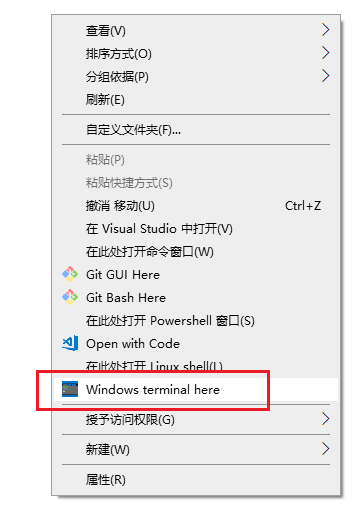
Add "open Windows terminal here" into right-click context menu #1416

Closed
opened 2026-01-30 22:25:34 +00:00 by claunia · 235 comments
Owner

Originally created by @yanglr on GitHub (May 30, 2019).

Originally assigned to: @zadjii-msft on GitHub.

Add "open Windows terminal here" to right-click context menu?

We know that, for windows 7, by default when we click "shift + right click with mouse" when we enter into a folder without selecting anything, we can see the option "open command window here".

image

While for windows 10, by default when we click "shift + right click with mouse", we can see the option "open powershell window here".

So for Windows 10 (version later than 1903), how can we make the following three options available in right-click context menu?

  • open command window here
  • open powershell window here
  • open Windows terminal here

Looking forward to your reply, thanks a lot~

Originally created by @yanglr on GitHub (May 30, 2019). Originally assigned to: @zadjii-msft on GitHub. # Add "open Windows terminal here" to right-click context menu? We know that, for windows 7, by default when we click "shift + right click with mouse" when we enter into a folder without selecting anything, we can see the option "open command window here". ![image](https://user-images.githubusercontent.com/3152813/58607088-c287d100-82d0-11e9-9da9-7ca5fe2b493c.png) While for windows 10, by default when we click "shift + right click with mouse", we can see the option "open powershell window here". So for Windows 10 (version later than 1903), how can we make the following three options available in right-click context menu? - open command window here - open powershell window here - open Windows terminal here Looking forward to your reply, thanks a lot~
Author
Owner

@SJang1 commented on GitHub (May 30, 2019):

If adding it, I think it should have one more select option in open Windows terminal here to select actually what shell to open as submenu of context menu (or like that) with the 'name' wrotted in profiles of terminal, like

  • Powershell
  • CMD
  • Ubuntu
@SJang1 commented on GitHub (May 30, 2019): If adding it, I think it should have one more select option in **open Windows terminal here** to select actually what shell to open as submenu of context menu (or like that) with the 'name' wrotted in profiles of terminal, like - Powershell - CMD - Ubuntu
Author
Owner

@zadjii-msft commented on GitHub (May 30, 2019):

I think this is a good feature request, and something that we'd definitely accept help from the community on.

My gut says that it'd be related to work for #689, but I don't know enough about Win32 to be sure.

@zadjii-msft commented on GitHub (May 30, 2019): I think this is a good feature request, and something that we'd definitely accept help from the community on. My gut says that it'd be related to work for #689, but I don't know enough about Win32 to be sure.
Author
Owner

@miniksa commented on GitHub (May 30, 2019):

This is probably something like this: https://www.codeproject.com/Articles/441/The-Complete-Idiot-s-Guide-to-Writing-Shell-Extens

But hopefully without re-introducing ATL into our codebase...

@miniksa commented on GitHub (May 30, 2019): This is probably something like this: https://www.codeproject.com/Articles/441/The-Complete-Idiot-s-Guide-to-Writing-Shell-Extens But hopefully without re-introducing ATL into our codebase...
Author
Owner

@factormystic commented on GitHub (May 30, 2019):

It's way, way easier than that to add a single command to a folder context menu. It's just a simple registry key.

For example (and then you can also add an icon, etc)

Windows Registry Editor Version 5.00

[HKEY_CURRENT_USER\Software\Classes\Directory\Background\shell\Open Thing Here\command]
@="C:\\thing.exe \"%1\""
@factormystic commented on GitHub (May 30, 2019): It's way, _way_ easier than that to add a single command to a folder context menu. It's just a simple registry key. For example (and then you can also add an icon, etc) ``` Windows Registry Editor Version 5.00 [HKEY_CURRENT_USER\Software\Classes\Directory\Background\shell\Open Thing Here\command] @="C:\\thing.exe \"%1\"" ```
Author
Owner

@ChrisGuzak commented on GitHub (May 30, 2019):

for pacakged apps this is declared in the manifest. see this: https://docs.microsoft.com/en-us/uwp/schemas/appxpackage/uapmanifestschema/element-uap-filetypeassociation. I don't think this supports folders but start looking here.

@ChrisGuzak commented on GitHub (May 30, 2019): for pacakged apps this is declared in the manifest. see this: https://docs.microsoft.com/en-us/uwp/schemas/appxpackage/uapmanifestschema/element-uap-filetypeassociation. I don't think this supports folders but start looking here.
Author
Owner

@DHowett-MSFT commented on GitHub (May 30, 2019):

Likely duplicate of #561, but we'll track it here.

@DHowett-MSFT commented on GitHub (May 30, 2019): Likely duplicate of #561, but we'll track it here.
Author
Owner

@yanglr commented on GitHub (May 31, 2019):

@miniksa @zadjii-msft @DHowett-MSFT @factormystic @ChrisGuzak

I solved the issue now, it could be closed. Thanks a lot to all who involved into this discussion.

Step 0:

Test if two constants below works well which will be used in following other steps.

echo %USERPROFILE%

echo %LOCALAPPDATA%

If everything works well here, then these two constants can be used directly in other below steps.

Or please perform following replacements in below steps:

%USERPROFILE% → C:\Users\[userName]
%LOCALAPPDATA% → C:\Users\[userName]\AppData\Local

Here [userName] represents your user name,for instance, mine is Bruce.

Step 1:
Run below stuff in CMD:

mkdir "%USERPROFILE%\AppData\Local\terminal"

image

Step 2:
Copy the windows terminal icon to the folder %USERPROFILE%\AppData\Local\terminal, the icon can be obtained in https://github.com/yanglr/WindowsDevTools/tree/master/awosomeTerminal/icons whose file name is wt_32.ico.

Step 3:
Save follwing content as wt.reg, then run as administrator.

Windows Registry Editor Version 5.00

[HKEY_CLASSES_ROOT\Directory\Background\shell\wt]
@="Windows terminal here"
"Icon"="%USERPROFILE%\\AppData\\Local\\terminal\\wt_32.ico"

[HKEY_CLASSES_ROOT\Directory\Background\shell\wt\command]
@="%LOCALAPPDATA%\\Microsoft\\WindowsApps\\wt.exe"

To be noted, if the exe obtained after building code by yourself is wtd.exe, you need to change the above wt.exe to wtd.exe in the above registry.

Step 4:
Test
image

@yanglr commented on GitHub (May 31, 2019): @miniksa @zadjii-msft @DHowett-MSFT @factormystic @ChrisGuzak I solved the issue now, it could be closed. Thanks a lot to all who involved into this discussion. **Step 0:** Test if two constants below works well which will be used in following other steps. ```bash echo %USERPROFILE% echo %LOCALAPPDATA% ``` If everything works well here, then these two constants can be used directly in other below steps. Or please perform following replacements in below steps: %USERPROFILE% → `C:\Users\[userName]` %LOCALAPPDATA% → `C:\Users\[userName]\AppData\Local` Here `[userName]` represents your user name,for instance, mine is `Bruce`. **Step 1:** Run below stuff in `CMD`: ```bash mkdir "%USERPROFILE%\AppData\Local\terminal" ``` ![image](https://user-images.githubusercontent.com/3152813/58674693-8e211d00-8383-11e9-8afa-a258b47cfece.png) **Step 2:** Copy the windows terminal icon to the folder `%USERPROFILE%\AppData\Local\terminal`, the icon can be obtained in <https://github.com/yanglr/WindowsDevTools/tree/master/awosomeTerminal/icons> whose file name is `wt_32.ico`. **Step 3:** Save follwing content as `wt.reg`, then run as administrator. ```bash Windows Registry Editor Version 5.00 [HKEY_CLASSES_ROOT\Directory\Background\shell\wt] @="Windows terminal here" "Icon"="%USERPROFILE%\\AppData\\Local\\terminal\\wt_32.ico" [HKEY_CLASSES_ROOT\Directory\Background\shell\wt\command] @="%LOCALAPPDATA%\\Microsoft\\WindowsApps\\wt.exe" ``` **To be noted**, if the exe obtained after building code by yourself is `wtd.exe`, you need to change the above `wt.exe` to `wtd.exe` in the above registry. **Step 4:** Test ![image](https://user-images.githubusercontent.com/3152813/58674812-0f78af80-8384-11e9-9c80-924a2d7d886e.png)
Author
Owner

@SJang1 commented on GitHub (May 31, 2019):

That didn't work to me (can't access to it error), and for me it was wtd.exe(didn't even work).
And I think this could be the Terminal Feature.

@SJang1 commented on GitHub (May 31, 2019): That didn't work to me (can't access to it error), and for me it was wtd.exe(didn't even work). And I think this could be the Terminal Feature.
Author
Owner

@yanglr commented on GitHub (May 31, 2019):

@SJang1
I guess you used the version you bulit yourself, so need to use wtd.exe. For incoming official version to enter into Windows Store, wt.exe is the correct option here. For now, you can obtain preview version here (.7z file under https://github.com/yanglr/WindowsDevTools/tree/master/awosomeTerminal), then use wt.exe after installed. I adopted this method.

@yanglr commented on GitHub (May 31, 2019): @SJang1 I guess you used the version you bulit yourself, so need to use `wtd.exe`. For incoming official version to enter into `Windows Store`, `wt.exe` is the correct option here. For now, you can obtain preview version here (`.7z` file under <https://github.com/yanglr/WindowsDevTools/tree/master/awosomeTerminal>), then use `wt.exe` after installed. I adopted this method.
Author
Owner

@SJang1 commented on GitHub (May 31, 2019):

@yanglr I have used wtd.exe, and didn't work having error of can't access to it.. However, every end-user couldn't add to registry one-by-one.

@SJang1 commented on GitHub (May 31, 2019): @yanglr I have used wtd.exe, and didn't work having error of can't access to it.. However, every end-user couldn't add to registry one-by-one.
Author
Owner

@yanglr commented on GitHub (May 31, 2019):

@SJang1
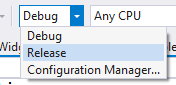
I guess you built the code in Debug mode, please change to Release mode, see below:
image

@yanglr commented on GitHub (May 31, 2019): @SJang1 I guess you built the code in `Debug mode`, please change to `Release mode`, see below: ![image](https://user-images.githubusercontent.com/3152813/58694671-2cce6d80-83c6-11e9-9a2d-90b00dbc37e7.png)
Author
Owner

@SJang1 commented on GitHub (May 31, 2019):

@yanglr
Already Built in Release.
image

@SJang1 commented on GitHub (May 31, 2019): @yanglr Already Built in Release. ![image](https://user-images.githubusercontent.com/29011440/58694948-24c6fb80-83cf-11e9-94e2-ae8e337dac18.png)
Author
Owner

@zadjii-msft commented on GitHub (May 31, 2019):

For the record, I think we'd prefer that the terminal automatically registers this shortcut on behalf of the user.

@zadjii-msft commented on GitHub (May 31, 2019): For the record, I think we'd prefer that the terminal automatically registers this shortcut on behalf of the user.
Author
Owner

@yanglr commented on GitHub (Jun 1, 2019):

@zadjii-msft
Cool, great !

@yanglr commented on GitHub (Jun 1, 2019): @zadjii-msft Cool, great !
Author
Owner

@zadjii-msft commented on GitHub (Jun 3, 2019):

This hasn't been added yet, so I'd prefer we keep this issue open till the work to add it has been done :)

@zadjii-msft commented on GitHub (Jun 3, 2019): This hasn't been added yet, so I'd prefer we keep this issue open till the work to add it has been done :)
Author
Owner

@MelulekiDube commented on GitHub (Jun 3, 2019):

Can I give this a shot if no one is working on it?

@MelulekiDube commented on GitHub (Jun 3, 2019): Can I give this a shot if no one is working on it?
Author
Owner

@zadjii-msft commented on GitHub (Jun 3, 2019):

@MelulekiDube go for it!

My main tip here would be that we've been trying to keep TerminalApp more UWP-like, and doing Win32-like things in the WindowsTerminal project. Since this feature is probably fairly Win32 heavy, I'd probably suggest some sort of event that the App (in TerminalApp) can fire to notify the AppHost (in WindowsTerminal) that it should set up the shortcuts. As an example, I believe there's an event TitleChanged that the App can fire to have the AppHost set the title of the window.

Additionally, since a Profile isn't a winrt type, it might be hard to get at its members straight from the WindowsTerminal project. You might have to have the App communicate the relevant bits of the Profile in the event itself. Alternatively, you could try making it a winrt type (complete with an .idl file), but that might be a bit harder.

Good luck!

EDIT: I revise this statement to HERE BE DRAGONS. There's work that might need to get done in #607/#1065 before this can be done at all.

@zadjii-msft commented on GitHub (Jun 3, 2019): @MelulekiDube go for it! My main tip here would be that we've been trying to keep TerminalApp more UWP-like, and doing Win32-like things in the WindowsTerminal project. Since this feature is probably fairly Win32 heavy, I'd probably suggest some sort of event that the `App` (in TerminalApp) can fire to notify the `AppHost` (in WindowsTerminal) that it should set up the shortcuts. As an example, I believe there's an event `TitleChanged` that the `App` can fire to have the `AppHost` set the title of the window. Additionally, since a `Profile` isn't a winrt type, it might be hard to get at its members straight from the WindowsTerminal project. You might have to have the `App` communicate the relevant bits of the `Profile` in the event itself. Alternatively, you could try making it a winrt type (complete with an .idl file), but that might be a bit harder. Good luck! EDIT: I revise this statement to **HERE BE DRAGONS**. There's work that might need to get done in #607/#1065 before this can be done at all.
Author
Owner

@DHowett-MSFT commented on GitHub (Jun 3, 2019):

I'm concerned that this will need to tie in pretty closely with #607, which is still in the pre-spec phase.

@DHowett-MSFT commented on GitHub (Jun 3, 2019): I'm concerned that this will need to tie in pretty closely with #607, which is still in the pre-spec phase.
Author
Owner

@zadjii-msft commented on GitHub (Jun 3, 2019):

@DHowett-MSFT that's a good point. I also forgot about the recent regression in #1065. This actually might fall under the category of hard things. Even if we didn't do it per-profile, opening the default profile in the current directory wouldn't work.

I don't even know how we'd fix #1065, but if we did fix that, then theoretically we could find some way to create the new Windows Terminal instance using the directory from explorer, but that wouldn't really solve the per-profile issue. hmmmm.

@zadjii-msft commented on GitHub (Jun 3, 2019): @DHowett-MSFT that's a good point. I also forgot about the recent regression in #1065. This actually might fall under the category of _hard_ things. Even if we didn't do it per-profile, opening the default profile in the current directory wouldn't work. I don't even know how we'd fix #1065, but if we did fix that, then theoretically we could find some way to create the new Windows Terminal instance using the directory from explorer, but that wouldn't really solve the per-profile issue. hmmmm.
Author
Owner

@isaacrlevin commented on GitHub (Jun 6, 2019):

Could something like exposing the staringDirectory so you can pass it into the exe an option?

@isaacrlevin commented on GitHub (Jun 6, 2019): Could something like exposing the staringDirectory so you can pass it into the exe an option?
Author
Owner

@DHowett-MSFT commented on GitHub (Jun 6, 2019):

Yes, that is part of the point in #607.

@DHowett-MSFT commented on GitHub (Jun 6, 2019): Yes, that is part of the point in #607.
Author
Owner

@DHowett-MSFT commented on GitHub (Jun 15, 2019):

Hi @yanglr,
This isn’t the appropriate place to have that discussion. This issue is for discussing the “open Windows Terminal here” feature.

@DHowett-MSFT commented on GitHub (Jun 15, 2019): Hi @yanglr, This isn’t the appropriate place to have that discussion. This issue is for discussing the “open Windows Terminal here” feature.
Author
Owner

@yanglr commented on GitHub (Jun 15, 2019):

@DHowett-MSFT
Oh, sorry, deleted.

@yanglr commented on GitHub (Jun 15, 2019): @DHowett-MSFT Oh, sorry, deleted.
Author
Owner

@lllopo commented on GitHub (Jun 22, 2019):

I think it would be great to have not just “open Windows Terminal here”, but also “open Windows Terminal here (Administrator)” cause both are well used by everyone.

@lllopo commented on GitHub (Jun 22, 2019): I think it would be great to have not just “open Windows Terminal here”, but also “open Windows Terminal here (Administrator)” cause both are well used by everyone.
Author
Owner

@SJang1 commented on GitHub (Jun 22, 2019):

I was thinking about like this,
image
..and if it does like what i thought, seems no place to put run as Administrator at it.

@SJang1 commented on GitHub (Jun 22, 2019): I was thinking about like this, ![image](https://user-images.githubusercontent.com/29011440/59963637-e9809e00-9530-11e9-9878-3f8332f5cc7f.png) ..and if it does like what i thought, seems no place to put run as Administrator at it.
Author
Owner

@lllopo commented on GitHub (Jun 22, 2019):

I was thinking about like this,
image
..and if it does like what i thought, seems no place to put run as Administrator at it.

... unless you put a second main menu "Open WT here (Administrator)" with the same submenu items. Both should be optional anyway, I think.

@lllopo commented on GitHub (Jun 22, 2019): > I was thinking about like this, > ![image](https://user-images.githubusercontent.com/29011440/59963637-e9809e00-9530-11e9-9878-3f8332f5cc7f.png) > ..and if it does like what i thought, seems no place to put run as Administrator at it. ... unless you put a second main menu "Open WT here (Administrator)" with the same submenu items. Both should be optional anyway, I think.
Author
Owner

@minhtuanta commented on GitHub (Jun 23, 2019):

I edited the registry to add the option to the context menu. However, it opens with C:\Users\username instead of the current directory.

@minhtuanta commented on GitHub (Jun 23, 2019): I edited the registry to add the option to the context menu. However, it opens with C:\Users\username instead of the current directory.
Author
Owner

@DHowett-MSFT commented on GitHub (Jun 23, 2019):

@minhtuanta

I'm concerned that this will need to tie in pretty closely with #607, which is still in the pre-spec phase.

Could something like exposing the staringDirectory so you can pass it into the exe an option?

Yes, that is part of the point in #607.

wt.exe doesn't support command line arguments yet, so there's no way to override what folder the new profile starts in.

@DHowett-MSFT commented on GitHub (Jun 23, 2019): @minhtuanta > > > I'm concerned that this will need to tie in pretty closely with #607, which is still in the pre-spec phase. > > > Could something like exposing the staringDirectory so you can pass it into the exe an option? > > > Yes, that is part of the point in #607. `wt.exe` doesn't support command line arguments yet, so there's no way to override what folder the new profile starts in.
Author
Owner

@Edmund1645 commented on GitHub (Jun 26, 2019):

if I might make a suggestion, I'd say the options to open in powershell, CMD and/or Linux terminal should be replaced by "Open in windows terminal" since the windows terminal is the combination of all three. Then a user can set his default from the profile.json file.

@Edmund1645 commented on GitHub (Jun 26, 2019): if I might make a suggestion, I'd say the options to open in powershell, CMD and/or Linux terminal should be replaced by "Open in windows terminal" since the windows terminal is the combination of all three. Then a user can set his default from the `profile.json` file.
Author
Owner

@nerdio01 commented on GitHub (Jul 19, 2019):

@yanglr @lllopo @SJang1

Something like this should work for now. I wrote it in PowerShell because it's for a Post-Install Windows ISO script, but I don't see an issue with using this as opposed to a .reg file.

PowerShell:

$Env.terminalDir ='$Env:localAppDir\Microsoft\WindowsApps' # Not really needed (except for icon), as wt.exe in in %PATH%

Invoke-WebRequest -UseBasicParsing "https://github.com/yanglr/WindowsDevTools/raw/master/awosomeTerminal/icons/wt_32.ico" -OutFile "$Env:terminalDir\wt.ico"  # Going to update my own to just grab icon from the appx package

Set-ItemProperty-Path 'HKEY_CLASSES_ROOT\Directory\Background\shell\MenuTerminal' -Name 'MUIVerb' -Type String -Value 'Terminals'
Set-ItemProperty-Path 'HKEY_CLASSES_ROOT\Directory\Background\shell\MenuTerminal' -Name 'Icon' -Type String -Value '$Env:terminalDir\wt.ico'
Set-ItemProperty-Path 'HKEY_CLASSES_ROOT\Directory\Background\shell\MenuTerminal' -Name 'ExtendedSubCommandsKey' -Type String -Value 'Directory\\ContextMenus\\MenuTerminal'
Set-ItemProperty-Path 'HKEY_CLASSES_ROOT\Directory\ContextMenus\MenuTerminal\shell\open' -Name 'MUIVerb' -Type String -Value 'PowerShell'
Set-ItemProperty-Path 'HKEY_CLASSES_ROOT\Directory\ContextMenus\MenuTerminal\shell\open' -Name 'Icon' -Type String -Value 'PowerShell.exe'
Set-ItemProperty-Path 'HKEY_CLASSES_ROOT\Directory\ContextMenus\MenuTerminal\shell\open' -Name 'ExtendedSubCommandsKey' -Type String -Value 'Directory\\ContextMenus\\MenuTerminal\\PS'
Set-ItemProperty-Path 'HKEY_CLASSES_ROOT\Directory\ContextMenus\MenuTerminal\PS\shell\open' -Name 'MUIVerb' -Type String -Value 'PowerShell'
Set-ItemProperty-Path 'HKEY_CLASSES_ROOT\Directory\ContextMenus\MenuTerminal\PS\shell\open' -Name 'Icon' -Type String -Value '$Env:terminalDir\wt.ico'
Set-ItemProperty-Path 'HKEY_CLASSES_ROOT\Directory\ContextMenus\MenuTerminal\PS\shell\open\command' -Name '@' -Type String -Value 'wt.exe'
Set-ItemProperty-Path 'HKEY_CLASSES_ROOT\Directory\ContextMenus\MenuTerminal\PS\shell\runas' -Name 'MUIVerb' -Type String -Value 'Elevated PowerShell'
Set-ItemProperty-Path 'HKEY_CLASSES_ROOT\Directory\ContextMenus\MenuTerminal\PS\shell\runas' -Name 'Icon' -Type String -Value '$Env:terminalDir\wt.ico'
Set-ItemProperty-Path 'HKEY_CLASSES_ROOT\Directory\ContextMenus\MenuTerminal\PS\shell\runas' -Name 'HasLUAShield' -Type String -Value ''
Set-ItemProperty-Path 'HKEY_CLASSES_ROOT\Directory\ContextMenus\MenuTerminal\PS\shell\runas\command'-Name '@' -Type String -Value 'wt.exe'

And something like this should work when one is able to choose between CMD and PowerShell when launching the Terminal (assuming it uses --Profile [CMD|PowerShell]):

Powershell:

$Env.terminalDir ='$Env:localAppDir\Microsoft\WindowsApps'   # Not really needed (except for icon), as wt.exe in in %PATH%

Invoke-WebRequest -UseBasicParsing "https://github.com/yanglr/WindowsDevTools/raw/master/awosomeTerminal/icons/wt_32.ico" -OutFile "$Env:terminalDir\wt.ico"  # Going to update my own to just grab icon from the appx package

Set-ItemProperty-Path 'HKEY_CLASSES_ROOT\Directory\Background\shell\MenuTerminal' -Name 'MUIVerb' -Type String -Value 'Terminals'
Set-ItemProperty-Path 'HKEY_CLASSES_ROOT\Directory\Background\shell\MenuTerminal' -Name 'Icon' -Type String -Value '$Env:terminalDir\wt.ico'
Set-ItemProperty-Path 'HKEY_CLASSES_ROOT\Directory\Background\shell\MenuTerminal' -Name 'ExtendedSubCommandsKey' -Type String -Value 'Directory\\ContextMenus\\MenuTerminal'
Set-ItemProperty-Path 'HKEY_CLASSES_ROOT\Directory\ContextMenus\MenuTerminal\shell\open' -Name 'MUIVerb' -Type String -Value 'Command Prompt'
Set-ItemProperty-Path 'HKEY_CLASSES_ROOT\Directory\ContextMenus\MenuTerminal\shell\open' -Name 'Icon' -Type String -Value 'cmd.exe'
Set-ItemProperty-Path 'HKEY_CLASSES_ROOT\Directory\ContextMenus\MenuTerminal\shell\open' -Name 'ExtendedSubCommandsKey' -Type String -Value 'Directory\\ContextMenus\\MenuTerminal\\CMD'
Set-ItemProperty-Path 'HKEY_CLASSES_ROOT\Directory\ContextMenus\MenuTerminal\CMD\shell\open' -Name 'MUIVerb' -Type String -Value 'Command Prompt'
Set-ItemProperty-Path 'HKEY_CLASSES_ROOT\Directory\ContextMenus\MenuTerminal\CMD\shell\open' -Name 'Icon' -Type String -Value '$Env:terminalDir\wt.ico'
Set-ItemProperty-Path 'HKEY_CLASSES_ROOT\Directory\ContextMenus\MenuTerminal\CMD\shell\open\command' -Name '@' -Type String -Value 'wt.exe --profile CMD'
Set-ItemProperty-Path 'HKEY_CLASSES_ROOT\Directory\ContextMenus\MenuTerminal\CMD\shell\runas' -Name 'MUIVerb' -Type String -Value 'Elevated Terminal'
Set-ItemProperty-Path 'HKEY_CLASSES_ROOT\Directory\ContextMenus\MenuTerminal\CMD\shell\runas' -Name 'Icon' -Type String -Value '$Env:terminalDir\wt.ico'
Set-ItemProperty-Path 'HKEY_CLASSES_ROOT\Directory\ContextMenus\MenuTerminal\CMD\shell\runas' -Name 'HasLUAShield' -Type String -Value ''
Set-ItemProperty-Path 'HKEY_CLASSES_ROOT\Directory\ContextMenus\MenuTerminal\CMD\shell\runas\command'-Name '@' -Type String -Value 'wt.exe --profile CMD'
Set-ItemProperty-Path 'HKEY_CLASSES_ROOT\Directory\ContextMenus\MenuTerminal\shell\open' -Name 'MUIVerb' -Type String -Value 'PowerShell'
Set-ItemProperty-Path 'HKEY_CLASSES_ROOT\Directory\ContextMenus\MenuTerminal\shell\open' -Name 'Icon' -Type String -Value 'PowerShell.exe'
Set-ItemProperty-Path 'HKEY_CLASSES_ROOT\Directory\ContextMenus\MenuTerminal\shell\open' -Name 'ExtendedSubCommandsKey' -Type String -Value 'Directory\\ContextMenus\\MenuTerminal\\PS'
Set-ItemProperty-Path 'HKEY_CLASSES_ROOT\Directory\ContextMenus\MenuTerminal\PS\shell\open' -Name 'MUIVerb' -Type String -Value 'PowerShell'
Set-ItemProperty-Path 'HKEY_CLASSES_ROOT\Directory\ContextMenus\MenuTerminal\PS\shell\open' -Name 'Icon' -Type String -Value '$Env:terminalDir\wt.ico'
Set-ItemProperty-Path 'HKEY_CLASSES_ROOT\Directory\ContextMenus\MenuTerminal\PS\shell\open\command' -Name '@' -Type String -Value 'wt.exe --profile PowerShell'
Set-ItemProperty-Path 'HKEY_CLASSES_ROOT\Directory\ContextMenus\MenuTerminal\PS\shell\runas' -Name 'MUIVerb' -Type String -Value 'Elevated PowerShell'
Set-ItemProperty-Path 'HKEY_CLASSES_ROOT\Directory\ContextMenus\MenuTerminal\PS\shell\runas' -Name 'Icon' -Type String -Value '$Env:terminalDir\wt.ico'
Set-ItemProperty-Path 'HKEY_CLASSES_ROOT\Directory\ContextMenus\MenuTerminal\PS\shell\runas' -Name 'HasLUAShield' -Type String -Value ''
Set-ItemProperty-Path 'HKEY_CLASSES_ROOT\Directory\ContextMenus\MenuTerminal\PS\shell\runas\command'-Name '@' -Type String -Value 'wt.exe --Profile PowerShell'
@nerdio01 commented on GitHub (Jul 19, 2019): @yanglr @lllopo @SJang1 Something like this _should_ work for now. I wrote it in PowerShell because it's for a Post-Install Windows ISO script, but I don't see an issue with using this as opposed to a .reg file. **PowerShell:** ``` $Env.terminalDir ='$Env:localAppDir\Microsoft\WindowsApps' # Not really needed (except for icon), as wt.exe in in %PATH% Invoke-WebRequest -UseBasicParsing "https://github.com/yanglr/WindowsDevTools/raw/master/awosomeTerminal/icons/wt_32.ico" -OutFile "$Env:terminalDir\wt.ico" # Going to update my own to just grab icon from the appx package Set-ItemProperty-Path 'HKEY_CLASSES_ROOT\Directory\Background\shell\MenuTerminal' -Name 'MUIVerb' -Type String -Value 'Terminals' Set-ItemProperty-Path 'HKEY_CLASSES_ROOT\Directory\Background\shell\MenuTerminal' -Name 'Icon' -Type String -Value '$Env:terminalDir\wt.ico' Set-ItemProperty-Path 'HKEY_CLASSES_ROOT\Directory\Background\shell\MenuTerminal' -Name 'ExtendedSubCommandsKey' -Type String -Value 'Directory\\ContextMenus\\MenuTerminal' Set-ItemProperty-Path 'HKEY_CLASSES_ROOT\Directory\ContextMenus\MenuTerminal\shell\open' -Name 'MUIVerb' -Type String -Value 'PowerShell' Set-ItemProperty-Path 'HKEY_CLASSES_ROOT\Directory\ContextMenus\MenuTerminal\shell\open' -Name 'Icon' -Type String -Value 'PowerShell.exe' Set-ItemProperty-Path 'HKEY_CLASSES_ROOT\Directory\ContextMenus\MenuTerminal\shell\open' -Name 'ExtendedSubCommandsKey' -Type String -Value 'Directory\\ContextMenus\\MenuTerminal\\PS' Set-ItemProperty-Path 'HKEY_CLASSES_ROOT\Directory\ContextMenus\MenuTerminal\PS\shell\open' -Name 'MUIVerb' -Type String -Value 'PowerShell' Set-ItemProperty-Path 'HKEY_CLASSES_ROOT\Directory\ContextMenus\MenuTerminal\PS\shell\open' -Name 'Icon' -Type String -Value '$Env:terminalDir\wt.ico' Set-ItemProperty-Path 'HKEY_CLASSES_ROOT\Directory\ContextMenus\MenuTerminal\PS\shell\open\command' -Name '@' -Type String -Value 'wt.exe' Set-ItemProperty-Path 'HKEY_CLASSES_ROOT\Directory\ContextMenus\MenuTerminal\PS\shell\runas' -Name 'MUIVerb' -Type String -Value 'Elevated PowerShell' Set-ItemProperty-Path 'HKEY_CLASSES_ROOT\Directory\ContextMenus\MenuTerminal\PS\shell\runas' -Name 'Icon' -Type String -Value '$Env:terminalDir\wt.ico' Set-ItemProperty-Path 'HKEY_CLASSES_ROOT\Directory\ContextMenus\MenuTerminal\PS\shell\runas' -Name 'HasLUAShield' -Type String -Value '' Set-ItemProperty-Path 'HKEY_CLASSES_ROOT\Directory\ContextMenus\MenuTerminal\PS\shell\runas\command'-Name '@' -Type String -Value 'wt.exe' ``` And something like this _should_ work when one is able to choose between CMD and PowerShell when launching the Terminal (assuming it uses **--Profile [CMD|PowerShell]**): **Powershell:** ``` $Env.terminalDir ='$Env:localAppDir\Microsoft\WindowsApps' # Not really needed (except for icon), as wt.exe in in %PATH% Invoke-WebRequest -UseBasicParsing "https://github.com/yanglr/WindowsDevTools/raw/master/awosomeTerminal/icons/wt_32.ico" -OutFile "$Env:terminalDir\wt.ico" # Going to update my own to just grab icon from the appx package Set-ItemProperty-Path 'HKEY_CLASSES_ROOT\Directory\Background\shell\MenuTerminal' -Name 'MUIVerb' -Type String -Value 'Terminals' Set-ItemProperty-Path 'HKEY_CLASSES_ROOT\Directory\Background\shell\MenuTerminal' -Name 'Icon' -Type String -Value '$Env:terminalDir\wt.ico' Set-ItemProperty-Path 'HKEY_CLASSES_ROOT\Directory\Background\shell\MenuTerminal' -Name 'ExtendedSubCommandsKey' -Type String -Value 'Directory\\ContextMenus\\MenuTerminal' Set-ItemProperty-Path 'HKEY_CLASSES_ROOT\Directory\ContextMenus\MenuTerminal\shell\open' -Name 'MUIVerb' -Type String -Value 'Command Prompt' Set-ItemProperty-Path 'HKEY_CLASSES_ROOT\Directory\ContextMenus\MenuTerminal\shell\open' -Name 'Icon' -Type String -Value 'cmd.exe' Set-ItemProperty-Path 'HKEY_CLASSES_ROOT\Directory\ContextMenus\MenuTerminal\shell\open' -Name 'ExtendedSubCommandsKey' -Type String -Value 'Directory\\ContextMenus\\MenuTerminal\\CMD' Set-ItemProperty-Path 'HKEY_CLASSES_ROOT\Directory\ContextMenus\MenuTerminal\CMD\shell\open' -Name 'MUIVerb' -Type String -Value 'Command Prompt' Set-ItemProperty-Path 'HKEY_CLASSES_ROOT\Directory\ContextMenus\MenuTerminal\CMD\shell\open' -Name 'Icon' -Type String -Value '$Env:terminalDir\wt.ico' Set-ItemProperty-Path 'HKEY_CLASSES_ROOT\Directory\ContextMenus\MenuTerminal\CMD\shell\open\command' -Name '@' -Type String -Value 'wt.exe --profile CMD' Set-ItemProperty-Path 'HKEY_CLASSES_ROOT\Directory\ContextMenus\MenuTerminal\CMD\shell\runas' -Name 'MUIVerb' -Type String -Value 'Elevated Terminal' Set-ItemProperty-Path 'HKEY_CLASSES_ROOT\Directory\ContextMenus\MenuTerminal\CMD\shell\runas' -Name 'Icon' -Type String -Value '$Env:terminalDir\wt.ico' Set-ItemProperty-Path 'HKEY_CLASSES_ROOT\Directory\ContextMenus\MenuTerminal\CMD\shell\runas' -Name 'HasLUAShield' -Type String -Value '' Set-ItemProperty-Path 'HKEY_CLASSES_ROOT\Directory\ContextMenus\MenuTerminal\CMD\shell\runas\command'-Name '@' -Type String -Value 'wt.exe --profile CMD' Set-ItemProperty-Path 'HKEY_CLASSES_ROOT\Directory\ContextMenus\MenuTerminal\shell\open' -Name 'MUIVerb' -Type String -Value 'PowerShell' Set-ItemProperty-Path 'HKEY_CLASSES_ROOT\Directory\ContextMenus\MenuTerminal\shell\open' -Name 'Icon' -Type String -Value 'PowerShell.exe' Set-ItemProperty-Path 'HKEY_CLASSES_ROOT\Directory\ContextMenus\MenuTerminal\shell\open' -Name 'ExtendedSubCommandsKey' -Type String -Value 'Directory\\ContextMenus\\MenuTerminal\\PS' Set-ItemProperty-Path 'HKEY_CLASSES_ROOT\Directory\ContextMenus\MenuTerminal\PS\shell\open' -Name 'MUIVerb' -Type String -Value 'PowerShell' Set-ItemProperty-Path 'HKEY_CLASSES_ROOT\Directory\ContextMenus\MenuTerminal\PS\shell\open' -Name 'Icon' -Type String -Value '$Env:terminalDir\wt.ico' Set-ItemProperty-Path 'HKEY_CLASSES_ROOT\Directory\ContextMenus\MenuTerminal\PS\shell\open\command' -Name '@' -Type String -Value 'wt.exe --profile PowerShell' Set-ItemProperty-Path 'HKEY_CLASSES_ROOT\Directory\ContextMenus\MenuTerminal\PS\shell\runas' -Name 'MUIVerb' -Type String -Value 'Elevated PowerShell' Set-ItemProperty-Path 'HKEY_CLASSES_ROOT\Directory\ContextMenus\MenuTerminal\PS\shell\runas' -Name 'Icon' -Type String -Value '$Env:terminalDir\wt.ico' Set-ItemProperty-Path 'HKEY_CLASSES_ROOT\Directory\ContextMenus\MenuTerminal\PS\shell\runas' -Name 'HasLUAShield' -Type String -Value '' Set-ItemProperty-Path 'HKEY_CLASSES_ROOT\Directory\ContextMenus\MenuTerminal\PS\shell\runas\command'-Name '@' -Type String -Value 'wt.exe --Profile PowerShell' ```
Author
Owner

@chen-xin commented on GitHub (Jul 19, 2019):

@yanglr I followed your steps, the right-button menu appears, but when clicked, explorer.exe says "Windows cannot access the specified device, path or file. You may not have the appropriate permission to access the item." (Windows 无法访问指定的设备、路径或文件。你可能没有适当的权限访问该项目).

Running "%LOCALAPPDATA%\Microsoft\WindowsApps\wt.exe" from cmd prompt opens new terminal as expected, and I have similar setup for msys, wsl-terminal, all works fine, only windows terminal not work.

@chen-xin commented on GitHub (Jul 19, 2019): @yanglr I followed your steps, the right-button menu appears, but when clicked, explorer.exe says "Windows cannot access the specified device, path or file. You may not have the appropriate permission to access the item." (Windows 无法访问指定的设备、路径或文件。你可能没有适当的权限访问该项目). Running "%LOCALAPPDATA%\\Microsoft\\WindowsApps\\wt.exe" from cmd prompt opens new terminal as expected, and I have similar setup for msys, wsl-terminal, all works fine, only windows terminal not work.
Author
Owner

@saisandeepvaddi commented on GitHub (Jul 25, 2019):

@chen-xin This is something that worked for me for the access error.
Follow the same steps as https://github.com/microsoft/terminal/issues/1060#issuecomment-497539461
But, for the wt.exe path, instead of using %LOCALAPPDATA% , use actual full path like C:\\Users\\[your_user_acc]\\AppData\\Local\\Microsoft\\WindowsApps\\wt.exe.

Also, do not add startingDirectory in settings.

@saisandeepvaddi commented on GitHub (Jul 25, 2019): @chen-xin This is something that worked for me for the access error. Follow the same steps as https://github.com/microsoft/terminal/issues/1060#issuecomment-497539461 But, for the `wt.exe` path, instead of using `%LOCALAPPDATA%` , use actual full path like `C:\\Users\\[your_user_acc]\\AppData\\Local\\Microsoft\\WindowsApps\\wt.exe`. Also, do not add `startingDirectory` in settings.
Author
Owner

@chen-xin commented on GitHub (Jul 26, 2019):

@saisandeepvaddi It worked on fullpath, thank you!

@chen-xin commented on GitHub (Jul 26, 2019): @saisandeepvaddi It worked on fullpath, thank you!
Author
Owner

@villivateur commented on GitHub (Aug 3, 2019):

@miniksa @zadjii-msft @DHowett-MSFT @factormystic @ChrisGuzak

I solved the issue now, it could be closed. Thanks a lot to all who involved into this discussion.

Step 0:

Test if two constants below works well which will be used in following other steps.

echo %USERPROFILE%

echo %LOCALAPPDATA%

If everything works well here, then these two constants can be used directly in other below steps.

Or please perform following replacements in below steps:

%USERPROFILE% → C:\Users\[userName]
%LOCALAPPDATA% → C:\Users\[userName]\AppData\Local

Here [userName] represents your user name,for instance, mine is Bruce.

Step 1:
Run below stuff in CMD:

mkdir "%USERPROFILE%\AppData\Local\terminal"

image

Step 2:
Copy the windows terminal icon to the folder %USERPROFILE%\AppData\Local\terminal, the icon can be obtained in https://github.com/yanglr/WindowsDevTools/tree/master/awosomeTerminal/icons whose file name is wt_32.ico.

Step 3:
Save follwing content as wt.reg, then run as administrator.

Windows Registry Editor Version 5.00

[HKEY_CLASSES_ROOT\Directory\Background\shell\wt]
@="Windows terminal here"
"Icon"="%USERPROFILE%\\AppData\\Local\\terminal\\wt_32.ico"

[HKEY_CLASSES_ROOT\Directory\Background\shell\wt\command]
@="%LOCALAPPDATA%\\Microsoft\\WindowsApps\\wt.exe"

To be noted, if the exe obtained after building code by yourself is wtd.exe, you need to change the above wt.exe to wtd.exe in the above registry.

Step 4:
Test
image

image

I have followed your instruction but this error occurs everywhere I start Windows terminal here

@villivateur commented on GitHub (Aug 3, 2019): > > > @miniksa @zadjii-msft @DHowett-MSFT @factormystic @ChrisGuzak > > I solved the issue now, it could be closed. Thanks a lot to all who involved into this discussion. > > **Step 0:** > > Test if two constants below works well which will be used in following other steps. > > ```shell > echo %USERPROFILE% > > echo %LOCALAPPDATA% > ``` > > If everything works well here, then these two constants can be used directly in other below steps. > > Or please perform following replacements in below steps: > > %USERPROFILE% → `C:\Users\[userName]` > %LOCALAPPDATA% → `C:\Users\[userName]\AppData\Local` > > Here `[userName]` represents your user name,for instance, mine is `Bruce`. > > **Step 1:** > Run below stuff in `CMD`: > > ```shell > mkdir "%USERPROFILE%\AppData\Local\terminal" > ``` > > ![image](https://user-images.githubusercontent.com/3152813/58674693-8e211d00-8383-11e9-8afa-a258b47cfece.png) > > **Step 2:** > Copy the windows terminal icon to the folder `%USERPROFILE%\AppData\Local\terminal`, the icon can be obtained in https://github.com/yanglr/WindowsDevTools/tree/master/awosomeTerminal/icons whose file name is `wt_32.ico`. > > **Step 3:** > Save follwing content as `wt.reg`, then run as administrator. > > ```shell > Windows Registry Editor Version 5.00 > > [HKEY_CLASSES_ROOT\Directory\Background\shell\wt] > @="Windows terminal here" > "Icon"="%USERPROFILE%\\AppData\\Local\\terminal\\wt_32.ico" > > [HKEY_CLASSES_ROOT\Directory\Background\shell\wt\command] > @="%LOCALAPPDATA%\\Microsoft\\WindowsApps\\wt.exe" > ``` > > **To be noted**, if the exe obtained after building code by yourself is `wtd.exe`, you need to change the above `wt.exe` to `wtd.exe` in the above registry. > > **Step 4:** > Test > ![image](https://user-images.githubusercontent.com/3152813/58674812-0f78af80-8384-11e9-9c80-924a2d7d886e.png) ![image](https://user-images.githubusercontent.com/30222160/62409761-bc82d900-b60e-11e9-82b8-8dd3f978fe76.png) I have followed your instruction but this error occurs everywhere I start _Windows terminal here_
Author
Owner

@saisandeepvaddi commented on GitHub (Aug 4, 2019):

@Villivateur did you try https://github.com/microsoft/terminal/issues/1060#issuecomment-515134618

@saisandeepvaddi commented on GitHub (Aug 4, 2019): @Villivateur did you try https://github.com/microsoft/terminal/issues/1060#issuecomment-515134618
Author
Owner

@yanglr commented on GitHub (Aug 4, 2019):

@miniksa @zadjii-msft @DHowett-MSFT @factormystic @ChrisGuzak
I solved the issue now, it could be closed. Thanks a lot to all who involved into this discussion.
Step 0:
Test if two constants below works well which will be used in following other steps.

echo %USERPROFILE%

echo %LOCALAPPDATA%

If everything works well here, then these two constants can be used directly in other below steps.
Or please perform following replacements in below steps:
%USERPROFILE% → C:\Users\[userName]
%LOCALAPPDATA% → C:\Users\[userName]\AppData\Local
Here [userName] represents your user name,for instance, mine is Bruce.
Step 1:
Run below stuff in CMD:

mkdir "%USERPROFILE%\AppData\Local\terminal"

image
Step 2:
Copy the windows terminal icon to the folder %USERPROFILE%\AppData\Local\terminal, the icon can be obtained in https://github.com/yanglr/WindowsDevTools/tree/master/awosomeTerminal/icons whose file name is wt_32.ico.
Step 3:
Save follwing content as wt.reg, then run as administrator.

Windows Registry Editor Version 5.00

[HKEY_CLASSES_ROOT\Directory\Background\shell\wt]
@="Windows terminal here"
"Icon"="%USERPROFILE%\\AppData\\Local\\terminal\\wt_32.ico"

[HKEY_CLASSES_ROOT\Directory\Background\shell\wt\command]
@="%LOCALAPPDATA%\\Microsoft\\WindowsApps\\wt.exe"

To be noted, if the exe obtained after building code by yourself is wtd.exe, you need to change the above wt.exe to wtd.exe in the above registry.
Step 4:
Test
image

image

I have followed your instruction but this error occurs everywhere I start Windows terminal here

Like @saisandeepvaddi metioned,
For the wt.exe path, instead of using %LOCALAPPDATA% , use actual full path like C:\\Users\\[your_user_acc]\\AppData\\Local\\Microsoft\\WindowsApps\\wt.exe.

Also, do not add startingDirectory in settings.

It works well in my PC. You can try it.

@yanglr commented on GitHub (Aug 4, 2019): > > @miniksa @zadjii-msft @DHowett-MSFT @factormystic @ChrisGuzak > > I solved the issue now, it could be closed. Thanks a lot to all who involved into this discussion. > > **Step 0:** > > Test if two constants below works well which will be used in following other steps. > > ```shell > > echo %USERPROFILE% > > > > echo %LOCALAPPDATA% > > ``` > > > > > > If everything works well here, then these two constants can be used directly in other below steps. > > Or please perform following replacements in below steps: > > %USERPROFILE% → `C:\Users\[userName]` > > %LOCALAPPDATA% → `C:\Users\[userName]\AppData\Local` > > Here `[userName]` represents your user name,for instance, mine is `Bruce`. > > **Step 1:** > > Run below stuff in `CMD`: > > ```shell > > mkdir "%USERPROFILE%\AppData\Local\terminal" > > ``` > > > > > > ![image](https://user-images.githubusercontent.com/3152813/58674693-8e211d00-8383-11e9-8afa-a258b47cfece.png) > > **Step 2:** > > Copy the windows terminal icon to the folder `%USERPROFILE%\AppData\Local\terminal`, the icon can be obtained in https://github.com/yanglr/WindowsDevTools/tree/master/awosomeTerminal/icons whose file name is `wt_32.ico`. > > **Step 3:** > > Save follwing content as `wt.reg`, then run as administrator. > > ```shell > > Windows Registry Editor Version 5.00 > > > > [HKEY_CLASSES_ROOT\Directory\Background\shell\wt] > > @="Windows terminal here" > > "Icon"="%USERPROFILE%\\AppData\\Local\\terminal\\wt_32.ico" > > > > [HKEY_CLASSES_ROOT\Directory\Background\shell\wt\command] > > @="%LOCALAPPDATA%\\Microsoft\\WindowsApps\\wt.exe" > > ``` > > > > > > **To be noted**, if the exe obtained after building code by yourself is `wtd.exe`, you need to change the above `wt.exe` to `wtd.exe` in the above registry. > > **Step 4:** > > Test > > ![image](https://user-images.githubusercontent.com/3152813/58674812-0f78af80-8384-11e9-9c80-924a2d7d886e.png) > > ![image](https://user-images.githubusercontent.com/30222160/62409761-bc82d900-b60e-11e9-82b8-8dd3f978fe76.png) > > I have followed your instruction but this error occurs everywhere I start _Windows terminal here_ Like @saisandeepvaddi metioned, For the `wt.exe` path, instead of using `%LOCALAPPDATA%` , use actual full path like `C:\\Users\\[your_user_acc]\\AppData\\Local\\Microsoft\\WindowsApps\\wt.exe`. Also, do not add `startingDirectory` in settings. It works well in my PC. You can try it.
Author
Owner

@dsazonoff commented on GitHub (Aug 6, 2019):

Tried to add wt.exe to registry, as it described before, but I have following error:
image

Terminal is started from command line (Win+R | "wt") normally.

@dsazonoff commented on GitHub (Aug 6, 2019): Tried to add wt.exe to registry, as it described before, but I have following error: ![image](https://user-images.githubusercontent.com/4137208/62540594-a409fd00-b860-11e9-8fbf-6eb8aa72c5dd.png) Terminal is started from command line (Win+R | "wt") normally.
Author
Owner

@edrohler commented on GitHub (Aug 6, 2019):

I think the customization of the new Terminal is a strong point. What if this were in the settings? Say, "ExplorerIntegration": true. Then a batch script could add them like in the FluentTerminal project.

@edrohler commented on GitHub (Aug 6, 2019): I think the customization of the new Terminal is a strong point. What if this were in the settings? Say, `"ExplorerIntegration": true`. Then a batch script could add them like in the [FluentTerminal](https://github.com/felixse/FluentTerminal/tree/master/Explorer%20Context%20Menu%20Integration) project.
Author
Owner

@StuartKent17 commented on GitHub (Aug 7, 2019):

Hey, I just spent a bit hacking around being able to open Windows Terminal in a specific right click folder, and thought it might be interesting/useful for someone. This also appears to work when you switch into the linux subsystem, but not CMD. You could also just not use the powershell profile and use the $env with a slightly nicer name to get a variable to use across the three.

Assuming you've followed the guide above, you need two extra files:

C:\Users\[Your Username]\AppData\Local\terminal\launchwt.bat

set wt_powershell_dir=%cd%
start %LOCALAPPDATA%\\Microsoft\\WindowsApps\\wt.exe
exit

C:\Users\[Your Username]\Documents\WindowsPowerShell\Microsoft.PowerShell_profile.ps1

if (Test-Path $env:wt_powershell_dir) {
   cd $env:wt_powershell_dir
   Remove-Item Env:\wt_powershell_dir
}

You will also need to go to the registry key you've installed and updated it to point at the batch file:

Computer\HKEY_CLASSES_ROOT\Directory\Background\shell\wt\command

C:\Users\[Your Username]\AppData\Local\terminal\launchwt.bat

It's been fun playing around with the terminal so far, thanks heaps 😄.

@StuartKent17 commented on GitHub (Aug 7, 2019): Hey, I just spent a bit hacking around being able to open Windows Terminal in a specific right click folder, and thought it might be interesting/useful for someone. This also appears to work when you switch into the linux subsystem, but not CMD. You could also just not use the powershell profile and use the $env with a slightly nicer name to get a variable to use across the three. Assuming you've followed the guide above, you need two extra files: **C:\Users\\[Your Username]\AppData\Local\terminal\launchwt.bat** ``` set wt_powershell_dir=%cd% start %LOCALAPPDATA%\\Microsoft\\WindowsApps\\wt.exe exit ``` **C:\Users\\[Your Username]\Documents\WindowsPowerShell\Microsoft.PowerShell_profile.ps1** ``` if (Test-Path $env:wt_powershell_dir) { cd $env:wt_powershell_dir Remove-Item Env:\wt_powershell_dir } ``` You will also need to go to the registry key you've installed and updated it to point at the batch file: ``Computer\HKEY_CLASSES_ROOT\Directory\Background\shell\wt\command`` ``` C:\Users\[Your Username]\AppData\Local\terminal\launchwt.bat ``` It's been fun playing around with the terminal so far, thanks heaps 😄.
Author
Owner

@cliuyang commented on GitHub (Aug 15, 2019):

@minhtuanta Try to delete startingDirectory in settings. 😊

@cliuyang commented on GitHub (Aug 15, 2019): @minhtuanta Try to delete `startingDirectory` in settings. 😊
Author
Owner

@minhtuanta commented on GitHub (Aug 20, 2019):

Deleting startingDirectory works for me. What a sneaky setting 😛

@minhtuanta commented on GitHub (Aug 20, 2019): Deleting `startingDirectory` works for me. What a sneaky setting 😛
Author
Owner

@kaeside commented on GitHub (Aug 22, 2019):

As an alternative to the right click menu (awesome work so far): if you highlight the address bar of your current directory by pressing ctrl+l or clicking it and then type wt.exe, windows terminal will open your default shell in that directory.

@kaeside commented on GitHub (Aug 22, 2019): As an alternative to the right click menu (awesome work so far): if you highlight the address bar of your current directory by pressing `ctrl+l` or clicking it and then type `wt.exe`, windows terminal will open your default shell in that directory.
Author
Owner

@gulshan commented on GitHub (Aug 22, 2019):

@kaeside want to add- open default shell in current directory "in a new tab, if Terminal is already running."

@gulshan commented on GitHub (Aug 22, 2019): @kaeside want to add- open default shell in current directory "in a new tab, if Terminal is already running."
Author
Owner

@ghosttie commented on GitHub (Aug 26, 2019):

You can get the real icon from the repo in github

@ghosttie commented on GitHub (Aug 26, 2019): You can get the real icon from [the repo in github](https://raw.githubusercontent.com/microsoft/terminal/master/res/terminal.ico)
Author
Owner

@varunsharma27 commented on GitHub (Aug 27, 2019):

@kaeside Not sure what version you're using but I always open Command Prompt this way (Alt + D, enter cmd) and it opens in present working directory but in case of Windows Terminal, it always open in the User directory.
At least for Version: 0.3.2171.0

@varunsharma27 commented on GitHub (Aug 27, 2019): @kaeside Not sure what version you're using but I always open Command Prompt this way (Alt + D, enter `cmd`) and it opens in present working directory but in case of Windows Terminal, it always open in the User directory. At least for `Version: 0.3.2171.0`
Author
Owner

@DHowett-MSFT commented on GitHub (Aug 27, 2019):

Yes, this is because of startingDirectory, which is mentioned in a number of other comments in this thread. The fix is #607, which is also mentioned.

@DHowett-MSFT commented on GitHub (Aug 27, 2019): Yes, this is because of `startingDirectory`, which is mentioned in a number of other comments in this thread. The fix is #607, which is also mentioned.
Author
Owner

@Halcao commented on GitHub (Sep 18, 2019):

Tried to add wt.exe to registry, as it described before, but I have following error:
image

Terminal is started from command line (Win+R | "wt") normally.

In my case, wt.exe is located in C:\Users\[your_user_name]\AppData\Local\Microsoft\WindowsApps\.
And you can check every item in your environment variable %PATH%.

@Halcao commented on GitHub (Sep 18, 2019): > Tried to add wt.exe to registry, as it described before, but I have following error: > ![image](https://user-images.githubusercontent.com/4137208/62540594-a409fd00-b860-11e9-8fbf-6eb8aa72c5dd.png) > > Terminal is started from command line (Win+R | "wt") normally. In my case, wt.exe is located in `C:\Users\[your_user_name]\AppData\Local\Microsoft\WindowsApps\`. And you can check every item in your environment variable %PATH%.
Author
Owner

@rendrap commented on GitHub (Sep 25, 2019):

I recently updates windows terminal to Version: 0.5.2661.0.
Suddenly right-click context menu "open Windows terminal here" always start on C:\Users\[username], even when the profiles.json doesn't contain "startingDirectory".

What fix this for me was, adding "startingDirectory" : "." to the profiles.json.
Hope this help someone with similar issue.

@rendrap commented on GitHub (Sep 25, 2019): I recently updates windows terminal to Version: 0.5.2661.0. Suddenly right-click context menu "open Windows terminal here" always start on `C:\Users\[username]`, even when the profiles.json doesn't contain "startingDirectory". What fix this for me was, adding "startingDirectory" : "." to the profiles.json. Hope this help someone with similar issue.
Author
Owner

@IanKemp commented on GitHub (Sep 25, 2019):

A batch file that solves the problems with @yanglr's solution. In particular, the reason why the environment variables weren't working is because the strings containing them need to be added as REG_MULTI_SZ, not the default REG_SZ.

@echo off

reg.exe add "HKEY_CLASSES_ROOT\Directory\Background\shell\wt" /f /ve /d "Windows Terminal here"
reg.exe add "HKEY_CLASSES_ROOT\Directory\Background\shell\wt" /f /v "Icon" /t REG_EXPAND_SZ /d "\"%%USERPROFILE%%\Downloads\terminal.ico\""

reg.exe add "HKEY_CLASSES_ROOT\Directory\Background\shell\wt\command" /f /ve /t REG_EXPAND_SZ /d "\"%%LOCALAPPDATA%%\Microsoft\WindowsApps\wt.exe\""

pause

Dump the above into a .bat file, customise the icon location to taste, save and run as Administrator, enjoy. And don't forget @rendrap's comment about changing the profile startingDirectory to . to make this work as expected.

@IanKemp commented on GitHub (Sep 25, 2019): A batch file that solves the problems with @yanglr's solution. In particular, the reason why the environment variables weren't working is because the strings containing them need to be added as REG_MULTI_SZ, not the default REG_SZ. ```bat @echo off reg.exe add "HKEY_CLASSES_ROOT\Directory\Background\shell\wt" /f /ve /d "Windows Terminal here" reg.exe add "HKEY_CLASSES_ROOT\Directory\Background\shell\wt" /f /v "Icon" /t REG_EXPAND_SZ /d "\"%%USERPROFILE%%\Downloads\terminal.ico\"" reg.exe add "HKEY_CLASSES_ROOT\Directory\Background\shell\wt\command" /f /ve /t REG_EXPAND_SZ /d "\"%%LOCALAPPDATA%%\Microsoft\WindowsApps\wt.exe\"" pause ``` Dump the above into a .bat file, customise the icon location to taste, save and **run as Administrator**, enjoy. And don't forget [@rendrap's comment](https://github.com/microsoft/terminal/issues/1060#issuecomment-534886248) about changing the profile `startingDirectory` to `.` to make this work as expected.
Author
Owner

@poqdavid commented on GitHub (Sep 25, 2019):

@IanKemp well now environment variables works thanks but since the last update from app store it doesn't open in the directory do you have any solution for that?

@poqdavid commented on GitHub (Sep 25, 2019): @IanKemp well now environment variables works thanks but since the last update from app store it doesn't open in the directory do you have any solution for that?
Author
Owner

@IanKemp commented on GitHub (Sep 25, 2019):

@poqdavid I suggest you read @rendrap's comment, as I suggested.

@IanKemp commented on GitHub (Sep 25, 2019): @poqdavid I suggest you read @rendrap's comment, as I suggested.
Author
Owner

@IanKemp commented on GitHub (Sep 25, 2019):

So I've got the right-click "Open Windows Terminal here" working, but I can't figure out how to get it to run as Administrator. I've tried using runas in the Registry as well as the runas verb, with no luck.

However, if I press Windows key -> type Terminal -> click "Run as administrator" I do get a Windows Terminal running as admin, so it's definitely possible.

What is the secret sauce to setup WT's environment so that it starts as administrator?

@IanKemp commented on GitHub (Sep 25, 2019): So I've got the right-click "Open Windows Terminal here" working, but I can't figure out how to get it to run as Administrator. I've tried using runas in the Registry as well as the runas verb, with no luck. However, if I press Windows key -> type Terminal -> click "Run as administrator" I do get a Windows Terminal running as admin, so it's definitely possible. **What is the secret sauce to setup WT's environment so that it starts as administrator?**
Author
Owner

@ghost commented on GitHub (Sep 27, 2019):

@IanKemp If you mainly work with powershell, you can try sudo. This script allow you run commands as admin in a non-elevated powershell window.

@ghost commented on GitHub (Sep 27, 2019): @IanKemp If you mainly work with powershell, you can try [sudo](http://blog.lukesampson.com/sudo-for-windows). This script allow you run commands as admin in a non-elevated powershell window.
Author
Owner

@AndreasBrostrom commented on GitHub (Sep 29, 2019):

Here is my file i use it does not open the path but it at least look nice:

Windows Registry Editor Version 5.00

[HKEY_CLASSES_ROOT\Directory\Background\shell\wt]
@="Windows terminal here"
"Icon"="%ProgramFiles%\\WindowsApps\\Microsoft.WindowsTerminal_0.5.2681.0_x64__8wekyb3d8bbwe\\WindowsTerminal.exe"
"Extended"=""

[HKEY_CLASSES_ROOT\Directory\Background\shell\wt\command]
@="C:\\Users\\andre\\AppData\\Local\\Microsoft\\WindowsApps\\wt.exe"


[HKEY_CLASSES_ROOT\Directory\shell\wt]
@="Windows terminal here"
"Icon"="%ProgramFiles%\\WindowsApps\\Microsoft.WindowsTerminal_0.5.2681.0_x64__8wekyb3d8bbwe\\WindowsTerminal.exe"
"Extended"=""

[HKEY_CLASSES_ROOT\Directory\shell\wt\command]
@="C:\\Users\\andre\\AppData\\Local\\Microsoft\\WindowsApps\\wt.exe"

EDIT: As mentioned above set your start Directory to "." in your profiles.json

"startingDiretory" : ".",
@AndreasBrostrom commented on GitHub (Sep 29, 2019): Here is my file i use it does not open the path but it at least look nice: ``` Windows Registry Editor Version 5.00 [HKEY_CLASSES_ROOT\Directory\Background\shell\wt] @="Windows terminal here" "Icon"="%ProgramFiles%\\WindowsApps\\Microsoft.WindowsTerminal_0.5.2681.0_x64__8wekyb3d8bbwe\\WindowsTerminal.exe" "Extended"="" [HKEY_CLASSES_ROOT\Directory\Background\shell\wt\command] @="C:\\Users\\andre\\AppData\\Local\\Microsoft\\WindowsApps\\wt.exe" [HKEY_CLASSES_ROOT\Directory\shell\wt] @="Windows terminal here" "Icon"="%ProgramFiles%\\WindowsApps\\Microsoft.WindowsTerminal_0.5.2681.0_x64__8wekyb3d8bbwe\\WindowsTerminal.exe" "Extended"="" [HKEY_CLASSES_ROOT\Directory\shell\wt\command] @="C:\\Users\\andre\\AppData\\Local\\Microsoft\\WindowsApps\\wt.exe" ``` EDIT: As mentioned above set your start Directory to "." in your profiles.json ``` "startingDiretory" : ".", ```
Author
Owner

@zambelly commented on GitHub (Oct 1, 2019):

I use Windows Terminal with Ubuntu WSL
Is there any way to make it so that if I use "Windows terminal here", it opens in that directory I'm in, but if I just start Windows Terminal normally, it drops me into Ubuntu ~?

Making it drop me into Ubuntu home by default was relatively easy to do like this:
"commandline" : "wsl.exe ~ -d Ubuntu-18.04"
but then adding "startingDirectory": "." naturally doesn't bring the expected result for the context menu shortcut. Without the ~ in the commandline it spawns a shell in /mnt/c/Windows/System32

@zambelly commented on GitHub (Oct 1, 2019): I use Windows Terminal with Ubuntu WSL Is there any way to make it so that if I use "Windows terminal here", it opens in that directory I'm in, but if I just start Windows Terminal normally, it drops me into Ubuntu ~? Making it drop me into Ubuntu home by default was relatively easy to do like this: `"commandline" : "wsl.exe ~ -d Ubuntu-18.04"` but then adding `"startingDirectory": "."` naturally doesn't bring the expected result for the context menu shortcut. Without the ~ in the `commandline` it spawns a shell in `/mnt/c/Windows/System32`
Author
Owner

@AndreasBrostrom commented on GitHub (Oct 1, 2019):

Here is a snippet of my settingss file:

    "defaultProfile": "{2c4de342-38b7-51cf-b940-2309a097f518}",
    "profiles":
    [
        {
            "guid": "{2c4de342-38b7-51cf-b940-2309a097f518}",
            "name": "Ubuntu",
            // ... SNIPP
            //"startingDirectory" : "\\\\wsl$\\Ubuntu\\home\\andre",
            "startingDirectory" : ".",
            // ... SNIPP
        },
        // ... SNIPP
    ]

This one opens the directory your in when using Windows terminal here. But will open /mnt/c/Windows/System32 when terminal is open normally. My self have not solved this issue ether.
As you can see i also hard defined the home directory earlier before starting to use "."

@AndreasBrostrom commented on GitHub (Oct 1, 2019): Here is a snippet of my settingss file: ``` "defaultProfile": "{2c4de342-38b7-51cf-b940-2309a097f518}", "profiles": [ { "guid": "{2c4de342-38b7-51cf-b940-2309a097f518}", "name": "Ubuntu", // ... SNIPP //"startingDirectory" : "\\\\wsl$\\Ubuntu\\home\\andre", "startingDirectory" : ".", // ... SNIPP }, // ... SNIPP ] ``` This one opens the directory your in when using `Windows terminal here`. But will open `/mnt/c/Windows/System32` when terminal is open normally. My self have not solved this issue ether. As you can see i also hard defined the home directory earlier before starting to use `"."`
Author
Owner

@zadjii-msft commented on GitHub (Oct 1, 2019):

@zambelly Not currently. That scenario would probably require #878 to be fixed to be able to support.

@zadjii-msft commented on GitHub (Oct 1, 2019): @zambelly Not currently. That scenario would probably require #878 to be fixed to be able to support.
Author
Owner

@Z-H-Sun commented on GitHub (Oct 10, 2019):

So I've got the right-click "Open Windows Terminal here" working, but I can't figure out how to get it to run as Administrator. I've tried using runas in the Registry as well as the runas verb, with no luck.

However, if I press Windows key -> type Terminal -> click "Run as administrator" I do get a Windows Terminal running as admin, so it's definitely possible.

What is the secret sauce to setup WT's environment so that it starts as administrator?

@IanKemp You may try this way by changing the value of command under the registry key runas:
cmd.exe /s /c pushd "%V" & start wt.exe

Though it is a little bit circuitous, at least this works for me.

@Z-H-Sun commented on GitHub (Oct 10, 2019): > So I've got the right-click "Open Windows Terminal here" working, but I can't figure out how to get it to run as Administrator. I've tried using runas in the Registry as well as the runas verb, with no luck. > > However, if I press Windows key -> type Terminal -> click "Run as administrator" I do get a Windows Terminal running as admin, so it's definitely possible. > > **What is the secret sauce to setup WT's environment so that it starts as administrator?** @IanKemp You may try this way by changing the value of `command` under the registry key `runas`: `cmd.exe /s /c pushd "%V" & start wt.exe` Though it is a little bit circuitous, at least this works for me.
Author
Owner

@OmegaRogue commented on GitHub (Oct 12, 2019):

is there a way to, if there is already an instance of wt.exe running, to instead add a tab there?
And is there a way to specify which profile the new tab has?

@OmegaRogue commented on GitHub (Oct 12, 2019): is there a way to, if there is already an instance of wt.exe running, to instead add a tab there? And is there a way to specify which profile the new tab has?
Author
Owner

@fl0werpowers commented on GitHub (Oct 18, 2019):

Tried to add wt.exe to registry, as it described before, but I have following error:
image

Terminal is started from command line (Win+R | "wt") normally.

Same issue on my part, don't know how to fix it. Registry file as follows:

Windows Registry Editor Version 5.00

[HKEY_CLASSES_ROOT\Directory\Background\shell\wt]
@="Open Windows terminal here"
"Icon"="%USERPROFILE%\\AppData\\Local\\terminal\\wt.ico"

[HKEY_CLASSES_ROOT\Directory\Background\shell\wt\command]
@="%LOCALAPPDATA%\\Microsoft\\WindowsApps\\wt.exe"


[HKEY_CLASSES_ROOT\Directory\shell\wt]
@="Open Windows terminal here"
"Icon"="%USERPROFILE%\\AppData\\Local\\terminal\\wt.ico"

[HKEY_CLASSES_ROOT\Directory\shell\wt\command]
@="%LOCALAPPDATA%\\Microsoft\\WindowsApps\\wt.exe"
@fl0werpowers commented on GitHub (Oct 18, 2019): > > > Tried to add wt.exe to registry, as it described before, but I have following error: > ![image](https://user-images.githubusercontent.com/4137208/62540594-a409fd00-b860-11e9-8fbf-6eb8aa72c5dd.png) > > Terminal is started from command line (Win+R | "wt") normally. Same issue on my part, don't know how to fix it. Registry file as follows: ``` Windows Registry Editor Version 5.00 [HKEY_CLASSES_ROOT\Directory\Background\shell\wt] @="Open Windows terminal here" "Icon"="%USERPROFILE%\\AppData\\Local\\terminal\\wt.ico" [HKEY_CLASSES_ROOT\Directory\Background\shell\wt\command] @="%LOCALAPPDATA%\\Microsoft\\WindowsApps\\wt.exe" [HKEY_CLASSES_ROOT\Directory\shell\wt] @="Open Windows terminal here" "Icon"="%USERPROFILE%\\AppData\\Local\\terminal\\wt.ico" [HKEY_CLASSES_ROOT\Directory\shell\wt\command] @="%LOCALAPPDATA%\\Microsoft\\WindowsApps\\wt.exe" ```
Author
Owner

@AndreasBrostrom commented on GitHub (Oct 18, 2019):

You need to have a absolute path and not use a variable
see: https://github.com/microsoft/terminal/issues/1060#issuecomment-536322970

@AndreasBrostrom commented on GitHub (Oct 18, 2019): You need to have a absolute path and not use a variable see: https://github.com/microsoft/terminal/issues/1060#issuecomment-536322970
Author
Owner

@michael-hawker commented on GitHub (Oct 23, 2019):

I feel like this is the reason I'm not using Terminal more, as the way I open the command prompt is 80% from File Explorer. The rest is from Win+R+cmd+Enter, and I just learned about the wt alias, so that'll help.

When this is done, there'd be a great opportunity to expose it in in Settings as well where they have the PowerShell/CMD switch:

image

It'd be great to just have the option to select the preferred shell as a drop-down and have Terminal as an option if it's installed.

@michael-hawker commented on GitHub (Oct 23, 2019): I feel like this is the reason I'm not using Terminal more, as the way I open the command prompt is 80% from File Explorer. The rest is from Win+R+cmd+Enter, and I just learned about the `wt` alias, so that'll help. When this is done, there'd be a great opportunity to expose it in in Settings as well where they have the PowerShell/CMD switch: ![image](https://user-images.githubusercontent.com/24302614/67341751-468f5f00-f4e5-11e9-8ccc-b8d8c6546804.png) It'd be great to just have the option to select the preferred shell as a drop-down and have Terminal as an option if it's installed.
Author
Owner

@DHowett-MSFT commented on GitHub (Oct 23, 2019):

@michael-hawker what you're really looking for here is #492 😁

@DHowett-MSFT commented on GitHub (Oct 23, 2019): @michael-hawker what you're really looking for here is #492 😁
Author
Owner

@Witchilich commented on GitHub (Nov 4, 2019):

I automated the whole process into one bat file that you need to run as an admin.
Add Windows Terminal to context menu.zip
You still need to modify starting directory in profiles.json to "startingDirectory" : ".",

@Witchilich commented on GitHub (Nov 4, 2019): I automated the whole process into one bat file that you need to run as an admin. [Add Windows Terminal to context menu.zip](https://github.com/microsoft/terminal/files/3805939/Add.Windows.Terminal.to.context.menu.zip) You still need to modify starting directory in profiles.json to `"startingDirectory" : ".",`
Author
Owner

@musm commented on GitHub (Nov 4, 2019):

@Restia666Ashdoll that doesn't seem to get the .ico correctly

@musm commented on GitHub (Nov 4, 2019): @Restia666Ashdoll that doesn't seem to get the .ico correctly
Author
Owner

@Witchilich commented on GitHub (Nov 4, 2019):

Works here though
image

@Witchilich commented on GitHub (Nov 4, 2019): Works here though ![image](https://user-images.githubusercontent.com/56309157/68156071-0b733e00-ff71-11e9-950d-1c91ede9871f.png)
Author
Owner

@Witchilich commented on GitHub (Nov 4, 2019):

Try this. Open the location of terminal.ico file. Now, go to adress bar and type "cmd".
Now, in Command Prompt enter the following command
xcopy "terminal.ico" "%LOCALAPPDATA%\Packages\Microsoft.WindowsTerminal_8wekyb3d8bbwe\LocalState\" /b /v /y /q

@Witchilich commented on GitHub (Nov 4, 2019): Try this. Open the location of terminal.ico file. Now, go to adress bar and type "cmd". Now, in Command Prompt enter the following command `xcopy "terminal.ico" "%LOCALAPPDATA%\Packages\Microsoft.WindowsTerminal_8wekyb3d8bbwe\LocalState\" /b /v /y /q`
Author
Owner

@musm commented on GitHub (Nov 4, 2019):

Doesn't work

@musm commented on GitHub (Nov 4, 2019): Doesn't work
Author
Owner

@Witchilich commented on GitHub (Nov 4, 2019):

Just open "%LOCALAPPDATA%\Packages\Microsoft.WindowsTerminal_8wekyb3d8bbwe\LocalState" and manually copy the ico file then

@Witchilich commented on GitHub (Nov 4, 2019): Just open "%LOCALAPPDATA%\Packages\Microsoft.WindowsTerminal_8wekyb3d8bbwe\LocalState\" and manually copy the ico file then
Author
Owner

@musm commented on GitHub (Nov 4, 2019):

Yeah I have done that but the problem is the registry key is not picking up the ico

@musm commented on GitHub (Nov 4, 2019): Yeah I have done that but the problem is the registry key is not picking up the `ico`
Author
Owner

@Horacehxw commented on GitHub (Nov 6, 2019):

I automated the whole process into one bat file that you need to run as an admin.
Add Windows Terminal to context menu.zip
You still need to modify starting directory in profiles.json to "startingDiretory" : ".",

Warning: There's a miss typing, should use "startingDirectory" : "." instead.

@Horacehxw commented on GitHub (Nov 6, 2019): > I automated the whole process into one bat file that you need to run as an admin. > [Add Windows Terminal to context menu.zip](https://github.com/microsoft/terminal/files/3805939/Add.Windows.Terminal.to.context.menu.zip) > You still need to modify starting directory in profiles.json to `"startingDiretory" : ".",` **Warning:** There's a miss typing, should use `"startingDirectory" : "."` instead.
Author
Owner

@guihigashi commented on GitHub (Nov 11, 2019):

what about the key HKEY_CURRENT_USER\Software\Classes\Directory\Background\shell\wt ? It doesn't need admin permission

@guihigashi commented on GitHub (Nov 11, 2019): what about the key `HKEY_CURRENT_USER\Software\Classes\Directory\Background\shell\wt` ? It doesn't need admin permission
Author
Owner

@Witchilich commented on GitHub (Nov 11, 2019):

what about the key HKEY_CURRENT_USER\Software\Classes\Directory\Background\shell\wt ? It doesn't need admin permission

It's only for current user.

@Witchilich commented on GitHub (Nov 11, 2019): > what about the key `HKEY_CURRENT_USER\Software\Classes\Directory\Background\shell\wt` ? It doesn't need admin permission It's only for current user.
Author
Owner

@edrohler commented on GitHub (Nov 15, 2019):

@Restia666Ashdoll and @musm, logout and login again after copying the ico file to the LocalAppData folder. The icon will appear then.

image

@edrohler commented on GitHub (Nov 15, 2019): @Restia666Ashdoll and @musm, logout and login again after copying the ico file to the LocalAppData folder. The icon will appear then. ![image](https://user-images.githubusercontent.com/2218823/68954952-0002ec80-0793-11ea-8b16-133beaf5b6d1.png)
Author
Owner

@Witchilich commented on GitHub (Nov 15, 2019):

@edrohler Why are you quoting me? I don't have this issue.

@Witchilich commented on GitHub (Nov 15, 2019): @edrohler Why are you quoting me? I don't have this issue.
Author
Owner

@Witchilich commented on GitHub (Nov 15, 2019):

@Horacehxw that's only if it's the last entry.

@Witchilich commented on GitHub (Nov 15, 2019): @Horacehxw that's only if it's the last entry.
Author
Owner

@edrohler commented on GitHub (Nov 15, 2019):

@Restia666Ashdoll I quoted you thinking you might want to share the information with your batch script if anyone else asks. :)

@edrohler commented on GitHub (Nov 15, 2019): @Restia666Ashdoll I quoted you thinking you might want to share the information with your batch script if anyone else asks. :)
Author
Owner

@huoyaoyuan commented on GitHub (Nov 16, 2019):

logout and login again

@edrohler Use task manager to restart explorer.exe is enough.
When you have at least 1 folder open, task manager will show Restart for it in the normal position of End Task(in the first page, not process details)

@huoyaoyuan commented on GitHub (Nov 16, 2019): > logout and login again @edrohler Use task manager to restart `explorer.exe` is enough. When you have at least 1 folder open, task manager will show **Restart** for it in the normal position of **End Task**(in the first page, not process details)
Author
Owner

@Horacehxw commented on GitHub (Nov 17, 2019):

@Horacehxw that's only if it's the last entry.

The problem is not comma at the end, but the spelling of "Directory". The previous one is missing "c".

@Horacehxw commented on GitHub (Nov 17, 2019): > @Horacehxw that's only if it's the last entry. The problem is not comma at the end, but the spelling of "Directory". The previous one is missing "c".
Author
Owner

@foremtehan commented on GitHub (Nov 19, 2019):

I automated the whole process into one bat file that you need to run as an admin.
Add Windows Terminal to context menu.zip
You still need to modify starting directory in profiles.json to "startingDirectory" : ".",

I tried this, But two problem: There is now startingDirectory in profile.json :


// To view the default settings, hold "alt" while clicking on the "Settings" button.
// For documentation on these settings, see: https://aka.ms/terminal-documentation

{
    "$schema": "https://aka.ms/terminal-profiles-schema",

    "defaultProfile": "{61c54bbd-c2c6-5271-96e7-009a87ff44bf}",

    "profiles":
    [
        {
            // Make changes here to the powershell.exe profile
            "guid": "{61c54bbd-c2c6-5271-96e7-009a87ff44bf}",
            "name": "Windows PowerShell",
            "commandline": "powershell.exe",
            "hidden": false
        },
        {
            // Make changes here to the cmd.exe profile
            "guid": "{0caa0dad-35be-5f56-a8ff-afceeeaa6101}",
            "name": "cmd",
            "commandline": "cmd.exe",
            "hidden": false
        },
        {
            "guid": "{b453ae62-4e3d-5e58-b989-0a998ec441b8}",
            "hidden": false,
            "name": "Azure Cloud Shell",
            "source": "Windows.Terminal.Azure"
        },
        {
            "guid": "{c6eaf9f4-32a7-5fdc-b5cf-066e8a4b1e40}",
            "hidden": false,
            "name": "Ubuntu-18.04",
            "source": "Windows.Terminal.Wsl"
        }
    ],

    // Add custom color schemes to this array
    "schemes": [],

    // Add any keybinding overrides to this array.
    // To unbind a default keybinding, set the command to "unbound"
    "keybindings": []
}

Another problem is that terminal not actually go to the correct 'here' path it start only on my user path

@foremtehan commented on GitHub (Nov 19, 2019): > > > I automated the whole process into one bat file that you need to run as an admin. > [Add Windows Terminal to context menu.zip](https://github.com/microsoft/terminal/files/3805939/Add.Windows.Terminal.to.context.menu.zip) > You still need to modify starting directory in profiles.json to `"startingDirectory" : ".",` I tried this, But two problem: There is now `startingDirectory` in profile.json : ``` // To view the default settings, hold "alt" while clicking on the "Settings" button. // For documentation on these settings, see: https://aka.ms/terminal-documentation { "$schema": "https://aka.ms/terminal-profiles-schema", "defaultProfile": "{61c54bbd-c2c6-5271-96e7-009a87ff44bf}", "profiles": [ { // Make changes here to the powershell.exe profile "guid": "{61c54bbd-c2c6-5271-96e7-009a87ff44bf}", "name": "Windows PowerShell", "commandline": "powershell.exe", "hidden": false }, { // Make changes here to the cmd.exe profile "guid": "{0caa0dad-35be-5f56-a8ff-afceeeaa6101}", "name": "cmd", "commandline": "cmd.exe", "hidden": false }, { "guid": "{b453ae62-4e3d-5e58-b989-0a998ec441b8}", "hidden": false, "name": "Azure Cloud Shell", "source": "Windows.Terminal.Azure" }, { "guid": "{c6eaf9f4-32a7-5fdc-b5cf-066e8a4b1e40}", "hidden": false, "name": "Ubuntu-18.04", "source": "Windows.Terminal.Wsl" } ], // Add custom color schemes to this array "schemes": [], // Add any keybinding overrides to this array. // To unbind a default keybinding, set the command to "unbound" "keybindings": [] } ``` Another problem is that terminal not actually go to the correct 'here' path it start only on my user path
Author
Owner

@danialasghar commented on GitHub (Nov 19, 2019):

I automated the whole process into one bat file that you need to run as an admin.
Add Windows Terminal to context menu.zip
You still need to modify starting directory in profiles.json to "startingDiretory" : ".",

Warning: There's a miss typing, should use "startingDirectory" : "." instead.

This works great if you right and open here ...
The one issue I have noticed is that if you open the terminal normally... the default directory is system32... is there any way to override and have it use user folder when opened normally by any chance?

@danialasghar commented on GitHub (Nov 19, 2019): > > I automated the whole process into one bat file that you need to run as an admin. > > [Add Windows Terminal to context menu.zip](https://github.com/microsoft/terminal/files/3805939/Add.Windows.Terminal.to.context.menu.zip) > > You still need to modify starting directory in profiles.json to `"startingDiretory" : ".",` > > **Warning:** There's a miss typing, should use `"startingDirectory" : "."` instead. This works great if you right and open here ... The one issue I have noticed is that if you open the terminal normally... the default directory is system32... is there any way to override and have it use user folder when opened normally by any chance?
Author
Owner

@Witchilich commented on GitHub (Nov 19, 2019):

I automated the whole process into one bat file that you need to run as an admin.
Add Windows Terminal to context menu.zip
You still need to modify starting directory in profiles.json to "startingDirectory" : ".",

I tried this, But two problem: There is now startingDirectory in profile.json :


// To view the default settings, hold "alt" while clicking on the "Settings" button.
// For documentation on these settings, see: https://aka.ms/terminal-documentation

{
    "$schema": "https://aka.ms/terminal-profiles-schema",

    "defaultProfile": "{61c54bbd-c2c6-5271-96e7-009a87ff44bf}",

    "profiles":
    [
        {
            // Make changes here to the powershell.exe profile
            "guid": "{61c54bbd-c2c6-5271-96e7-009a87ff44bf}",
            "name": "Windows PowerShell",
            "commandline": "powershell.exe",
            "hidden": false
        },
        {
            // Make changes here to the cmd.exe profile
            "guid": "{0caa0dad-35be-5f56-a8ff-afceeeaa6101}",
            "name": "cmd",
            "commandline": "cmd.exe",
            "hidden": false
        },
        {
            "guid": "{b453ae62-4e3d-5e58-b989-0a998ec441b8}",
            "hidden": false,
            "name": "Azure Cloud Shell",
            "source": "Windows.Terminal.Azure"
        },
        {
            "guid": "{c6eaf9f4-32a7-5fdc-b5cf-066e8a4b1e40}",
            "hidden": false,
            "name": "Ubuntu-18.04",
            "source": "Windows.Terminal.Wsl"
        }
    ],

    // Add custom color schemes to this array
    "schemes": [],

    // Add any keybinding overrides to this array.
    // To unbind a default keybinding, set the command to "unbound"
    "keybindings": []
}

Another problem is that terminal not actually go to the correct 'here' path it start only on my user path

Here is my profile if you are interested

{
    "$schema": "https://aka.ms/terminal-profiles-schema",
    "globals" : 
    {
        "alwaysShowTabs" : true,
        "defaultProfile" : "{61c54bbd-c2c6-5271-96e7-009a87ff44bf}",
        "disabledProfileSources": [
        "Windows.Terminal.Azure"
    ],
        "initialCols" : 120,
        "initialRows" : 30,
        "keybindings" : 
        [
            {
                "command" : "closePane",
                "keys" : 
                [
                    "ctrl+shift+w"
                ]
            },
            {
                "command" : "copy",
                "keys" : 
                [
                    "ctrl+shift+c"
                ]
            },
            {
                "command" : "duplicateTab",
                "keys" : 
                [
                    "ctrl+shift+d"
                ]
            },
            {
                "command" : "newTab",
                "keys" : 
                [
                    "ctrl+shift+t"
                ]
            },
            {
                "command" : "newTabProfile0",
                "keys" : 
                [
                    "ctrl+shift+1"
                ]
            },
            {
                "command" : "newTabProfile1",
                "keys" : 
                [
                    "ctrl+shift+2"
                ]
            },
            {
                "command" : "newTabProfile2",
                "keys" : 
                [
                    "ctrl+shift+3"
                ]
            },
            {
                "command" : "newTabProfile3",
                "keys" : 
                [
                    "ctrl+shift+4"
                ]
            },
            {
                "command" : "newTabProfile4",
                "keys" : 
                [
                    "ctrl+shift+5"
                ]
            },
            {
                "command" : "newTabProfile5",
                "keys" : 
                [
                    "ctrl+shift+6"
                ]
            },
            {
                "command" : "newTabProfile6",
                "keys" : 
                [
                    "ctrl+shift+7"
                ]
            },
            {
                "command" : "newTabProfile7",
                "keys" : 
                [
                    "ctrl+shift+8"
                ]
            },
            {
                "command" : "newTabProfile8",
                "keys" : 
                [
                    "ctrl+shift+9"
                ]
            },
            {
                "command" : "nextTab",
                "keys" : 
                [
                    "ctrl+tab"
                ]
            },
            {
                "command" : "openSettings",
                "keys" : 
                [
                    "ctrl+,"
                ]
            },
            {
                "command" : "paste",
                "keys" : 
                [
                    "ctrl+shift+v"
                ]
            },
            {
                "command" : "prevTab",
                "keys" : 
                [
                    "ctrl+shift+tab"
                ]
            },
            {
                "command" : "scrollDown",
                "keys" : 
                [
                    "ctrl+shift+down"
                ]
            },
            {
                "command" : "scrollDownPage",
                "keys" : 
                [
                    "ctrl+shift+pgdn"
                ]
            },
            {
                "command" : "scrollUp",
                "keys" : 
                [
                    "ctrl+shift+up"
                ]
            },
            {
                "command" : "scrollUpPage",
                "keys" : 
                [
                    "ctrl+shift+pgup"
                ]
            },
            {
                "command" : "switchToTab0",
                "keys" : 
                [
                    "ctrl+alt+1"
                ]
            },
            {
                "command" : "switchToTab1",
                "keys" : 
                [
                    "ctrl+alt+2"
                ]
            },
            {
                "command" : "switchToTab2",
                "keys" : 
                [
                    "ctrl+alt+3"
                ]
            },
            {
                "command" : "switchToTab3",
                "keys" : 
                [
                    "ctrl+alt+4"
                ]
            },
            {
                "command" : "switchToTab4",
                "keys" : 
                [
                    "ctrl+alt+5"
                ]
            },
            {
                "command" : "switchToTab5",
                "keys" : 
                [
                    "ctrl+alt+6"
                ]
            },
            {
                "command" : "switchToTab6",
                "keys" : 
                [
                    "ctrl+alt+7"
                ]
            },
            {
                "command" : "switchToTab7",
                "keys" : 
                [
                    "ctrl+alt+8"
                ]
            },
            {
                "command" : "switchToTab8",
                "keys" : 
                [
                    "ctrl+alt+9"
                ]
            }
        ],
        "requestedTheme" : "system",
        "showTabsInTitlebar" : true,
        "showTerminalTitleInTitlebar" : true,
        "wordDelimiters" : " ./\\()\"'-:,.;<>~!@#$%^&*|+=[]{}~?\u2502"
    },
    "profiles" : 
    [
        {
            "acrylicOpacity" : 0.75,
            "background" : "#012456",
            "closeOnExit" : true,
            "colorScheme" : "One Half Dark",
            "commandline" : "powershell.exe",
            "cursorColor" : "#FFFFFF",
            "cursorShape" : "bar",
            "fontFace" : "Consolas",
            "fontSize" : 10,
            "guid" : "{61c54bbd-c2c6-5271-96e7-009a87ff44bf}",
            "historySize" : 9001,
            "icon" : "ms-appx:///ProfileIcons/{61c54bbd-c2c6-5271-96e7-009a87ff44bf}.png",
            "name" : "Windows PowerShell",
            "padding" : "0, 0, 0, 0",
            "snapOnInput" : true,
            "startingDirectory" : ".",
            "useAcrylic" : true
        },
        {
            "acrylicOpacity" : 0.75,
            "closeOnExit" : true,
            "colorScheme" : "One Half Dark",
            "commandline" : "cmd.exe",
            "cursorColor" : "#FFFFFF",
            "cursorShape" : "bar",
            "fontFace" : "Consolas",
            "fontSize" : 10,
            "guid" : "{0caa0dad-35be-5f56-a8ff-afceeeaa6101}",
            "historySize" : 9001,
            "icon" : "ms-appx:///ProfileIcons/{0caa0dad-35be-5f56-a8ff-afceeeaa6101}.png",
            "name" : "Command Prompt",
            "padding" : "0, 0, 0, 0",
            "snapOnInput" : true,
            "startingDirectory" : ".",
            "useAcrylic" : true
        },
        {
            "acrylicOpacity" : 0.75,
            "closeOnExit" : true,
            "colorScheme" : "flat-ui-v1",
            "commandline" : "cmd.exe /c set MSYS=winsymlinks:nativestrict&& set MSYS2_PATH_TYPE=inherit&& msys2 -i -l",
            "cursorColor" : "#FFFFFF",
            "cursorShape" : "bar",
            "fontFace" : "Consolas",
            "fontSize" : 10,
            "historySize" : 9001,
            "icon" : "%SCOOP%\\apps\\msys2\\current\\msys2.ico",
            "name" : "MSYS2",
            "padding" : "0, 0, 0, 0",
            "snapOnInput" : true,
            "startingDirectory" : ".",
            "useAcrylic" : true
        },
        {
            "acrylicOpacity" : 0.75,
            "closeOnExit" : true,
            "colorScheme" : "flat-ui-v1",
            "commandline" : "cmd.exe /c set MSYS=winsymlinks:nativestrict&& set MSYS2_PATH_TYPE=inherit&& mingw64 -i -l",
            "cursorColor" : "#FFFFFF",
            "cursorShape" : "bar",
            "fontFace" : "Consolas",
            "fontSize" : 10,
            "historySize" : 9001,
            "icon" : "%SCOOP%\\apps\\msys2\\current\\mingw64.ico",
            "name" : "MinGW64",
            "padding" : "0, 0, 0, 0",
            "snapOnInput" : true,
            "startingDirectory" : ".",
            "useAcrylic" : true
        },
        {         
            "guid": "{a5a97cb8-8961-5535-816d-772efe0c6a3f}",
            "acrylicOpacity" : 0.75,
            "background" : "#012456",
            "closeOnExit" : true,
            "colorScheme" : "flat-ui-v1",
            "cursorColor" : "#FFFFFF",
            "cursorShape" : "bar",
            "fontFace" : "Consolas",
            "fontSize" : 10,
            "hidden": false,
            "name": "Arch",
            "icon" : "%SCOOP%\\apps\\archwsl\\current\\arch.ico",
            "source": "Windows.Terminal.Wsl",
            "padding" : "0, 0, 0, 0",
            "snapOnInput" : true,
            "startingDirectory" : ".",
            "useAcrylic" : true
        },
        {        
            "acrylicOpacity" : 0.75,
            "closeOnExit" : true,
            "colorScheme" : "flat-ui-v1",
            "commandline" : "\"%SCOOP%\\apps\\git-with-openssh\\current\\bin\\bash.exe\" -i -l",
            "cursorColor" : "#FFFFFF",
            "cursorShape" : "bar",
            "fontFace" : "Consolas",
            "fontSize" : 10,
            "historySize" : 9001,
            "icon" : "%SCOOP%\\apps\\git-with-openssh\\current\\mingw64\\share\\git\\git-for-windows.ico",
            "name" : "Git Bash",
            "padding" : "0, 0, 0, 0",
            "snapOnInput" : true,
            "startingDirectory" : ".",
            "useAcrylic" : true
        }
    ],
        {
            "acrylicOpacity" : 0.75,
            "background" : "#012456",
            "closeOnExit" : true,
            "colorScheme" : "One Half Dark",
            "commandline" : "powershell.exe",
            "cursorColor" : "#FFFFFF",
            "cursorShape" : "bar",
            "fontFace" : "Consolas",
            "fontSize" : 10,
            "guid" : "{61c54bbd-c2c6-5271-96e7-009a87ff44bf}",
            "historySize" : 9001,
            "icon" : "ms-appx:///ProfileIcons/{61c54bbd-c2c6-5271-96e7-009a87ff44bf}.png",
            "backgroundImage" : "ms-appdata:///local/1537295612521.png",
            "backgroundImageOpacity" : 0.75,
            "backgroundImageStrechMode" : "fill",
            "name" : "Windows PowerShell",
            "padding" : "0, 0, 0, 0",
            "snapOnInput" : true,
            "startingDirectory" : ".",
            "useAcrylic" : true
        },
        {
            "acrylicOpacity" : 0.75,
            "closeOnExit" : true,
            "colorScheme" : "One Half Dark",
            "commandline" : "cmd.exe",
            "cursorColor" : "#FFFFFF",
            "cursorShape" : "bar",
            "fontFace" : "Consolas",
            "fontSize" : 10,
            "guid" : "{0caa0dad-35be-5f56-a8ff-afceeeaa6101}",
            "historySize" : 9001,
            "icon" : "ms-appx:///ProfileIcons/{0caa0dad-35be-5f56-a8ff-afceeeaa6101}.png",
            "backgroundImage" : "ms-appdata:///local/1503827082075.png",
            "backgroundImageOpacity" : 0.75,
            "backgroundImageStrechMode" : "fill",
            "name" : "Command Prompt",
            "padding" : "0, 0, 0, 0",
            "snapOnInput" : true,
            "startingDirectory" : ".",
            "useAcrylic" : true
        },
        {
            "acrylicOpacity" : 0.75,
            "closeOnExit" : true,
            "colorScheme" : "flat-ui-v1",
            "commandline" : "cmd.exe /c set MSYS=winsymlinks:nativestrict&& set MSYS2_PATH_TYPE=inherit&& msys2 -i -l",
            "cursorColor" : "#FFFFFF",
            "cursorShape" : "bar",
            "fontFace" : "Consolas",
            "fontSize" : 10,
            "historySize" : 9001,
            "icon" : "%SCOOP%\\apps\\msys2\\current\\msys2.ico",
            "backgroundImage" : "ms-appdata:///local/1504637576364.png",
            "backgroundImageOpacity" : 0.75,
            "backgroundImageStrechMode" : "fill",
            "name" : "MSYS2",
            "padding" : "0, 0, 0, 0",
            "snapOnInput" : true,
            "startingDirectory" : ".",
            "useAcrylic" : true
        },
        {
            "acrylicOpacity" : 0.75,
            "closeOnExit" : true,
            "colorScheme" : "flat-ui-v1",
            "commandline" : "cmd.exe /c set MSYS=winsymlinks:nativestrict&& set MSYS2_PATH_TYPE=inherit&& mingw64 -i -l",
            "cursorColor" : "#FFFFFF",
            "cursorShape" : "bar",
            "fontFace" : "Consolas",
            "fontSize" : 10,
            "historySize" : 9001,
            "icon" : "%SCOOP%\\apps\\msys2\\current\\mingw64.ico",
            "backgroundImage" : "ms-appdata:///local/704387.png",
            "backgroundImageOpacity" : 0.75,
            "backgroundImageStrechMode" : "fill",
            "name" : "MinGW64",
            "padding" : "0, 0, 0, 0",
            "snapOnInput" : true,
            "startingDirectory" : ".",
            "useAcrylic" : true
        },
        {         
            "guid": "{a5a97cb8-8961-5535-816d-772efe0c6a3f}",
            "acrylicOpacity" : 0.75,
            "background" : "#012456",
            "closeOnExit" : true,
            "colorScheme" : "flat-ui-v1",
            "cursorColor" : "#FFFFFF",
            "cursorShape" : "bar",
            "fontFace" : "Consolas",
            "fontSize" : 10,
            "hidden": false,
            "name": "Arch",
            "icon" : "%SCOOP%\\apps\\archwsl\\current\\arch.ico",
            "backgroundImage" : "ms-appdata:///local/1507634976184.jpg",
            "backgroundImageOpacity" : 0.75,
            "backgroundImageStrechMode" : "fill",
            "source": "Windows.Terminal.Wsl",
            "padding" : "0, 0, 0, 0",
            "snapOnInput" : true,
            "startingDirectory" : ".",
            "useAcrylic" : true
        },
        {        
            "acrylicOpacity" : 0.75,
            "closeOnExit" : true,
            "colorScheme" : "flat-ui-v1",
            "commandline" : "\"%SCOOP%\\apps\\git-with-openssh\\current\\bin\\bash.exe\" -i -l",
            "cursorColor" : "#FFFFFF",
            "cursorShape" : "bar",
            "fontFace" : "Consolas",
            "fontSize" : 10,
            "historySize" : 9001,
            "icon" : "%SCOOP%\\apps\\git-with-openssh\\current\\mingw64\\share\\git\\git-for-windows.ico",
            "backgroundImage" : "ms-appdata:///local/1496315646560.png",
            "backgroundImageOpacity" : 0.75,
            "backgroundImageStrechMode" : "fill",
            "name" : "Git Bash",
            "padding" : "0, 0, 0, 0",
            "snapOnInput" : true,
            "startingDirectory" : ".",
            "useAcrylic" : true
        }
    ],
    "schemes" : 
    [
        {
            "background":"#000000",
            "black":"#000000",
            "blue":"#2980b9",
            "brightBlack":"#7f8c8d",
            "brightBlue":"#3498db",
            "brightCyan":"#1abc9c",
            "brightGreen":"#2ecc71",
            "brightPurple":"#9b59b6",
            "brightRed":"#e74c3c",
            "brightWhite":"#ecf0f1",
            "brightYellow":"#f1c40f",
            "cyan":"#16a085",
            "foreground":"#ecf0f1",
            "green":"#27ae60",
            "name":"flat-ui-v1",
            "purple":"#8e44ad",
            "red":"#c0392b",
            "white":"#ecf0f1",
            "yellow":"#f39c12"
        },
        {
            "background" : "#0C0C0C",
            "black" : "#0C0C0C",
            "blue" : "#0037DA",
            "brightBlack" : "#767676",
            "brightBlue" : "#3B78FF",
            "brightCyan" : "#61D6D6",
            "brightGreen" : "#16C60C",
            "brightPurple" : "#B4009E",
            "brightRed" : "#E74856",
            "brightWhite" : "#F2F2F2",
            "brightYellow" : "#F9F1A5",
            "cyan" : "#3A96DD",
            "foreground" : "#CCCCCC",
            "green" : "#13A10E",
            "name" : "Campbell",
            "purple" : "#881798",
            "red" : "#C50F1F",
            "white" : "#CCCCCC",
            "yellow" : "#C19C00"
        },
        {
            "background" : "#000000",
            "black" : "#000000",
            "blue" : "#000080",
            "brightBlack" : "#808080",
            "brightBlue" : "#0000FF",
            "brightCyan" : "#00FFFF",
            "brightGreen" : "#00FF00",
            "brightPurple" : "#FF00FF",
            "brightRed" : "#FF0000",
            "brightWhite" : "#FFFFFF",
            "brightYellow" : "#FFFF00",
            "cyan" : "#008080",
            "foreground" : "#C0C0C0",
            "green" : "#008000",
            "name" : "Vintage",
            "purple" : "#800080",
            "red" : "#800000",
            "white" : "#C0C0C0",
            "yellow" : "#808000"
        },
        {
            "background" : "#282C34",
            "black" : "#282C34",
            "blue" : "#61AFEF",
            "Grey" : "#FFFFFF",
            "darkGrey" : "#FFFFFF",
            "brightBlack" : "#5A6374",
            "brightBlue" : "#61AFEF",
            "brightCyan" : "#56B6C2",
            "brightGreen" : "#98C379",
            "brightPurple" : "#C678DD",
            "brightRed" : "#E06C75",
            "brightWhite" : "#DCDFE4",
            "brightYellow" : "#E5C07B",
            "cyan" : "#56B6C2",
            "foreground" : "#DCDFE4",
            "green" : "#98C379",
            "name" : "One Half Dark",
            "purple" : "#C678DD",
            "red" : "#E06C75",
            "white" : "#DCDFE4",
            "yellow" : "#E5C07B"
        },
        {
            "background" : "#FAFAFA",
            "black" : "#383A42",
            "blue" : "#0184BC",
            "brightBlack" : "#4F525D",
            "brightBlue" : "#61AFEF",
            "brightCyan" : "#56B5C1",
            "brightGreen" : "#98C379",
            "brightPurple" : "#C577DD",
            "brightRed" : "#DF6C75",
            "brightWhite" : "#FFFFFF",
            "brightYellow" : "#E4C07A",
            "cyan" : "#0997B3",
            "foreground" : "#383A42",
            "green" : "#50A14F",
            "name" : "One Half Light",
            "purple" : "#A626A4",
            "red" : "#E45649",
            "white" : "#FAFAFA",
            "yellow" : "#C18301"
        },
        {
            "background" : "#002B36",
            "black" : "#073642",
            "blue" : "#268BD2",
            "brightBlack" : "#002B36",
            "brightBlue" : "#839496",
            "brightCyan" : "#93A1A1",
            "brightGreen" : "#586E75",
            "brightPurple" : "#6C71C4",
            "brightRed" : "#CB4B16",
            "brightWhite" : "#FDF6E3",
            "brightYellow" : "#657B83",
            "cyan" : "#2AA198",
            "foreground" : "#839496",
            "green" : "#859900",
            "name" : "Solarized Dark",
            "purple" : "#D33682",
            "red" : "#DC322F",
            "white" : "#EEE8D5",
            "yellow" : "#B58900"
        },
        {
            "background" : "#FDF6E3",
            "black" : "#073642",
            "blue" : "#268BD2",
            "brightBlack" : "#002B36",
            "brightBlue" : "#839496",
            "brightCyan" : "#93A1A1",
            "brightGreen" : "#586E75",
            "brightPurple" : "#6C71C4",
            "brightRed" : "#CB4B16",
            "brightWhite" : "#FDF6E3",
            "brightYellow" : "#657B83",
            "cyan" : "#2AA198",
            "foreground" : "#657B83",
            "green" : "#859900",
            "name" : "Solarized Light",
            "purple" : "#D33682",
            "red" : "#DC322F",
            "white" : "#EEE8D5",
            "yellow" : "#B58900"
        }
    ]
}
@Witchilich commented on GitHub (Nov 19, 2019): > > I automated the whole process into one bat file that you need to run as an admin. > > [Add Windows Terminal to context menu.zip](https://github.com/microsoft/terminal/files/3805939/Add.Windows.Terminal.to.context.menu.zip) > > You still need to modify starting directory in profiles.json to `"startingDirectory" : ".",` > > I tried this, But two problem: There is now `startingDirectory` in profile.json : > > ``` > > // To view the default settings, hold "alt" while clicking on the "Settings" button. > // For documentation on these settings, see: https://aka.ms/terminal-documentation > > { > "$schema": "https://aka.ms/terminal-profiles-schema", > > "defaultProfile": "{61c54bbd-c2c6-5271-96e7-009a87ff44bf}", > > "profiles": > [ > { > // Make changes here to the powershell.exe profile > "guid": "{61c54bbd-c2c6-5271-96e7-009a87ff44bf}", > "name": "Windows PowerShell", > "commandline": "powershell.exe", > "hidden": false > }, > { > // Make changes here to the cmd.exe profile > "guid": "{0caa0dad-35be-5f56-a8ff-afceeeaa6101}", > "name": "cmd", > "commandline": "cmd.exe", > "hidden": false > }, > { > "guid": "{b453ae62-4e3d-5e58-b989-0a998ec441b8}", > "hidden": false, > "name": "Azure Cloud Shell", > "source": "Windows.Terminal.Azure" > }, > { > "guid": "{c6eaf9f4-32a7-5fdc-b5cf-066e8a4b1e40}", > "hidden": false, > "name": "Ubuntu-18.04", > "source": "Windows.Terminal.Wsl" > } > ], > > // Add custom color schemes to this array > "schemes": [], > > // Add any keybinding overrides to this array. > // To unbind a default keybinding, set the command to "unbound" > "keybindings": [] > } > ``` > > Another problem is that terminal not actually go to the correct 'here' path it start only on my user path Here is my profile if you are interested ``` { "$schema": "https://aka.ms/terminal-profiles-schema", "globals" : { "alwaysShowTabs" : true, "defaultProfile" : "{61c54bbd-c2c6-5271-96e7-009a87ff44bf}", "disabledProfileSources": [ "Windows.Terminal.Azure" ], "initialCols" : 120, "initialRows" : 30, "keybindings" : [ { "command" : "closePane", "keys" : [ "ctrl+shift+w" ] }, { "command" : "copy", "keys" : [ "ctrl+shift+c" ] }, { "command" : "duplicateTab", "keys" : [ "ctrl+shift+d" ] }, { "command" : "newTab", "keys" : [ "ctrl+shift+t" ] }, { "command" : "newTabProfile0", "keys" : [ "ctrl+shift+1" ] }, { "command" : "newTabProfile1", "keys" : [ "ctrl+shift+2" ] }, { "command" : "newTabProfile2", "keys" : [ "ctrl+shift+3" ] }, { "command" : "newTabProfile3", "keys" : [ "ctrl+shift+4" ] }, { "command" : "newTabProfile4", "keys" : [ "ctrl+shift+5" ] }, { "command" : "newTabProfile5", "keys" : [ "ctrl+shift+6" ] }, { "command" : "newTabProfile6", "keys" : [ "ctrl+shift+7" ] }, { "command" : "newTabProfile7", "keys" : [ "ctrl+shift+8" ] }, { "command" : "newTabProfile8", "keys" : [ "ctrl+shift+9" ] }, { "command" : "nextTab", "keys" : [ "ctrl+tab" ] }, { "command" : "openSettings", "keys" : [ "ctrl+," ] }, { "command" : "paste", "keys" : [ "ctrl+shift+v" ] }, { "command" : "prevTab", "keys" : [ "ctrl+shift+tab" ] }, { "command" : "scrollDown", "keys" : [ "ctrl+shift+down" ] }, { "command" : "scrollDownPage", "keys" : [ "ctrl+shift+pgdn" ] }, { "command" : "scrollUp", "keys" : [ "ctrl+shift+up" ] }, { "command" : "scrollUpPage", "keys" : [ "ctrl+shift+pgup" ] }, { "command" : "switchToTab0", "keys" : [ "ctrl+alt+1" ] }, { "command" : "switchToTab1", "keys" : [ "ctrl+alt+2" ] }, { "command" : "switchToTab2", "keys" : [ "ctrl+alt+3" ] }, { "command" : "switchToTab3", "keys" : [ "ctrl+alt+4" ] }, { "command" : "switchToTab4", "keys" : [ "ctrl+alt+5" ] }, { "command" : "switchToTab5", "keys" : [ "ctrl+alt+6" ] }, { "command" : "switchToTab6", "keys" : [ "ctrl+alt+7" ] }, { "command" : "switchToTab7", "keys" : [ "ctrl+alt+8" ] }, { "command" : "switchToTab8", "keys" : [ "ctrl+alt+9" ] } ], "requestedTheme" : "system", "showTabsInTitlebar" : true, "showTerminalTitleInTitlebar" : true, "wordDelimiters" : " ./\\()\"'-:,.;<>~!@#$%^&*|+=[]{}~?\u2502" }, "profiles" : [ { "acrylicOpacity" : 0.75, "background" : "#012456", "closeOnExit" : true, "colorScheme" : "One Half Dark", "commandline" : "powershell.exe", "cursorColor" : "#FFFFFF", "cursorShape" : "bar", "fontFace" : "Consolas", "fontSize" : 10, "guid" : "{61c54bbd-c2c6-5271-96e7-009a87ff44bf}", "historySize" : 9001, "icon" : "ms-appx:///ProfileIcons/{61c54bbd-c2c6-5271-96e7-009a87ff44bf}.png", "name" : "Windows PowerShell", "padding" : "0, 0, 0, 0", "snapOnInput" : true, "startingDirectory" : ".", "useAcrylic" : true }, { "acrylicOpacity" : 0.75, "closeOnExit" : true, "colorScheme" : "One Half Dark", "commandline" : "cmd.exe", "cursorColor" : "#FFFFFF", "cursorShape" : "bar", "fontFace" : "Consolas", "fontSize" : 10, "guid" : "{0caa0dad-35be-5f56-a8ff-afceeeaa6101}", "historySize" : 9001, "icon" : "ms-appx:///ProfileIcons/{0caa0dad-35be-5f56-a8ff-afceeeaa6101}.png", "name" : "Command Prompt", "padding" : "0, 0, 0, 0", "snapOnInput" : true, "startingDirectory" : ".", "useAcrylic" : true }, { "acrylicOpacity" : 0.75, "closeOnExit" : true, "colorScheme" : "flat-ui-v1", "commandline" : "cmd.exe /c set MSYS=winsymlinks:nativestrict&& set MSYS2_PATH_TYPE=inherit&& msys2 -i -l", "cursorColor" : "#FFFFFF", "cursorShape" : "bar", "fontFace" : "Consolas", "fontSize" : 10, "historySize" : 9001, "icon" : "%SCOOP%\\apps\\msys2\\current\\msys2.ico", "name" : "MSYS2", "padding" : "0, 0, 0, 0", "snapOnInput" : true, "startingDirectory" : ".", "useAcrylic" : true }, { "acrylicOpacity" : 0.75, "closeOnExit" : true, "colorScheme" : "flat-ui-v1", "commandline" : "cmd.exe /c set MSYS=winsymlinks:nativestrict&& set MSYS2_PATH_TYPE=inherit&& mingw64 -i -l", "cursorColor" : "#FFFFFF", "cursorShape" : "bar", "fontFace" : "Consolas", "fontSize" : 10, "historySize" : 9001, "icon" : "%SCOOP%\\apps\\msys2\\current\\mingw64.ico", "name" : "MinGW64", "padding" : "0, 0, 0, 0", "snapOnInput" : true, "startingDirectory" : ".", "useAcrylic" : true }, { "guid": "{a5a97cb8-8961-5535-816d-772efe0c6a3f}", "acrylicOpacity" : 0.75, "background" : "#012456", "closeOnExit" : true, "colorScheme" : "flat-ui-v1", "cursorColor" : "#FFFFFF", "cursorShape" : "bar", "fontFace" : "Consolas", "fontSize" : 10, "hidden": false, "name": "Arch", "icon" : "%SCOOP%\\apps\\archwsl\\current\\arch.ico", "source": "Windows.Terminal.Wsl", "padding" : "0, 0, 0, 0", "snapOnInput" : true, "startingDirectory" : ".", "useAcrylic" : true }, { "acrylicOpacity" : 0.75, "closeOnExit" : true, "colorScheme" : "flat-ui-v1", "commandline" : "\"%SCOOP%\\apps\\git-with-openssh\\current\\bin\\bash.exe\" -i -l", "cursorColor" : "#FFFFFF", "cursorShape" : "bar", "fontFace" : "Consolas", "fontSize" : 10, "historySize" : 9001, "icon" : "%SCOOP%\\apps\\git-with-openssh\\current\\mingw64\\share\\git\\git-for-windows.ico", "name" : "Git Bash", "padding" : "0, 0, 0, 0", "snapOnInput" : true, "startingDirectory" : ".", "useAcrylic" : true } ], { "acrylicOpacity" : 0.75, "background" : "#012456", "closeOnExit" : true, "colorScheme" : "One Half Dark", "commandline" : "powershell.exe", "cursorColor" : "#FFFFFF", "cursorShape" : "bar", "fontFace" : "Consolas", "fontSize" : 10, "guid" : "{61c54bbd-c2c6-5271-96e7-009a87ff44bf}", "historySize" : 9001, "icon" : "ms-appx:///ProfileIcons/{61c54bbd-c2c6-5271-96e7-009a87ff44bf}.png", "backgroundImage" : "ms-appdata:///local/1537295612521.png", "backgroundImageOpacity" : 0.75, "backgroundImageStrechMode" : "fill", "name" : "Windows PowerShell", "padding" : "0, 0, 0, 0", "snapOnInput" : true, "startingDirectory" : ".", "useAcrylic" : true }, { "acrylicOpacity" : 0.75, "closeOnExit" : true, "colorScheme" : "One Half Dark", "commandline" : "cmd.exe", "cursorColor" : "#FFFFFF", "cursorShape" : "bar", "fontFace" : "Consolas", "fontSize" : 10, "guid" : "{0caa0dad-35be-5f56-a8ff-afceeeaa6101}", "historySize" : 9001, "icon" : "ms-appx:///ProfileIcons/{0caa0dad-35be-5f56-a8ff-afceeeaa6101}.png", "backgroundImage" : "ms-appdata:///local/1503827082075.png", "backgroundImageOpacity" : 0.75, "backgroundImageStrechMode" : "fill", "name" : "Command Prompt", "padding" : "0, 0, 0, 0", "snapOnInput" : true, "startingDirectory" : ".", "useAcrylic" : true }, { "acrylicOpacity" : 0.75, "closeOnExit" : true, "colorScheme" : "flat-ui-v1", "commandline" : "cmd.exe /c set MSYS=winsymlinks:nativestrict&& set MSYS2_PATH_TYPE=inherit&& msys2 -i -l", "cursorColor" : "#FFFFFF", "cursorShape" : "bar", "fontFace" : "Consolas", "fontSize" : 10, "historySize" : 9001, "icon" : "%SCOOP%\\apps\\msys2\\current\\msys2.ico", "backgroundImage" : "ms-appdata:///local/1504637576364.png", "backgroundImageOpacity" : 0.75, "backgroundImageStrechMode" : "fill", "name" : "MSYS2", "padding" : "0, 0, 0, 0", "snapOnInput" : true, "startingDirectory" : ".", "useAcrylic" : true }, { "acrylicOpacity" : 0.75, "closeOnExit" : true, "colorScheme" : "flat-ui-v1", "commandline" : "cmd.exe /c set MSYS=winsymlinks:nativestrict&& set MSYS2_PATH_TYPE=inherit&& mingw64 -i -l", "cursorColor" : "#FFFFFF", "cursorShape" : "bar", "fontFace" : "Consolas", "fontSize" : 10, "historySize" : 9001, "icon" : "%SCOOP%\\apps\\msys2\\current\\mingw64.ico", "backgroundImage" : "ms-appdata:///local/704387.png", "backgroundImageOpacity" : 0.75, "backgroundImageStrechMode" : "fill", "name" : "MinGW64", "padding" : "0, 0, 0, 0", "snapOnInput" : true, "startingDirectory" : ".", "useAcrylic" : true }, { "guid": "{a5a97cb8-8961-5535-816d-772efe0c6a3f}", "acrylicOpacity" : 0.75, "background" : "#012456", "closeOnExit" : true, "colorScheme" : "flat-ui-v1", "cursorColor" : "#FFFFFF", "cursorShape" : "bar", "fontFace" : "Consolas", "fontSize" : 10, "hidden": false, "name": "Arch", "icon" : "%SCOOP%\\apps\\archwsl\\current\\arch.ico", "backgroundImage" : "ms-appdata:///local/1507634976184.jpg", "backgroundImageOpacity" : 0.75, "backgroundImageStrechMode" : "fill", "source": "Windows.Terminal.Wsl", "padding" : "0, 0, 0, 0", "snapOnInput" : true, "startingDirectory" : ".", "useAcrylic" : true }, { "acrylicOpacity" : 0.75, "closeOnExit" : true, "colorScheme" : "flat-ui-v1", "commandline" : "\"%SCOOP%\\apps\\git-with-openssh\\current\\bin\\bash.exe\" -i -l", "cursorColor" : "#FFFFFF", "cursorShape" : "bar", "fontFace" : "Consolas", "fontSize" : 10, "historySize" : 9001, "icon" : "%SCOOP%\\apps\\git-with-openssh\\current\\mingw64\\share\\git\\git-for-windows.ico", "backgroundImage" : "ms-appdata:///local/1496315646560.png", "backgroundImageOpacity" : 0.75, "backgroundImageStrechMode" : "fill", "name" : "Git Bash", "padding" : "0, 0, 0, 0", "snapOnInput" : true, "startingDirectory" : ".", "useAcrylic" : true } ], "schemes" : [ { "background":"#000000", "black":"#000000", "blue":"#2980b9", "brightBlack":"#7f8c8d", "brightBlue":"#3498db", "brightCyan":"#1abc9c", "brightGreen":"#2ecc71", "brightPurple":"#9b59b6", "brightRed":"#e74c3c", "brightWhite":"#ecf0f1", "brightYellow":"#f1c40f", "cyan":"#16a085", "foreground":"#ecf0f1", "green":"#27ae60", "name":"flat-ui-v1", "purple":"#8e44ad", "red":"#c0392b", "white":"#ecf0f1", "yellow":"#f39c12" }, { "background" : "#0C0C0C", "black" : "#0C0C0C", "blue" : "#0037DA", "brightBlack" : "#767676", "brightBlue" : "#3B78FF", "brightCyan" : "#61D6D6", "brightGreen" : "#16C60C", "brightPurple" : "#B4009E", "brightRed" : "#E74856", "brightWhite" : "#F2F2F2", "brightYellow" : "#F9F1A5", "cyan" : "#3A96DD", "foreground" : "#CCCCCC", "green" : "#13A10E", "name" : "Campbell", "purple" : "#881798", "red" : "#C50F1F", "white" : "#CCCCCC", "yellow" : "#C19C00" }, { "background" : "#000000", "black" : "#000000", "blue" : "#000080", "brightBlack" : "#808080", "brightBlue" : "#0000FF", "brightCyan" : "#00FFFF", "brightGreen" : "#00FF00", "brightPurple" : "#FF00FF", "brightRed" : "#FF0000", "brightWhite" : "#FFFFFF", "brightYellow" : "#FFFF00", "cyan" : "#008080", "foreground" : "#C0C0C0", "green" : "#008000", "name" : "Vintage", "purple" : "#800080", "red" : "#800000", "white" : "#C0C0C0", "yellow" : "#808000" }, { "background" : "#282C34", "black" : "#282C34", "blue" : "#61AFEF", "Grey" : "#FFFFFF", "darkGrey" : "#FFFFFF", "brightBlack" : "#5A6374", "brightBlue" : "#61AFEF", "brightCyan" : "#56B6C2", "brightGreen" : "#98C379", "brightPurple" : "#C678DD", "brightRed" : "#E06C75", "brightWhite" : "#DCDFE4", "brightYellow" : "#E5C07B", "cyan" : "#56B6C2", "foreground" : "#DCDFE4", "green" : "#98C379", "name" : "One Half Dark", "purple" : "#C678DD", "red" : "#E06C75", "white" : "#DCDFE4", "yellow" : "#E5C07B" }, { "background" : "#FAFAFA", "black" : "#383A42", "blue" : "#0184BC", "brightBlack" : "#4F525D", "brightBlue" : "#61AFEF", "brightCyan" : "#56B5C1", "brightGreen" : "#98C379", "brightPurple" : "#C577DD", "brightRed" : "#DF6C75", "brightWhite" : "#FFFFFF", "brightYellow" : "#E4C07A", "cyan" : "#0997B3", "foreground" : "#383A42", "green" : "#50A14F", "name" : "One Half Light", "purple" : "#A626A4", "red" : "#E45649", "white" : "#FAFAFA", "yellow" : "#C18301" }, { "background" : "#002B36", "black" : "#073642", "blue" : "#268BD2", "brightBlack" : "#002B36", "brightBlue" : "#839496", "brightCyan" : "#93A1A1", "brightGreen" : "#586E75", "brightPurple" : "#6C71C4", "brightRed" : "#CB4B16", "brightWhite" : "#FDF6E3", "brightYellow" : "#657B83", "cyan" : "#2AA198", "foreground" : "#839496", "green" : "#859900", "name" : "Solarized Dark", "purple" : "#D33682", "red" : "#DC322F", "white" : "#EEE8D5", "yellow" : "#B58900" }, { "background" : "#FDF6E3", "black" : "#073642", "blue" : "#268BD2", "brightBlack" : "#002B36", "brightBlue" : "#839496", "brightCyan" : "#93A1A1", "brightGreen" : "#586E75", "brightPurple" : "#6C71C4", "brightRed" : "#CB4B16", "brightWhite" : "#FDF6E3", "brightYellow" : "#657B83", "cyan" : "#2AA198", "foreground" : "#657B83", "green" : "#859900", "name" : "Solarized Light", "purple" : "#D33682", "red" : "#DC322F", "white" : "#EEE8D5", "yellow" : "#B58900" } ] } ```
Author
Owner

@foremtehan commented on GitHub (Nov 20, 2019):

@Restia666Ashdoll Thanks! it worked but everytime it shows a pop up:

Capture

@foremtehan commented on GitHub (Nov 20, 2019): @Restia666Ashdoll Thanks! it worked but everytime it shows a pop up: ![Capture](https://user-images.githubusercontent.com/53290883/69243071-2614fc00-0b9a-11ea-8e21-03784358a245.PNG)
Author
Owner

@Witchilich commented on GitHub (Nov 20, 2019):

@foremtehan Since, you dont use msys2,mingw64,arch and git bash, you dont need them. Now, try this in profiles for Ubuntu.

        {         
            "guid": "{c6eaf9f4-32a7-5fdc-b5cf-066e8a4b1e40}",
            "acrylicOpacity" : 0.75,
            "background" : "#012456",
            "closeOnExit" : true,
            "colorScheme" : "flat-ui-v1",
            "cursorColor" : "#FFFFFF",
            "cursorShape" : "bar",
            "fontFace" : "Consolas",
            "fontSize" : 10,
            "hidden": false,
            "name": "Ubuntu",
            "source": "Windows.Terminal.Wsl",
            "padding" : "0, 0, 0, 0",
            "snapOnInput" : true,
            "startingDirectory" : ".",
            "useAcrylic" : true
        }

Make sure theres no comma in the final profile section

@Witchilich commented on GitHub (Nov 20, 2019): @foremtehan Since, you dont use msys2,mingw64,arch and git bash, you dont need them. Now, try this in profiles for Ubuntu. ``` { "guid": "{c6eaf9f4-32a7-5fdc-b5cf-066e8a4b1e40}", "acrylicOpacity" : 0.75, "background" : "#012456", "closeOnExit" : true, "colorScheme" : "flat-ui-v1", "cursorColor" : "#FFFFFF", "cursorShape" : "bar", "fontFace" : "Consolas", "fontSize" : 10, "hidden": false, "name": "Ubuntu", "source": "Windows.Terminal.Wsl", "padding" : "0, 0, 0, 0", "snapOnInput" : true, "startingDirectory" : ".", "useAcrylic" : true } ``` Make sure theres no comma in the final profile section
Author
Owner

@Witchilich commented on GitHub (Nov 25, 2019):

I automated the whole process into one bat file that you need to run as an admin.
Add Windows Terminal to context menu.zip
You still need to modify starting directory in profiles.json to "startingDiretory" : ".",

Warning: There's a miss typing, should use "startingDirectory" : "." instead.

This works great if you right and open here ...
The one issue I have noticed is that if you open the terminal normally... the default directory is system32... is there any way to override and have it use user folder when opened normally by any chance?

Hey! I had this issue too. A quick and dirty fix is to add a cd command to your .bashrc file within the WSL terminal.
echo 'cd ~' >> ~/.bashrc

That defeats the whole purpose of this thread, since it will always in '~' directory regardless of where you open the terminal. Just type 'cd ~' after opening the terminal in wsl/msys2/mingw64/git bash.

@Witchilich commented on GitHub (Nov 25, 2019): > > > > > > I automated the whole process into one bat file that you need to run as an admin. > > > > [Add Windows Terminal to context menu.zip](https://github.com/microsoft/terminal/files/3805939/Add.Windows.Terminal.to.context.menu.zip) > > > > You still need to modify starting directory in profiles.json to `"startingDiretory" : ".",` > > > > > > > > > **Warning:** There's a miss typing, should use `"startingDirectory" : "."` instead. > > > > > > This works great if you right and open here ... > > The one issue I have noticed is that if you open the terminal normally... the default directory is system32... is there any way to override and have it use user folder when opened normally by any chance? > > Hey! I had this issue too. A quick and dirty fix is to add a cd command to your .bashrc file within the WSL terminal. > echo 'cd ~' >> ~/.bashrc That defeats the whole purpose of this thread, since it will always in '~' directory regardless of where you open the terminal. Just type 'cd ~' after opening the terminal in wsl/msys2/mingw64/git bash.
Author
Owner

@timesnewmen commented on GitHub (Nov 29, 2019):

I automated the whole process into one bat file that you need to run as an admin.
Add Windows Terminal to context menu.zip
You still need to modify starting directory in profiles.json to "startingDiretory" : ".",

Warning: There's a miss typing, should use "startingDirectory" : "." instead.

This works great if you right and open here ...
The one issue I have noticed is that if you open the terminal normally... the default directory is system32... is there any way to override and have it use user folder when opened normally by any chance?

Hey! I had this issue too. A quick and dirty fix is to add a cd command to your .bashrc file within the WSL terminal.
echo 'cd ~' >> ~/.bashrc

That defeats the whole purpose of this thread, since it will always in '~' directory regardless of where you open the terminal. Just type 'cd ~' after opening the terminal in wsl/msys2/mingw64/git bash.

This will also set the startup directory to "~" when you click "Open Windows Terminal Here". You could simply add a if condition.
if [ "$PWD" = "/mnt/c/Windows/System32" ]; then cd ~ fi

@timesnewmen commented on GitHub (Nov 29, 2019): > > > > > I automated the whole process into one bat file that you need to run as an admin. > > > > > [Add Windows Terminal to context menu.zip](https://github.com/microsoft/terminal/files/3805939/Add.Windows.Terminal.to.context.menu.zip) > > > > > You still need to modify starting directory in profiles.json to `"startingDiretory" : ".",` > > > > > > > > > > > > **Warning:** There's a miss typing, should use `"startingDirectory" : "."` instead. > > > > > > > > > This works great if you right and open here ... > > > The one issue I have noticed is that if you open the terminal normally... the default directory is system32... is there any way to override and have it use user folder when opened normally by any chance? > > > > > > Hey! I had this issue too. A quick and dirty fix is to add a cd command to your .bashrc file within the WSL terminal. > > echo 'cd ~' >> ~/.bashrc > > That defeats the whole purpose of this thread, since it will always in '~' directory regardless of where you open the terminal. Just type 'cd ~' after opening the terminal in wsl/msys2/mingw64/git bash. This will also set the startup directory to "~" when you click "Open Windows Terminal Here". You could simply add a if condition. ` if [ "$PWD" = "/mnt/c/Windows/System32" ]; then cd ~ fi `
Author
Owner

@adityamwagh commented on GitHub (Dec 2, 2019):

@Restia666Ashdoll and @musm, logout and login again after copying the ico file to the LocalAppData folder. The icon will appear then.

image

How did you add the "Open with Code" option?

@adityamwagh commented on GitHub (Dec 2, 2019): > @Restia666Ashdoll and @musm, logout and login again after copying the ico file to the LocalAppData folder. The icon will appear then. > > ![image](https://user-images.githubusercontent.com/2218823/68954952-0002ec80-0793-11ea-8b16-133beaf5b6d1.png) How did you add the "Open with Code" option?
Author
Owner

@danialasghar commented on GitHub (Dec 2, 2019):

@Restia666Ashdoll and @musm, logout and login again after copying the ico file to the LocalAppData folder. The icon will appear then.
image

How did you add the "Open with Code" option?

when you install code it asks you if you want to add a shell open with code option

@danialasghar commented on GitHub (Dec 2, 2019): > > @Restia666Ashdoll and @musm, logout and login again after copying the ico file to the LocalAppData folder. The icon will appear then. > > ![image](https://user-images.githubusercontent.com/2218823/68954952-0002ec80-0793-11ea-8b16-133beaf5b6d1.png) > > How did you add the "Open with Code" option? when you install code it asks you if you want to add a shell open with code option
Author
Owner

@hillin commented on GitHub (Dec 5, 2019):

For those who installed the terminal from windows store, the command is:

explorer.exe shell:appsFolder\Microsoft.WindowsTerminal_8wekyb3d8bbwe!App
@hillin commented on GitHub (Dec 5, 2019): For those who installed the terminal from windows store, the command is: ``` explorer.exe shell:appsFolder\Microsoft.WindowsTerminal_8wekyb3d8bbwe!App ```
Author
Owner

@ExE-Boss commented on GitHub (Dec 6, 2019):

Windows Terminal also adds wt.exe to the path, which makes the above error prone snippet redundant.

@ExE-Boss commented on GitHub (Dec 6, 2019): **Windows&nbsp;Terminal** also&nbsp;adds&nbsp;`wt.exe` to&nbsp;the&nbsp;path, which&nbsp;makes the&nbsp;above error&nbsp;prone&nbsp;snippet redundant.
Author
Owner

@Arcitec commented on GitHub (Dec 6, 2019):

I applaud everyone's work here, but I just wanna provide a simpler solution which is good enough for me and maybe for a lot of you too:

IMPORTANT PREPARATION: In your Windows Terminal settings file, ensure that your default shell's profile contains "startingDirectory": ".", which means "start in the current working dir". (If you skip this step, Windows Terminal will ignore the working dir and will always start in your home directory.)

Now for the instructions:

  1. Navigate to some fun folder in Explorer!
  2. Press Ctrl-L, type wt, and press Enter. That's it! Done! Windows Terminal opens in the folder you're looking at.

The text in bold above is the actual instruction. Hehe. That's it!

I have no need for a right-click menu item. It's pretty rare that I need to open the terminal in the current dir, and I am fine with just Ctrl-L, wt, Enter. It's super quick and ez.

@Arcitec commented on GitHub (Dec 6, 2019): ### I applaud everyone's work here, but I just wanna provide a simpler solution which is good enough for me and maybe for a lot of you too: IMPORTANT PREPARATION: In your Windows Terminal settings file, ensure that your default shell's profile contains `"startingDirectory": ".",` which means "start in the current working dir". (If you skip this step, Windows Terminal will ignore the working dir and will always start in your home directory.) Now for the instructions: 1. Navigate to some fun folder in Explorer! 2. **Press Ctrl-L, type `wt`, and press Enter.** That's it! Done! Windows Terminal opens in the folder you're looking at. The text in bold above is the actual instruction. Hehe. That's it! I have no need for a right-click menu item. It's pretty rare that I need to open the terminal in the current dir, and I am fine with just Ctrl-L, `wt`, Enter. It's super quick and ez.
Author
Owner

@adityamwagh commented on GitHub (Dec 6, 2019):

@VideoPlayerCode That's a great solution! Thanks a lot!

@adityamwagh commented on GitHub (Dec 6, 2019): @VideoPlayerCode That's a great solution! Thanks a lot!
Author
Owner

@lllopo commented on GitHub (Dec 7, 2019):

@VideoPlayerCode Thanks for the great tip ! it doesn't solve the "run as administrator" case, though.

@lllopo commented on GitHub (Dec 7, 2019): @VideoPlayerCode Thanks for the great tip ! it doesn't solve the "run as administrator" case, though.
Author
Owner

@Thullner commented on GitHub (Dec 7, 2019):

If anyone gets the following error, after using the solution of @yanglr
explorer_error

You can use the entire path, instead of %LOCALAPPDATA%:

So instead of
[HKEY_CLASSES_ROOT\Directory\Background\shell\wt\command]
@="%LOCALAPPDATA%\Microsoft\WindowsApps\wt.exe"

Use (with your username in the place of 'thull'):
[HKEY_CLASSES_ROOT\Directory\Background\shell\wt\command]
@=""C:\Users\thull\AppData\Local\Microsoft\WindowsApps\wt.exe""

@Thullner commented on GitHub (Dec 7, 2019): If anyone gets the following error, after using the solution of @yanglr ![explorer_error](https://user-images.githubusercontent.com/19549299/70376984-238f0200-190f-11ea-9407-ef5b63476733.png) You can use the entire path, instead of %LOCALAPPDATA%: So instead of [HKEY_CLASSES_ROOT\Directory\Background\shell\wt\command] @="%LOCALAPPDATA%\\Microsoft\\WindowsApps\\wt.exe" Use (with your username in the place of 'thull'): [HKEY_CLASSES_ROOT\Directory\Background\shell\wt\command] @=""C:\Users\thull\AppData\Local\Microsoft\WindowsApps\wt.exe""
Author
Owner

@Arcitec commented on GitHub (Dec 7, 2019):

@ad1tyawagh Happy that I helped you! :-)

@lllopo I would love to help but it seems that "Run as administrator" is not possible on Windows Store apps (I installed Windows Terminal via Chocolatey direct from the installer, but it's still a Windows Store app).

Here's my current setup:

  • PowerShell is my default shell.
  • My PowerShell config contains these extra lines:
function EditProfile { notepad "$profile" }
function GoAdmin { start-process pwsh verb runAs }

When you type GoAdmin, an admin rights dialog pops up and then PowerShell starts as admin in a separate shell window (not hosted by Windows Terminal), in the exact folder you were navigated into. This is convenient and is enough for me, because I only use this for chocolatey install/update packages. Haven't really needed admin rights for anything else.

But for you, I wanted to try to improve it to be able to launch Windows Terminal itself in admin rights. However, it fails:

# Works but not admin rights:
function GoAdmin { start-process "$env:LOCALAPPDATA\Microsoft\WindowsApps\wt.exe" }

function GoAdmin { start-process explorer.exe shell:appsFolder\Microsoft.WindowsTerminal_8wekyb3d8bbwe!App }

# Fails with "This command cannot be run due to the error: The file cannot be accessed by the system.":
function GoAdmin { start-process "$env:LOCALAPPDATA\Microsoft\WindowsApps\wt.exe" -verb runAs }

# Successfully launches explorer.exe as admin, which in turn launches Windows Terminal as non-admin, meh:
function GoAdmin { start-process explorer.exe shell:appsFolder\Microsoft.WindowsTerminal_8wekyb3d8bbwe!App -verb runAs }

So unless there is a way to fix the "The file cannot be accessed by the system" error, there's no way to launch Windows Terminal as admin via PowerShell scripts. Perhaps someone figures out a way. (Edit: Seems like the explanation for failing to launch wt as admin is that Windows Terminal is installed as the non-admin user and therefore cannot be found by the admin user. At least that's how I understand this message.)

If not, I hope you at least like the GoAdmin command I provided here, which does successfully launch a separate PowerShell window as admin. It's enough for me for administering chocolatey packages, so I don't mind much that it isn't a Windows Terminal window... (It's also pretty useful that it doesn't use Windows Terminal, because that means the "admin rights" shell is visually different, which is a good reminder to not use it for regular work, since admin rights are dangerous and propagate into all programs you launch via your shell, so shouldn't be used carelessly.)

PS: Replace pwsh with powershell if you're using the outdated, built-in "Windows PowerShell". I use PowerShell Core 6 instead, from https://github.com/PowerShell/PowerShell (installed via choco install powershell-core).

Another tip: I have pinned Windows Terminal itself to the leftmost position on my taskbar. That way, I can press Win+1 to instantly launch it (or give it focus if it's already launched). Very convenient. It also means that if I really want Windows Terminal itself to run as admin, I can just right click that taskbar icon, then right-click "Windows Terminal" in the menu that shows up, and finally "Run as administrator").

Final tip: After setting your startingDirectory to ".", the Windows Terminal will always open in the system32 folder if you launch it from a shortcut (such as from pinned taskbar or via start menu; but not via Win+R or via explorer (the latter methods work properly)). But there's a quick way to get to your home folder: Just type cd and press enter to always go directly home.

@Arcitec commented on GitHub (Dec 7, 2019): @ad1tyawagh Happy that I helped you! :-) @lllopo I would love to help but it seems that "Run as administrator" is not possible on Windows Store apps (I installed Windows Terminal via Chocolatey direct from the installer, but it's still a Windows Store app). Here's my current setup: - PowerShell is my default shell. - My PowerShell config contains these extra lines: ```powershell function EditProfile { notepad "$profile" } function GoAdmin { start-process pwsh –verb runAs } ``` When you type GoAdmin, an admin rights dialog pops up and then PowerShell starts as admin in a separate shell window (not hosted by Windows Terminal), in the exact folder you were navigated into. This is convenient and is enough for me, because I only use this for chocolatey install/update packages. Haven't really needed admin rights for anything else. But for you, I wanted to try to improve it to be able to launch Windows Terminal itself in admin rights. However, it fails: ```powershell # Works but not admin rights: function GoAdmin { start-process "$env:LOCALAPPDATA\Microsoft\WindowsApps\wt.exe" } function GoAdmin { start-process explorer.exe shell:appsFolder\Microsoft.WindowsTerminal_8wekyb3d8bbwe!App } # Fails with "This command cannot be run due to the error: The file cannot be accessed by the system.": function GoAdmin { start-process "$env:LOCALAPPDATA\Microsoft\WindowsApps\wt.exe" -verb runAs } # Successfully launches explorer.exe as admin, which in turn launches Windows Terminal as non-admin, meh: function GoAdmin { start-process explorer.exe shell:appsFolder\Microsoft.WindowsTerminal_8wekyb3d8bbwe!App -verb runAs } ``` So unless there is a way to fix the "The file cannot be accessed by the system" error, there's no way to launch Windows Terminal as admin via PowerShell scripts. Perhaps someone figures out a way. (Edit: Seems like the explanation for failing to launch `wt` as admin is that Windows Terminal is installed as the non-admin user and therefore cannot be found by the admin user. At least that's how I understand [this message](https://github.com/microsoft/terminal/issues/3725#issuecomment-559899779).) If not, I hope you at least like the `GoAdmin` command I provided here, which does successfully launch a separate PowerShell window as admin. It's enough for me for administering chocolatey packages, so I don't mind much that it isn't a Windows Terminal window... (It's also pretty useful that it doesn't use Windows Terminal, because that means the "admin rights" shell is visually different, which is a good reminder to not use it for regular work, since admin rights are dangerous and propagate into all programs you launch via your shell, so shouldn't be used carelessly.) PS: Replace `pwsh` with `powershell` if you're using the outdated, built-in "Windows PowerShell". I use PowerShell Core 6 instead, from https://github.com/PowerShell/PowerShell (installed via `choco install powershell-core`). Another tip: I have pinned Windows Terminal itself to the leftmost position on my taskbar. That way, I can press Win+1 to instantly launch it (or give it focus if it's already launched). Very convenient. It also means that if I really want Windows Terminal itself to run as admin, I can just right click that taskbar icon, then right-click "Windows Terminal" in the menu that shows up, and finally "Run as administrator"). Final tip: After setting your startingDirectory to ".", the Windows Terminal will always open in the system32 folder if you launch it from a shortcut (such as from pinned taskbar or via start menu; but _not_ via Win+R or via explorer (the latter methods work properly)). But there's a quick way to get to your home folder: Just type `cd` and press enter to always go directly home.
Author
Owner

@Witchilich commented on GitHub (Dec 7, 2019):

Another way is to install the sudo command from Scoop
scoop install sudo
http://blog.lukesampson.com/sudo-for-windows
Apart from letting you run commands in elevated privileges you can also start an elevated PowerShell/Command Prompt session with sudo powershell or sudo cmd command.

@Witchilich commented on GitHub (Dec 7, 2019): Another way is to install the sudo command from Scoop `scoop install sudo` http://blog.lukesampson.com/sudo-for-windows Apart from letting you run commands in elevated privileges you can also start an elevated PowerShell/Command Prompt session with `sudo powershell` or `sudo cmd` command.
Author
Owner

@Arcitec commented on GitHub (Dec 7, 2019):

@Restia666Ashdoll As mentioned in my answer, there is no need for third party "sudo" commands. PowerShell has a built-in "sudo": https://docs.microsoft.com/en-us/powershell/module/microsoft.powershell.management/start-process?view=powershell-6#examples

Example 5: Start PowerShell as an administrator

This example starts PowerShell by using the "Run as administrator" option.

Start-Process -FilePath "powershell" -Verb RunAs

I wrapped that as GoAdmin in my example. But someone could also wrap it as a function that they name "sudo" and make it take any command.

For example, as inspiration, I wanted the command touch to create 0-byte empty files easily, and I wanted it to take multiple arguments for multiple files at once. So I wrote this PowerShell function and put it in my config so that it's always available:

function touch() { for ($i=0; $i -le $args.length; $i++) { $name = $args[$i]; if ($name -ne $null -and $name.GetType().Name -eq "String") { $name = $name.Trim(); if ($name.length -gt 0) { New-Item -ItemType file "$name" } } } }

Something very similar could be done if you wanted to make a generic sudo command.

Or just use GoAdmin as shown above...

@Arcitec commented on GitHub (Dec 7, 2019): @Restia666Ashdoll As mentioned in my answer, there is no need for third party "sudo" commands. PowerShell has a built-in "sudo": https://docs.microsoft.com/en-us/powershell/module/microsoft.powershell.management/start-process?view=powershell-6#examples > **Example 5: Start PowerShell as an administrator** > > This example starts PowerShell by using the "Run as administrator" option. > > ```powershell > Start-Process -FilePath "powershell" -Verb RunAs > ``` I wrapped that as `GoAdmin` in my example. But someone could also wrap it as a function that they name "sudo" and make it take any command. For example, as inspiration, I wanted the command `touch` to create 0-byte empty files easily, and I wanted it to take multiple arguments for multiple files at once. So I wrote this PowerShell function and put it in my config so that it's always available: ```powershell function touch() { for ($i=0; $i -le $args.length; $i++) { $name = $args[$i]; if ($name -ne $null -and $name.GetType().Name -eq "String") { $name = $name.Trim(); if ($name.length -gt 0) { New-Item -ItemType file "$name" } } } } ``` Something very similar could be done if you wanted to make a generic `sudo` command. Or just use `GoAdmin` as shown above...
Author
Owner

@Witchilich commented on GitHub (Dec 7, 2019):

@VideoPlayerCode That command can only be used for few powershell commands. You cant do something like sudo pip install httpie or sudo Install-Module oh-my-posh -Force. Heck, you can even use Chocolatey from regular powershell like sudo choco install mpv(although I personally dont like Chocolatey). Ofcourse, sudo for windows also has limitations.

@Witchilich commented on GitHub (Dec 7, 2019): @VideoPlayerCode That command can only be used for few powershell commands. You cant do something like `sudo pip install httpie` or `sudo Install-Module oh-my-posh -Force`. Heck, you can even use Chocolatey from regular powershell like `sudo choco install mpv`(although I personally dont like Chocolatey). Ofcourse, sudo for windows also has limitations.
Author
Owner

@Arcitec commented on GitHub (Dec 7, 2019):

@Restia666Ashdoll Thanks, you pushed me to write the "sudo" command I explained above. :-)

function sudo() {
    [string[]]$cmd = @("-command")
    for ($i=0; $i -le $args.length; $i++) {
        $val = $args[$i]
        if ($val -ne $null) {
            $cmd += [string]$val;
        }
    }
    if ($cmd.length -ge 2) {
        $cmd += "; pause"
        #Write-Host $cmd
        Start-Process pwsh -ArgumentList $cmd Verb RunAs
    }
}

(If someone is using the regular, outdated powershell that is bundled with windows, then replace the pwsh with powershell above.)

Running sudo choco install sysinternals in a non-admin session will now execute that command in an admin session.

Note that PowerShell's Start-Process does not support spawning admin subshells that output directly inside "host" non-admin shells, so it runs in a popup window, and pauses so that you can read the result before closing that window. Good enough for me.

I did have a look at https://github.com/lukesampson/psutils/blob/master/sudo.ps1 (the script you proposed), but felt like it's a bit icky to call kernel functions to attach the output of an admin subprocess into the running terminal, and worrying about "leaking" unsafe privileges into the host process or all exploits that become possible when the input/output of an admin process is owned by a non-admin process (yikes). There was also another called wsudo at https://github.com/noseratio/choco/tree/master/wsudo, but I didn't really look deeply into it. I just wrote my own version instead.

Thanks for the push, again. It is nice to have a command for quickly running a single action as admin. My GoAdmin command posted earlier is still super useful for starting a separate admin console which supports typing multiple actions as usual. But running single commands is now a bit easier with this new command!

PS: If someone wonders where to put this or all my other functions, just type Write-Host $Profile (write-host is "echo" in powershell) to see the profile path, and create that file if it's missing, and then put the functions in there and restart PowerShell.

@Arcitec commented on GitHub (Dec 7, 2019): @Restia666Ashdoll Thanks, you pushed me to write the "sudo" command I explained above. :-) ```powershell function sudo() { [string[]]$cmd = @("-command") for ($i=0; $i -le $args.length; $i++) { $val = $args[$i] if ($val -ne $null) { $cmd += [string]$val; } } if ($cmd.length -ge 2) { $cmd += "; pause" #Write-Host $cmd Start-Process pwsh -ArgumentList $cmd –Verb RunAs } } ``` _(If someone is using the regular, outdated `powershell` that is bundled with windows, then replace the `pwsh` with `powershell` above.)_ Running `sudo choco install sysinternals` in a non-admin session will now execute that command in an admin session. Note that PowerShell's Start-Process does not support spawning admin subshells that output directly inside "host" non-admin shells, so it runs in a popup window, and pauses so that you can read the result before closing that window. Good enough for me. I did have a look at https://github.com/lukesampson/psutils/blob/master/sudo.ps1 (the script you proposed), but felt like it's a bit icky to call kernel functions to attach the output of an admin subprocess into the running terminal, and worrying about "[leaking" unsafe privileges](https://github.com/microsoft/terminal/issues/1032#issuecomment-507107791) into the host process or all [exploits](https://github.com/microsoft/terminal/issues/1032#issuecomment-496308808) that become possible when the input/output of an admin process is owned by a non-admin process (yikes). There was also another called wsudo at https://github.com/noseratio/choco/tree/master/wsudo, but I didn't really look deeply into it. I just wrote my own version instead. Thanks for the push, again. It is nice to have a command for quickly running a single action as admin. My `GoAdmin` command posted earlier is still super useful for starting a separate admin console which supports typing multiple actions as usual. But running single commands is now a bit easier with this new command! PS: If someone wonders where to put this or all my other functions, just type `Write-Host $Profile` (write-host is "echo" in powershell) to see the profile path, and create that file if it's missing, and then put the functions in there and restart PowerShell.
Author
Owner

@DHowett-MSFT commented on GitHub (Dec 7, 2019):

(Those "kernel" functions are actually this team's officially-supported console APIs, they just happen to live in a library called kernel32 (for legacy reasons.))

@DHowett-MSFT commented on GitHub (Dec 7, 2019): (Those "kernel" functions are actually this team's officially-supported console APIs, they just happen to live in a library called `kernel32` (for legacy reasons.))
Author
Owner

@Arcitec commented on GitHub (Dec 7, 2019):

@DHowett-MSFT Ahh. The sudo.ps1 code by Luke Sampson says DllImport("kernel32.dll"), but you're saying it's totally fine to use those functions to redirect the output of the admin shell to the current shell?

@Arcitec commented on GitHub (Dec 7, 2019): @DHowett-MSFT Ahh. The sudo.ps1 code by Luke Sampson says `DllImport("kernel32.dll")`, but you're saying it's totally fine to use those functions to redirect the output of the admin shell to the current shell?
Author
Owner

@Witchilich commented on GitHub (Dec 7, 2019):

To be frank it's supposed behave like sudo on unix systems. Almost, everyone who uses Scoop, uses that. It's what I want - run a command with elevated privileges inside the current shell. And it's what everyone wishes for, if Microsoft made a proper 'sudo for windows'.

@Witchilich commented on GitHub (Dec 7, 2019): To be frank it's supposed behave like sudo on unix systems. Almost, everyone who uses Scoop, uses that. It's what I want - run a command with elevated privileges inside the current shell. And it's what everyone wishes for, if Microsoft made a proper 'sudo for windows'.
Author
Owner

@DHowett-MSFT commented on GitHub (Dec 7, 2019):

Thanks for the great discussion on this topic! Would you mind diverting discussion about things that aren’t the context menu option elsewhere? For sudo, we have #1032

@DHowett-MSFT commented on GitHub (Dec 7, 2019): Thanks for the great discussion on this topic! Would you mind diverting discussion about things that aren’t the context menu option elsewhere? For `sudo`, we have #1032
Author
Owner

@Arcitec commented on GitHub (Dec 7, 2019):

Yeah, some people asked for a way to "sudo" and things derailed a bit. ;-)

@Arcitec commented on GitHub (Dec 7, 2019): Yeah, some people asked for a way to "sudo" and things derailed a bit. ;-)
Author
Owner

@Witchilich commented on GitHub (Dec 7, 2019):

@DHowett-MSFT Sorry, for getting off-topic. It just came up because the prospect of starting terminal as admin. I will stop.

@Witchilich commented on GitHub (Dec 7, 2019): @DHowett-MSFT Sorry, for getting off-topic. It just came up because the prospect of starting terminal as admin. I will stop.
Author
Owner

@DHowett-MSFT commented on GitHub (Dec 7, 2019):

Hey, no problem! Happens to everyone. 😄

@DHowett-MSFT commented on GitHub (Dec 7, 2019): Hey, no problem! Happens to everyone. :smile:
Author
Owner

@nt4f04uNd commented on GitHub (Dec 12, 2019):

Here's my solution
It acts pretty the same as PowerShell 7 does and also can run with Administrator rights
https://github.com/nt4f04uNd/wt-contextmenu
There you can find a guide how to implement it and all needed files

@nt4f04uNd commented on GitHub (Dec 12, 2019): Here's my solution It acts pretty the same as PowerShell 7 does and also can run with Administrator rights https://github.com/nt4f04uNd/wt-contextmenu There you can find a guide how to implement it and all needed files
Author
Owner

@Witchilich commented on GitHub (Dec 12, 2019):

@nt4f04uNd Can you also add scoop install nicrmd to your guide ?
https://github.com/ScoopInstaller/Main/blob/master/bucket/nircmd.json

@Witchilich commented on GitHub (Dec 12, 2019): @nt4f04uNd Can you also add `scoop install nicrmd` to your guide ? https://github.com/ScoopInstaller/Main/blob/master/bucket/nircmd.json
Author
Owner

@nt4f04uNd commented on GitHub (Dec 12, 2019):

@Restia666Ashdoll done

@nt4f04uNd commented on GitHub (Dec 12, 2019): @Restia666Ashdoll done
Author
Owner

@em00k commented on GitHub (Jan 3, 2020):

I dont see the need for open cmd prompt here replacement.

In the address bar click it and type wt.exe and press enter. Windows Terminal in the with the current explore window as the CWD.

@em00k commented on GitHub (Jan 3, 2020): I dont see the need for open cmd prompt here replacement. In the address bar click it and type wt.exe and press enter. Windows Terminal in the with the current explore window as the CWD.
Author
Owner

@DHowett-MSFT commented on GitHub (Jan 3, 2020):

@em00k Different folks have their own workflows, and that's alright 😄

@DHowett-MSFT commented on GitHub (Jan 3, 2020): @em00k Different folks have their own workflows, and that's alright :smile:
Author
Owner

@ucavalcante commented on GitHub (Jan 6, 2020):

This is work for me https://github.com/microsoft/terminal/issues/1060#issuecomment-497539461 and to resolve initial directory for my user folder, i create a shortcut aiming to my '%USERPROFILE%' and put him in my start menu and taskbar.

But will be very usefull if we can use a folder parameter to open directory in wt.exe app.

image

@ucavalcante commented on GitHub (Jan 6, 2020): This is work for me [https://github.com/microsoft/terminal/issues/1060#issuecomment-497539461](url) and to resolve initial directory for my user folder, i create a shortcut aiming to my '%USERPROFILE%' and put him in my start menu and taskbar. But will be very usefull if we can use a folder parameter to open directory in wt.exe app. ![image](https://user-images.githubusercontent.com/13587928/71823824-ef764080-3076-11ea-84cd-0fe0ff9ef2a9.png)
Author
Owner

@nickhod commented on GitHub (Jan 10, 2020):

Here's what worked for me for 0.7.3451.0 (Some changes needed to @yanglr 's original comment)

  1. Download the official Windows Terminal icon and put it somewhere
    https://raw.githubusercontent.com/microsoft/terminal/master/res/terminal.ico

  2. Edit the Windows Terminal config. Make the profile that you want to open the current directory with default.
    Add
    "startingDirectory": "."
    to that profile, so that the current directory is the starting directory

  3. Create and run a file wt.reg, with the following, substituting items in curly braces with real paths (remembering double slashes).

Windows Registry Editor Version 5.00

[HKEY_CLASSES_ROOT\Directory\Background\shell\wt]
@="Windows Terminal Here"
"Icon"="{full_path_to_icon}\\terminal.ico"

[HKEY_CLASSES_ROOT\Directory\Background\shell\wt\command]
@="C:\\Users\\{windows_user_directory}\\AppData\\Local\\Microsoft\\WindowsApps\\wt.exe"

(Substitue HKEY_CLASSES_ROOT for HKEY_CURRENT_USER if you only want to change the current user)

  1. Test. It should open the directory you are in when you right click.
    I only tested this with cmd.exe as my default profile. I don't know if it works for other profile types.

Capture

Opens a Windows Terminal starting in the folder I right clicked in

Capture

@nickhod commented on GitHub (Jan 10, 2020): Here's what worked for me for 0.7.3451.0 (Some changes needed to @yanglr 's original comment) 1) Download the official Windows Terminal icon and put it somewhere https://raw.githubusercontent.com/microsoft/terminal/master/res/terminal.ico 2) Edit the Windows Terminal config. Make the profile that you want to open the current directory with default. Add `"startingDirectory": "."` to that profile, so that the current directory is the starting directory 3) Create and run a file wt.reg, with the following, substituting items in curly braces with real paths (remembering double slashes). ``` Windows Registry Editor Version 5.00 [HKEY_CLASSES_ROOT\Directory\Background\shell\wt] @="Windows Terminal Here" "Icon"="{full_path_to_icon}\\terminal.ico" [HKEY_CLASSES_ROOT\Directory\Background\shell\wt\command] @="C:\\Users\\{windows_user_directory}\\AppData\\Local\\Microsoft\\WindowsApps\\wt.exe" ``` (Substitue HKEY_CLASSES_ROOT for HKEY_CURRENT_USER if you only want to change the current user) 4) Test. It should open the directory you are in when you right click. I only tested this with cmd.exe as my default profile. I don't know if it works for other profile types. ![Capture](https://user-images.githubusercontent.com/9479017/72147858-62ddc200-3397-11ea-9fc6-eec037ea3637.PNG) Opens a Windows Terminal starting in the folder I right clicked in ![Capture](https://user-images.githubusercontent.com/9479017/72148183-18a91080-3398-11ea-802b-c7bd973b6666.PNG)
Author
Owner

@factormystic commented on GitHub (Jan 10, 2020):

At least change it to HKCU so you only change your own user account

@factormystic commented on GitHub (Jan 10, 2020): At least change it to HKCU so you only change your own user account
Author
Owner

@0x7FFFFFFFFFFFFFFF commented on GitHub (Jan 16, 2020):

I came up with this solution:
https://github.com/yangshuairocks/Open_in_Windows_Terminal

@0x7FFFFFFFFFFFFFFF commented on GitHub (Jan 16, 2020): I came up with this solution: https://github.com/yangshuairocks/Open_in_Windows_Terminal
Author
Owner

@ClintOxx commented on GitHub (Jan 18, 2020):

@VideoPlayerCode thanks alot man solved my problem with windows terminal

@ClintOxx commented on GitHub (Jan 18, 2020): @VideoPlayerCode thanks alot man solved my problem with windows terminal
Author
Owner

@thompcd commented on GitHub (Jan 27, 2020):

@yangshuairocks Mine flashes not once, but twice when doing this, then prompts for admin.

@thompcd commented on GitHub (Jan 27, 2020): @yangshuairocks Mine flashes not once, but twice when doing this, then prompts for admin.
Author
Owner

@tats-u commented on GitHub (Feb 1, 2020):

I'd like “Open as a new tab in Windows Terminal.”
I don't want to get my desktop messed up with many Terminal windows.

P.S.
"startingDirectory": "." makes $PWD of the terminal opened from the start menu or the taskbar C:\Windows\System32.

@tats-u commented on GitHub (Feb 1, 2020): I'd like “Open as a *new tab* in Windows Terminal.” I don't want to get my desktop messed up with many Terminal windows. P.S. `"startingDirectory": "."` makes `$PWD` of the terminal opened from the start menu or the taskbar `C:\Windows\System32`.
Author
Owner

@plexcellmedia commented on GitHub (Feb 9, 2020):

Simple solution from all comments given here: https://github.com/plexcellmedia/open-microsoft-terminal-in-current-directory

@plexcellmedia commented on GitHub (Feb 9, 2020): Simple solution from all comments given here: https://github.com/plexcellmedia/open-microsoft-terminal-in-current-directory
Author
Owner

@HanabishiRecca commented on GitHub (Feb 11, 2020):

Actually you don't need to write a full path. Terminal is present in the PATH variable. So just call wt command anywhere.
Or you can call UWP app itself shell:AppsFolder\Microsoft.WindowsTerminal_8wekyb3d8bbwe!App

@HanabishiRecca commented on GitHub (Feb 11, 2020): Actually you don't need to write a full path. Terminal is present in the PATH variable. So just call `wt` command anywhere. Or you can call UWP app itself `shell:AppsFolder\Microsoft.WindowsTerminal_8wekyb3d8bbwe!App`
Author
Owner

@gitfool commented on GitHub (Feb 14, 2020):

Since the release of v0.9.433.0 you can now pass command-line parameters, so the following works with support for multiple profiles.

wt.reg:

Windows Registry Editor Version 5.00

[HKEY_CLASSES_ROOT\Directory\shell\wt (Command)]
@="Open Terminal (Command)"
[HKEY_CLASSES_ROOT\Directory\shell\wt (Command)\command]
@="C:\\Users\\Sean\\AppData\\Local\\Microsoft\\WindowsApps\\wt.exe new-tab -d \"%1\" -p Command"

[HKEY_CLASSES_ROOT\Directory\shell\wt (PowerShell)]
@="Open Terminal (PowerShell)"
[HKEY_CLASSES_ROOT\Directory\shell\wt (PowerShell)\command]
@="C:\\Users\\Sean\\AppData\\Local\\Microsoft\\WindowsApps\\wt.exe new-tab -d \"%1\" -p PowerShell"

[HKEY_CLASSES_ROOT\Directory\shell\wt (Git Bash)]
@="Open Terminal (Git Bash)"
[HKEY_CLASSES_ROOT\Directory\shell\wt (Git Bash)\command]
@="C:\\Users\\Sean\\AppData\\Local\\Microsoft\\WindowsApps\\wt.exe new-tab -d \"%1\" -p \"Git Bash\""

[HKEY_CLASSES_ROOT\Directory\shell\wt (Ubuntu Bash)]
@="Open Terminal (Ubuntu Bash)"
[HKEY_CLASSES_ROOT\Directory\shell\wt (Ubuntu Bash)\command]
@="C:\\Users\\Sean\\AppData\\Local\\Microsoft\\WindowsApps\\wt.exe new-tab -d \"%1\" -p \"Ubuntu Bash\""

[HKEY_CLASSES_ROOT\Directory\shell\wt (Ubuntu Zsh)]
@="Open Terminal (Ubuntu Zsh)"
[HKEY_CLASSES_ROOT\Directory\shell\wt (Ubuntu Zsh)\command]
@="C:\\Users\\Sean\\AppData\\Local\\Microsoft\\WindowsApps\\wt.exe new-tab -d \"%1\" -p \"Ubuntu Zsh\""

profiles.json:

{
    "$schema": "https://aka.ms/terminal-profiles-schema",
    "defaultProfile": "{e5beb15e-da5c-4df7-815c-b0b0a865ef3f}",
    "initialRows": 50,
    "tabWidthMode": "titleLength",

    "profiles": {
        "defaults": {
            "cursorShape": "filledBox",
            "experimental.retroTerminalEffect": false,
            "fontFace": "Fira Code",
            "fontSize": 10,
            "padding": "2, 2, 2, 2",
            "suppressApplicationTitle": true
        },
        "list": [
            {
                "backgroundImage": "ms-appdata:///local/ubuntu.png",
                "backgroundImageAlignment": "bottomRight",
                "backgroundImageOpacity": 0.25,
                "backgroundImageStretchMode": "none",
                "commandline": "wsl.exe -d Ubuntu-18.04 --exec zsh --login",
                "colorScheme": "Solarized Dark",
                "guid": "{e5beb15e-da5c-4df7-815c-b0b0a865ef3f}",
                "icon": "ms-appdata:///local/ubuntu.png",
                "name": "Ubuntu Zsh",
                "startingDirectory": "//wsl$/Ubuntu-18.04/home/sean",
                "tabTitle": "Zsh"
            },
            {
                "backgroundImage": "ms-appdata:///local/ubuntu.png",
                "backgroundImageAlignment": "bottomRight",
                "backgroundImageOpacity": 0.25,
                "backgroundImageStretchMode": "none",
                "commandline": "wsl.exe -d Ubuntu-18.04 --exec bash --login",
                "colorScheme": "Solarized Dark",
                "guid": "{c6eaf9f4-32a7-5fdc-b5cf-066e8a4b1e40}",
                "icon": "ms-appdata:///local/ubuntu.png",
                "name": "Ubuntu Bash",
                "source": "Windows.Terminal.Wsl",
                "startingDirectory": "//wsl$/Ubuntu-18.04/home/sean",
                "tabTitle": "Bash"
            },
            {
                "backgroundImage": "ms-appdata:///local/git-for-windows.png",
                "backgroundImageAlignment": "bottomRight",
                "backgroundImageOpacity": 0.25,
                "backgroundImageStretchMode": "none",
                "commandline": "C:\\Program Files\\Git\\bin\\bash.exe --login",
                "colorScheme": "Solarized Dark",
                "guid": "{78ccd05e-83d4-46c6-9a80-8865ff8ff720}",
                "icon" : "C:\\Program Files\\Git\\mingw64\\share\\git\\git-for-windows.ico",
                "name": "Git Bash",
                "startingDirectory": "%USERPROFILE%",
                "tabTitle": "Bash"
            },
            {
                "backgroundImage": "ms-appdata:///local/powershell.png",
                "backgroundImageAlignment": "bottomRight",
                "backgroundImageOpacity": 0.25,
                "backgroundImageStretchMode": "none",
                "commandline": "powershell.exe",
                "guid": "{61c54bbd-c2c6-5271-96e7-009a87ff44bf}",
                "name": "PowerShell",
                "tabTitle": "PS"
            },
            {
                "commandline": "cmd.exe",
                "guid": "{0caa0dad-35be-5f56-a8ff-afceeeaa6101}",
                "name": "Command",
                "tabTitle": "Cmd"
            },
            {
                "acrylicOpacity": 0.9,
                "guid": "{b453ae62-4e3d-5e58-b989-0a998ec441b8}",
                "name": "Azure Shell",
                "source": "Windows.Terminal.Azure",
                "tabTitle": "Bash",
                "useAcrylic": true
            },
            {
                "guid": "{574e775e-4f2a-5b96-ac1e-a2962a402336}",
                "hidden": false,
                "name": "PowerShell Core",
                "source": "Windows.Terminal.PowershellCore"
            }
        ]
    },

    "schemes": [],

    "keybindings": []
}

@DHowett there's just one problem left... it doesn't re-use an existing wt instance and open a new tab.

@gitfool commented on GitHub (Feb 14, 2020): Since the release of v0.9.433.0 you can now pass command-line parameters, so the following works with support for multiple profiles. `wt.reg`: ```reg Windows Registry Editor Version 5.00 [HKEY_CLASSES_ROOT\Directory\shell\wt (Command)] @="Open Terminal (Command)" [HKEY_CLASSES_ROOT\Directory\shell\wt (Command)\command] @="C:\\Users\\Sean\\AppData\\Local\\Microsoft\\WindowsApps\\wt.exe new-tab -d \"%1\" -p Command" [HKEY_CLASSES_ROOT\Directory\shell\wt (PowerShell)] @="Open Terminal (PowerShell)" [HKEY_CLASSES_ROOT\Directory\shell\wt (PowerShell)\command] @="C:\\Users\\Sean\\AppData\\Local\\Microsoft\\WindowsApps\\wt.exe new-tab -d \"%1\" -p PowerShell" [HKEY_CLASSES_ROOT\Directory\shell\wt (Git Bash)] @="Open Terminal (Git Bash)" [HKEY_CLASSES_ROOT\Directory\shell\wt (Git Bash)\command] @="C:\\Users\\Sean\\AppData\\Local\\Microsoft\\WindowsApps\\wt.exe new-tab -d \"%1\" -p \"Git Bash\"" [HKEY_CLASSES_ROOT\Directory\shell\wt (Ubuntu Bash)] @="Open Terminal (Ubuntu Bash)" [HKEY_CLASSES_ROOT\Directory\shell\wt (Ubuntu Bash)\command] @="C:\\Users\\Sean\\AppData\\Local\\Microsoft\\WindowsApps\\wt.exe new-tab -d \"%1\" -p \"Ubuntu Bash\"" [HKEY_CLASSES_ROOT\Directory\shell\wt (Ubuntu Zsh)] @="Open Terminal (Ubuntu Zsh)" [HKEY_CLASSES_ROOT\Directory\shell\wt (Ubuntu Zsh)\command] @="C:\\Users\\Sean\\AppData\\Local\\Microsoft\\WindowsApps\\wt.exe new-tab -d \"%1\" -p \"Ubuntu Zsh\"" ``` `profiles.json`: ```json { "$schema": "https://aka.ms/terminal-profiles-schema", "defaultProfile": "{e5beb15e-da5c-4df7-815c-b0b0a865ef3f}", "initialRows": 50, "tabWidthMode": "titleLength", "profiles": { "defaults": { "cursorShape": "filledBox", "experimental.retroTerminalEffect": false, "fontFace": "Fira Code", "fontSize": 10, "padding": "2, 2, 2, 2", "suppressApplicationTitle": true }, "list": [ { "backgroundImage": "ms-appdata:///local/ubuntu.png", "backgroundImageAlignment": "bottomRight", "backgroundImageOpacity": 0.25, "backgroundImageStretchMode": "none", "commandline": "wsl.exe -d Ubuntu-18.04 --exec zsh --login", "colorScheme": "Solarized Dark", "guid": "{e5beb15e-da5c-4df7-815c-b0b0a865ef3f}", "icon": "ms-appdata:///local/ubuntu.png", "name": "Ubuntu Zsh", "startingDirectory": "//wsl$/Ubuntu-18.04/home/sean", "tabTitle": "Zsh" }, { "backgroundImage": "ms-appdata:///local/ubuntu.png", "backgroundImageAlignment": "bottomRight", "backgroundImageOpacity": 0.25, "backgroundImageStretchMode": "none", "commandline": "wsl.exe -d Ubuntu-18.04 --exec bash --login", "colorScheme": "Solarized Dark", "guid": "{c6eaf9f4-32a7-5fdc-b5cf-066e8a4b1e40}", "icon": "ms-appdata:///local/ubuntu.png", "name": "Ubuntu Bash", "source": "Windows.Terminal.Wsl", "startingDirectory": "//wsl$/Ubuntu-18.04/home/sean", "tabTitle": "Bash" }, { "backgroundImage": "ms-appdata:///local/git-for-windows.png", "backgroundImageAlignment": "bottomRight", "backgroundImageOpacity": 0.25, "backgroundImageStretchMode": "none", "commandline": "C:\\Program Files\\Git\\bin\\bash.exe --login", "colorScheme": "Solarized Dark", "guid": "{78ccd05e-83d4-46c6-9a80-8865ff8ff720}", "icon" : "C:\\Program Files\\Git\\mingw64\\share\\git\\git-for-windows.ico", "name": "Git Bash", "startingDirectory": "%USERPROFILE%", "tabTitle": "Bash" }, { "backgroundImage": "ms-appdata:///local/powershell.png", "backgroundImageAlignment": "bottomRight", "backgroundImageOpacity": 0.25, "backgroundImageStretchMode": "none", "commandline": "powershell.exe", "guid": "{61c54bbd-c2c6-5271-96e7-009a87ff44bf}", "name": "PowerShell", "tabTitle": "PS" }, { "commandline": "cmd.exe", "guid": "{0caa0dad-35be-5f56-a8ff-afceeeaa6101}", "name": "Command", "tabTitle": "Cmd" }, { "acrylicOpacity": 0.9, "guid": "{b453ae62-4e3d-5e58-b989-0a998ec441b8}", "name": "Azure Shell", "source": "Windows.Terminal.Azure", "tabTitle": "Bash", "useAcrylic": true }, { "guid": "{574e775e-4f2a-5b96-ac1e-a2962a402336}", "hidden": false, "name": "PowerShell Core", "source": "Windows.Terminal.PowershellCore" } ] }, "schemes": [], "keybindings": [] } ``` @DHowett there's just one problem left... it doesn't re-use an existing wt instance and open a new tab.
Author
Owner

@DHowett-MSFT commented on GitHub (Feb 14, 2020):

@gitfool and that one's tracked by #4472 😄

You might make it slightly more robust by using %1\. instead of just %1 -- right now, if you open it on the root of a drive, it'll not do what you're expecting. That's #4571

@DHowett-MSFT commented on GitHub (Feb 14, 2020): @gitfool and that one's tracked by #4472 :smile: You might make it _slightly_ more robust by using `%1\.` instead of just `%1` -- right now, if you open it on the root of a drive, it'll not do what you're expecting. That's #4571
Author
Owner

@isaacrlevin commented on GitHub (Feb 14, 2020):

Not sure why, but @gitfool reg didn't do it for me. If I pass %V it does work, for example

C:\Users\islevin\AppData\Local\Microsoft\WindowsApps\wt -p "cmd" -d "%V"
@isaacrlevin commented on GitHub (Feb 14, 2020): Not sure why, but @gitfool reg didn't do it for me. If I pass `%V` it does work, for example ``` C:\Users\islevin\AppData\Local\Microsoft\WindowsApps\wt -p "cmd" -d "%V" ```
Author
Owner

@rfgamaral commented on GitHub (Feb 14, 2020):

Great job guys, this is almost perfect for me :)

The context menu entries are great, they open the expected folder, great. However, I launch Windows Terminal directly (from the start menu, for instance), the starting directory is my Windows home folder.

Is there anyway to make this default to my WSL home folder instead, without breaking the context menu entry?

@rfgamaral commented on GitHub (Feb 14, 2020): Great job guys, this is almost perfect for me :) The context menu entries are great, they open the expected folder, great. However, I launch Windows Terminal directly (from the start menu, for instance), the starting directory is my Windows home folder. **Is there anyway to make this default to my WSL home folder instead, without breaking the context menu entry?**
Author
Owner

@gitfool commented on GitHub (Feb 14, 2020):

@rfgamaral see my profile.json above. Given a startingDirectory default in the profile, the explorer context menu will override it, otherwise it will default as specified. You just need to replace my Linux distro and user name with yours.

@gitfool commented on GitHub (Feb 14, 2020): @rfgamaral see my `profile.json` above. Given a `startingDirectory` default in the profile, the explorer context menu will override it, otherwise it will default as specified. You just need to replace my Linux distro and user name with yours.
Author
Owner

@rfgamaral commented on GitHub (Feb 14, 2020):

@gitfool This is what I have but it's not working for me:

{
  "guid": "{58ad8b0c-3ef8-5f4d-bc6f-13e4c00f2530}",
  "name": "Debian (WSL)",
  "commandline": "wsl.exe -d Debian --exec zsh --login",
  "startingDirectory": "//wsl$/Debian/home/ricardo",
  "acrylicOpacity": 1.0,
  "colorScheme": "Flat UI (tweaked)",
  "fontSize": 10,
  "hidden": false,
  "padding": "3, 2",
  "useAcrylic": true
}
@rfgamaral commented on GitHub (Feb 14, 2020): @gitfool This is what I have but it's not working for me: ```json { "guid": "{58ad8b0c-3ef8-5f4d-bc6f-13e4c00f2530}", "name": "Debian (WSL)", "commandline": "wsl.exe -d Debian --exec zsh --login", "startingDirectory": "//wsl$/Debian/home/ricardo", "acrylicOpacity": 1.0, "colorScheme": "Flat UI (tweaked)", "fontSize": 10, "hidden": false, "padding": "3, 2", "useAcrylic": true } ```
Author
Owner

@shanselman commented on GitHub (Feb 14, 2020):

I tried it this way https://github.com/shanselman/WindowsTerminalHere/blob/master/WindowsTerminalHere.inf

@shanselman commented on GitHub (Feb 14, 2020): I tried it this way https://github.com/shanselman/WindowsTerminalHere/blob/master/WindowsTerminalHere.inf
Author
Owner

@gitfool commented on GitHub (Feb 15, 2020):

@rfgamaral I can't see anything wrong with your config. Does your WSL home directory exist, or are you using a different profile when you launch Terminal directly?

@gitfool commented on GitHub (Feb 15, 2020): @rfgamaral I can't see anything wrong with your config. Does your WSL home directory exist, or are you using a different profile when you launch Terminal directly?
Author
Owner

@rfgamaral commented on GitHub (Feb 16, 2020):

Yes it does:

image

Nope, I only have this WSL profile.

@rfgamaral commented on GitHub (Feb 16, 2020): Yes it does: ![image](https://user-images.githubusercontent.com/96476/74603301-e29f3080-50a9-11ea-8c92-8a7c43edbcc1.png) Nope, I only have this WSL profile.
Author
Owner

@gitfool commented on GitHub (Feb 16, 2020):

@rfgamaral the Linux file system is case sensitive, so your profile startingDirectory should be //wsl$/Debian/home/Ricardo.

@gitfool commented on GitHub (Feb 16, 2020): @rfgamaral the Linux file system is case sensitive, so your profile `startingDirectory` should be `//wsl$/Debian/home/Ricardo`.
Author
Owner

@rfgamaral commented on GitHub (Feb 17, 2020):

@rfgamaral the Linux file system is case sensitive, so your profile startingDirectory should be //wsl$/Debian/home/Ricardo.

Awesome, this fixed it! Thank you so much :)

Maybe this is out of scope of this issue, or maybe not, I'll just ask it anyway... Assuming the setup above described by @gitfool, I have this Windows folder C:\Users\Ricardo\Workspace and then I have a symlink inside WSL like ~/ Workspace -> /c/Users/AmaralR/Workspace/.

How cool it would be if right-clicking the Workspace folder inside explorer opened ~/Workspace instead of /c/Users/AmaralR/Workspace/? Do you guys think this is even remotely possible to achieve?

@rfgamaral commented on GitHub (Feb 17, 2020): > > > @rfgamaral the Linux file system is case sensitive, so your profile `startingDirectory` should be `//wsl$/Debian/home/Ricardo`. Awesome, this fixed it! Thank you so much :) Maybe this is out of scope of this issue, or maybe not, I'll just ask it anyway... Assuming the setup above described by @gitfool, I have this Windows folder `C:\Users\Ricardo\Workspace` and then I have a symlink inside WSL like `~/ Workspace -> /c/Users/AmaralR/Workspace/`. How cool it would be if right-clicking the `Workspace` folder inside explorer opened `~/Workspace` instead of `/c/Users/AmaralR/Workspace/`? Do you guys think this is even remotely possible to achieve?
Author
Owner

@kalaschnik commented on GitHub (Feb 18, 2020):

There is one problem for me. Rick click command only appears when I right click on folders. However, when I right click on an empty space within a folder the terminal entry does not appear (see gif), although VS Code and my default WSL distro (Pengwin) appear. I set Terminal, VS Code and Pengwin to Extended Shell mode (holding Shift).

GIF

My current config:


[HKEY_CLASSES_ROOT\Directory\shell\wt]
@="Open Terminal here
"Extended"=""
"Icon"="D:\\OneDrive\\_Apps\\.config\\.icons\\terminal.ico"

[HKEY_CLASSES_ROOT\Directory\shell\wt\command]
@="C:\\Users\\steve\\AppData\\Local\\Microsoft\\WindowsApps\\wt.exe new-tab -d \"%1\" -p \"Pengwin\""```


@kalaschnik commented on GitHub (Feb 18, 2020): There is one problem for me. Rick click command only appears when I right click on folders. However, when I right click on an empty space within a folder the terminal entry does not appear (see gif), although VS Code and my default WSL distro (Pengwin) appear. I set Terminal, VS Code and Pengwin to Extended Shell mode (holding Shift). ![GIF](https://user-images.githubusercontent.com/9831678/74762674-9a853700-527e-11ea-9a17-59165c03d815.gif) My current config: ```Windows Registry Editor Version 5.00 [HKEY_CLASSES_ROOT\Directory\shell\wt] @="Open Terminal here "Extended"="" "Icon"="D:\\OneDrive\\_Apps\\.config\\.icons\\terminal.ico" [HKEY_CLASSES_ROOT\Directory\shell\wt\command] @="C:\\Users\\steve\\AppData\\Local\\Microsoft\\WindowsApps\\wt.exe new-tab -d \"%1\" -p \"Pengwin\""```
Author
Owner

@jeremyVignelles commented on GitHub (Feb 18, 2020):

@Kalaschnik You'll also need one entry in HKCR\Directory\Background\Shell\WindowsTerminalHere

See https://github.com/shanselman/WindowsTerminalHere/pull/3/files

@jeremyVignelles commented on GitHub (Feb 18, 2020): @Kalaschnik You'll also need one entry in HKCR\Directory\Background\Shell\WindowsTerminalHere See https://github.com/shanselman/WindowsTerminalHere/pull/3/files
Author
Owner

@kalaschnik commented on GitHub (Feb 21, 2020):

Summarizing all the above wisdom:
https://gist.github.com/Kalaschnik/faea6d77494d2e095ab992a58ba94562

@kalaschnik commented on GitHub (Feb 21, 2020): Summarizing all the above wisdom: https://gist.github.com/Kalaschnik/faea6d77494d2e095ab992a58ba94562
Author
Owner

@ghosttie commented on GitHub (Feb 21, 2020):

When I try that to launch a cmd tab in terminal I get

[error 0x8007010b when launching `cmd.exe']

@ghosttie commented on GitHub (Feb 21, 2020): When I try that to launch a cmd tab in terminal I get > [error 0x8007010b when launching `cmd.exe']
Author
Owner

@nt4f04uNd commented on GitHub (Feb 21, 2020):

There is one problem for me. Rick click command only appears when I right click on folders.

I am not sure what's the trouble that causes that, but you can check out this repository to make it more powershell-like

Gif demo

@nt4f04uNd commented on GitHub (Feb 21, 2020): > There is one problem for me. Rick click command only appears when I right click on folders. I am not sure what's the trouble that causes that, but you can check out this [repository](https://github.com/nt4f04uNd/wt-contextmenu) to make it more powershell-like ![Gif demo](https://media.giphy.com/media/WtJR5iJ1WngaKHye7G/giphy.gif)
Author
Owner

@kerol2r20 commented on GitHub (Feb 22, 2020):

Hi all,
I implement a simple script to add context menu.
It work for me with windows terminal version 0.9.433.0

Thank you @nt4f04uNd and other all inspiring me

Repo: Windows-terminal-context-menu

@kerol2r20 commented on GitHub (Feb 22, 2020): Hi all, I implement a simple script to add context menu. It work for me with windows terminal version 0.9.433.0 Thank you @nt4f04uNd and other all inspiring me Repo: [Windows-terminal-context-menu](https://github.com/kerol2r20/Windows-terminal-context-menu) ![](https://i.imgur.com/gDG1nJs.png)
Author
Owner

@Nomelas commented on GitHub (Feb 22, 2020):

Hi all,
I implement a simple script to add context menu.
It work for me with windows terminal version 0.9.433.0

Thank you @nt4f04uNd and other all inspiring me

Repo: Windows-terminal-context-menu

This is really great!!! however few notes:
https://docs.microsoft.com/en-us/powershell/module/microsoft.powershell.core/about/about_execution_policies?view=powershell-7
you need to Set-ExecutionPolicy to Unrestricted to run it.

Also, this seems broken:

Copy-Item : The filename, directory name, or volume label syntax is incorrect.
At D:\Jeff\Documents\Windows-terminal-context-menu\SetupContextMenu.ps1:25 char:1
+ Copy-Item -Path "$PSScriptRoot\icons\*.ico" -Destination $resourcePat ...
+ ~~~~~~~~~~~~~~~~~~~~~~~~~~~~~~~~~~~~~~~~~~~~~~~~~~~~~~~~~~~~~~~~~~~~~
    + CategoryInfo          : NotSpecified: (:) [Copy-Item], IOException
    + FullyQualifiedErrorId : System.IO.IOException,Microsoft.PowerShell.Commands.CopyItemCommand

this dir needs to be created either prior to or as part of the execution:
$env:LOCALAPPDATA\WindowsTerminalContextIcons\

Also, it says:

PS D:\Jeff\Documents\Windows-terminal-context-menu> .\SetupContextMenu.ps1
Add top layer menu (shell) => Registry::HKEY_CLASSES_ROOT\Directory\shell\WindowsTerminal
Add top layer menu (background) => Registry::HKEY_CLASSES_ROOT\Directory\shell\WindowsTerminal
Add new entry Git Bash
Add new entry Command Prompt
Add new entry PowerShell
Add new entry Azure Cloud Shell

but doesn't actually create it properly (Its missing icons and my Git Bash one is missing becuase i dont have the hidden key in it):
image

@Nomelas commented on GitHub (Feb 22, 2020): > Hi all, > I implement a simple script to add context menu. > It work for me with windows terminal version 0.9.433.0 > > Thank you @nt4f04uNd and other all inspiring me > > Repo: [Windows-terminal-context-menu](https://github.com/kerol2r20/Windows-terminal-context-menu) > > ![](https://camo.githubusercontent.com/1e363ed1775873d095f774f87976b74013fa8933/68747470733a2f2f692e696d6775722e636f6d2f674447316e4a732e706e67) This is really great!!! however few notes: https://docs.microsoft.com/en-us/powershell/module/microsoft.powershell.core/about/about_execution_policies?view=powershell-7 you need to Set-ExecutionPolicy to Unrestricted to run it. Also, this seems broken: ``` Copy-Item : The filename, directory name, or volume label syntax is incorrect. At D:\Jeff\Documents\Windows-terminal-context-menu\SetupContextMenu.ps1:25 char:1 + Copy-Item -Path "$PSScriptRoot\icons\*.ico" -Destination $resourcePat ... + ~~~~~~~~~~~~~~~~~~~~~~~~~~~~~~~~~~~~~~~~~~~~~~~~~~~~~~~~~~~~~~~~~~~~~ + CategoryInfo : NotSpecified: (:) [Copy-Item], IOException + FullyQualifiedErrorId : System.IO.IOException,Microsoft.PowerShell.Commands.CopyItemCommand this dir needs to be created either prior to or as part of the execution: $env:LOCALAPPDATA\WindowsTerminalContextIcons\ ``` Also, it says: ``` PS D:\Jeff\Documents\Windows-terminal-context-menu> .\SetupContextMenu.ps1 Add top layer menu (shell) => Registry::HKEY_CLASSES_ROOT\Directory\shell\WindowsTerminal Add top layer menu (background) => Registry::HKEY_CLASSES_ROOT\Directory\shell\WindowsTerminal Add new entry Git Bash Add new entry Command Prompt Add new entry PowerShell Add new entry Azure Cloud Shell ``` but doesn't actually create it properly (Its missing icons and my Git Bash one is missing becuase i dont have the hidden key in it): ![image](https://user-images.githubusercontent.com/15185630/75096416-c867c580-5575-11ea-8916-2e05aecceb3d.png)
Author
Owner

@Nomelas commented on GitHub (Feb 22, 2020):

Added this under global definitions:
$gitbashIcoFileName = "git-bash.ico"

and this after line 101:

        elseif ($commandLine -like "*Git*bash.exe*") {
            $icoPath = $gitbashIcoFileName
        }

Looks like it just doesn't like loading the icons from:
%LOCALAPPDATA%\WindowsTerminalContextIcons
... cause it looks fine in the registry key.

Instead I changed this line to:
$resourcePath = "$PSScriptRoot\icons\"

and removed:
Copy-Item -Path "$PSScriptRoot\icons\*.ico" -Destination $resourcePath

@Nomelas commented on GitHub (Feb 22, 2020): Added this under global definitions: `$gitbashIcoFileName = "git-bash.ico"` and this after line 101: ``` elseif ($commandLine -like "*Git*bash.exe*") { $icoPath = $gitbashIcoFileName } ``` Looks like it just doesn't like loading the icons from: %LOCALAPPDATA%\WindowsTerminalContextIcons\ ... cause it looks fine in the registry key. Instead I changed this line to: `$resourcePath = "$PSScriptRoot\icons\"` and removed: `Copy-Item -Path "$PSScriptRoot\icons\*.ico" -Destination $resourcePath`
Author
Owner

@regul4rj0hn commented on GitHub (Feb 22, 2020):

The problem is that if the folder doesn't exist the icons fail to be copied, just adding mkdir $resourcePath before the Copy-Item will solve that bit. I created an issue on your repo for that. Also, there seems to be problem with the Profile parsing on some scenarios. Anyways, thanks for the script!

@regul4rj0hn commented on GitHub (Feb 22, 2020): The problem is that if the folder doesn't exist the icons fail to be copied, just adding `mkdir $resourcePath` before the Copy-Item will solve that bit. I created an issue on your repo for that. Also, there seems to be problem with the Profile parsing on some scenarios. Anyways, thanks for the script!
Author
Owner

@kerol2r20 commented on GitHub (Feb 22, 2020):

Hi @Nomelas

Thank you for your response.
I have fixed the issue about icon missing. Just reinstall it again, and re-login.
I don't prefer to set $resourcePath to script location. Because user may remove the installer folder by any reason and then the icon will miss again.

The second thing, could you share your git bash profile? Because I am not set Git-bash on my WT.
I need a pattern to set the rule.

@kerol2r20 commented on GitHub (Feb 22, 2020): Hi @Nomelas Thank you for your response. I have fixed the issue about icon missing. Just reinstall it again, and re-login. I don't prefer to set $resourcePath to script location. Because user may remove the installer folder by any reason and then the icon will miss again. The second thing, could you share your git bash profile? Because I am not set Git-bash on my WT. I need a pattern to set the rule.
Author
Owner

@Nomelas commented on GitHub (Feb 22, 2020):

Hi @Nomelas

Thank you for your response.
I have fixed the issue about icon missing. Just reinstall it again, and re-login.
I don't prefer to set $resourcePath to script location. Because user may remove the installer folder by any reason and then the icon will miss again.

The second thing, could you share your git bash profile? Because I am not set Git-bash on my WT.
I need a pattern to set the rule.

I fixed all the issues and am submitting a PR

@Nomelas commented on GitHub (Feb 22, 2020): > Hi @Nomelas > > Thank you for your response. > I have fixed the issue about icon missing. Just reinstall it again, and re-login. > I don't prefer to set $resourcePath to script location. Because user may remove the installer folder by any reason and then the icon will miss again. > > The second thing, could you share your git bash profile? Because I am not set Git-bash on my WT. > I need a pattern to set the rule. I fixed all the issues and am submitting a PR
Author
Owner

@kalaschnik commented on GitHub (Feb 23, 2020):

@Nomelas, unfortunately it does not work for me. I edited the config.json and run the ps script. After clicking the icon (no shell folders) I receive:
This file does not have a program associated with it for performing this action. Please install an app or, if one is already installed, create an association in the Default Apps Settings page.

Thats the registry chunk:
image

@kalaschnik commented on GitHub (Feb 23, 2020): @Nomelas, unfortunately it does not work for me. I edited the config.json and run the ps script. After clicking the icon (no shell folders) I receive: `This file does not have a program associated with it for performing this action. Please install an app or, if one is already installed, create an association in the Default Apps Settings page.` Thats the registry chunk: ![image](https://user-images.githubusercontent.com/9831678/75116209-3d1a2d00-5666-11ea-9471-bc5fd692128c.png)
Author
Owner

@KUTlime commented on GitHub (Feb 23, 2020):

Guys, I know that I'm a little bit late to this party but how about to use OpenHere ? 😉

Run PowerShell with elevated permissions and type:

Install-Module OpenHere
Set-OpenHereShortcut -ShortcutType:WindowsTerminal

👍 who likes this!

@KUTlime commented on GitHub (Feb 23, 2020): Guys, I know that I'm a little bit late to this party but how about to use [OpenHere](https://github.com/KUTlime/PowerShell-Open-Here-Module) ? 😉 Run PowerShell with elevated permissions and type: ```powershell Install-Module OpenHere Set-OpenHereShortcut -ShortcutType:WindowsTerminal ``` 👍 who likes this!
Author
Owner

@KUTlime commented on GitHub (Feb 23, 2020):

@nt4f04uNd Maybe you should read the documentation first, specially Notes

@KUTlime commented on GitHub (Feb 23, 2020): @nt4f04uNd Maybe you should read the documentation first, specially [Notes](https://github.com/KUTlime/PowerShell-Open-Here-Module#notes)
Author
Owner

@eskoONE commented on GitHub (Feb 25, 2020):

i might have missed it, but settings starting directory to "." opens the installation directory of windows terminal when opened from start menu and open here context menu opens in the directory you are in. when using "%USERPROFILE%", opens both ways only in my user directory.

is there a way to make open here work and still have "%USERPROFILE%" as default path when opening from start menu? open here doesnt work with "%USERPROFILE%".

@eskoONE commented on GitHub (Feb 25, 2020): i might have missed it, but settings starting directory to "." opens the installation directory of windows terminal when opened from start menu and open here context menu opens in the directory you are in. when using "%USERPROFILE%", opens both ways only in my user directory. is there a way to make open here work and still have "%USERPROFILE%" as default path when opening from start menu? open here doesnt work with "%USERPROFILE%".
Author
Owner

@nt4f04uNd commented on GitHub (Feb 25, 2020):

@eskoONE and others, yes, it is!
There is a solution with using -d argument. Check out https://github.com/nt4f04und/wt-contextmenu

@nt4f04uNd commented on GitHub (Feb 25, 2020): @eskoONE and others, yes, it is! There is a solution with using -d argument. Check out https://github.com/nt4f04und/wt-contextmenu
Author
Owner

@kentwongg commented on GitHub (Mar 2, 2020):

Guys, I know that I'm a little bit late to this party but how about to use OpenHere ? 😉

Run PowerShell with elevated permissions and type:

Install-Module OpenHere
Set-OpenHereShortcut -ShortcutType:WindowsTerminal

👍 who likes this!

It works!! Thank you!

@kentwongg commented on GitHub (Mar 2, 2020): > > > Guys, I know that I'm a little bit late to this party but how about to use [OpenHere](https://github.com/KUTlime/PowerShell-Open-Here-Module) ? 😉 > > Run PowerShell with elevated permissions and type: > > ```powershell > Install-Module OpenHere > Set-OpenHereShortcut -ShortcutType:WindowsTerminal > ``` > > 👍 who likes this! It works!! Thank you!
Author
Owner

@iabduul7 commented on GitHub (Mar 4, 2020):

It's way, way easier than that to add a single command to a folder context menu. It's just a simple registry key.

For example (and then you can also add an icon, etc)

Windows Registry Editor Version 5.00

[HKEY_CURRENT_USER\Software\Classes\Directory\Background\shell\Open Thing Here\command]
@="C:\\thing.exe \"%1\""

How can I add option to open that thing.exe only when I press SHIFT key - like with the option of "PowerShell Window"

@iabduul7 commented on GitHub (Mar 4, 2020): > It's way, _way_ easier than that to add a single command to a folder context menu. It's just a simple registry key. > > For example (and then you can also add an icon, etc) > > ``` > Windows Registry Editor Version 5.00 > > [HKEY_CURRENT_USER\Software\Classes\Directory\Background\shell\Open Thing Here\command] > @="C:\\thing.exe \"%1\"" > ``` How can I add option to open that thing.exe only when I press SHIFT key - like with the option of "PowerShell Window"
Author
Owner

@iabduul7 commented on GitHub (Mar 4, 2020):

Guys, I know that I'm a little bit late to this party but how about to use OpenHere ? 😉

Run PowerShell with elevated permissions and type:

Install-Module OpenHere
Set-OpenHereShortcut -ShortcutType:WindowsTerminal

👍 who likes this!

How can I remove it?

@iabduul7 commented on GitHub (Mar 4, 2020): > Guys, I know that I'm a little bit late to this party but how about to use [OpenHere](https://github.com/KUTlime/PowerShell-Open-Here-Module) ? 😉 > > Run PowerShell with elevated permissions and type: > > ```powershell > Install-Module OpenHere > Set-OpenHereShortcut -ShortcutType:WindowsTerminal > ``` > > 👍 who likes this! How can I remove it?
Author
Owner

@KUTlime commented on GitHub (Mar 4, 2020):

Guys, I know that I'm a little bit late to this party but how about to use OpenHere ? 😉
Run PowerShell with elevated permissions and type:

Install-Module OpenHere
Set-OpenHereShortcut -ShortcutType:WindowsTerminal

👍 who likes this!

How can I remove it?

From documentation:
Remove-OpenHereShortcut -ShortcutType:WindowsTerminal

@KUTlime commented on GitHub (Mar 4, 2020): > > > > Guys, I know that I'm a little bit late to this party but how about to use [OpenHere](https://github.com/KUTlime/PowerShell-Open-Here-Module) ? 😉 > > Run PowerShell with elevated permissions and type: > > ```powershell > > Install-Module OpenHere > > Set-OpenHereShortcut -ShortcutType:WindowsTerminal > > ``` > > > > > > 👍 who likes this! > > How can I remove it? [From documentation](https://github.com/KUTlime/PowerShell-Open-Here-Module#basic-use): `Remove-OpenHereShortcut -ShortcutType:WindowsTerminal`
Author
Owner

@KiritoDv commented on GitHub (Mar 9, 2020):

Hi all,
I implement a simple script to add context menu.
It work for me with windows terminal version 0.9.433.0
Thank you @nt4f04uNd and other all inspiring me
Repo: Windows-terminal-context-menu

This is really great!!! however few notes:
https://docs.microsoft.com/en-us/powershell/module/microsoft.powershell.core/about/about_execution_policies?view=powershell-7
you need to Set-ExecutionPolicy to Unrestricted to run it.

Also, this seems broken:

Copy-Item : The filename, directory name, or volume label syntax is incorrect.
At D:\Jeff\Documents\Windows-terminal-context-menu\SetupContextMenu.ps1:25 char:1
+ Copy-Item -Path "$PSScriptRoot\icons\*.ico" -Destination $resourcePat ...
+ ~~~~~~~~~~~~~~~~~~~~~~~~~~~~~~~~~~~~~~~~~~~~~~~~~~~~~~~~~~~~~~~~~~~~~
    + CategoryInfo          : NotSpecified: (:) [Copy-Item], IOException
    + FullyQualifiedErrorId : System.IO.IOException,Microsoft.PowerShell.Commands.CopyItemCommand

this dir needs to be created either prior to or as part of the execution:
$env:LOCALAPPDATA\WindowsTerminalContextIcons\

Also, it says:

PS D:\Jeff\Documents\Windows-terminal-context-menu> .\SetupContextMenu.ps1
Add top layer menu (shell) => Registry::HKEY_CLASSES_ROOT\Directory\shell\WindowsTerminal
Add top layer menu (background) => Registry::HKEY_CLASSES_ROOT\Directory\shell\WindowsTerminal
Add new entry Git Bash
Add new entry Command Prompt
Add new entry PowerShell
Add new entry Azure Cloud Shell

but doesn't actually create it properly (Its missing icons and my Git Bash one is missing becuase i dont have the hidden key in it):
image

This scripts has some bugs because is made for an old version of Windows Terminal, i made a fork to fix those errors

https://github.com/KiritoDv/Windows-terminal-context-menu

image

@KiritoDv commented on GitHub (Mar 9, 2020): > > Hi all, > > I implement a simple script to add context menu. > > It work for me with windows terminal version 0.9.433.0 > > Thank you @nt4f04uNd and other all inspiring me > > Repo: [Windows-terminal-context-menu](https://github.com/kerol2r20/Windows-terminal-context-menu) > > ![](https://camo.githubusercontent.com/1e363ed1775873d095f774f87976b74013fa8933/68747470733a2f2f692e696d6775722e636f6d2f674447316e4a732e706e67) > > This is really great!!! however few notes: > https://docs.microsoft.com/en-us/powershell/module/microsoft.powershell.core/about/about_execution_policies?view=powershell-7 > you need to Set-ExecutionPolicy to Unrestricted to run it. > > Also, this seems broken: > > ``` > Copy-Item : The filename, directory name, or volume label syntax is incorrect. > At D:\Jeff\Documents\Windows-terminal-context-menu\SetupContextMenu.ps1:25 char:1 > + Copy-Item -Path "$PSScriptRoot\icons\*.ico" -Destination $resourcePat ... > + ~~~~~~~~~~~~~~~~~~~~~~~~~~~~~~~~~~~~~~~~~~~~~~~~~~~~~~~~~~~~~~~~~~~~~ > + CategoryInfo : NotSpecified: (:) [Copy-Item], IOException > + FullyQualifiedErrorId : System.IO.IOException,Microsoft.PowerShell.Commands.CopyItemCommand > > this dir needs to be created either prior to or as part of the execution: > $env:LOCALAPPDATA\WindowsTerminalContextIcons\ > ``` > > Also, it says: > > ``` > PS D:\Jeff\Documents\Windows-terminal-context-menu> .\SetupContextMenu.ps1 > Add top layer menu (shell) => Registry::HKEY_CLASSES_ROOT\Directory\shell\WindowsTerminal > Add top layer menu (background) => Registry::HKEY_CLASSES_ROOT\Directory\shell\WindowsTerminal > Add new entry Git Bash > Add new entry Command Prompt > Add new entry PowerShell > Add new entry Azure Cloud Shell > ``` > > but doesn't actually create it properly (Its missing icons and my Git Bash one is missing becuase i dont have the hidden key in it): > ![image](https://user-images.githubusercontent.com/15185630/75096416-c867c580-5575-11ea-8916-2e05aecceb3d.png) This scripts has some bugs because is made for an old version of Windows Terminal, i made a fork to fix those errors https://github.com/KiritoDv/Windows-terminal-context-menu ![image](https://user-images.githubusercontent.com/36680385/76177379-aa0ae800-6179-11ea-9646-7e019edf388e.png)
Author
Owner

@kerol2r20 commented on GitHub (Mar 9, 2020):

Hi @KiritoDv
Could you check what's your Windows terminal version?
I use latest release version v0.9.433.0 and install successfully.

Thanks~

@kerol2r20 commented on GitHub (Mar 9, 2020): Hi @KiritoDv Could you check what's your Windows terminal version? I use latest release version **v0.9.433.0** and install successfully. Thanks~
Author
Owner

@KiritoDv commented on GitHub (Mar 9, 2020):

I have the latest version, but when i update my profiles file are the same from the old profiles version, Sorry for that, at least the change works to someone with the same error

@KiritoDv commented on GitHub (Mar 9, 2020): I have the latest version, but when i update my profiles file are the same from the old profiles version, Sorry for that, at least the change works to someone with the same error
Author
Owner

@RonaldOlsthoorn commented on GitHub (Mar 9, 2020):

Kuddos Kirito for making the script, it's really nice. Any chance this will be supported by WT in the future?

@RonaldOlsthoorn commented on GitHub (Mar 9, 2020): Kuddos Kirito for making the script, it's really nice. Any chance this will be supported by WT in the future?
Author
Owner

@zadjii-msft commented on GitHub (Mar 9, 2020):

@RonaldOlsthoorn There's certainly a chance - hence why this issue is still open 😄

If someone could figure out how to install these context menu entries from a packaged application, and be able to update the entries dynamically (to reflect the list of profiles), then we'd certainly be interested in reviewing a PR 😉 Until then, it's just on our backlog.

@zadjii-msft commented on GitHub (Mar 9, 2020): @RonaldOlsthoorn There's certainly a _chance_ - hence why this issue is still open 😄 If someone could figure out how to install these context menu entries from a packaged application, and be able to update the entries dynamically (to reflect the list of profiles), then we'd certainly be interested in reviewing a PR 😉 Until then, it's just on our backlog.
Author
Owner

@WSLUser commented on GitHub (Mar 9, 2020):

Maybe the folks who did it for Pengwin could do it for Terminal as well (or at least advise on what they did to get it working).

@WSLUser commented on GitHub (Mar 9, 2020): Maybe the folks who did it for Pengwin could do it for Terminal as well (or at least advise on what they did to get it working).
Author
Owner

@wtfzambo commented on GitHub (Mar 9, 2020):

Hi all,
I implement a simple script to add context menu.
It work for me with windows terminal version 0.9.433.0
Thank you @nt4f04uNd and other all inspiring me
Repo: Windows-terminal-context-menu

This is really great!!! however few notes:
https://docs.microsoft.com/en-us/powershell/module/microsoft.powershell.core/about/about_execution_policies?view=powershell-7
you need to Set-ExecutionPolicy to Unrestricted to run it.
Also, this seems broken:

Copy-Item : The filename, directory name, or volume label syntax is incorrect.
At D:\Jeff\Documents\Windows-terminal-context-menu\SetupContextMenu.ps1:25 char:1
+ Copy-Item -Path "$PSScriptRoot\icons\*.ico" -Destination $resourcePat ...
+ ~~~~~~~~~~~~~~~~~~~~~~~~~~~~~~~~~~~~~~~~~~~~~~~~~~~~~~~~~~~~~~~~~~~~~
    + CategoryInfo          : NotSpecified: (:) [Copy-Item], IOException
    + FullyQualifiedErrorId : System.IO.IOException,Microsoft.PowerShell.Commands.CopyItemCommand

this dir needs to be created either prior to or as part of the execution:
$env:LOCALAPPDATA\WindowsTerminalContextIcons\

Also, it says:

PS D:\Jeff\Documents\Windows-terminal-context-menu> .\SetupContextMenu.ps1
Add top layer menu (shell) => Registry::HKEY_CLASSES_ROOT\Directory\shell\WindowsTerminal
Add top layer menu (background) => Registry::HKEY_CLASSES_ROOT\Directory\shell\WindowsTerminal
Add new entry Git Bash
Add new entry Command Prompt
Add new entry PowerShell
Add new entry Azure Cloud Shell

but doesn't actually create it properly (Its missing icons and my Git Bash one is missing becuase i dont have the hidden key in it):
image

This scripts has some bugs because is made for an old version of Windows Terminal, i made a fork to fix those errors

https://github.com/KiritoDv/Windows-terminal-context-menu

image

Kudos to you for making the script, works like a charm.

@wtfzambo commented on GitHub (Mar 9, 2020): > > > > > Hi all, > > > I implement a simple script to add context menu. > > > It work for me with windows terminal version 0.9.433.0 > > > Thank you @nt4f04uNd and other all inspiring me > > > Repo: [Windows-terminal-context-menu](https://github.com/kerol2r20/Windows-terminal-context-menu) > > > ![](https://camo.githubusercontent.com/1e363ed1775873d095f774f87976b74013fa8933/68747470733a2f2f692e696d6775722e636f6d2f674447316e4a732e706e67) > > > > > > This is really great!!! however few notes: > > https://docs.microsoft.com/en-us/powershell/module/microsoft.powershell.core/about/about_execution_policies?view=powershell-7 > > you need to Set-ExecutionPolicy to Unrestricted to run it. > > Also, this seems broken: > > ``` > > Copy-Item : The filename, directory name, or volume label syntax is incorrect. > > At D:\Jeff\Documents\Windows-terminal-context-menu\SetupContextMenu.ps1:25 char:1 > > + Copy-Item -Path "$PSScriptRoot\icons\*.ico" -Destination $resourcePat ... > > + ~~~~~~~~~~~~~~~~~~~~~~~~~~~~~~~~~~~~~~~~~~~~~~~~~~~~~~~~~~~~~~~~~~~~~ > > + CategoryInfo : NotSpecified: (:) [Copy-Item], IOException > > + FullyQualifiedErrorId : System.IO.IOException,Microsoft.PowerShell.Commands.CopyItemCommand > > > > this dir needs to be created either prior to or as part of the execution: > > $env:LOCALAPPDATA\WindowsTerminalContextIcons\ > > ``` > > > > > > Also, it says: > > ``` > > PS D:\Jeff\Documents\Windows-terminal-context-menu> .\SetupContextMenu.ps1 > > Add top layer menu (shell) => Registry::HKEY_CLASSES_ROOT\Directory\shell\WindowsTerminal > > Add top layer menu (background) => Registry::HKEY_CLASSES_ROOT\Directory\shell\WindowsTerminal > > Add new entry Git Bash > > Add new entry Command Prompt > > Add new entry PowerShell > > Add new entry Azure Cloud Shell > > ``` > > > > > > but doesn't actually create it properly (Its missing icons and my Git Bash one is missing becuase i dont have the hidden key in it): > > ![image](https://user-images.githubusercontent.com/15185630/75096416-c867c580-5575-11ea-8916-2e05aecceb3d.png) > > This scripts has some bugs because is made for an old version of Windows Terminal, i made a fork to fix those errors > > https://github.com/KiritoDv/Windows-terminal-context-menu > > ![image](https://user-images.githubusercontent.com/36680385/76177379-aa0ae800-6179-11ea-9646-7e019edf388e.png) Kudos to you for making the script, works like a charm.
Author
Owner

@jelster commented on GitHub (Mar 10, 2020):

Implementation note: The PowerToys app manifest shows how to declare file explorer context menus for files and for folders. I'm not sure if this would require a concommitant COM server registration though...

Note the overlap with #2189 - seems mostly parallel rather than complementary, however.

<Extensions>
        ...
        <com:Extension Category="windows.comServer">
          <com:ComServer>
            <com:ExeServer Executable="modules\PowerRenameUWPUI.exe" DisplayName="PowerRenameUWPUI">
              <com:Class Id="0440049F-D1DC-4E46-B27B-98393D79486B"/>
            </com:ExeServer>
          </com:ComServer>
        </com:Extension>
        <desktop4:Extension Category="windows.fileExplorerContextMenus">
          <desktop4:FileExplorerContextMenus>
            <desktop4:ItemType Type="*">
              <desktop4:Verb Id="FilePowerRename" Clsid="0440049F-D1DC-4E46-B27B-98393D79486B" />
            </desktop4:ItemType>
            <desktop5:ItemType Type="Directory">
              <desktop5:Verb Id="DirectoryPowerRename" Clsid="0440049F-D1DC-4E46-B27B-98393D79486B" />
            </desktop5:ItemType>
          </desktop4:FileExplorerContextMenus>
        </desktop4:Extension>
@jelster commented on GitHub (Mar 10, 2020): Implementation note: The [PowerToys app manifest](https://github.com/microsoft/PowerToys/blob/013a58e634a550569e2d95a2c6b11c9048fd4e84/installer/MSIX/appxmanifest.xml#L41) shows how to declare file explorer context menus for files and for folders. I'm not sure if this would require a concommitant COM server registration though... Note the overlap with #2189 - seems mostly parallel rather than complementary, however. ``` <Extensions> ... <com:Extension Category="windows.comServer"> <com:ComServer> <com:ExeServer Executable="modules\PowerRenameUWPUI.exe" DisplayName="PowerRenameUWPUI"> <com:Class Id="0440049F-D1DC-4E46-B27B-98393D79486B"/> </com:ExeServer> </com:ComServer> </com:Extension> <desktop4:Extension Category="windows.fileExplorerContextMenus"> <desktop4:FileExplorerContextMenus> <desktop4:ItemType Type="*"> <desktop4:Verb Id="FilePowerRename" Clsid="0440049F-D1DC-4E46-B27B-98393D79486B" /> </desktop4:ItemType> <desktop5:ItemType Type="Directory"> <desktop5:Verb Id="DirectoryPowerRename" Clsid="0440049F-D1DC-4E46-B27B-98393D79486B" /> </desktop5:ItemType> </desktop4:FileExplorerContextMenus> </desktop4:Extension> ```
Author
Owner

@kerol2r20 commented on GitHub (Mar 11, 2020):

I have not traced the source code.
Not really sure what's the callback function of profiles.json modified🤔.

@kerol2r20 commented on GitHub (Mar 11, 2020): I have not traced the source code. Not really sure what's the callback function of `profiles.json` modified🤔.
Author
Owner

@atif-dev commented on GitHub (Mar 15, 2020):

Mine worked after spending lots of time to read people comments.😃

Steps to Add "Windows terminal here" into right-click context menu:
1)Download windows terminal from Microsoft store

2)At https://github.com/yanglr/WindowsDevTools/blob/master/awosomeTerminal/icons/wt_32.ico
download icon with file name wt_32.ico

3)Open your CMD and run this command mkdir "%USERPROFILE%\AppData\Local\terminal"

4)Copy the windows terminal icon(that you have downloaded in Step 2) to the folder C:\Users[your-user-name]\AppData\Local\terminal
(Example for mine to copy icon: C:\Users\Dell\AppData\Local\terminal)

5)Open notpad and write below code

Windows Registry Editor Version 5.00

[HKEY_CLASSES_ROOT\Directory\Background\shell\wt]
@="Windows terminal here"
"Icon"=C:\\Users\\[your-user-name]\\AppData\\Local\\terminal\\wt_32.ico

[HKEY_CLASSES_ROOT\Directory\Background\shell\wt\command]
@="C:\\Users\\[your-user-name]\\AppData\\Local\\Microsoft\\WindowsApps\\wt.exe"
  1. Note:
    In [your-user-name] write your user name.
    for example my username is Dell my paths will be
[HKEY_CLASSES_ROOT\Directory\Background\shell\wt]
@="Windows terminal here"
"Icon"=C:\\Users\\DELL\\AppData\\Local\\terminal\\wt_32.ico

[HKEY_CLASSES_ROOT\Directory\Background\shell\wt\command]
@="C:\\Users\\DELL\\AppData\\Local\\Microsoft\\WindowsApps\\wt.exe"

Save file as wt.reg in your Desktop(or anywhere in your PC) and open it
(press OK all)
7)Test it by right click=> Select windows terminal here
[Windows terminal(Preview) will open]👍

@atif-dev commented on GitHub (Mar 15, 2020): ### Mine worked after spending lots of time to read people comments.😃 **Steps to Add "Windows terminal here" into right-click context menu:** 1)Download windows terminal from Microsoft store 2)At https://github.com/yanglr/WindowsDevTools/blob/master/awosomeTerminal/icons/wt_32.ico download icon with file name wt_32.ico 3)Open your CMD and run this command `mkdir "%USERPROFILE%\AppData\Local\terminal"` 4)Copy the windows terminal icon(that you have downloaded in Step 2) to the folder C:\Users\[your-user-name]\AppData\Local\terminal (Example for mine to copy icon: C:\Users\Dell\AppData\Local\terminal) 5)Open notpad and write below code ``` Windows Registry Editor Version 5.00 [HKEY_CLASSES_ROOT\Directory\Background\shell\wt] @="Windows terminal here" "Icon"=C:\\Users\\[your-user-name]\\AppData\\Local\\terminal\\wt_32.ico [HKEY_CLASSES_ROOT\Directory\Background\shell\wt\command] @="C:\\Users\\[your-user-name]\\AppData\\Local\\Microsoft\\WindowsApps\\wt.exe" ``` 6) **Note:** In [your-user-name] write your user name. for example my username is Dell my paths will be ``` [HKEY_CLASSES_ROOT\Directory\Background\shell\wt] @="Windows terminal here" "Icon"=C:\\Users\\DELL\\AppData\\Local\\terminal\\wt_32.ico [HKEY_CLASSES_ROOT\Directory\Background\shell\wt\command] @="C:\\Users\\DELL\\AppData\\Local\\Microsoft\\WindowsApps\\wt.exe" ``` Save file as wt.reg in your Desktop(or anywhere in your PC) and open it (press OK all) 7)Test it by right click=> Select windows terminal here [Windows terminal(Preview) will open]👍
Author
Owner

@4k3or3et commented on GitHub (Mar 16, 2020):

It still does not work when add the context menu to drives in File Explorer. It opens WT for a second and then closes it down. Any clues how to resolve this particular issue?

@4k3or3et commented on GitHub (Mar 16, 2020): It still does not work when add the context menu to drives in File Explorer. It opens WT for a second and then closes it down. Any clues how to resolve this particular issue?
Author
Owner

@KUTlime commented on GitHub (Mar 16, 2020):

@4k3or3et I'm not sure what are you referring to but the work of @atif-dev and others like @zadjii-msft is quite redundant since there is an Windows PowerShell module that fully covers this including rollback and customization.

@KUTlime commented on GitHub (Mar 16, 2020): @4k3or3et I'm not sure what are you referring to but the work of @atif-dev and others like @zadjii-msft is quite redundant since there is an [Windows PowerShell module](https://github.com/KUTlime/PowerShell-Open-Here-Module) that fully covers this including rollback and customization.
Author
Owner

@4k3or3et commented on GitHub (Mar 16, 2020):

@4k3or3et I'm not sure what are you referring to but the work of @atif-dev and others like @zadjii-msft is quite redundant since there is an Windows PowerShell module that fully covers this including rollback and customization.

Similarly like you add context menu items in HKEY_CLASSES_ROOT\Direcroty\shell you can also add them in HKEY_CLASSES_ROOT\Drive\shell. You get then context menu items when you right click on drives in File Explorer.

The problem is that when you add "C:\Users\PROFILE\AppData\Local\Microsoft\WindowsApps\wt.exe -d "%V" -p "Debian" which works in case of folders, it does not for drives in File Explorer. WT then opens for a second and closes down for some reason.

My question is if anyone figured out why Windows Terminal cannot handle the "%V" in case of Drive?

Thank you.

@4k3or3et commented on GitHub (Mar 16, 2020): > @4k3or3et I'm not sure what are you referring to but the work of @atif-dev and others like @zadjii-msft is quite redundant since there is an [Windows PowerShell module](https://github.com/KUTlime/PowerShell-Open-Here-Module) that fully covers this including rollback and customization. Similarly like you add context menu items in `HKEY_CLASSES_ROOT\Direcroty\shell` you can also add them in `HKEY_CLASSES_ROOT\Drive\shell`. You get then context menu items when you right click on drives in File Explorer. The problem is that when you add `"C:\Users\PROFILE\AppData\Local\Microsoft\WindowsApps\wt.exe -d "%V" -p "Debian"` which works in case of folders, it does not for drives in File Explorer. WT then opens for a second and closes down for some reason. My question is if anyone figured out why Windows Terminal cannot handle the "%V" in case of Drive? Thank you.
Author
Owner

@DHowett-MSFT commented on GitHub (Mar 16, 2020):

The shortcut should be %V\.

@DHowett-MSFT commented on GitHub (Mar 16, 2020): The shortcut should be `%V\.`
Author
Owner

@4k3or3et commented on GitHub (Mar 16, 2020):

The shortcut should be %V\.

Oh Man! This is awesome!!!

This works for drives and folders...

Would you be that kind and explain to me the "science" behind "%V."? How does it differ from regular "%V"?

@4k3or3et commented on GitHub (Mar 16, 2020): > The shortcut should be `%V\.` Oh Man! This is awesome!!! This works for drives and folders... Would you be that kind and explain to me the "science" behind "%V\."? How does it differ from regular "%V"?
Author
Owner

@DHowett-MSFT commented on GitHub (Mar 16, 2020):

So this is one of those "weird issues". "%V" at the drive root expands to "C:\". Most command argument parsers handle \" as ", because \ is the "escape" character. Therefore, it turns the path from "C:\" into C:" (deleting the first quote, and consuming the second).

Using "%V\." makes the drive root expand to "C:\\.", which is totally legal.

@DHowett-MSFT commented on GitHub (Mar 16, 2020): So this is one of those "weird issues". `"%V"` at the drive root expands to `"C:\"`. Most command argument parsers handle `\"` as `"`, because `\` is the "escape" character. Therefore, it turns the path from `"C:\"` into `C:"` (deleting the first quote, and consuming the second). Using `"%V\."` makes the drive root expand to `"C:\\."`, which is totally legal.
Author
Owner

@4k3or3et commented on GitHub (Mar 16, 2020):

So this is one of those "weird issues". "%V" at the drive root expands to "C:\". Most command argument parsers handle \" as ", because \ is the "escape" character. Therefore, it turns the path from "C:\" into C:" (deleting the first quote, and consuming the second).

Using "%V\." makes the drive root expand to "C:\\.", which is totally legal.

Understood. Thanks again for your help.

@4k3or3et commented on GitHub (Mar 16, 2020): > So this is one of those "weird issues". `"%V"` at the drive root expands to `"C:\"`. Most command argument parsers handle `\"` as `"`, because `\` is the "escape" character. Therefore, it turns the path from `"C:\"` into `C:"` (deleting the first quote, and consuming the second). > > Using `"%V\."` makes the drive root expand to `"C:\\."`, which is totally legal. Understood. Thanks again for your help.
Author
Owner

@ThenTech commented on GitHub (Mar 17, 2020):

I have installed it through the store, but Windows tells me "Application not found" when I put wt.exe as the command in the registry key. If I change it to the full path, i.e. %LOCALAPPDATA%\Microsoft\WindowsApps\wt.exe, I get a "cannot access" error (not the correct rights for this item).

Currently I have the command added as cmd.exe /C start wt.exe, and this works, although the old cmd prompt flashes on screen when opening wt.

@ThenTech commented on GitHub (Mar 17, 2020): I have installed it through the store, but Windows tells me "Application not found" when I put `wt.exe` as the command in the registry key. If I change it to the full path, i.e. `%LOCALAPPDATA%\Microsoft\WindowsApps\wt.exe`, I get a "cannot access" error (not the correct rights for this item). Currently I have the command added as `cmd.exe /C start wt.exe`, and this works, although the old cmd prompt flashes on screen when opening wt.
Author
Owner

@napalmpapalam commented on GitHub (Mar 26, 2020):

I have installed it through the store, but Windows tells me "Application not found" when I put wt.exe as the command in the registry key. If I change it to the full path, i.e. %LOCALAPPDATA%\Microsoft\WindowsApps\wt.exe, I get a "cannot access" error (not the correct rights for this item).

Currently I have the command added as cmd.exe /C start wt.exe, and this works, although the old cmd prompt flashes on screen when opening wt.

change through regedit %LOCALAPPDATA% on real address like "C:\Users\[user]\AppData\Local"

and then i added this "startingDirectory": "%__CD__%" to profile.json

@napalmpapalam commented on GitHub (Mar 26, 2020): > I have installed it through the store, but Windows tells me "Application not found" when I put `wt.exe` as the command in the registry key. If I change it to the full path, i.e. `%LOCALAPPDATA%\Microsoft\WindowsApps\wt.exe`, I get a "cannot access" error (not the correct rights for this item). > > Currently I have the command added as `cmd.exe /C start wt.exe`, and this works, although the old cmd prompt flashes on screen when opening wt. change through regedit %LOCALAPPDATA% on real address like "C:\Users\\[user]\AppData\Local" and then i added this `"startingDirectory": "%__CD__%"` to profile.json
Author
Owner

@ThenTech commented on GitHub (Mar 26, 2020):

I have installed it through the store, but Windows tells me "Application not found" when I put wt.exe as the command in the registry key. If I change it to the full path, i.e. %LOCALAPPDATA%\Microsoft\WindowsApps\wt.exe, I get a "cannot access" error (not the correct rights for this item).
Currently I have the command added as cmd.exe /C start wt.exe, and this works, although the old cmd prompt flashes on screen when opening wt.

change through regedit %LOCALAPPDATA% on real address like "C:\Users[user]\AppData\Local"

and then i added this "startingDirectory": "%__CD__%" to profile.json

Thanks, it appears this is indeed the correct approach, using the expanded path instead of %LOCALAPPDATA%. I am using "startingDirectory": "." wich also works as expected.

@ThenTech commented on GitHub (Mar 26, 2020): > > I have installed it through the store, but Windows tells me "Application not found" when I put `wt.exe` as the command in the registry key. If I change it to the full path, i.e. `%LOCALAPPDATA%\Microsoft\WindowsApps\wt.exe`, I get a "cannot access" error (not the correct rights for this item). > > Currently I have the command added as `cmd.exe /C start wt.exe`, and this works, although the old cmd prompt flashes on screen when opening wt. > > change through regedit %LOCALAPPDATA% on real address like "C:\Users\[user]\AppData\Local" > > and then i added this `"startingDirectory": "%__CD__%"` to profile.json Thanks, it appears this is indeed the correct approach, using the expanded path instead of `%LOCALAPPDATA%`. I am using `"startingDirectory": "."` wich also works as expected.
Author
Owner

@ThenTech commented on GitHub (Mar 27, 2020):

@Wosser1sProductions just use this cmd.exe /s /k pushd "%V" instead of whatever that other command is.

The point is to open the new Windows Terminal (the wt.exe executable) from the context menu. The default value to open the regular command prompt, is indeed cmd.exe /s /k pushd "%V".

@ThenTech commented on GitHub (Mar 27, 2020): > @Wosser1sProductions just use this `cmd.exe /s /k pushd "%V"` instead of whatever that other command is. The point is to open the new Windows Terminal (the `wt.exe` executable) from the context menu. The default value to open the regular command prompt, is indeed `cmd.exe /s /k pushd "%V"`.
Author
Owner

@sundowatch commented on GitHub (Mar 29, 2020):

Here is a solution.

@sundowatch commented on GitHub (Mar 29, 2020): [Here ](https://windowsloop.com/add-open-windows-terminal-here-option-to-right-click-menu/)is a solution.
Author
Owner

@vico93 commented on GitHub (Apr 3, 2020):

The bad thing about the reg file is you need to add a specific user wt's path (since UWP installs per-user) in a HKEY_CLASSES_ROOT context. I tried to replace it by HKEY_CURRENT_USER but it doesnt work for me.

IF there's a way to install WT system-wide in a "global" folder it would be a better practice

@vico93 commented on GitHub (Apr 3, 2020): The bad thing about the reg file is you need to add a specific user wt's path (since UWP installs per-user) in a HKEY_CLASSES_ROOT context. I tried to replace it by HKEY_CURRENT_USER but it doesnt work for me. IF there's a way to install WT system-wide in a "global" folder it would be a better practice
Author
Owner

@sundowatch commented on GitHub (Apr 3, 2020):

Let me add my reg file to here, so anyone else can use it:

Windows Registry Editor Version 5.00

[HKEY_CLASSES_ROOT\Directory\Background\shell\wt]
@="Windows Terminal Here"
"Icon"="E:\\Resimler\\ico\\terminal.ico"

[HKEY_CLASSES_ROOT\Directory\Background\shell\wt\command]
@="D:\\WindowsApps\\Microsoft.WindowsTerminal_0.10.781.0_x64__8wekyb3d8bbwe\\WindowsTerminal.exe"

The first @ is text which will appear on the context menu ("Windows Terminal Here")
"Icon" is the icon path which'll also seen on the context menu.
Second @ is the Terminal exe path. you need to find out where is it.

Customize and paste this code to an txt file and rename it as wt.reg. Than run it.

Then open your new windows terminal. Go to Settings:
image

Here we are in the profiles.json
Paste those codes in it:


{
    "$schema": "https://aka.ms/terminal-profiles-schema",
    "defaultProfile": "{61c54bbd-c2c6-5271-96e7-009a87ff44bf}",
    "profiles":
    {
        "defaults":
        {
        },
        "list":
        [
            {
                "guid": "{0caa0dad-35be-5f56-a8ff-afceeeaa6101}",
                "name": "cmd",
                "commandline": "cmd.exe",
                "hidden": false,
                "startingDirectory": "."
            },
            {
                "guid": "{61c54bbd-c2c6-5271-96e7-009a87ff44bf}",
                "name": "Windows PowerShell",
                "commandline": "powershell.exe",
                "hidden": false
            },
            {
                "guid": "{b453ae62-4e3d-5e58-b989-0a998ec441b8}",
                "hidden": false,
                "name": "Azure Cloud Shell",
                "source": "Windows.Terminal.Azure"
            },
            {
                "guid": "{2c4de342-38b7-51cf-b940-2309a097f518}",
                "hidden": false,
                "name": "Ubuntu",
                "source": "Windows.Terminal.Wsl"
            }
        ]
    },
    "schemes": [],
    "keybindings": []
}


That's it

@sundowatch commented on GitHub (Apr 3, 2020): Let me add my reg file to here, so anyone else can use it: ``` Windows Registry Editor Version 5.00 [HKEY_CLASSES_ROOT\Directory\Background\shell\wt] @="Windows Terminal Here" "Icon"="E:\\Resimler\\ico\\terminal.ico" [HKEY_CLASSES_ROOT\Directory\Background\shell\wt\command] @="D:\\WindowsApps\\Microsoft.WindowsTerminal_0.10.781.0_x64__8wekyb3d8bbwe\\WindowsTerminal.exe" ``` The first @ is text which will appear on the context menu (_"Windows Terminal Here"_) "Icon" is the icon path which'll also seen on the context menu. Second @ is the Terminal exe path. you need to find out where is it. Customize and paste this code to an txt file and rename it as _wt.reg_. Than run it. Then open your new windows terminal. Go to Settings: ![image](https://user-images.githubusercontent.com/969382/78405109-7308e480-7608-11ea-96f1-bf53c9623a22.png) Here we are in the profiles.json Paste those codes in it: ``` { "$schema": "https://aka.ms/terminal-profiles-schema", "defaultProfile": "{61c54bbd-c2c6-5271-96e7-009a87ff44bf}", "profiles": { "defaults": { }, "list": [ { "guid": "{0caa0dad-35be-5f56-a8ff-afceeeaa6101}", "name": "cmd", "commandline": "cmd.exe", "hidden": false, "startingDirectory": "." }, { "guid": "{61c54bbd-c2c6-5271-96e7-009a87ff44bf}", "name": "Windows PowerShell", "commandline": "powershell.exe", "hidden": false }, { "guid": "{b453ae62-4e3d-5e58-b989-0a998ec441b8}", "hidden": false, "name": "Azure Cloud Shell", "source": "Windows.Terminal.Azure" }, { "guid": "{2c4de342-38b7-51cf-b940-2309a097f518}", "hidden": false, "name": "Ubuntu", "source": "Windows.Terminal.Wsl" } ] }, "schemes": [], "keybindings": [] } ``` That's it
Author
Owner

@OmegaRogue commented on GitHub (Apr 4, 2020):

here is my registry script, it makes use of the command line arguments. I configred it for CMD, Powershell and WSL Ubuntu default Profile names, with both normal and Admin prompts. It doesn't require any changes to the profiles.json, unlike most of the scripts i've seen in this issue
https://gist.github.com/OmegaRogue/9069405e7b0bf5e76f1c5d9c96f8b663

@OmegaRogue commented on GitHub (Apr 4, 2020): here is my registry script, it makes use of the command line arguments. I configred it for CMD, Powershell and WSL Ubuntu default Profile names, with both normal and Admin prompts. It doesn't require any changes to the profiles.json, unlike most of the scripts i've seen in this issue https://gist.github.com/OmegaRogue/9069405e7b0bf5e76f1c5d9c96f8b663
Author
Owner

@t-makaro commented on GitHub (Apr 6, 2020):

None of these options are something that I'd be totally happy with. So, I took a stab.

I modified @OmegaRogue's solution. I didn't like the nesting, so I attempted to split the admin and non admin into separate menus.

image

Unfortunately, I cannot figure out how get the admin commands at the same level. This is what I have:
image

Here is my .reg file
I've left some comments to help people figure out which sections do what, so that maybe someone can help fix the admin nesting.

@t-makaro commented on GitHub (Apr 6, 2020): None of these options are something that I'd be totally happy with. So, I took a stab. I modified @OmegaRogue's solution. I didn't like the nesting, so I attempted to split the admin and non admin into separate menus. ![image](https://user-images.githubusercontent.com/18018386/78513241-fdfbf300-775e-11ea-8d23-680075894179.png) Unfortunately, I cannot figure out how get the admin commands at the same level. This is what I have: ![image](https://user-images.githubusercontent.com/18018386/78513265-25eb5680-775f-11ea-81fa-374110a76c80.png) Here is my [.reg file](https://gist.github.com/t-makaro/9e20cf37057421d1e1d6613ba41357ad) I've left some comments to help people figure out which sections do what, so that maybe someone can help fix the admin nesting.
Author
Owner

@OmegaRogue commented on GitHub (Apr 6, 2020):

None of these options are something that I'd be totally happy with. So, I took a stab.

I modified @OmegaRogue's solution. I didn't like the nesting, so I attempted to split the admin and non admin into separate menus.

image

Unfortunately, I cannot figure out how get the admin commands at the same level. This is what I have:
image

Here is my .reg file
I've left some comments to help people figure out which sections do what, so that maybe someone can help fix the admin nesting.

I can modify my file to do that and to remove admin nesting

@OmegaRogue commented on GitHub (Apr 6, 2020): > None of these options are something that I'd be totally happy with. So, I took a stab. > > I modified @OmegaRogue's solution. I didn't like the nesting, so I attempted to split the admin and non admin into separate menus. > > ![image](https://user-images.githubusercontent.com/18018386/78513241-fdfbf300-775e-11ea-8d23-680075894179.png) > > Unfortunately, I cannot figure out how get the admin commands at the same level. This is what I have: > ![image](https://user-images.githubusercontent.com/18018386/78513265-25eb5680-775f-11ea-81fa-374110a76c80.png) > > Here is my [.reg file](https://gist.github.com/t-makaro/9e20cf37057421d1e1d6613ba41357ad) > I've left some comments to help people figure out which sections do what, so that maybe someone can help fix the admin nesting. I can modify my file to do that and to remove admin nesting
Author
Owner

@lllopo commented on GitHub (Apr 6, 2020):

@OmegaRogue Nice one, but I guess the main menu icon will die with a version (and so WindowsTerminal.exe path change). Maybe replacing it with a more universally accessible icon would be better.

Edit : Also if you manage to add admin options (of @t-makaro) without the nesting problem would be great.

@lllopo commented on GitHub (Apr 6, 2020): @OmegaRogue Nice one, but I guess the main menu icon will die with a version (and so WindowsTerminal.exe path change). Maybe replacing it with a more universally accessible icon would be better. Edit : Also if you manage to add admin options (of @t-makaro) without the nesting problem would be great.
Author
Owner

@KUTlime commented on GitHub (Apr 6, 2020):

Funny, how @lllopo @OmegaRogue @t-makaro @sundowatch and others re-inventing a wheel.

These reg files has same mistakes all over again. They lack the roll back or tests. They aren't working on paths with non-ASCII characters like ě š č ř í é ý é ů or you have to change your Terminal's setting.

Have a look over here instead.

@KUTlime commented on GitHub (Apr 6, 2020): Funny, how @lllopo @OmegaRogue @t-makaro @sundowatch and others re-inventing a wheel. These `reg` files has same mistakes all over again. They lack the roll back or tests. They aren't working on paths with non-ASCII characters like `ě š č ř í é ý é ů` or you have to change your Terminal's setting. Have a look [over here](https://github.com/KUTlime/PowerShell-Open-Here-Module) instead.
Author
Owner

@OmegaRogue commented on GitHub (Apr 6, 2020):

Funny, how @lllopo @OmegaRogue @t-makaro @sundowatch and others re-inventing a wheel.

These reg files has same mistakes all over again. They lack the roll back or tests. They aren't working on paths with non-ASCII characters like ě š č ř í é ý é ů or you have to change your Terminal's setting.

Have a look over here instead.

I know the problem, and the version i use doesn't have it, i just posted this version for readability, my version uses hex(2) encoded text instead of a normal string

@OmegaRogue commented on GitHub (Apr 6, 2020): > Funny, how @lllopo @OmegaRogue @t-makaro @sundowatch and others re-inventing a wheel. > > These `reg` files has same mistakes all over again. They lack the roll back or tests. They aren't working on paths with non-ASCII characters like `ě š č ř í é ý é ů` or you have to change your Terminal's setting. > > Have a look [over here](https://github.com/KUTlime/PowerShell-Open-Here-Module) instead. I know the problem, and the version i use doesn't have it, i just posted this version for readability, my version uses hex(2) encoded text instead of a normal string
Author
Owner

@ErraticFox commented on GitHub (Apr 7, 2020):

People then forget the side affect of if you add "startingDirectory": "." to work with the Registry edit that adds right-click to open in current folder, that now if you just open up the Terminal via start menu, it opens to the system32 directory

@ErraticFox commented on GitHub (Apr 7, 2020): People then forget the side affect of if you add `"startingDirectory": "."` to work with the Registry edit that adds right-click to open in current folder, that now if you just open up the Terminal via start menu, it opens to the system32 directory
Author
Owner

@OmegaRogue commented on GitHub (Apr 7, 2020):

People then forget the side affect of if you add "startingDirectory": "." to work with the Registry edit that adds right-click to open in current folder, that now if you just open up the Terminal via start menu, it opens to the system32 directory

which is the reason my script doesn't need that

@OmegaRogue commented on GitHub (Apr 7, 2020): > People then forget the side affect of if you add `"startingDirectory": "."` to work with the Registry edit that adds right-click to open in current folder, that now if you just open up the Terminal via start menu, it opens to the system32 directory which is the reason my script doesn't need that
Author
Owner

@OmegaRogue commented on GitHub (Apr 7, 2020):

None of these options are something that I'd be totally happy with. So, I took a stab.

I modified @OmegaRogue's solution. I didn't like the nesting, so I attempted to split the admin and non admin into separate menus.

image

Unfortunately, I cannot figure out how get the admin commands at the same level. This is what I have:
image

Here is my .reg file
I've left some comments to help people figure out which sections do what, so that maybe someone can help fix the admin nesting.

i have added a version of my registry script to the gist that doesn't have nesting:
https://gist.github.com/OmegaRogue/9069405e7b0bf5e76f1c5d9c96f8b663#file-directory_prompts_windowsterminal_nonnested-reg

@OmegaRogue commented on GitHub (Apr 7, 2020): > None of these options are something that I'd be totally happy with. So, I took a stab. > > I modified @OmegaRogue's solution. I didn't like the nesting, so I attempted to split the admin and non admin into separate menus. > > ![image](https://user-images.githubusercontent.com/18018386/78513241-fdfbf300-775e-11ea-8d23-680075894179.png) > > Unfortunately, I cannot figure out how get the admin commands at the same level. This is what I have: > ![image](https://user-images.githubusercontent.com/18018386/78513265-25eb5680-775f-11ea-81fa-374110a76c80.png) > > Here is my [.reg file](https://gist.github.com/t-makaro/9e20cf37057421d1e1d6613ba41357ad) > I've left some comments to help people figure out which sections do what, so that maybe someone can help fix the admin nesting. i have added a version of my registry script to the gist that doesn't have nesting: https://gist.github.com/OmegaRogue/9069405e7b0bf5e76f1c5d9c96f8b663#file-directory_prompts_windowsterminal_nonnested-reg
Author
Owner

@jgreffe commented on GitHub (Apr 8, 2020):

Did this:

Windows Registry Editor Version 5.00

[HKEY_CLASSES_ROOT\Directory\Background\shell\wt]
@="Windows Terminal here"
"Icon"="C:\\Program Files\\WindowsApps\\Microsoft.WindowsTerminal_0.10.781.0_x64__8wekyb3d8bbwe\\WindowsTerminal.exe"

[HKEY_CLASSES_ROOT\Directory\Background\shell\wt\command]
@="C:\\Users\\<user>\\AppData\\Local\\Microsoft\\WindowsApps\\wt.exe -d %V"

[HKEY_CLASSES_ROOT\Directory\shell\wt]
@="Windows Terminal here"
"Icon"="C:\\Program Files\\WindowsApps\\Microsoft.WindowsTerminal_0.10.781.0_x64__8wekyb3d8bbwe\\WindowsTerminal.exe"

[HKEY_CLASSES_ROOT\Directory\shell\wt\command]
@="C:\\Users\\<user>\\AppData\\Local\\Microsoft\\WindowsApps\\wt.exe -d %V"
  • execute it
@jgreffe commented on GitHub (Apr 8, 2020): Did this: * ~download https://github.com/microsoft/terminal/blob/master/res/terminal.ico to %USERPROFILE%\AppData\Local\Terminal~ * create reg file by replacing \<user\>: ``` Windows Registry Editor Version 5.00 [HKEY_CLASSES_ROOT\Directory\Background\shell\wt] @="Windows Terminal here" "Icon"="C:\\Program Files\\WindowsApps\\Microsoft.WindowsTerminal_0.10.781.0_x64__8wekyb3d8bbwe\\WindowsTerminal.exe" [HKEY_CLASSES_ROOT\Directory\Background\shell\wt\command] @="C:\\Users\\<user>\\AppData\\Local\\Microsoft\\WindowsApps\\wt.exe -d %V" [HKEY_CLASSES_ROOT\Directory\shell\wt] @="Windows Terminal here" "Icon"="C:\\Program Files\\WindowsApps\\Microsoft.WindowsTerminal_0.10.781.0_x64__8wekyb3d8bbwe\\WindowsTerminal.exe" [HKEY_CLASSES_ROOT\Directory\shell\wt\command] @="C:\\Users\\<user>\\AppData\\Local\\Microsoft\\WindowsApps\\wt.exe -d %V" ``` * execute it
Author
Owner

@OmegaRogue commented on GitHub (Apr 8, 2020):

Did this:

Windows Registry Editor Version 5.00

[HKEY_CLASSES_ROOT\Directory\Background\shell\wt]
@="Windows Terminal here"
"Icon"="C:\\Users\\<user>\\AppData\\Local\\Terminal\\terminal.ico"

[HKEY_CLASSES_ROOT\Directory\Background\shell\wt\command]
@="C:\\Users\\<user>\\AppData\\Local\\Microsoft\\WindowsApps\\wt.exe -d ."

[HKEY_CLASSES_ROOT\Directory\shell\wt]
@="Windows Terminal here"
"Icon"="C:\\Users\\<user>\\AppData\\Local\\Terminal\\terminal.ico"

[HKEY_CLASSES_ROOT\Directory\shell\wt\command]
@="C:\\Users\\<user>\\AppData\\Local\\Microsoft\\WindowsApps\\wt.exe -d ."
  • execute it

You don't need to download the icon, you can just use the path of the executable as the icon path, as i did in my registry script

@OmegaRogue commented on GitHub (Apr 8, 2020): > Did this: > * download https://github.com/microsoft/terminal/blob/master/res/terminal.ico to %USERPROFILE%\AppData\Local\Terminal > * create reg file by replacing <user>: > ``` > Windows Registry Editor Version 5.00 > > [HKEY_CLASSES_ROOT\Directory\Background\shell\wt] > @="Windows Terminal here" > "Icon"="C:\\Users\\<user>\\AppData\\Local\\Terminal\\terminal.ico" > > [HKEY_CLASSES_ROOT\Directory\Background\shell\wt\command] > @="C:\\Users\\<user>\\AppData\\Local\\Microsoft\\WindowsApps\\wt.exe -d ." > > [HKEY_CLASSES_ROOT\Directory\shell\wt] > @="Windows Terminal here" > "Icon"="C:\\Users\\<user>\\AppData\\Local\\Terminal\\terminal.ico" > > [HKEY_CLASSES_ROOT\Directory\shell\wt\command] > @="C:\\Users\\<user>\\AppData\\Local\\Microsoft\\WindowsApps\\wt.exe -d ." > ``` > * execute it You don't need to download the icon, you can just use the path of the executable as the icon path, as i did in my registry script
Author
Owner

@megapro17 commented on GitHub (Apr 23, 2020):

Well, we need to edit reg file each time windows terminal is updated? it's better to store icon file somewhere else

Windows Registry Editor Version 5.00

[HKEY_CLASSES_ROOT\Directory\Background\shell\wt]
@="Windows Terminal here"
"Icon"="C:\\Program Files\\WindowsApps\\Microsoft.WindowsTerminal_0.11.1121.0_x64__8wekyb3d8bbwe\\WindowsTerminal.exe"

[HKEY_CLASSES_ROOT\Directory\Background\shell\wt\command]
@="C:\\Users\\user\\AppData\\Local\\Microsoft\\WindowsApps\\wt.exe -d ."

[HKEY_CLASSES_ROOT\Directory\shell\wt]
@="Windows Terminal here"
"Icon"="C:\\Program Files\\WindowsApps\\Microsoft.WindowsTerminal_0.11.1121.0_x64__8wekyb3d8bbwe\\WindowsTerminal.exe"

[HKEY_CLASSES_ROOT\Directory\shell\wt\command]
@="C:\\Users\\user\\AppData\\Local\\Microsoft\\WindowsApps\\wt.exe -d ."
@megapro17 commented on GitHub (Apr 23, 2020): Well, we need to edit reg file each time windows terminal is updated? it's better to store icon file somewhere else ``` Windows Registry Editor Version 5.00 [HKEY_CLASSES_ROOT\Directory\Background\shell\wt] @="Windows Terminal here" "Icon"="C:\\Program Files\\WindowsApps\\Microsoft.WindowsTerminal_0.11.1121.0_x64__8wekyb3d8bbwe\\WindowsTerminal.exe" [HKEY_CLASSES_ROOT\Directory\Background\shell\wt\command] @="C:\\Users\\user\\AppData\\Local\\Microsoft\\WindowsApps\\wt.exe -d ." [HKEY_CLASSES_ROOT\Directory\shell\wt] @="Windows Terminal here" "Icon"="C:\\Program Files\\WindowsApps\\Microsoft.WindowsTerminal_0.11.1121.0_x64__8wekyb3d8bbwe\\WindowsTerminal.exe" [HKEY_CLASSES_ROOT\Directory\shell\wt\command] @="C:\\Users\\user\\AppData\\Local\\Microsoft\\WindowsApps\\wt.exe -d ." ```
Author
Owner

@gusalecar commented on GitHub (Apr 24, 2020):

I noticed that right clicking a folder and launching the terminal doesn't work properly, it opens in the container folder.
Came to a solution by replacing wt.exe -d . with wt.exe -d "%V" in the registry script, that's the way VS Code does it.

Here's the fixed registry script I used (no icon)

Edit: Added %V. as suggested, and right click to a drive.

Windows Registry Editor Version 5.00

[HKEY_CLASSES_ROOT\Directory\shell\wt]
@="Open Windows Terminal here"
[HKEY_CLASSES_ROOT\Directory\shell\wt\command]
@="C:\\Users\\user\\AppData\\Local\\Microsoft\\WindowsApps\\wt.exe -d \"%V.\""

[HKEY_CLASSES_ROOT\Directory\Background\shell\wt]
@="Open Windows Terminal here"
[HKEY_CLASSES_ROOT\Directory\Background\shell\wt\command]
@="C:\\Users\\user\\AppData\\Local\\Microsoft\\WindowsApps\\wt.exe -d \"%V.\""

[HKEY_CLASSES_ROOT\Drive\shell\wt]
@="Open Windows Terminal here"
[HKEY_CLASSES_ROOT\Drive\shell\wt\command]
@="C:\\Users\\user\\AppData\\Local\\Microsoft\\WindowsApps\\wt.exe -d \"%V.\""
@gusalecar commented on GitHub (Apr 24, 2020): I noticed that right clicking a folder and launching the terminal doesn't work properly, it opens in the container folder. Came to a solution by replacing `wt.exe -d .` with `wt.exe -d "%V"` in the registry script, that's the way VS Code does it. Here's the fixed registry script I used (no icon) **Edit:** Added %V. as suggested, and right click to a drive. ``` Windows Registry Editor Version 5.00 [HKEY_CLASSES_ROOT\Directory\shell\wt] @="Open Windows Terminal here" [HKEY_CLASSES_ROOT\Directory\shell\wt\command] @="C:\\Users\\user\\AppData\\Local\\Microsoft\\WindowsApps\\wt.exe -d \"%V.\"" [HKEY_CLASSES_ROOT\Directory\Background\shell\wt] @="Open Windows Terminal here" [HKEY_CLASSES_ROOT\Directory\Background\shell\wt\command] @="C:\\Users\\user\\AppData\\Local\\Microsoft\\WindowsApps\\wt.exe -d \"%V.\"" [HKEY_CLASSES_ROOT\Drive\shell\wt] @="Open Windows Terminal here" [HKEY_CLASSES_ROOT\Drive\shell\wt\command] @="C:\\Users\\user\\AppData\\Local\\Microsoft\\WindowsApps\\wt.exe -d \"%V.\"" ```
Author
Owner

@keremcanb commented on GitHub (Apr 29, 2020):

This solution worked great, thank you.

@keremcanb commented on GitHub (Apr 29, 2020): This solution worked great, thank you.
Author
Owner

@brainfoolong commented on GitHub (Apr 30, 2020):

@BealeStBluesBoy and @megapro17 Thank you for your reg file.
I noticed that wt.exe -d \"%V\" does correctly open with selected folder but it does not work when you are in the root of a drive. Example on c: or d:. It opens the terminal but with errorcode 0x8007010b
Also, when you select a drive and run that command, another error appears and the terminal doesn't even open.

However, with wt.exe -d . the terminal does open without problems, doesn't matter where you are. The downside is, it just opens the directory where you currently in, not that directory that you have selected. When you select a drive directly, it just opens in c:\windows\system32 folder.

I'll stick with wt.exe -d . as it always opens a usable terminal.

EDIT:
As @DHowett-MSFT suggested bellow, there is another option wt.exe -d \"%V\.\". This improve the behaviour and does make a terminal open even when you are in the root of a drive. One thing that still does not work with this solution is when you select a drive. This still result in an error.

Offtopic: This issue is a way to big to read each single comment :) Sorry for double posting an issue.

@brainfoolong commented on GitHub (Apr 30, 2020): @BealeStBluesBoy and @megapro17 Thank you for your reg file. I noticed that `wt.exe -d \"%V\"` does correctly open with selected folder but it does not work when you are in the root of a drive. Example on `c:` or `d:`. It opens the terminal but with errorcode ` 0x8007010b` Also, when you select a drive and run that command, another error appears and the terminal doesn't even open. However, with `wt.exe -d .` the terminal does open without problems, doesn't matter where you are. The downside is, it just opens the directory where you currently in, not that directory that you have selected. When you select a drive directly, it just opens in `c:\windows\system32` folder. I'll stick with `wt.exe -d .` as it always opens a usable terminal. EDIT: As @DHowett-MSFT suggested bellow, there is another option `wt.exe -d \"%V\.\"`. This improve the behaviour and does make a terminal open even when you are in the root of a drive. One thing that still does not work with this solution is when you select a drive. This still result in an error. Offtopic: This issue is a way to big to read each single comment :) Sorry for double posting an issue.
Author
Owner

@DHowett-MSFT commented on GitHub (Apr 30, 2020):

Try "%V\.", as suggested multiple times in this thread.

@DHowett-MSFT commented on GitHub (Apr 30, 2020): Try `"%V\."`, as suggested multiple times in this thread.
Author
Owner

@aminya commented on GitHub (Apr 30, 2020):

How do you add a run as admin too?

@aminya commented on GitHub (Apr 30, 2020): How do you add a run as admin too?
Author
Owner

@saurabh896 commented on GitHub (Apr 30, 2020):

Can we switch to admin through the terminal ?

@saurabh896 commented on GitHub (Apr 30, 2020): Can we switch to admin through the terminal ?
Author
Owner

@gerardog commented on GitHub (Apr 30, 2020):

Can we switch to admin through the terminal ?

Not right now with vanilla Windows Terminal. Maybe WT v2.0, see #5000. But, there is a workaround: you can use gsudo, an open source Sudo for Windows.
https://github.com/gerardog/gsudo

Since I am the author I feel obligated to warn that it's technically possible that a specially crafted malware could potentially send keystrokes to the sudo'ed console and skip UAC isolation/and escalate privileges.

@gerardog commented on GitHub (Apr 30, 2020): > Can we switch to admin through the terminal ? Not right now with vanilla Windows Terminal. Maybe WT v2.0, see #5000. But, there is a workaround: you can use gsudo, an open source Sudo for Windows. https://github.com/gerardog/gsudo Since I am the author I feel obligated to warn that it's technically possible that a specially crafted malware could potentially send keystrokes to the sudo'ed console and skip UAC isolation/and escalate privileges.
Author
Owner

@aminya commented on GitHub (Apr 30, 2020):

Speaking of cmd way, there is already a cmd command called runas which asks for the password (similar to sudo).
https://en.wikipedia.org/wiki/Runas

@aminya commented on GitHub (Apr 30, 2020): Speaking of cmd way, there is already a cmd command called `runas` which asks for the password (similar to `sudo`). https://en.wikipedia.org/wiki/Runas
Author
Owner

@saurabh896 commented on GitHub (Apr 30, 2020):

Can we switch to admin through the terminal ?

Not right now with vanilla Windows Terminal. Mayve WT v2.0, see #5000. But, there is a workaround: you can use gsudo, an open source Sudo for Windows.
https://github.com/gerardog/gsudo

Since I am the author I feel obligated to warn that it's technically possible that a specially crafted malware could potentially send keystrokes to the sudo'ed console and skip UAC isolation/and escalate privileges.

What if we check for unwanted access through some security mechanism? Would that work? GSudo is good start.

@saurabh896 commented on GitHub (Apr 30, 2020): > > Can we switch to admin through the terminal ? > > Not right now with vanilla Windows Terminal. Mayve WT v2.0, see #5000. But, there is a workaround: you can use gsudo, an open source Sudo for Windows. > https://github.com/gerardog/gsudo > > Since I am the author I feel obligated to warn that it's technically possible that a specially crafted malware could potentially send keystrokes to the sudo'ed console and skip UAC isolation/and escalate privileges. What if we check for unwanted access through some security mechanism? Would that work? GSudo is good start.
Author
Owner

@KUTlime commented on GitHub (Apr 30, 2020):

@BealeStBluesBoy and @megapro17 Thank you for your reg file.
I noticed that wt.exe -d \"%V\" does correctly open with selected folder but it does not work when you are in the root of a drive. Example on c: or d:. It opens the terminal but with errorcode 0x8007010b
Also, when you select a drive and run that command, another error appears and the terminal doesn't even open.

However, with wt.exe -d . the terminal does open without problems, doesn't matter where you are. The downside is, it just opens the directory where you currently in, not that directory that you have selected. When you select a drive directly, it just opens in c:\windows\system32 folder.

I'll stick with wt.exe -d . as it always opens a usable terminal.

EDIT:
As @DHowett-MSFT suggested bellow, there is another option wt.exe -d \"%V\.\". This improve the behaviour and does make a terminal open even when you are in the root of a drive. One thing that still does not work with this solution is when you select a drive. This still result in an error.

Offtopic: This issue is a way to big to read each single comment :) Sorry for double posting an issue.

@brainfoolong There are other problems than just the root of a drive but I've solved all these problems here. ✌

@KUTlime commented on GitHub (Apr 30, 2020): > > > @BealeStBluesBoy and @megapro17 Thank you for your reg file. > I noticed that `wt.exe -d \"%V\"` does correctly open with selected folder but it does not work when you are in the root of a drive. Example on `c:` or `d:`. It opens the terminal but with errorcode ` 0x8007010b` > Also, when you select a drive and run that command, another error appears and the terminal doesn't even open. > > However, with `wt.exe -d .` the terminal does open without problems, doesn't matter where you are. The downside is, it just opens the directory where you currently in, not that directory that you have selected. When you select a drive directly, it just opens in `c:\windows\system32` folder. > > I'll stick with `wt.exe -d .` as it always opens a usable terminal. > > EDIT: > As @DHowett-MSFT suggested bellow, there is another option `wt.exe -d \"%V\.\"`. This improve the behaviour and does make a terminal open even when you are in the root of a drive. One thing that still does not work with this solution is when you select a drive. This still result in an error. > > Offtopic: This issue is a way to big to read each single comment :) Sorry for double posting an issue. @brainfoolong There are other problems than just the root of a drive but I've solved all these problems [here](https://github.com/KUTlime/PowerShell-Open-Here-Module). ✌
Author
Owner

@Neutralization commented on GitHub (May 2, 2020):

How do you add a run as admin too?

@aminya I turned off UAC and disabled Admin Approval Mode(AAM) like BrainSlugs83 answered in https://superuser.com/questions/462174/winr-runs-as-administrator-in-windows-8.
If you don't care about security problems or whatever side effects it may cause, after doing this Windows Terminal will run as Administrator by default, thus no further settings needed after using registry script above.

@Neutralization commented on GitHub (May 2, 2020): > > > How do you add a run as admin too? @aminya I turned off UAC and disabled Admin Approval Mode(AAM) like BrainSlugs83 answered in https://superuser.com/questions/462174/winr-runs-as-administrator-in-windows-8. If you don't care about security problems or whatever side effects it may cause, after doing this Windows Terminal will run as Administrator by default, thus no further settings needed after using registry script above.
Author
Owner

@aminya commented on GitHub (May 3, 2020):

I finally fixed the problem 🚀 . Just merge this.

This has the admin button without any security issues.

Generic Reg file

(If you don't have PowerShellCore, this is slower):

Windows Registry Editor Version 5.00

[HKEY_CLASSES_ROOT\Directory\Background\shell\wt]
@="Open Windows Terminal Here"
"Icon"="cmd.exe"

[HKEY_CLASSES_ROOT\Directory\Background\shell\wt\command]
@="PowerShell -windowstyle hidden -Command \"Start-Process wt.exe -ArgumentList \\\"-d\\\",\\\"%V.\\\"\""

[HKEY_CLASSES_ROOT\Directory\Background\shell\wt_admin]
@="Open Windows Terminal Here as Admin"
"Icon"="cmd.exe"
"HasLUAShield"=""

[HKEY_CLASSES_ROOT\Directory\Background\shell\wt_admin\command]
@="PowerShell -windowstyle hidden -Command \"Start-Process wt.exe -ArgumentList \\\"-d\\\",\\\"%V.\\\" -Verb RunAs\""

[HKEY_CLASSES_ROOT\Directory\shell\wt]
@="Open Windows Terminal Here"
"Icon"="cmd.exe"

[HKEY_CLASSES_ROOT\Directory\shell\wt\command]
@="PowerShell -windowstyle hidden -Command \"Start-Process wt.exe -ArgumentList \\\"-d\\\",\\\"%V.\\\"\""


[HKEY_CLASSES_ROOT\Directory\shell\wt_admin]
@="Open Windows Terminal Here as Admin"
"Icon"="cmd.exe"
"HasLUAShield"=""

[HKEY_CLASSES_ROOT\Directory\shell\wt_admin\command]
@="PowerShell -windowstyle hidden -Command \"Start-Process wt.exe -ArgumentList \\\"-d\\\",\\\"%V.\\\" -Verb RunAs\""

Faster Reg File

(If you have PowerShellCore)

Windows Registry Editor Version 5.00

[HKEY_CLASSES_ROOT\Directory\Background\shell\wt]
@="Open Windows Terminal Here"
"Icon"="cmd.exe"

[HKEY_CLASSES_ROOT\Directory\Background\shell\wt\command]
@="pwsh -windowstyle hidden -Command \"Start-Process wt.exe -ArgumentList \\\"-d\\\",\\\"%V.\\\"\""

[HKEY_CLASSES_ROOT\Directory\Background\shell\wt_admin]
@="Open Windows Terminal Here as Admin"
"Icon"="cmd.exe"
"HasLUAShield"=""

[HKEY_CLASSES_ROOT\Directory\Background\shell\wt_admin\command]
@="pwsh -windowstyle hidden -Command \"Start-Process wt.exe -ArgumentList \\\"-d\\\",\\\"%V.\\\" -Verb RunAs\""

[HKEY_CLASSES_ROOT\Directory\shell\wt]
@="Open Windows Terminal Here"
"Icon"="cmd.exe"

[HKEY_CLASSES_ROOT\Directory\shell\wt\command]
@="pwsh -windowstyle hidden -Command \"Start-Process wt.exe -ArgumentList \\\"-d\\\",\\\"%V.\\\"\""


[HKEY_CLASSES_ROOT\Directory\shell\wt_admin]
@="Open Windows Terminal Here as Admin"
"Icon"="cmd.exe"
"HasLUAShield"=""

[HKEY_CLASSES_ROOT\Directory\shell\wt_admin\command]
@="pwsh -windowstyle hidden -Command \"Start-Process wt.exe -ArgumentList \\\"-d\\\",\\\"%V.\\\" -Verb RunAs\""

You can download the icon from here and replace its download path (escape \) with cmd.exe:
https://raw.githubusercontent.com/microsoft/terminal/master/res/terminal.ico

@aminya commented on GitHub (May 3, 2020): I finally fixed the problem 🚀 . Just merge this. This has the admin button without any security issues. # Generic Reg file (If you don't have PowerShellCore, this is slower): ```reg Windows Registry Editor Version 5.00 [HKEY_CLASSES_ROOT\Directory\Background\shell\wt] @="Open Windows Terminal Here" "Icon"="cmd.exe" [HKEY_CLASSES_ROOT\Directory\Background\shell\wt\command] @="PowerShell -windowstyle hidden -Command \"Start-Process wt.exe -ArgumentList \\\"-d\\\",\\\"%V.\\\"\"" [HKEY_CLASSES_ROOT\Directory\Background\shell\wt_admin] @="Open Windows Terminal Here as Admin" "Icon"="cmd.exe" "HasLUAShield"="" [HKEY_CLASSES_ROOT\Directory\Background\shell\wt_admin\command] @="PowerShell -windowstyle hidden -Command \"Start-Process wt.exe -ArgumentList \\\"-d\\\",\\\"%V.\\\" -Verb RunAs\"" [HKEY_CLASSES_ROOT\Directory\shell\wt] @="Open Windows Terminal Here" "Icon"="cmd.exe" [HKEY_CLASSES_ROOT\Directory\shell\wt\command] @="PowerShell -windowstyle hidden -Command \"Start-Process wt.exe -ArgumentList \\\"-d\\\",\\\"%V.\\\"\"" [HKEY_CLASSES_ROOT\Directory\shell\wt_admin] @="Open Windows Terminal Here as Admin" "Icon"="cmd.exe" "HasLUAShield"="" [HKEY_CLASSES_ROOT\Directory\shell\wt_admin\command] @="PowerShell -windowstyle hidden -Command \"Start-Process wt.exe -ArgumentList \\\"-d\\\",\\\"%V.\\\" -Verb RunAs\"" ``` ------------------------------------ # Faster Reg File (If you have PowerShellCore) ```reg Windows Registry Editor Version 5.00 [HKEY_CLASSES_ROOT\Directory\Background\shell\wt] @="Open Windows Terminal Here" "Icon"="cmd.exe" [HKEY_CLASSES_ROOT\Directory\Background\shell\wt\command] @="pwsh -windowstyle hidden -Command \"Start-Process wt.exe -ArgumentList \\\"-d\\\",\\\"%V.\\\"\"" [HKEY_CLASSES_ROOT\Directory\Background\shell\wt_admin] @="Open Windows Terminal Here as Admin" "Icon"="cmd.exe" "HasLUAShield"="" [HKEY_CLASSES_ROOT\Directory\Background\shell\wt_admin\command] @="pwsh -windowstyle hidden -Command \"Start-Process wt.exe -ArgumentList \\\"-d\\\",\\\"%V.\\\" -Verb RunAs\"" [HKEY_CLASSES_ROOT\Directory\shell\wt] @="Open Windows Terminal Here" "Icon"="cmd.exe" [HKEY_CLASSES_ROOT\Directory\shell\wt\command] @="pwsh -windowstyle hidden -Command \"Start-Process wt.exe -ArgumentList \\\"-d\\\",\\\"%V.\\\"\"" [HKEY_CLASSES_ROOT\Directory\shell\wt_admin] @="Open Windows Terminal Here as Admin" "Icon"="cmd.exe" "HasLUAShield"="" [HKEY_CLASSES_ROOT\Directory\shell\wt_admin\command] @="pwsh -windowstyle hidden -Command \"Start-Process wt.exe -ArgumentList \\\"-d\\\",\\\"%V.\\\" -Verb RunAs\"" ``` You can download the icon from here and replace its download path (escape `\`) with `cmd.exe`: https://raw.githubusercontent.com/microsoft/terminal/master/res/terminal.ico
Author
Owner

@nt4f04uNd commented on GitHub (May 3, 2020):

@aminya admin mode doesn't work for me at all. -windowstyle hidden seems to be ignored too

@nt4f04uNd commented on GitHub (May 3, 2020): @aminya admin mode doesn't work for me at all. ` -windowstyle hidden` seems to be ignored too
Author
Owner

@aminya commented on GitHub (May 3, 2020):

@aminya admin mode doesn't work for me at all.

You may need to restart explorer.exe

-windowstyle hidden seems to be ignored too

It shows the windows for a moment.

@aminya commented on GitHub (May 3, 2020): > @aminya admin mode doesn't work for me at all. You may need to restart explorer.exe > ` -windowstyle hidden` seems to be ignored too It shows the windows for a moment.
Author
Owner

@YoraiLevi commented on GitHub (May 5, 2020):

some of the admin scripts don't work for me, I am not sure why, but I have noticed that git bash (speaking of which vscode seem to have lots of open with vs code entry points scattered in the registry) shows in more menus than some of the solutions offer so I created a simplified version of @OmegaRogue's
this uses "%USERPROFILE%\AppData\Local\Microsoft\WindowsApps\wt.exe" "-d" "." as the command, as suggested
https://gist.github.com/YoraiLevi/283532872b26b93e562b04812821db25

Windows Registry Editor Version 5.00

;drive
[HKEY_CLASSES_ROOT\Drive\shell\wt]
@="Open Windows Terminal Here"
"Icon"="cmd.exe"

[HKEY_CLASSES_ROOT\Drive\shell\wt\command]
@=hex(2):22,00,25,00,55,00,53,00,45,00,52,00,50,00,52,00,4f,00,46,00,49,00,4c,\
  00,45,00,25,00,5c,00,41,00,70,00,70,00,44,00,61,00,74,00,61,00,5c,00,4c,00,\
  6f,00,63,00,61,00,6c,00,5c,00,4d,00,69,00,63,00,72,00,6f,00,73,00,6f,00,66,\
  00,74,00,5c,00,57,00,69,00,6e,00,64,00,6f,00,77,00,73,00,41,00,70,00,70,00,\
  73,00,5c,00,77,00,74,00,2e,00,65,00,78,00,65,00,22,00,20,00,22,00,2d,00,64,\
  00,22,00,20,00,22,00,2e,00,22,00,00,00
;end drive


;background 1
[HKEY_LOCAL_MACHINE\SOFTWARE\Classes\Directory\background\shell\wt]
@="Open Windows Terminal Here"
"Icon"="cmd.exe"

[HKEY_LOCAL_MACHINE\SOFTWARE\Classes\Directory\background\shell\wt\command]
@=hex(2):22,00,25,00,55,00,53,00,45,00,52,00,50,00,52,00,4f,00,46,00,49,00,4c,\
  00,45,00,25,00,5c,00,41,00,70,00,70,00,44,00,61,00,74,00,61,00,5c,00,4c,00,\
  6f,00,63,00,61,00,6c,00,5c,00,4d,00,69,00,63,00,72,00,6f,00,73,00,6f,00,66,\
  00,74,00,5c,00,57,00,69,00,6e,00,64,00,6f,00,77,00,73,00,41,00,70,00,70,00,\
  73,00,5c,00,77,00,74,00,2e,00,65,00,78,00,65,00,22,00,20,00,22,00,2d,00,64,\
  00,22,00,20,00,22,00,2e,00,22,00,00,00
;end background 1

;libary folders, like what git does
[HKEY_CLASSES_ROOT\LibraryFolder\Background\shell\wt]
@="Open Windows Terminal Here"
"Icon"="cmd.exe"

[HKEY_CLASSES_ROOT\LibraryFolder\Background\shell\wt\command]
@=hex(2):22,00,25,00,55,00,53,00,45,00,52,00,50,00,52,00,4f,00,46,00,49,00,4c,\
  00,45,00,25,00,5c,00,41,00,70,00,70,00,44,00,61,00,74,00,61,00,5c,00,4c,00,\
  6f,00,63,00,61,00,6c,00,5c,00,4d,00,69,00,63,00,72,00,6f,00,73,00,6f,00,66,\
  00,74,00,5c,00,57,00,69,00,6e,00,64,00,6f,00,77,00,73,00,41,00,70,00,70,00,\
  73,00,5c,00,77,00,74,00,2e,00,65,00,78,00,65,00,22,00,20,00,22,00,2d,00,64,\
  00,22,00,20,00,22,00,2e,00,22,00,00,00
;end library folders 

;background 2
[HKEY_CLASSES_ROOT\Directory\background\shell\wt]
@="Open Windows Terminal Here"
"Icon"="cmd.exe"

[HKEY_CLASSES_ROOT\Directory\background\shell\wt\command]
@=hex(2):22,00,25,00,55,00,53,00,45,00,52,00,50,00,52,00,4f,00,46,00,49,00,4c,\
  00,45,00,25,00,5c,00,41,00,70,00,70,00,44,00,61,00,74,00,61,00,5c,00,4c,00,\
  6f,00,63,00,61,00,6c,00,5c,00,4d,00,69,00,63,00,72,00,6f,00,73,00,6f,00,66,\
  00,74,00,5c,00,57,00,69,00,6e,00,64,00,6f,00,77,00,73,00,41,00,70,00,70,00,\
  73,00,5c,00,77,00,74,00,2e,00,65,00,78,00,65,00,22,00,20,00,22,00,2d,00,64,\
  00,22,00,20,00,22,00,2e,00,22,00,00,00
;end background 2
@YoraiLevi commented on GitHub (May 5, 2020): some of the admin scripts don't work for me, I am not sure why, but I have noticed that `git bash` (speaking of which vscode seem to have lots of `open with vs code` entry points scattered in the registry) shows in more menus than some of the solutions offer so I created a simplified version of @OmegaRogue's this uses `"%USERPROFILE%\AppData\Local\Microsoft\WindowsApps\wt.exe" "-d" "."` as the command, as suggested https://gist.github.com/YoraiLevi/283532872b26b93e562b04812821db25 ``` Windows Registry Editor Version 5.00 ;drive [HKEY_CLASSES_ROOT\Drive\shell\wt] @="Open Windows Terminal Here" "Icon"="cmd.exe" [HKEY_CLASSES_ROOT\Drive\shell\wt\command] @=hex(2):22,00,25,00,55,00,53,00,45,00,52,00,50,00,52,00,4f,00,46,00,49,00,4c,\ 00,45,00,25,00,5c,00,41,00,70,00,70,00,44,00,61,00,74,00,61,00,5c,00,4c,00,\ 6f,00,63,00,61,00,6c,00,5c,00,4d,00,69,00,63,00,72,00,6f,00,73,00,6f,00,66,\ 00,74,00,5c,00,57,00,69,00,6e,00,64,00,6f,00,77,00,73,00,41,00,70,00,70,00,\ 73,00,5c,00,77,00,74,00,2e,00,65,00,78,00,65,00,22,00,20,00,22,00,2d,00,64,\ 00,22,00,20,00,22,00,2e,00,22,00,00,00 ;end drive ;background 1 [HKEY_LOCAL_MACHINE\SOFTWARE\Classes\Directory\background\shell\wt] @="Open Windows Terminal Here" "Icon"="cmd.exe" [HKEY_LOCAL_MACHINE\SOFTWARE\Classes\Directory\background\shell\wt\command] @=hex(2):22,00,25,00,55,00,53,00,45,00,52,00,50,00,52,00,4f,00,46,00,49,00,4c,\ 00,45,00,25,00,5c,00,41,00,70,00,70,00,44,00,61,00,74,00,61,00,5c,00,4c,00,\ 6f,00,63,00,61,00,6c,00,5c,00,4d,00,69,00,63,00,72,00,6f,00,73,00,6f,00,66,\ 00,74,00,5c,00,57,00,69,00,6e,00,64,00,6f,00,77,00,73,00,41,00,70,00,70,00,\ 73,00,5c,00,77,00,74,00,2e,00,65,00,78,00,65,00,22,00,20,00,22,00,2d,00,64,\ 00,22,00,20,00,22,00,2e,00,22,00,00,00 ;end background 1 ;libary folders, like what git does [HKEY_CLASSES_ROOT\LibraryFolder\Background\shell\wt] @="Open Windows Terminal Here" "Icon"="cmd.exe" [HKEY_CLASSES_ROOT\LibraryFolder\Background\shell\wt\command] @=hex(2):22,00,25,00,55,00,53,00,45,00,52,00,50,00,52,00,4f,00,46,00,49,00,4c,\ 00,45,00,25,00,5c,00,41,00,70,00,70,00,44,00,61,00,74,00,61,00,5c,00,4c,00,\ 6f,00,63,00,61,00,6c,00,5c,00,4d,00,69,00,63,00,72,00,6f,00,73,00,6f,00,66,\ 00,74,00,5c,00,57,00,69,00,6e,00,64,00,6f,00,77,00,73,00,41,00,70,00,70,00,\ 73,00,5c,00,77,00,74,00,2e,00,65,00,78,00,65,00,22,00,20,00,22,00,2d,00,64,\ 00,22,00,20,00,22,00,2e,00,22,00,00,00 ;end library folders ;background 2 [HKEY_CLASSES_ROOT\Directory\background\shell\wt] @="Open Windows Terminal Here" "Icon"="cmd.exe" [HKEY_CLASSES_ROOT\Directory\background\shell\wt\command] @=hex(2):22,00,25,00,55,00,53,00,45,00,52,00,50,00,52,00,4f,00,46,00,49,00,4c,\ 00,45,00,25,00,5c,00,41,00,70,00,70,00,44,00,61,00,74,00,61,00,5c,00,4c,00,\ 6f,00,63,00,61,00,6c,00,5c,00,4d,00,69,00,63,00,72,00,6f,00,73,00,6f,00,66,\ 00,74,00,5c,00,57,00,69,00,6e,00,64,00,6f,00,77,00,73,00,41,00,70,00,70,00,\ 73,00,5c,00,77,00,74,00,2e,00,65,00,78,00,65,00,22,00,20,00,22,00,2d,00,64,\ 00,22,00,20,00,22,00,2e,00,22,00,00,00 ;end background 2 ```
Author
Owner

@deadcoder0904 commented on GitHub (May 5, 2020):

This tutorial explained better ➡️ https://windowsloop.com/add-open-windows-terminal-here-option-to-right-click-menu/

@deadcoder0904 commented on GitHub (May 5, 2020): This tutorial explained better ➡️ https://windowsloop.com/add-open-windows-terminal-here-option-to-right-click-menu/
Author
Owner

@lextm commented on GitHub (May 6, 2020):

I just created two PowerShell scripts for install/uninstall the context menu items, and shared them on GitHub at

https://github.com/lextm/windowsterminal-shell

The logic is similar to what @nerdio01 proposed, but the menu layout is slightly different (update: now multiple layouts are supported).

image

With install.ps1 and uninstall.ps1, you no longer need to import registry key files and wonder how to delete them if you don't like.

Pull requests are welcome.

@lextm commented on GitHub (May 6, 2020): I just created two PowerShell scripts for install/uninstall the context menu items, and shared them on GitHub at https://github.com/lextm/windowsterminal-shell The logic is similar to what @nerdio01 proposed, but the menu layout is slightly different (update: now multiple layouts are supported). ![image](https://user-images.githubusercontent.com/425130/81464960-334b9480-9194-11ea-9610-710634c11190.png) With `install.ps1` and `uninstall.ps1`, you no longer need to import registry key files and wonder how to delete them if you don't like. Pull requests are welcome.
Author
Owner

@Stanzilla commented on GitHub (May 6, 2020):

A bit annoying that the icon is in a versioned path, is there a better way to reference to it apart from just shipping my one?

@Stanzilla commented on GitHub (May 6, 2020): A bit annoying that the icon is in a versioned path, is there a better way to reference to it apart from just shipping my one?
Author
Owner

@khalibloo commented on GitHub (May 9, 2020):

The way I see it, having to manually edit the registry isn't an ideal solution. Part of the selling points of this project is that it supports several kinds of shells (pwsh, cmd, ubuntu, whatever else) and this list can vary from user to user. A fixed registry script won't cut it.
One would also have to remember to manually remove the changes made to the registry when uninstalling Windows Terminal.

Is there a specific design/technical consideration/limitation that would block this feature from being built into Windows Terminal itself? Or is it more a matter of manpower, priorities and time?

@khalibloo commented on GitHub (May 9, 2020): The way I see it, having to manually edit the registry isn't an ideal solution. Part of the selling points of this project is that it supports several kinds of shells (pwsh, cmd, ubuntu, whatever else) and this list can vary from user to user. A fixed registry script won't cut it. One would also have to remember to manually remove the changes made to the registry when uninstalling Windows Terminal. Is there a specific design/technical consideration/limitation that would block this feature from being built into Windows Terminal itself? Or is it more a matter of manpower, priorities and time?
Author
Owner

@DHowett-MSFT commented on GitHub (May 9, 2020):

manpower, priorities and time

Definitely that one. If I had all the engineering time to spend I’d want to offer an actual shell extension that detected your profiles and displayed them in a menu, and let you spawn shells in already-running instances of Terminal.

@DHowett-MSFT commented on GitHub (May 9, 2020): > manpower, priorities and time Definitely that one. If I had all the engineering time to spend I’d want to offer an actual shell extension that detected your profiles and displayed them in a menu, and let you spawn shells in already-running instances of Terminal.
Author
Owner

@khalibloo commented on GitHub (May 10, 2020):

After giving it some thought, I think there might be a simpler way to approach this. What if there was only a single static entry in the context menu, which when clicked would open Windows Terminal where they are then prompted to select a profile.

This would remove the need for maintaining a dynamic set of registry keys. And make it so that the settings file doesn't need to be parsed and checked for profile changes on every right click.

I haven't familiarized myself with the codebase of this project, so I can't say for sure if that would reduce the amount of work needed to implement this. But I'd like to hear your thoughts on that.

@khalibloo commented on GitHub (May 10, 2020): After giving it some thought, I think there might be a simpler way to approach this. What if there was only a single static entry in the context menu, which when clicked would open Windows Terminal where they are then prompted to select a profile. This would remove the need for maintaining a dynamic set of registry keys. And make it so that the settings file doesn't need to be parsed and checked for profile changes on every right click. I haven't familiarized myself with the codebase of this project, so I can't say for sure if that would reduce the amount of work needed to implement this. But I'd like to hear your thoughts on that.
Author
Owner

@llevo3 commented on GitHub (May 21, 2020):

just type wt in addressbar in windows explorer in any folder and hit enter

@llevo3 commented on GitHub (May 21, 2020): just type wt in addressbar in windows explorer in any folder and hit enter
Author
Owner

@warrenbuckley commented on GitHub (May 21, 2020):

If anyone tried @llevo3 tip of typing wt in the explorer address bar like you would with cmd is not working for you.

Then ensure the following is in your PATH environment variable
%USERPROFILE%\AppData\Local\Microsoft\WindowsApps

@warrenbuckley commented on GitHub (May 21, 2020): If anyone tried @llevo3 tip of typing `wt` in the explorer address bar like you would with `cmd` is not working for you. Then ensure the following is in your PATH environment variable `%USERPROFILE%\AppData\Local\Microsoft\WindowsApps`
Author
Owner

@abdulghanitech commented on GitHub (May 22, 2020):

just type wt in addressbar in windows explorer in any folder and hit enter

@llevo3 this doesn't open the windows terminal in the current directory. Rather it opens with the default directory.

@abdulghanitech commented on GitHub (May 22, 2020): > just type wt in addressbar in windows explorer in any folder and hit enter @llevo3 this doesn't open the windows terminal in the current directory. Rather it opens with the default directory.
Author
Owner

@DHowett commented on GitHub (May 22, 2020):

@abdulghanitech this extremely specific problem has been discussed no fewer than 30 times in this thread. 😄

@DHowett commented on GitHub (May 22, 2020): @abdulghanitech this extremely specific problem has been discussed no fewer than 30 times in this thread. 😄
Author
Owner

@whitemalt commented on GitHub (May 25, 2020):

just type wt in addressbar in windows explorer in any folder and hit enter

@llevo3 this doesn't open the windows terminal in the current directory. Rather it opens with the default directory.

if you want to open current directory, just use -d option in front of the address
ex
wt -d [path you want to go]

@whitemalt commented on GitHub (May 25, 2020): > > just type wt in addressbar in windows explorer in any folder and hit enter > > @llevo3 this doesn't open the windows terminal in the current directory. Rather it opens with the default directory. if you want to open current directory, just use -d option in front of the address **ex** `wt -d [path you want to go]`
Author
Owner

@cbruegg commented on GitHub (May 25, 2020):

To clarify, you can open the current directory by typing wt -d .

@cbruegg commented on GitHub (May 25, 2020): To clarify, you can open the current directory by typing `wt -d .`
Author
Owner

@Sayan751 commented on GitHub (May 25, 2020):

Q: Once the terminal is opened with wt -d ., is there a way to use that same path for new terminal instances (tab/pane)?

@Sayan751 commented on GitHub (May 25, 2020): Q: Once the terminal is opened with `wt -d .`, is there a way to use that same path for new terminal instances (tab/pane)?
Author
Owner

@darcyparker commented on GitHub (May 25, 2020):

@Sayan751 https://github.com/microsoft/terminal/issues/4472

@darcyparker commented on GitHub (May 25, 2020): @Sayan751 https://github.com/microsoft/terminal/issues/4472
Author
Owner

@Xuz99 commented on GitHub (May 30, 2020):

Thank you to everyone who commented a solution and different approaches to apply this correctly. I got it working with Console 2. Using the "Open here" with the flag -d . worked prefect.

@Xuz99 commented on GitHub (May 30, 2020): Thank you to everyone who commented a solution and different approaches to apply this correctly. I got it working with Console 2. Using the "Open here" with the flag `-d .` worked prefect.
Author
Owner

@foremtehan commented on GitHub (Jun 6, 2020):

Excuse me how can i fix this

image

@foremtehan commented on GitHub (Jun 6, 2020): Excuse me how can i fix this ![image](https://user-images.githubusercontent.com/53290883/83937643-ed5e0c80-a7e3-11ea-9ebf-36d5e1916709.png)
Author
Owner

@DHowett commented on GitHub (Jun 6, 2020):

Dude, don’t come on to an unrelated thread to ask a question. File a new bug and the team can look at it 😄

@DHowett commented on GitHub (Jun 6, 2020): Dude, don’t come on to an unrelated thread to ask a question. File a new bug and the team can look at it 😄
Author
Owner

@Vlad412 commented on GitHub (Jun 6, 2020):

@miniksa @zadjii-msft @DHowett-MSFT @factormystic @ChrisGuzak

I solved the issue now, it could be closed. Thanks a lot to all who involved into this discussion.

Step 0:

Test if two constants below works well which will be used in following other steps.

echo %USERPROFILE%

echo %LOCALAPPDATA%

If everything works well here, then these two constants can be used directly in other below steps.

Or please perform following replacements in below steps:

%USERPROFILE% → C:\Users\[userName]
%LOCALAPPDATA% → C:\Users\[userName]\AppData\Local

Here [userName] represents your user name,for instance, mine is Bruce.

Step 1:
Run below stuff in CMD:

mkdir "%USERPROFILE%\AppData\Local\terminal"

image

Step 2:
Copy the windows terminal icon to the folder %USERPROFILE%\AppData\Local\terminal, the icon can be obtained in https://github.com/yanglr/WindowsDevTools/tree/master/awosomeTerminal/icons whose file name is wt_32.ico.

Step 3:
Save follwing content as wt.reg, then run as administrator.

Windows Registry Editor Version 5.00

[HKEY_CLASSES_ROOT\Directory\Background\shell\wt]
@="Windows terminal here"
"Icon"="%USERPROFILE%\\AppData\\Local\\terminal\\wt_32.ico"

[HKEY_CLASSES_ROOT\Directory\Background\shell\wt\command]
@="%LOCALAPPDATA%\\Microsoft\\WindowsApps\\wt.exe"

To be noted, if the exe obtained after building code by yourself is wtd.exe, you need to change the above wt.exe to wtd.exe in the above registry.

Step 4:
Test
image

I had a problem with this solution, some permission issues, if it can help someone
replace
@="%LOCALAPPDATA%\\Microsoft\\WindowsApps\\wt.exe"
with
@="C:\\Users\\YOURUSERNAME\\AppData\\Local\\Microsoft\\WindowsApps\\wt.exe -d ."

@Vlad412 commented on GitHub (Jun 6, 2020): > > > @miniksa @zadjii-msft @DHowett-MSFT @factormystic @ChrisGuzak > > I solved the issue now, it could be closed. Thanks a lot to all who involved into this discussion. > > **Step 0:** > > Test if two constants below works well which will be used in following other steps. > > ```shell > echo %USERPROFILE% > > echo %LOCALAPPDATA% > ``` > > If everything works well here, then these two constants can be used directly in other below steps. > > Or please perform following replacements in below steps: > > %USERPROFILE% → `C:\Users\[userName]` > %LOCALAPPDATA% → `C:\Users\[userName]\AppData\Local` > > Here `[userName]` represents your user name,for instance, mine is `Bruce`. > > **Step 1:** > Run below stuff in `CMD`: > > ```shell > mkdir "%USERPROFILE%\AppData\Local\terminal" > ``` > > ![image](https://user-images.githubusercontent.com/3152813/58674693-8e211d00-8383-11e9-8afa-a258b47cfece.png) > > **Step 2:** > Copy the windows terminal icon to the folder `%USERPROFILE%\AppData\Local\terminal`, the icon can be obtained in https://github.com/yanglr/WindowsDevTools/tree/master/awosomeTerminal/icons whose file name is `wt_32.ico`. > > **Step 3:** > Save follwing content as `wt.reg`, then run as administrator. > > ```shell > Windows Registry Editor Version 5.00 > > [HKEY_CLASSES_ROOT\Directory\Background\shell\wt] > @="Windows terminal here" > "Icon"="%USERPROFILE%\\AppData\\Local\\terminal\\wt_32.ico" > > [HKEY_CLASSES_ROOT\Directory\Background\shell\wt\command] > @="%LOCALAPPDATA%\\Microsoft\\WindowsApps\\wt.exe" > ``` > > **To be noted**, if the exe obtained after building code by yourself is `wtd.exe`, you need to change the above `wt.exe` to `wtd.exe` in the above registry. > > **Step 4:** > Test > ![image](https://user-images.githubusercontent.com/3152813/58674812-0f78af80-8384-11e9-9c80-924a2d7d886e.png) I had a problem with this solution, some permission issues, if it can help someone replace `@="%LOCALAPPDATA%\\Microsoft\\WindowsApps\\wt.exe"` with `@="C:\\Users\\YOURUSERNAME\\AppData\\Local\\Microsoft\\WindowsApps\\wt.exe -d ."`
Author
Owner

@Wakeful-Cloud commented on GitHub (Jun 13, 2020):

From my understanding, percent-encoded environment-variables must use the expandable string type (REG_EXPAND_SZ) in order to be correctly interpreted which is why I believe some of the other solutions don't fully work1. I created the below Registry script which uses expandable strings so you don't have to change the username however, you probably want to change the icon path.

I also added an action/option to open as an administrator.

Windows Registry Editor Version 5.00

;Binary data is just UTF16 (LE) split every 2 bytes with a comma
;Conversion done with https://onlineutf8tools.com/convert-utf8-to-utf16?hex=true&little-endian=true&space=false&chain=split-string%253Fsplit-by-length%253Dtrue%2526separator%253D%252C

;User action
[HKEY_CLASSES_ROOT\Directory\Background\shell\WindowsTerminal]
@="Open Terminal here"
;"Icon"="%USERPROFILE%\Pictures\Icons\terminal.ico" (Location to ICO or comment out to hide icon)
"Icon"=hex(2):25,00,55,00,53,00,45,00,52,00,50,00,52,00,4f,00,46,00,49,00,4c,00,45,00,25,00,5c,00,50,00,69,00,63,00,74,00,75,00,72,00,65,00,73,00,5c,00,49,00,63,00,6f,00,6e,00,73,00,5c,00,74,00,65,00,72,00,6d,00,69,00,6e,00,61,00,6c,00,2e,00,69,00,63,00,6f,00

;User action command
[HKEY_CLASSES_ROOT\Directory\Background\shell\WindowsTerminal\command]
;@="%LOCALAPPDATA%\Microsoft\WindowsApps\wt.exe -d ."
@=hex(2):25,00,4c,00,4f,00,43,00,41,00,4c,00,41,00,50,00,50,00,44,00,41,00,54,00,41,00,25,00,5c,00,4d,00,69,00,63,00,72,00,6f,00,73,00,6f,00,66,00,74,00,5c,00,57,00,69,00,6e,00,64,00,6f,00,77,00,73,00,41,00,70,00,70,00,73,00,5c,00,77,00,74,00,2e,00,65,00,78,00,65,00,20,00,2d,00,64,00,20,00,2e,00

;Admin action
[HKEY_CLASSES_ROOT\Directory\Background\shell\WindowsTerminalAdmin]
@="Open Terminal here (Admin)"
;Show the UAC shield on the action
"HasLUAShield"=""
;"Icon"="%USERPROFILE%\Pictures\Icons\terminal.ico" (Location to ICO or comment out to hide icon)
"Icon"=hex(2):25,00,55,00,53,00,45,00,52,00,50,00,52,00,4f,00,46,00,49,00,4c,00,45,00,25,00,5c,00,50,00,69,00,63,00,74,00,75,00,72,00,65,00,73,00,5c,00,49,00,63,00,6f,00,6e,00,73,00,5c,00,74,00,65,00,72,00,6d,00,69,00,6e,00,61,00,6c,00,2e,00,69,00,63,00,6f,00

;Admin action command
[HKEY_CLASSES_ROOT\Directory\Background\shell\WindowsTerminalAdmin\command]
@="PowerShell -WindowStyle Hidden -Command \"Start-Process wt -ArgumentList '-d','.' -Verb runAs\""
  1. https://superuser.com/a/599025
@Wakeful-Cloud commented on GitHub (Jun 13, 2020): From my understanding, percent-encoded environment-variables must use the expandable string type (`REG_EXPAND_SZ`) in order to be correctly interpreted which is why I believe some of the other solutions don't *fully* work<sup>1</sup>. I created the below Registry script which uses expandable strings so you don't have to change the username however, **you probably want to change the icon path**. I also added an action/option to open as an administrator. ```dosini Windows Registry Editor Version 5.00 ;Binary data is just UTF16 (LE) split every 2 bytes with a comma ;Conversion done with https://onlineutf8tools.com/convert-utf8-to-utf16?hex=true&little-endian=true&space=false&chain=split-string%253Fsplit-by-length%253Dtrue%2526separator%253D%252C ;User action [HKEY_CLASSES_ROOT\Directory\Background\shell\WindowsTerminal] @="Open Terminal here" ;"Icon"="%USERPROFILE%\Pictures\Icons\terminal.ico" (Location to ICO or comment out to hide icon) "Icon"=hex(2):25,00,55,00,53,00,45,00,52,00,50,00,52,00,4f,00,46,00,49,00,4c,00,45,00,25,00,5c,00,50,00,69,00,63,00,74,00,75,00,72,00,65,00,73,00,5c,00,49,00,63,00,6f,00,6e,00,73,00,5c,00,74,00,65,00,72,00,6d,00,69,00,6e,00,61,00,6c,00,2e,00,69,00,63,00,6f,00 ;User action command [HKEY_CLASSES_ROOT\Directory\Background\shell\WindowsTerminal\command] ;@="%LOCALAPPDATA%\Microsoft\WindowsApps\wt.exe -d ." @=hex(2):25,00,4c,00,4f,00,43,00,41,00,4c,00,41,00,50,00,50,00,44,00,41,00,54,00,41,00,25,00,5c,00,4d,00,69,00,63,00,72,00,6f,00,73,00,6f,00,66,00,74,00,5c,00,57,00,69,00,6e,00,64,00,6f,00,77,00,73,00,41,00,70,00,70,00,73,00,5c,00,77,00,74,00,2e,00,65,00,78,00,65,00,20,00,2d,00,64,00,20,00,2e,00 ;Admin action [HKEY_CLASSES_ROOT\Directory\Background\shell\WindowsTerminalAdmin] @="Open Terminal here (Admin)" ;Show the UAC shield on the action "HasLUAShield"="" ;"Icon"="%USERPROFILE%\Pictures\Icons\terminal.ico" (Location to ICO or comment out to hide icon) "Icon"=hex(2):25,00,55,00,53,00,45,00,52,00,50,00,52,00,4f,00,46,00,49,00,4c,00,45,00,25,00,5c,00,50,00,69,00,63,00,74,00,75,00,72,00,65,00,73,00,5c,00,49,00,63,00,6f,00,6e,00,73,00,5c,00,74,00,65,00,72,00,6d,00,69,00,6e,00,61,00,6c,00,2e,00,69,00,63,00,6f,00 ;Admin action command [HKEY_CLASSES_ROOT\Directory\Background\shell\WindowsTerminalAdmin\command] @="PowerShell -WindowStyle Hidden -Command \"Start-Process wt -ArgumentList '-d','.' -Verb runAs\"" ``` 1. https://superuser.com/a/599025
Author
Owner

@ghost commented on GitHub (Jun 16, 2020):

From my understanding, percent-encoded environment-variables must use the expandable string type (REG_EXPAND_SZ) in order to be correctly interpreted which is why I believe some of the other solutions don't fully work1. I created the below Registry script which uses expandable strings so you don't have to change the username however, you probably want to change the icon path.

I also added an action/option to open as an administrator.

Windows Registry Editor Version 5.00

;Binary data is just UTF16 (LE) split every 2 bytes with a comma
;Conversion done with https://onlineutf8tools.com/convert-utf8-to-utf16?hex=true&little-endian=true&space=false&chain=split-string%253Fsplit-by-length%253Dtrue%2526separator%253D%252C

;User action
[HKEY_CLASSES_ROOT\Directory\Background\shell\WindowsTerminal]
@="Open Terminal here"
;"Icon"="%USERPROFILE%\Pictures\Icons\terminal.ico" (Location to ICO or comment out to hide icon)
"Icon"=hex(2):25,00,55,00,53,00,45,00,52,00,50,00,52,00,4f,00,46,00,49,00,4c,00,45,00,25,00,5c,00,50,00,69,00,63,00,74,00,75,00,72,00,65,00,73,00,5c,00,49,00,63,00,6f,00,6e,00,73,00,5c,00,74,00,65,00,72,00,6d,00,69,00,6e,00,61,00,6c,00,2e,00,69,00,63,00,6f,00

;User action command
[HKEY_CLASSES_ROOT\Directory\Background\shell\WindowsTerminal\command]
;@="%LOCALAPPDATA%\Microsoft\WindowsApps\wt.exe -d ."
@=hex(2):25,00,4c,00,4f,00,43,00,41,00,4c,00,41,00,50,00,50,00,44,00,41,00,54,00,41,00,25,00,5c,00,4d,00,69,00,63,00,72,00,6f,00,73,00,6f,00,66,00,74,00,5c,00,57,00,69,00,6e,00,64,00,6f,00,77,00,73,00,41,00,70,00,70,00,73,00,5c,00,77,00,74,00,2e,00,65,00,78,00,65,00,20,00,2d,00,64,00,20,00,2e,00

;Admin action
[HKEY_CLASSES_ROOT\Directory\Background\shell\WindowsTerminalAdmin]
@="Open Terminal here (Admin)"
;Show the UAC shield on the action
"HasLUAShield"=""
;"Icon"="%USERPROFILE%\Pictures\Icons\terminal.ico" (Location to ICO or comment out to hide icon)
"Icon"=hex(2):25,00,55,00,53,00,45,00,52,00,50,00,52,00,4f,00,46,00,49,00,4c,00,45,00,25,00,5c,00,50,00,69,00,63,00,74,00,75,00,72,00,65,00,73,00,5c,00,49,00,63,00,6f,00,6e,00,73,00,5c,00,74,00,65,00,72,00,6d,00,69,00,6e,00,61,00,6c,00,2e,00,69,00,63,00,6f,00

;Admin action command
[HKEY_CLASSES_ROOT\Directory\Background\shell\WindowsTerminalAdmin\command]
@="PowerShell -WindowStyle Hidden -Command \"Start-Process wt -ArgumentList '-d','.' -Verb runAs\""
  1. https://superuser.com/a/599025

Hey thanks for this, I didn't end up using this because it pops up a Windows PowerShell window when launching in an elevated fashion however it got me to look deeper into this and I've made my own repository with an easy install script for anyone else who desires context menu entries for Windows Terminal.

@ghost commented on GitHub (Jun 16, 2020): > From my understanding, percent-encoded environment-variables must use the expandable string type (`REG_EXPAND_SZ`) in order to be correctly interpreted which is why I believe some of the other solutions don't _fully_ work1. I created the below Registry script which uses expandable strings so you don't have to change the username however, **you probably want to change the icon path**. > > I also added an action/option to open as an administrator. > > ```ini > Windows Registry Editor Version 5.00 > > ;Binary data is just UTF16 (LE) split every 2 bytes with a comma > ;Conversion done with https://onlineutf8tools.com/convert-utf8-to-utf16?hex=true&little-endian=true&space=false&chain=split-string%253Fsplit-by-length%253Dtrue%2526separator%253D%252C > > ;User action > [HKEY_CLASSES_ROOT\Directory\Background\shell\WindowsTerminal] > @="Open Terminal here" > ;"Icon"="%USERPROFILE%\Pictures\Icons\terminal.ico" (Location to ICO or comment out to hide icon) > "Icon"=hex(2):25,00,55,00,53,00,45,00,52,00,50,00,52,00,4f,00,46,00,49,00,4c,00,45,00,25,00,5c,00,50,00,69,00,63,00,74,00,75,00,72,00,65,00,73,00,5c,00,49,00,63,00,6f,00,6e,00,73,00,5c,00,74,00,65,00,72,00,6d,00,69,00,6e,00,61,00,6c,00,2e,00,69,00,63,00,6f,00 > > ;User action command > [HKEY_CLASSES_ROOT\Directory\Background\shell\WindowsTerminal\command] > ;@="%LOCALAPPDATA%\Microsoft\WindowsApps\wt.exe -d ." > @=hex(2):25,00,4c,00,4f,00,43,00,41,00,4c,00,41,00,50,00,50,00,44,00,41,00,54,00,41,00,25,00,5c,00,4d,00,69,00,63,00,72,00,6f,00,73,00,6f,00,66,00,74,00,5c,00,57,00,69,00,6e,00,64,00,6f,00,77,00,73,00,41,00,70,00,70,00,73,00,5c,00,77,00,74,00,2e,00,65,00,78,00,65,00,20,00,2d,00,64,00,20,00,2e,00 > > ;Admin action > [HKEY_CLASSES_ROOT\Directory\Background\shell\WindowsTerminalAdmin] > @="Open Terminal here (Admin)" > ;Show the UAC shield on the action > "HasLUAShield"="" > ;"Icon"="%USERPROFILE%\Pictures\Icons\terminal.ico" (Location to ICO or comment out to hide icon) > "Icon"=hex(2):25,00,55,00,53,00,45,00,52,00,50,00,52,00,4f,00,46,00,49,00,4c,00,45,00,25,00,5c,00,50,00,69,00,63,00,74,00,75,00,72,00,65,00,73,00,5c,00,49,00,63,00,6f,00,6e,00,73,00,5c,00,74,00,65,00,72,00,6d,00,69,00,6e,00,61,00,6c,00,2e,00,69,00,63,00,6f,00 > > ;Admin action command > [HKEY_CLASSES_ROOT\Directory\Background\shell\WindowsTerminalAdmin\command] > @="PowerShell -WindowStyle Hidden -Command \"Start-Process wt -ArgumentList '-d','.' -Verb runAs\"" > ``` > > 1. https://superuser.com/a/599025 Hey thanks for this, I didn't end up using this because it pops up a Windows PowerShell window when launching in an elevated fashion however it got me to look deeper into this and I've made my own [repository](https://github.com/ContentPersonality2/windows-terminal-context-menu) with an easy install script for anyone else who desires context menu entries for Windows Terminal.
Author
Owner

@lextm commented on GitHub (Jun 16, 2020):

For future readers of this long thread,

  • Microsoft decided to include its own Windows Explorer context menu items. That's why this issue was closed. However, due to their release cycle this won't land on your machine (via Microsoft Store for Windows 10) in a few weeks (or months). So far, they developed a simple shell extension with some core functionality.

  • If you really need context menus at this moment, you have to add such menu items on your own using one of the methods in this long thread. To summarize,

    • Import registry keys.
    • Use some batch files. (like this)
    • Use some PowerShell scripts. (like this)

Whatever you choose, report issues to the owners of those repo so they can fix them.

@lextm commented on GitHub (Jun 16, 2020): For future readers of this long thread, * Microsoft decided to include its own Windows Explorer context menu items. That's why this issue was closed. However, due to their release cycle this won't land on your machine (via Microsoft Store for Windows 10) in a few weeks (or months). So far, they developed a simple shell extension with some core functionality. * If you really need context menus at this moment, you have to add such menu items on your own using one of the methods in this long thread. To summarize, * Import registry keys. * Use some batch files. (like [this](https://github.com/ContentPersonality2/windows-terminal-context-menu)) * Use some PowerShell scripts. (like [this](https://github.com/lextm/windowsterminal-shell)) Whatever you choose, report issues to the owners of those repo so they can fix them.
Author
Owner

@zadjii-msft commented on GitHub (Jun 16, 2020):

  • However, due to their release cycle this won't land on your machine (via Microsoft Store for Windows 10) in a few weeks (or months)

Oh it'll definitely be sooner than months 😉

@zadjii-msft commented on GitHub (Jun 16, 2020): > * However, due to their release cycle this won't land on your machine (via Microsoft Store for Windows 10) in a few weeks (or months) Oh it'll definitely be sooner than months 😉
Author
Owner

@ghost commented on GitHub (Jun 18, 2020):

:tada:This issue was addressed in #6100, which has now been successfully released as Windows Terminal Preview v1.1.1671.0.🎉

Handy links:

@ghost commented on GitHub (Jun 18, 2020): :tada:This issue was addressed in #6100, which has now been successfully released as `Windows Terminal Preview v1.1.1671.0`.:tada: Handy links: * [Release Notes](https://github.com/microsoft/terminal/releases/tag/v1.1.1671.0) * [Store Download](https://www.microsoft.com/store/apps/9n8g5rfz9xk3?cid=storebadge&ocid=badge)
Author
Owner

@Jackenmen commented on GitHub (Jun 18, 2020):

Shouldn't the Store Download link to Windows Terminal Preview (https://www.microsoft.com/store/apps/9n8g5rfz9xk3?cid=storebadge&ocid=badge)? 🤔

@Jackenmen commented on GitHub (Jun 18, 2020): Shouldn't the `Store Download` link to Windows Terminal Preview (https://www.microsoft.com/store/apps/9n8g5rfz9xk3?cid=storebadge&ocid=badge)? 🤔
Author
Owner

@zadjii-msft commented on GitHub (Jun 18, 2020):

@DHowett oh no, we'll need to update the bot

@zadjii-msft commented on GitHub (Jun 18, 2020): @DHowett oh no, we'll need to update the bot
Author
Owner

@ghost commented on GitHub (Jun 18, 2020):

Seems as though I'll still be using my batch script for now as the vanilla one doesn't include an elevated option, I'm sure with more time the vanilla version will get more options and or features though, big thanks to the guy who submitted the pull request!

@ghost commented on GitHub (Jun 18, 2020): Seems as though I'll still be using my batch script for now as the vanilla one doesn't include an elevated option, I'm sure with more time the vanilla version will get more options and or features though, big thanks to the guy who submitted the pull request!
Author
Owner

@DHowett commented on GitHub (Jun 18, 2020):

Huh, we absolutely will need to update the bot. Lol.

@DHowett commented on GitHub (Jun 18, 2020): Huh, we absolutely will need to update the bot. Lol.
Author
Owner

@psxlover commented on GitHub (Jun 18, 2020):

Sorry for the off topic message, but if you have installed both the release version and the preview one, which would be invoked when running wt?

@psxlover commented on GitHub (Jun 18, 2020): Sorry for the off topic message, but if you have installed both the release version and the preview one, which would be invoked when running wt?
Author
Owner

@Jackenmen commented on GitHub (Jun 18, 2020):

I'm guessing whatever you have set in App execution aliases in Windows's settings:
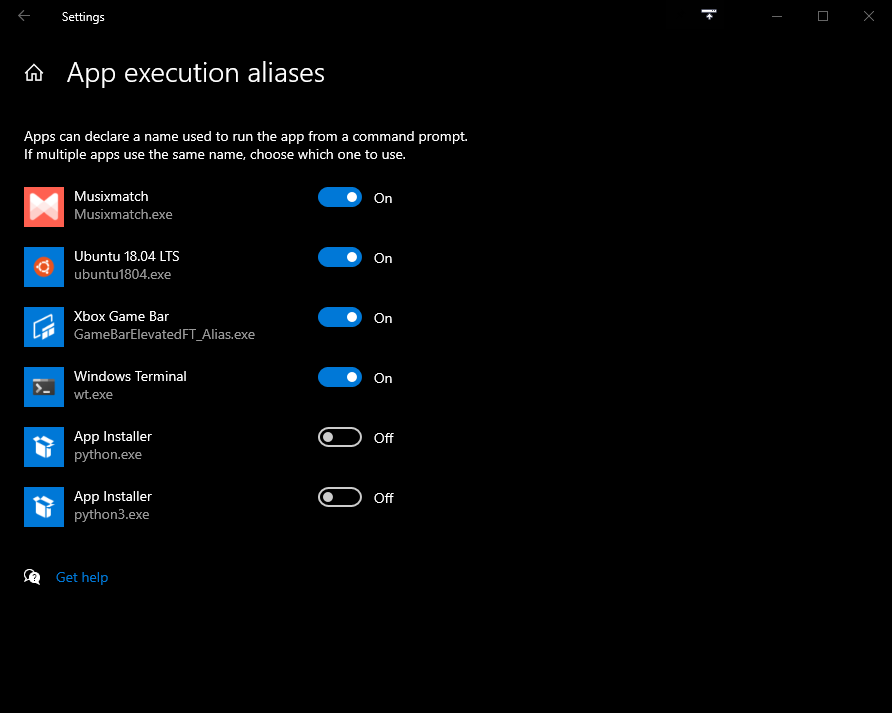
image

@Jackenmen commented on GitHub (Jun 18, 2020): *I'm guessing* whatever you have set in App execution aliases in Windows's settings: ![image](https://user-images.githubusercontent.com/6032823/85052648-9ec45100-b199-11ea-8c17-d6a9f8496386.png)
Author
Owner

@DHowett commented on GitHub (Jun 18, 2020):

Yep.

@DHowett commented on GitHub (Jun 18, 2020): Yep.
Author
Owner

@musm commented on GitHub (Jun 18, 2020):

Would be nice if the terminal icon was included as well in the context menu

@musm commented on GitHub (Jun 18, 2020): Would be nice if the terminal icon was included as well in the context menu
Author
Owner

@zadjii-msft commented on GitHub (Jun 18, 2020):

Would be nice if the terminal icon was included as well in the context menu

Hey wadda ya know, that's #6246.

Please for the love of everyone else on this issue (all 111 of you), please check these issues:
https://github.com/microsoft/terminal/issues?q=is%3Aopen+is%3Aissue+label%3AArea-ShellExtension

before commenting on "man it'd be cool if the context menu did..."

@zadjii-msft commented on GitHub (Jun 18, 2020): > > > Would be nice if the terminal icon was included as well in the context menu Hey wadda ya know, that's #6246. Please for the love of everyone else on this issue (all **111** of you), please check these issues: https://github.com/microsoft/terminal/issues?q=is%3Aopen+is%3Aissue+label%3AArea-ShellExtension before commenting on "man it'd be cool if the context menu did..."
Author
Owner

@miniksa commented on GitHub (Jun 19, 2020):

Shouldn't the Store Download link to Windows Terminal Preview (microsoft.com/store/apps/9n8g5rfz9xk3?cid=storebadge&ocid=badge)? 🤔

@DHowett oh no, we'll need to update the bot

Huh, we absolutely will need to update the bot. Lol.

Got it.

@miniksa commented on GitHub (Jun 19, 2020): > Shouldn't the `Store Download` link to Windows Terminal Preview ([microsoft.com/store/apps/9n8g5rfz9xk3?cid=storebadge&ocid=badge](https://www.microsoft.com/store/apps/9n8g5rfz9xk3?cid=storebadge&ocid=badge))? 🤔 > @DHowett oh no, we'll need to update the bot > Huh, we absolutely will need to update the bot. Lol. Got it.
Sign in to join this conversation.
1 Participants
Notifications
Due Date
No due date set.
Dependencies

No dependencies set.

Reference: starred/terminal#1416