mirror of
https://github.com/microsoft/terminal.git
synced 2026-09-25 08:24:54 +00:00
Add support for wt.exe to run commands in an existing Terminal Window #6289
Closed
opened 2026-01-31 00:34:45 +00:00 by claunia
·
69 comments
No Branch/Tag Specified
main
dev/duhowett/stop-using-projection-for-control-innards
dev/duhowett/fhl-2026/remove-paste-hairpin-handler
dev/duhowett/win7-wpf-termcontrol-squash
dev/lhecker/20226-present-leaks
dev/duhowett/wpf-1-autoscroll-to-interactivity
dev/duhowett/wpf-3-swapchain-handle
dev/duhowett/wpf-2-midi-audio-timer
dev/migrie/overview-for-pr
dev/migrie/b/markdown-paste
dev/duhowett/padding-in-atlas
fix/german-split-pane-tooltip
release-1.25
dev/cazamor/sui-rejuv/fix-spaces
dev/migrie/per-window-final
dev/cazamor/selfhost/2026-08-31
dev/migrie/b/independent-animations
dev/pabhoj/wtcli
dev/cazamor/conhost/bugfix-a11y-find
dev/cazamor/conhost/bugfix-a11y-find-1.24
dev/lhecker/theme-quality-test
dev/lhecker/theme-quality
dev/cazamor/selfhost/sui-rejuv
dev/cazamor/fix/search-selection-off-by-one
dev/duhowett/even-more-builtin-glyphs
dev/crutkas/kitty-pr1
dev/cazamor/toast/activity
release-1.24
users/GitHubPolicyService/d8615b98-f5fa-4462-bf7f-c44a1cc12096
dev/cazamor/selfhost/2026-06-18
dev/migrie/f/new-profile-subcommand
dev/cazamor/sui-rejuv/profiles-v2
dev/duhowett/asan-for-all
dev/cazamor/sui-rejuv/profiles-new
dev/cazamor/sui-rejuv/expander-groups-new
dev/cazamor/auto-save/refresh-settings
feature/llm
dev/cazamor/auto-save/model/json-manager
dev/cazamor/auto-save/settings-model
dev/migrie/s/snippet-params
users/merlinbot/1es-pt-auto-baselining-pr
niels9001/inactive-tab-foreground
dev/cazamor/selfhost/2026-05-20-home
dev/duhowett/fzf-vcxproj
dev/cazamor/selfhost/2026-05-20
dev/cazamor/selfhost/2026-05-19
dev/cazamor/selfhost/2026-05-18
niels9001/fontweight-fixes
niels9001/page-transitions
dev/duhowett/fhl-2026/rewrite-paste-and-dragdrop-handling-writeinputstring
dev/migrie/f/overview-view
dev/cazamor/selfhost/2026-05-13
dev/cazamor/selfhost/2026-05-13-sui
dev/yeelam/f/BuildTest
dev/duhowett/hax/our-own-tabview
dev/cazamor/bugfix/close-scratchpad
dev/cazamor/selfhost/2026-05-05
dev/cazamor/selfhost/2026-05-04-workspaces
dev/cazamor/selfhost/2026-05-04
dev/lhecker/20149-hotfix
dev/lhecker/osc-7-wsl
dev/migrie/workspaces-real
dev/migrie/fhl-spring-2026/quake-4
dev/lhecker/pwsh-5.1
dev/cazamor/sui/dropdown-page
dev/cazamor/selfhost/2026-04-08
dev/cazamor/selfhost/2026-04-06
dev/migrie/fhl-spring-2026/confirmCloseOn
dev/cazamor/confirmCloseOn/dont-ask-me-again
dev/lhecker/inproc-conpty
dev/duhowett/powershell-module-supercharger
dev/cazamor/a11y/vt-seq-prototype
dev/migrie/fhl-spring26/osc777-2
dev/migrie/fhl-spring26/2/notification-infrastructure
dev/migrie/fhl-spring-2026/side-tabs
dev/cazamor/copilot/playground
dev/migrie/fhl-spring-2026/quake-3.5
dev/migrie/fhl-spring26/osc777
dev/migrie/fhl-spring26/unpackaged-notify
dev/migrie/fhl-spring26/bellStyle-notification
dev/migrie/fhl-spring26/activity-notifications
dev/migrie/fhl-spring-2026/x-open
dev/migrie/fhl-spring-2026/quake-5
dev/migrie/fhl-spring26/nextTab-filter
dev/duhowett/atlas-draw-d2d-dots-curlies-consistently
dev/lhecker/14165-conhost-font-size
dev/lhecker/ottosson-by-default
dev/duhowett/hax/unix-pty
dev/duhowett/hax/cmake
dev/lhecker/generate-256-colors
dev/lhecker/dcs-perf
dev/lhecker/1410-large-scrollback
dev/cazamor/selfhost/2026-02-10
dev/lhecker/11509-kitty-keyboard-protocol-wip
dev/cazamor/selfhost/2026-01-29
dev/lhecker/benchcat-fix
dev/duhowett/eoy-25/allow-set-foreground
release-1.23
dev/cazamor/bot/deprecate-area-atlasengine
dev/cazamor/selfhost/2026-01-20
dev/cazamor/selfhost/2026-01-12
dev/cazamor/spec/auto-save
dev/duhowett/fhl-2024/asciicast-recorder
dev/duhowett/eoy-25/underline-colors-in-atlas-bug
dev/duhowett/hax/serial-port-support
dev/duhowett/connection-utf8
dev/lhecker/fused-event
dev/lhecker/18928-wip
dev/duhowett/fhl-2024/clang
dev/duhowett/vt-cache-changes
dev/cazamor/uia-leak
release-1.22
dev/cazamor/selfhost/11-18-v3
dev/cazamor/selfhost/11-18
dev/duhowett/fhl-2025/bitmap-fonts
dev/duhowett/server-2025-vms
dev/duhowett/cant-believe-gotta-do-this-shit
dev/lhecker/dark-mode
dev/cazamor/sui/invert-cursor-color
dev/duhowett/fhl-2025/wt-command-palette-cmdpal-integration
dev/duhowett/fhl-2025/wt-json-relative-icons
dev/lhecker/fucking-service-locator
dev/duhowett/unicode-17
dev/duhowett/multi-blern
dev/lhecker/wellp2-alt
dev/duhowett/wellp2
dev/lhecker/1860-horizontal-scrollbar
dev/lhecker/fix-window-count
dev/cazamor/sui/tab-color-old
dev/duhowett/hax/conhost-icon
dev/duhowett/hax/sui-color-chip-border
dev/duhowett/hax/terminalsettings-as-a-lib-/with-types-merged-into-tsm
dev/pabhoj/page_control_input_cleanup
dev/duhowett/padding-in-atlas-rebase-20250729
dev/lhecker/attach-thread-input
dev/duhowett/portable-shader-members
msbuildcache-reenable
dev/cazamor/selfhost/1.24-2025-06-10
dev/cazamor/upgrade-settings-containers
dev/cazamor/sui/ext-page/powershell-stub
dev/cazamor/selfhost/1.24-2025-05-15
dev/pabhoj/sui_action_overhaul
dev/cazamor/selfhost/1.24-2025-05-06
dev/cazamor/selfhost/1.24-2025-04-29
dev/cazamor/sui/ext-page/lazy-load-objects
dev/cazamor/sui/ext-page/badge
dev/cazamor/selfhost/1.24
dev/lhecker/sdk-26100
dev/duhowett/testing
dev/jadelaga/VS-Pty.Net-1.22
dev/duhowett/fhl-2025/what-if-no-content-ids
dev/lhecker/18584-part2
dev/lhecker/get-lang-id
dev/duhowett/hax/clogs
release-1.21
dev/pabhoj/featurellm_fix_paste
dev/lhecker/grapheme-backup
dev/jadelaga/VS-Pty.netFixes
dev/lhecker/atlas-engine-compute-shader
dev/migrie/s/ai-providers
dev/lhecker/animated-cursor-wip
dev/pabhoj/featurellm_timeout
dev/lhecker/dark-mode-alt
dev/duhowett/osc-strided-table
dev/lhecker/bugbash
dev/pabhoj/featurellm_improve_parsing
dev/duhowett/coast-to-coast
dev/lhecker/curly-improvements
dev/duhowett/net8
dev/duhowett/onebranch-custom-pool
dev/lhecker/renderer-overhaul-2nd-attempt
dev/lhecker/cleanup
dev/cazamor/sui/confirmation-announcements
dev/lhecker/winconpty-cleanup
dev/duhowett/learn/rewrite-highlights
dev/migrie/b/no-nesting-when-searching
release-1.20
dev/duhowett/sel-2-spans
dev/lhecker/7118-cursor-color
dev/lhecker/remove-glyph-width
dev/lhecker/igfw-scroll-region
dev/lhecker/17656-win32im-double-encoding
dev/duhowett/fhl-2024/merge-idls
dev/duhowett/feed-forward-variables
dev/lhecker/remove-chrome-math
dev/duhowett/copylink
dev/duhowett/applicableactions
gh-readonly-queue/main/pr-17566-de50310295b7d92ed3d51f07974a2a945776bf9d
dev/lhecker/atlas-engine-stride-copy
dev/migrie/b/bump-nuget-in-c
dev/migrie/f/992-redux-redux
dev/migrie/f/filter-weight-input-too
dev/migrie/f/disable-nesting
dev/migrie/f/local-snippets-cleaner
dev/migrie/s/1553-mouse-bindings
selfhost-1.22-bugbash-2024-06-04
selfhost/1.22-bugbash-2024-06-04
dev/lhecker/15689-tab-drag-crash-fix
dev/migrie/f/sxnui-font-size-change
dev/migrie/f/local-snippets-on-action-refactor
dev/migrie/f/just-local-snippets
dev/migrie/save-input-patches
dev/migrie/f/md-pane-official
dev/migrie/base-pane
dev/migrie/fhl/tasks-pane
release-1.19
dev/migrie/b/17130-clear-marks-2
dev/migrie/b/17075-its-me-the-killer
dev/duhowett/i-figured-out-why-sometimes-the-publish-build-failed
dev/duhowett/nuget-publication-with-aad-app-id
selfhost-1.20
dev/duhowett/graph
dev/migrie/b/15803-activate-dont-copypasta
dev/duhowett/is-pgo-broken-because-of-sui-being-slower
dev/migrie/b/remove-terminaltab
dev/migrie/fhl/md-pane
dev/migrie/fhl/local-tasks-2024
dev/migrie/fhl/2024-inline-notebook
dev/duhowett/interface-projects
dev/duhowett/dead-loc
release-1.18
dev/migrie/fhl/2024-spring-merge-base
dev/duhowett/hax/l9
inbox
dev/migrie/14073-on-main
dev/duhowett/hax/conhost_dump_replay
user/lhecker/atlas-engine-srgb
dev/migrie/fhl/sxnui-tooltips-3
dev/migrie/7718-notifications-experiments
dev/migrie/fhl/7718-notifications
dev/migrie/fhl/7718-notifications-reboot
dev/lhecker/remove-gsl
dev/lhecker/16575-TerminateProcess
dev/lhecker/window-thread-climate-control
dev/lhecker/client-context-input-output-mode
dev/lhecker/ring-buffer-input-buffer
release-1.17
dev/lhecker/propsheet-fontdlg-refactor
dev/lhecker/renderer-overhaul
dev/pabhoj/test
dev/duhowett/chop
dev/lhecker/til-ulong-cleanup
dev/lhecker/til-env-cleanup
dev/migrie/f/16005-a11y-pane
dev/cazamor/a11y/fastpass
dev/migrie/b/15487-push-cwd
dev/migrie/b/15536-or-15219-idk
dev/duhowett/move-timers-down-into-core-interactivity-etc
dev/migrie/b/15812-broadcast-paste-two
dev/migrie/fhl-fall-2023/11162-quake-III-arena
dev/migrie/fhl-fall-2023/1620-automatic-tab-progress
dev/migrie/fhl-fall-2023/9992-quake-II
dev/migrie/fhl-fall-2023/9992-default-quake-settings
dev/migrie/fhl-fall-2023/9992-window-name-settings
dev/migrie/fhl-fall-2023/oceans
dev/lhecker/ColorScheme-improvements
dev/migrie/search-v2-v3
dev/migrie/pr-15717/its-dangerous-to-go-alone
dev/migrie/f/4768-taskbar-icons
dev/migrie/f/3121-tooltips
dev/duhowett/sticky-control
dev/duhowett/fix-tracing-2
dev/migrie/b/add-support-for-vsc-marks
dev/migrie/f/1860-this-is-literally-what-less-is-for
dev/migrie/s/5916-draft
dev/lhecker/tracy
dev/migrie/s/north-star
dev/cazamor/tag-youre-it
dev/migrie/f/12336-let-it-mellow
dev/migrie/f/now-with-more-compat-settings
dev/migrie/f/compatibility-sui
dev/duhowett/hax/wpf-atlas
dev/duhowett/fgb
dev/migrie/b/15487-relative-paths-are-hard
dev/lhecker/colrv1
loc-update
dev/migrie/fhl/dyndep-csharp
dev/migrie/fhl/dyndep
dev/migrie/fhl-clickable-send-input
dev/migrie/f/cwd-hijinks-5506-15173
dev/lhecker/openconsole-async-start
1.17
dev/migrie/bump-scratch
dev/migrie/f/3726-restartConnection
dev/migrie/b/cxn-restarting-attempt-1-backport
dev/migrie/b/9053-part-3-the-actual-doing-of-the-thing
dev/migrie/b/13388-focus-logger
dev/migrie/b/9053-part-4-i-guess-defterm
dev/migrie/oop/3/of-the-silmarils
of-the-darkening-of-valinor
dev/migrie/fhl/notebook-proto-000
dev/migrie/f/narrator-buddy
dev/migrie/mux-2.8.2-march-2023
dev/migrie/f/roast-mutton
dev/migrie/f/12861-preview-input
dev/lhecker/clang-tidy
dev/migrie/f/3121-wE-dOnT-hAvE-dEv-DaYs
dev/duhowett/compiler-compliance
dev/duhowett/i-have-a-burning-hatred-for-ntstatus-of-later-so-why-not-fix-it
dev/duhowett/shorthand-namespaces
dev/duhowett/rename-all-dlls
dev/duhowett/errordialog
dev/lhecker/gsl-narrow
dev/migrie/b/11522-dumb-idea
release-1.16
dev/miniksa/env
dev/duhowett/hax/embed-everything
dev/migrie/b/13388-attempt-003
dev/migrie/b/14512-test-research
dev/migrie/b/13388-attempt-002
dev/migrie/b/14464-copyOnSelect-moving-text
dev/migrie/s/thema-schema-for-1.16
dev/migrie/s/theme-pair-schema
dev/migrie/b/13388-experiments-1
dev/cazamor/spec/a11y-vt-seq
dev/migrie/b/14557-empty-folder-dropdown
dev/cazamor/spec/a11y-vt-seq-v2
release-1.15
dev/migrie/f/process-model-v3-test-0
dev/lhecker/vsconfig
dev/migrie/s/5000-presentation
dev/lhecker/5907-startup-perf
dev/lhecker/winrt-file-api-benchmark
dev/duhowett/128-bit-compiler
dev/migrie/fhl/more-shell-integration
dev/migrie/b/13388-experiments-0
dev/lhecker/til-to-ulong-improvements
dev/migrie/s/markdown-notebooks
dev/cazamor/a11y/nav-by-page
dev/cazamor/a11y/system-menu-support
dev/duhowett/no-private-registry-keys
dev/cazamor/wpf/uia-expose-enable-events
dev/cazamor/wpf/uia-events
extendAISpec
dev/migrie/fhl/clickSendInput
dev/migrie/fhl/save-command
dev/migrie/b/theme.profile
dev/migrie/b/13943-a-test-for-this
dev/migrie/oop/2/endgame
dev/duhowett/hax/merge_idl
dev/migrie/oop/2/infinity-war
dev/migrie/spellbot-cve
dev/cazamor/a11y-sev3/new-profile-announcement
dev/migrie/fhl/upside-down-mode
release-1.14
dev/migrie/f/9458-startupInfoToTerminal
dev/migrie/fhl/5916-triggers
dev/migrie/b/13523-context-menu
dev/migrie/b/6523-endpaint-outside-lock
dev/migrie/b/12413-OnUnhandledException
dev/lhecker/render-snapshot
dev/cazamor/1.15/scroll-to-point
dev/migrie/mux-2.8-aug-2022
dev/lhecker/lock-console-guard
dev/migrie/f/1504-final
dev/pabhoj/sui_follow_ups
dev/migrie/f/til-winrt.h
dev/cazamor/color-picker-redesign
dev/migrie/fhl/vscode-autocomplete-prototype
dev/migrie/f/1504-prototype
dev/migrie/oop/2/loki
dev/migrie/oop/2/wandavision
dev/migrie/b/8698-YOURE-OUT-OF-ORDER
fabricbot-configuration-migration
dev/migrie/b/12788-did-it-work
dev/migrie/b/localtests-ci-2022
dev/cazamor/1.14/replace-compareInBounds
dev/pabhoj/preview_string
dev/cazamor/ks/switchSelectionEndpoint
dev/migrie/oop/2/COM-ISwapChainProvider-attempt-1
dev/migrie/b/dxd-marker
release-1.13
dev/migrie/b/13066-for-defterm
dev/cazamor/revert-dwm
dev/migrie/b/13066-sw_flash_repeatedly
dev/migrie/b/no-cloaky-cloak
dev/migrie/f/apples-to-oranges
dev/migrie/f/no-custom-caption-btns
dev/migrie/f/10509-mica-and-transparent-titlebars
dev/migrie/b/12911-wpf-focus-fg
dev/migrie/titebar-colors
dev/lhecker/4015-cursor
dev/migrie/fhl/rgb-rainbow-window-frame
dev/migrie/fhl/scroll-marks-prototype
release-1.12
dev/miniksa/compliance
dev/migrie/f/default-icons
dev/migrie/fhl/10175-web-search-for-text
dev/migrie/fhl/menu-complete-prototype
dev/migrie/b/2988-merged-prototypes
dev/migrie/b/2988-niksa-msgs-prototype
dev/migrie/fhl/9583-colorSelection
dev/migrie/b/10609-sui-leak
dev/migrie/b/32-attempt-3
dev/migrie/release-1.12-rejuv-attempt-2
dev/migrie/demo-for-presentation
dev/migrie/b/32-but-im-here-for-12567
dev/duhowett/conpty_first_frame_blug
dev/migrie/b/11092-unfocused-acrylic-settings
dev/migrie/localtests-in-ci
dev/migrie/b/12356-attempt-2
dev/migrie/b/12353-with-null
dev/migrie/b/12387-trim-spaces
dev/migrie/b/5033-bad-start
dev/lhecker/12351-broken-locales
dev/migrie/b/8663-input-to-oem-crash
dev/migrie/b/11743-win10-opacity-is-hard
dev/migrie/f/ctrl-click-elevate
dev/migrie/b/12196-shim-localization
dev/lhecker/issue-4015-til-rect
dev/cazamor/eim/mvvm
dev/migrie/f/--elevate
dev/migrie/b/11668-i-think
dev/migrie/b/11994-wsl-mangline
dev/migrie/eim/3475-action-xmacros
dev/migrie/eim/incremental-build-000
dev/cazamor/a11y/fake-uia-data
dev/migrie/f/non-terminal-content-elevation-warning
dev/migrie/f/632-on-warning-dialog
dev/lhecker/rgba
dev/migrie/b/8480-keybindings-in-tabs
release-1.11
dev/migrie/b/11561-dead-ends
dev/migrie/oct-21-roadmap-update
dev/migrie/fhl/adaptive-card-extension
dev/cazamor/test/11440
dev/migrie/f/warning-dlg-automation
dev/migrie/b/1.12-crash-on-exit
dev/migrie/b/11146-next-tab-in-cmdpal
release-1.10
dev/migrie/5ff9a24-and-75e2b5f
dev/duhowtt/hax/cpal-jumplist-async
dev/lelian/actionid/1
dev/migrie/f/just-elevated-state
dev/lhecker/terminal-settings-cleanup
dev/migrie/gh-10824
dev/pabhoj/cursor_light
dev/migrie/oop/wandavision
dev/migrie/oop/endgame
dev/migrie/oop/infinity-war
dev/lhecker/app-state-actually-hidden
dev/migrie/b/6160-dynamic-default-warning
dev/mgirie/b/more-nchhittest-ideas
dev/migrie/b/9320-interfacial-separation
cinnamon/fhl/find-contextmenu
dev/lhecker/wsl-distro-generator-cleanup
dev/migrie/b/10875-but-more-clever
dev/migrie/b/broken-globalsummon-overloading
dev/duhowett/hax/rle-row
dev/migrie/fhl-2021/cmdpal-select-list
dev/migrie/fhl-2021/differential-pixel-shading
dev/duhowett/hax/no-writable-glyphat
dev/migrie/fhl-2021/more-shader-variables
dev/migrie/titlebar-shenannigans
dev/miniksa/win10_font_matching
dev/lhecker/conhost-oom
dev/migrie/b/10332-less-snappy-scrolling
dev/migrie/b/7422-1px-top-border
release-1.9
dev/cazamor/move-scratch
release-1.8
dev/miniksa/manifest_2
release-1.6
release-1.7
dev/migrie/oop/the-whole-thing
dev/migrie/oop/connection-factory
dev/migrie/f/quake-dropdown-2
dev/miniksa/rle2
dev/migrie/f/quake-toCurrent-experiments-2
dev/migrie/f/quake-toCurrent-experiments
dev/migrie/f/quake-dropdown
dev/cazamor/actions-page/template
dev/duhowett/hax/cursor_stamp_foreground_background
dev/migrie/f/1860-hey-might-was-well-hack-during-a-hackathon
dev/migrie/oop-terminal.control-split-control
dev/duhowett/hax/build-with-wholearchive
dev/cazamor/spec/tsm-actions-temp
dev/migrie/oop-tear-apart-control
dev/migrie/oop-scratch-3
dev/cazamor/sui/bugfix-reload-crash
dev/migrie/f/xmacro
dev/cazamor/sui/proto/profile-nav-view
dev/migrie/f/name-windows
dev/migrie/dol/messing-with-shaders-take-1
release-1.5
dev/cazamor/sui/inheritance-hyperlinks-test
dev/migrie/r/commandline-lib-002
dev/migrie/f/com.fabrikam.toaster
dev/cazamor/adaptive-cards-prototype
dev/migrie/f/commandline-lib
dev/miniksa/zipzoom2
dev/migrie/f/remote-commandlines
dev/migrie/f/632-elevated-profiles
dev/migrie/oop-broker-000
dev/migrie/fix-pr-7015
dev/duhowett/clang
dev/miniksa/input_tests_2
dev/miniksa/input2
dev/migrie/oop-rpc-000
release-1.4
dev/migrie/oop-mixed-elevation-1
dev/migrie/oop-window-content-1
cinnamon/open-json
dev/miniksa/input_tests
dev/duhowett/hax/tsm-graphviz
dev/miniksa/input
dev/duhowett/hax/caption_buttons
release-1.3
dev/cazamor/a11y/expand-line-under-viewport
dev/cazamor/acc/ch/word-nav-perf
dev/cazamor/spec/settings-ui-architecture-draft
dev/duhowett/hax/tap_upgrade
dev/migrie/f/pane-exit-animation
release-1.2
dev/migrie/move-lib-up-and-dll-down
release-1.1
dev/migrie/f/branch-2-backup
dev/migrie/f/settings-getters-only
dev/duhowett/hax/command_palette_search
dev/migrie/f/6856-let-terminalpage-expandcommands
dev/migrie/f/theming-2020
dev/migrie/oop-scratch-4
dev/duhowett/hax/punchout
dev/migrie/s/action-ids
dev/migrie/f/lets-just-generate-these
dev/migrie/oop-scratch-2
dev/miniksa/dcomp
dev/miniksa/gotta_go_fast_spsc
dev/miniksa/gotta_go_fast
dev/miniksa/perf_skip_checks
dev/miniksa/perf_buffer_dig
dev/migrie/s/1203-cursorTextColor
dev/migrie/f/fix-intellisense-i-guess-backup
release-1.0
dev/migrie/f/execute-commandlines
dev/migrie/f/2046-Command-Palette-v2
dev/migrie/b/6421-passthrough-alt
dev/migrie/b/moving-focus-is-hard
dev/miniksa/set
dev/migrie/f/1203-phase-1
dev/migrie/f/get-localtests-in-ci
dev/cazamor/drag-panes
dev/cazamor/tile-background
release-0.11
dev/duhowett/dev/duhowett/hax/appstate_remember
dev/duhowett/hax/wpf_win_8_hax
dev/migrie/b/3088-weird-exact-wrap-resize
release-0.10
dev/migrie/b/4591-custom-scaling-bug
dev/duhowett/hax/attr_smuggling
dev/migrie/b/5161-mingw-vim-fix
dev/miniksa/dx_bitmap
dev/migrie/b/1503-try-messing-with-cooked-read
dev/duhowett/eyebeam
dev/migrie/b/5113-experiments
dev/duhowett/hax-selection-exclusive
dev/migrie/f/more-vt-renderer-tracing
dev/miniksa/bitmap
dev/duhowett/wprp
dev/miniksa/bitmap-mad-with-power
dev/migrie/f/resize-quirk
dev/migrie/f/reflow-buffer-on-resize-002
wpf-renderer-revert
dev/miniksa/draw
release-0.9
dev/miniksa/tabs-color-fix
dev/miniksa/4309
dev/migrie/f/just-wrapping
dev/migrie/b/3490-try-another-resize-algo
release-0.8
dev/migrie/b/3490-a-simpler-resize
dev/migrie/b/3490-resize-down
dev/miniksa/4254
dev/migrie/f/conpty-wrapped-lines-2
dev/migrie/b/be-better-at-hiding
dev/migrie/f/3327-xaml-theming-proto
dev/miniksa/gardening2
release-0.7
dev/duhowett/conpty-flags
dev/migrie/f/603-vintage-opacity
dev/migrie/PR#3181-comments
dev/duhowett/font-64
release-0.5
dev/migrie/b/663-paste-lf-always
dev/migrie/b/2011-reordered-fallthrough-strings
dev/migrie/b/411-init-tab-stops
dev/migrie/b/json-patching-is-hard
dev/migrie/b/2455-try-getting-tests-working
dev/migrie/b/1223-change-256-table
dev/migrie/f/2171-openterm.cmd
dev/migrie/f/drag-panes
dev/migrie/f/2046-command-palette
release-0.3
dev/miniksa/manager
dev/migrie/f/non-terminal-panes
dev/migrie/f/passthrough-2019
dev/miniksa/shared_pch
dev/migrie/f/1897-less-duplicated-work
release-0.2
dev/cazamor/mcs/viewport-selection
dev/duhowett/version_hack
v1.25.1912.0
v1.24.11911.0
v1.25.1322.0
v1.24.11321.0
v1.25.1241.0
v1.25.1171.0
v1.25.923.0
v1.24.10921.0
v1.25.622.0
v1.24.10621.0
v1.24.10212.0
v1.23.20211.0
v1.24.3504.0
v1.23.13503.0
v1.24.2812.0
v1.23.12811.0
v1.24.2682.0
v1.23.12681.0
v1.24.2372.0
v1.23.12371.0
v1.23.12102.0
v1.22.12111.0
v1.23.11752.0
v1.22.11751.0
v1.22.11141.0
v1.23.11132.0
v1.23.10732.0
v1.22.10731.0
v1.21.10351.0
v1.22.10352.0
v1.23.10353.0
v1.22.3232.0
v1.21.3231.0
v1.22.2912.0
v1.21.2911.0
v1.22.2702.0
v1.21.2701.0
v1.22.2362.0
v1.21.2361.0
v1.21.1772.0
v1.20.11781.0
v1.21.1382.0
v1.20.11381.0
v1.21.1272.0
v1.20.11271.0
v1.20.11215.0
v1.19.11213.0
v1.20.10822.0
v1.19.10821.0
v1.20.10572.0
v1.19.10573.0
v1.20.10303.0
v1.19.10302.0
v1.18.10301.0
v1.20.10293.0
v1.19.10292.0
v1.18.10291.0
v1.18.3181.0
v1.19.3172.0
v1.19.2831.0
v1.18.2822.0
v1.19.2682.0
v1.18.2681.0
v1.18.1462.0
v1.17.11461.0
v1.18.1421.0
v1.17.11391.0
v1.17.11043.0
v1.16.10261.0
v1.17.1023
v1.16.10231.0
v1.15.3465.0
v1.16.3463.0
v1.15.2712.0
v1.15.2874.0
v1.16.2641.0
v1.16.2523.0
v1.15.2524.0
v1.15.2282.0
v1.14.2281.0
v1.14.1962.0
v1.15.2002.0
v1.15.2001.0
v1.15.1862.0
v1.14.1861.0
v1.14.1451.0
v1.14.1432.0
v1.13.11431.0
v1.13.10983.0
v1.12.10982.0
v1.13.10733.0
v1.12.10732.0
v1.13.10395.0
v1.12.10393.0
v1.13.10336.0
v1.12.10334.0
v1.12.3472.0
v1.11.3471.0
v1.12.2931.0
v1.12.2922.0
v1.11.2921.0
v1.11.2731.0
v1.10.2714.0
v1.11.2421.0
v1.10.2383.0
v1.10.1933.0
v1.9.1942.0
v1.9.1523.0
v1.8.1521.0
v1.9.1445.0
v1.8.1444.0
v1.8.1092.0
v1.7.1091.0
v1.8.1032.0
v1.7.1033.0
v1.7.572.0
v1.6.10571.0
v1.5.10411.0
v1.6.10412.0
v1.6.10272.0
v1.5.10271.0
v1.5.3242.0
v1.4.3243.0
v1.5.3142.0
v1.4.3141.0
v1.4.2652.0
v1.3.2651.0
v1.3.2382.0
v1.2.2381.0
v1.1.2233.0
v1.2.2234.0
v1.1.2021.0
v1.2.2022.0
v1.1.1812.0
v1.0.1811.0
v1.1.1671.0
v1.0.1401.0
v0.11.1333.0
v0.11.1251.0
v0.11.1191.0
v0.11.1111.0
v0.11.1121.0
v0.10.781.0
v0.10.761.0
v0.9.433.0
v0.8.10261.0
v0.8.10091.0
v0.7.3451.0
v0.7.3382.0
v0.7.3291.0
v0.7.3252.0
v0.6.3181.0
v0.6.2951.0
v0.6.2911.0
v0.5.2762.0
v0.5.2761.0
v0.5.2681.0
v0.5.2661.0
v0.3.2321.0
v0.4.2342.0
v0.4.2382.0
v0.3.2171.0
v0.3.2142.0
v0.2.1831.0
v0.2.1715.0
v0.2.1703.0
v0.1.1621.0
v0.1.1581.0
v0.1.1502.0
v0.1.1431.0
v0.1.1361.0
v0.1.1093.0
v0.1.1161.0
v0.1.1204.0
experiment-master
v0.1.1025.0
experiment-OutsideBuild
broken-tabstops
RS2-final
v0.1.1002.0
experiment-rel-windows-inbox
experiment-f-ServerApp
v0.1.1211.0
1904.29002
1810.02002
1708.14008
Labels
Clear labels
⛺ Reserved
A11yCO
A11yMAS
A11ySev1
A11ySev2
A11ySev3
A11yTTValidated
A11yUsable
A11yVoiceAccess
A11yWCAG
Area-Accessibility
Area-AtlasEngine
Area-AzureShell
Area-Build
Area-Build
Area-Chat
Area-CmdPal
Area-CodeHealth
Area-Commandline
Area-CookedRead
Area-DefApp
Area-Extensibility
Area-Fonts
Area-GroupPolicy
Area-i18n
Area-Input
Area-Interaction
Area-Interop
Area-Localization
Area-Output
Area-Performance
Area-Portable
Area-Quality
Area-Remoting
Area-Rendering
Area-Schema
Area-Server
Area-Settings
Area-SettingsUI
Area-ShellExtension
Area-ShellExtension
Area-ShellExtension
Area-Suggestions
Area-Suggestions
Area-TerminalConnection
Area-TerminalControl
Area-Theming
Area-UserInterface
Area-VT
Area-Windowing
Area-WPFControl
AutoMerge
Blocking-Ingestion
Culprit-Centennial
Culprit-WinUI
Disability-All
Disability-Blind
Disability-LowVision
Disability-Mobility
External-Blocked-WinUI3
Fixed
Gathering-Data
good first issue
HCL-E+D
HCL-WindowsTerminal
Help Wanted
Impact-Compatibility
Impact-Compliance
Impact-Correctness
Impact-Visual
In-PR
InclusionBacklog
InclusionBacklog-Windows TerminalWin32
InclusionCommitted-202206
Issue-Bug
Issue-Docs
Issue-Feature
Issue-Feature
Issue-Question
Issue-Samples
Issue-Scenario
Issue-Task
Needs-Attention
Needs-Author-Feedback
Needs-Bisect
Needs-Discussion
Needs-Repro
Needs-Tag-Fix
Needs-Tag-Fix
Needs-Triage
No-Recent-Activity
Priority-0
Priority-1
Priority-2
Priority-3
Product-Cmd.exe
Product-Colortool
Product-Colortool
Product-Colortool
Product-Conhost
Product-Conpty
Product-Meta
Product-Powershell
Product-Terminal
Product-WSL
pull-request
Resolution-Answered
Resolution-By-Design
Resolution-Duplicate
Resolution-External
Resolution-Fix-Available
Resolution-Fix-Committed
Resolution-No-Repro
Resolution-Won't-Fix
Severity-Blocking
Severity-Crash
Severity-DataLoss
spam
this-will-be-a-breaking-change
Tracking-External
WindowsTerminal_Win32
Work-Item
zAskModeBug
zInbox-Bug
Mirrored from GitHub Pull Request
Milestone
No items
No Milestone
Projects
Clear projects
No project

Notifications
Due Date
No due date set.
Dependencies
No dependencies set.
Reference: starred/terminal#6289
Reference in New Issue
Block a user
Blocking a user prevents them from interacting with repositories, such as opening or commenting on pull requests or issues. Learn more about blocking a user.
Delete Branch "%!s()"
Deleting a branch is permanent. Although the deleted branch may continue to exist for a short time before it actually gets removed, it CANNOT be undone in most cases. Continue?
Originally created by @Danthar on GitHub (Feb 5, 2020).
Originally assigned to: @zadjii-msft on GitHub.
Description of the new feature/enhancement
I have been playing around with Jetbrains Rider, and when i start a console app with that IDE, it runs the console window inside a docked window in the IDE.
So what i was thinking. How cool would it be, if Windows Terminal allows external applications to start a new Console window in the currently running Windows Terminal instance.
That way whether its VisualStudio or Rider, those IDE's can be configured to start a new Console window inside the Windows Terminal instance.
The way i see this working is: I press F5/ctrl-F5 in visual studio, and instead of opening a new cmd console window, a new tab appears in my running Windows Terminal instance.
@lostmsu commented on GitHub (Feb 6, 2020):
Yes, please. There's a Visual Studio extension, that lets you open command line in the current project folder. I set it to launch wt.exe, and it always creates a new window, but I'd love if I could pass a parameter to wt.exe, so that if Terminal is already running, it would be activated a new tab would open there instead.
@DHowett-MSFT commented on GitHub (Feb 7, 2020):
Thanks for the request! I thought we had a backlog item for "allow remote control of a terminal" (like: wt.exe could
--remoteto control another open instance and add tabs or whatever), but it looks like we don't.This is now that issue. Triaged into backlog.
/cc @zadjii-msft: I may be wrong in not finding a "remote control" issue
@DHowett-MSFT commented on GitHub (Feb 7, 2020):
Partially supported by #2080.
@zadjii-msft commented on GitHub (Feb 7, 2020):
This was briefly mentioned in this spec
Which yea is part of #2080, but I don't think has it's own issue.
@Rumbah2 commented on GitHub (Feb 14, 2020):
Wow, I was just thinking about "starting a new program/task in any existing windows terminal window" or a "single instance mode" to populate a WT window with multiple tasks via CLI would be great.
But something like sessions would be even better and more flexible.
But I admit that I'd prefer a "quick and dirty" single instance mode in the near future over a flexible session management in the distant future (as I could use it sooner than later).
@nmyron commented on GitHub (Apr 24, 2020):
So, I wanted to report an issue I've found that seems to be the same as "https://github.com/microsoft/terminal/issues/4942" - it was closed as a duplicate of this issue, but I don't believe that it truly is. Because the docs say (quoted from one of the closure remarks on the other issue)
However, say I go to start and type "wt", and get myself a new console. Then I type "wt new-tab "PowerShell"", that will start a second wt window with the desired tab, while waiting at the first window for me to close the new window (process starts and the terminal is waiting for process end). So I can't go back to that "first invocation" to issue additional commands. And if I go to the second-launched WT console, and again type in wt.exe new-tab, I will get a third new window, not a second new tab in the already-launched second session. And in no way have I found yet with the command line inputs to split a pane in an existing window. Every time I issue split-pane it behaves the same as new-tab, and I get an additional window.
Replicate:
Start > wt (opens new Windows Terminal window)
wt.exe new-tab (will start a second new Windows Terminal window. If your first terminal was running PowerShell, that session is now waiting for this second new window to close - trying to "start-process" with "-nonewwindow" does not help)
Since first terminal window is now waiting for second to close, we cannot give additional commands there, going to the second window and issuing "wt new-tab" gets a third window. Trying "wt split-pane -H -P "PowerShell" in any existing window, also, does not add a split pane in any current window, it opens yet another window with the split-pane settings requested.
Because of this behavior, at this point, you cannot go back to the initial processor to issue additional WT commands. And if you go to the secondly-launched terminal window, and issue again wt new-tab, you'll get a third new window, and a second window waiting on the third to close.
I tried also starting with Command Prompt. It will start a new window, and will NOT wait for that window to close. So I AM able to return to that initial processor to try issuing additional commands. But, they behave the same. Additional new-tab commands bring new windows, not just new tabs in existing windows.
So I would pose here that as described in the closed issue your "new-tab" and "split-pane" features are operating entirely contrary to their documented conditions. And contrary to your closure remarks on the above-linked issue, it and my comment here I don't believe to be a dupe of this feature request, but an ask to make the feature behave as described in your documentation. That would make this not a feature request but a bug fix. As either the existing feature's behavior is incorrect, or the document is not describing it's expected behavior correctly. By reading your document, I expect that the first time I issue "wt new-tab" I will get a new window. And every subsequent time I issue this same command, it will open in an already-existing window as this is what you tell us it will do right now per the quote from the doc above, and it does not do this that I can verify in any way or make happen whatsoever.
Thanks!
Nathan M
@zadjii-msft commented on GitHub (Apr 24, 2020):
Hey so I literally just went and updated the docs on this. You can check out the PR here.
Basically, every time you run
wt, it's going to create a new window first. Always. This thread right here is the thread tracking adding support to allow the user to say something likewt --inTheCurrentWindow split-pane.These subcommands are all supposed to run as a single commandline invocation.
wt new-tab ; split-pane ; new-tabwill open one window with two tabs, and the first tab has a split in it. As called out in the spec:RE: powershell waiting for a WT window to close - you'd probably be interested in this section of the
UsingCommandlineArgumentsdoc that was also recently added.@nmyron commented on GitHub (Apr 24, 2020):
Awesome! Thanks a bunch!
So, in the current iteration, there's no way in an existing window to split a pane into a new command processor? For example, say I wanted to in my existing powershell window, split-pane and bring up an ubuntu prompt in the horizontal space below? I'd have to chain those commands up to build a new window at command line, essentially?
@zadjii-msft commented on GitHub (Apr 24, 2020):
@nmyron that's correct. You can always just use a keybinding to split a pane, but if you'd like to do it at the commandline, you'll have to be patient ☺️
@nmyron commented on GitHub (Apr 24, 2020):
Yes I have keybindings to do a split-pane, but I've yet to figure out how to split a pane into a particular processor via keybindings.
Edit - had to dig down in the docs a bit. Found the definitions for split-pane and new-tab in the Settings Schema doc. That got me where I needed to be I think.
Similar to the below suggestion, I copied the "auto-split" keybinding to create the below to launch Ubuntu in an auto-split pane. Thanks all
{ "command": { "action": "splitPane", "split": "auto", "profile": "Ubuntu" }, "keys": "ctrl+shift+d" }@zadjii-msft commented on GitHub (Apr 24, 2020):
You can actually do something like
and that'll open your default profile, but with the commandline "powershell.exe" as opposed to whatever the profile's usual
commandlineis@FallenGameR commented on GitHub (May 13, 2020):
Here is my feedback about this requested feature. I want to do something like console fork - to start a new pwsh session on a new tab, but I'd like it to have the same current folder
$pwd. Right now when I'm starting a new pwsh tab the Windows Terminal takes some hardcoded initial folder location. If I specify it to use%__CD__%instead, it doesn't pick up any changes to$pwdanyway. Even if I change[Environment]::CurrentFoldernew pwsh session doesn't pick it up.So I was hoping I could make a workaround script that would start wt.exe passing it working directory =
$pwdand argument to open new tab in the same window. And I just found this thread.Could this new feature allow my use case as well?
@zadjii-msft commented on GitHub (May 13, 2020):
@FallenGameR What you're looking for is tracked by #3158
@lfr commented on GitHub (May 14, 2020):
@zadjii-msft it seems @FallenGameR is asking for a command line (wt.exe) solution while #3158 seems to be solely about the CTR+T key combination unless I'm mistaken.
@FallenGameR commented on GitHub (May 14, 2020):
My ask can be implemented in several ways. I don't really have a preference, as long as some solution exists. As of now it looks like wt.exe is not your regular process and calling it has some quirks - e.g.
Start-Process wt.exe -Verb RunAsdon't work.But in case wt.exe would behave like a normal callable process and
new-tab --inCurrentTerminalwas implemented, that would actually do the trick for me. I can script around that. Plus such kind of implementation doesn't seem to require some protocol agreement across third party terminal implementations.@hd321kbps commented on GitHub (May 30, 2020):
I have been waiting for this feature for a long time. She is necessary.
Cool, if the terminal can be run with administrator rights from any desired folder.
@mreymann commented on GitHub (Sep 18, 2020):
This would be exactly what I need although I could maybe script my way around this issue with AutoIt. Still would make my life easier.
When can we expect this feature to arrive via Windows Update?
@zadjii-msft commented on GitHub (Sep 18, 2020):
@mreymann well, this feature hasn't been implemented yet, so certainly not for a while. It gets a mention in the spec in #7240, but a spec is still a long ways from an implementation.
I'd follow this issue for updates. When we get around to implementing this, we'll close this issue.
@bmaehr commented on GitHub (Sep 25, 2020):
In fact my stupid guess was, that
wt new-tabshould exactly this, but it open every time a new window.This is especially annoying when using the "Open in Windows Terminal" - every time a new window.
@FireEmerald commented on GitHub (Oct 20, 2020):
A multi-tab terminal, without the ability to open a new tab in a running instance of the terminal from outside and no option to move tabs between terminal instances is like a wheel with four edges 🙄
@xcme commented on GitHub (Oct 31, 2020):
Guys, is there some progress or news? I can't sleep well because I'm still waiting for this feature. Every day I open this page, see it still "Open" and get disappointed. All the features this application has are completely useless without this main one.
@GoodClover commented on GitHub (Oct 31, 2020):
This would be brilliant working with vscode as having it spawn a new window is annoying as I have to re-dock it to the side of my screen everytime I start the debugger.
I'm the same with @bmaehr in that I assumed
nt/new-tabwould do this already.Browsers do this all the time, so it can't be so hard /s
@zadjii-msft commented on GitHub (Nov 2, 2020):
@xcme The last branch I pushed to is literally the spec for this feature. It's probably 50% covered by the spec in #7240, and 50% covered by the one I'm working on now. So we'd appreciate patience while we work on hammering out the design, and feedback on the spec (once it's out for review).
@zadjii-msft commented on GitHub (Nov 2, 2020):
To all the folks following this issue losing sleep waiting for updates, the spec is out for review. You may resume losing sleep over (whatever previous thing kept you up at night).
@ralaul commented on GitHub (Dec 1, 2020):
Could this also be used to redirect consoles spawned by AllocConsole() API? Currently, when I need many of them, I have a screen full of cmd windows, which could be easily cleaned up by this terminal. I need to see the title of each console spawned in grid view though.
@zadjii-msft commented on GitHub (Dec 1, 2020):
@ralaul What you're looking for will actually be covered better by #492. That issue covers setting an application as the default terminal emulator on Windows, which should cause
AllocConsolecalls to spawn that application as a window instead of the vintage console.@luxzg commented on GitHub (Dec 4, 2020):
I have a kind of a suggestion that may solve at least some of the issues mentioned above, and in related issues and docs. Why not have a command-bar like we have eg in VSCode. It can be hidden by default, but have a keybinding to trigger it, then write in that command box something like
new-tab -p MyProfileNo need to invoke "wt" again at all, simply send the command via this command box. It woud then trigger same thing that keybinding triggers, but it offers more flexibility, as we can't prepare hundreds of keybindings for every occasion, and we CAN type a slightly different command in this "run box" inside a working WT session.This does NOT solve opening tab from 3rd party, like from Visual Studio. But it does solve managing tabs and panes from within the already running wt session.
Edit: not to spam active thread, tnx people, I didn't know it existed blush, was looking for it but couldn't find it, so I thought such feature didn't exist already
@pfmoore commented on GitHub (Dec 4, 2020):
It already exists, as Ctrl-Shift-P (I just found this myself recently).
@Don-Vito commented on GitHub (Dec 4, 2020):
@luxzg - what you are describing is a command line mode of command palette - you can read more about it here: https://docs.microsoft.com/en-us/windows/terminal/command-palette#command-line-mode
@cadayton commented on GitHub (Dec 17, 2020):
Well I couldn't wait, so I rolled my own solution. See https://cadayton.keybase.pub/PSGallery/Scripts/psConsole.html
At work I have over 537 different potential login combinations of ssh/psremote/web interfaces. So I don't see a hierarchical menu system being useful at this scale.
@zadjii-msft commented on GitHub (Jan 6, 2021):
Checklist of work that needs to be done, taken from TODOs in the code in the current branch:
WindowActivatedevent when they're activatedProposeCommandlineMonarch::ProposeCommandlineneeds to return a structure of{ shouldCreateWindow: bool, givenID: optional<uint> }(names will come in a follow-up)src/inc/for windowing constants, likeUseNewWindow=-1; UseCurrentWindow=0;etc. It needs to be there, so bothremoting.dll,TerminalAppandWindowsTerminalcan all reference it.if the targeted peasant fails to execute the commandline, we should create our own window to display the message box.wt -w 0does not work right.Monarch::SetMostRecentPeasanttoMonarch::HandleActivatePeasant, and have the WindowManager pass in args that it gets fromPeasant::GetLastActivatedArgs()(if the manager has a peasant).Punted to a follow-up
WT_SESSIONto resolve the "current window", not just the MRU windowJust trying to keep track of all the TODOs I have scattered and which ones are relevant to this feature, vs other parts of projects/5.
@ChrisStavPlacecube commented on GitHub (Jan 6, 2021):
Is the use of "peasant" a technical synonym for "user", i'm lost. 😁
@zadjii-msft commented on GitHub (Jan 6, 2021):
Nope, that's a reference to an implementation detail. You can refer to #5000, #7240, #8135, #8171, #8607 for more details.
@oising commented on GitHub (Jan 6, 2021):
We also elect monarchs... it's best to not think too hard ;)
@zadjii-msft commented on GitHub (Jan 7, 2021):
Just a taste:
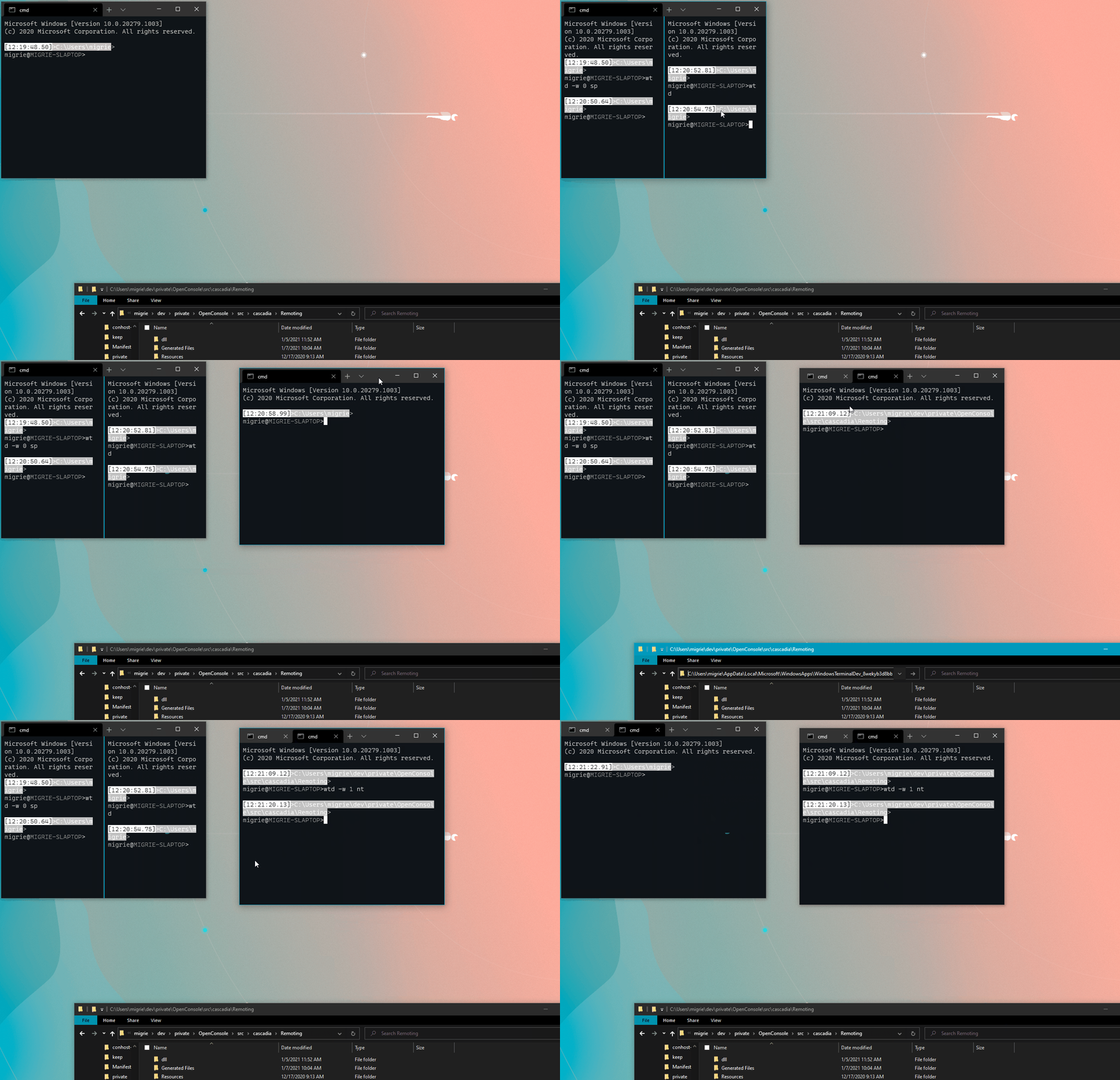
@DHowett commented on GitHub (Jan 7, 2021):
sweet
@ghost commented on GitHub (Mar 1, 2021):
:tada:This issue was addressed in #8898, which has now been successfully released as
Windows Terminal Preview v1.7.572.0.🎉Handy links:
@santanaruben commented on GitHub (Mar 9, 2021):
If someone needs the commands to create a new tab (and not open a new window) from a context menu item are:
(if you are already in the directory):
wt -w 0 nt(and if you click on the directory):
wt -w 0 nt -d %1You can add these commands in the respective registry of each item (or in a new one)
@zeroxia commented on GitHub (Mar 11, 2021):
When will this be in the stable release?
@zadjii-msft commented on GitHub (Mar 11, 2021):
@zeroxia Probably in about a month.
@pfmoore commented on GitHub (Mar 11, 2021):
Edit Never mind, I didn't find the right part of the documentation.
wt -w 0 sp vimdoes exactly what I want. Thank you so much for this feature.This is an awesome feature, and I'm really glad to see it land. But one thing from the original request that I was really looking forward to was the ability to run an arbitrary command in its own pane. Not an existing profile, but a one-off console executable.
So, for example, if I start a Jupyter Notebook server using
jupyter notebook, it takes over the current console window for its logging. I can put the output in a new pane or tab by opening the pane, cd to the directory I was in in the original pane, then runningjupyter notebook. But what I'd really like to be able to do would be something likewt -w 0 split-pane -d $env:CWD -exec jupyter notebook.Did I miss a way to do this that already exists, or is this something that will be added later (or is it a part of the request that you've rejected? 🙁) Given that this issue has been closed, is there somewhere else I should be following to track progress of that part of the request?
@lfr commented on GitHub (Mar 12, 2021):
I can't seem to run
wtcommands from bash 🤔@mveril commented on GitHub (Mar 12, 2021):
To run Windows executable from WSL you need to add the .exe extension explicitly. So
wt.exeshould work@fredrikhr commented on GitHub (Mar 12, 2021):
@mveril @lfr
That depends. If you have installed Terminal through the Windows Store running
wt.exedoes not work. And yes, that's even thoughwhich wt.exeretuns a valid path to theC:mount pointNaturally, running
cmd.exe /c wtdoes work, but that was kinda expected and is a really ugly hack...@lfr commented on GitHub (Mar 12, 2021):
Thanks @fredrikhr, isn't the store the "official" way to install Windows Terminal? What's the other way to install it that wouldn't cause this issue?
@ngmariusz commented on GitHub (Mar 12, 2021):
I'm alittle confused that it's closed issue; i've discoverd this one after submitting the feedback in https://github.com/microsoft/terminal/issues/9368; I think it's related and perhaps this should be still open?
@mreymann commented on GitHub (Mar 12, 2021):
I didn't even know calling Windows binaries works at all! ;-) cmd.exe works, wt.exe doesn't:
@fredrikhr commented on GitHub (Mar 12, 2021):
@mreymann Yeah, this is caused by this AppContainer isolation layer of Appx Packages (Microsoft Store apps) and how their executables are placed in the
%LOCALAPPDATA%\Microsoft\WindowsAppsfolder. The files in there both are and are not there or at least are not really executable, but the Windows OS does some weird magic trick to actually start the correct binary from wherever the App is actully installed. Which is why starting the exe from a windows-shell starting point works, whereas from a WSL2-starting point it does not.Would be interesting whether the technology used in WSL1 leads to this actually working, or not...
@JenuelDev commented on GitHub (Apr 21, 2021):
this really works it open a new tab, the problem is the directory was reset,.. hoping that I open a new tab, it will be at the same directory in my working project.
@santanaruben commented on GitHub (Apr 21, 2021):
@BroJenuel


The first case was a modification.
The second one I had to create.
@androiddevnotes commented on GitHub (Aug 27, 2021):
Try this:
@lfr commented on GitHub (Aug 30, 2021):
And what would the commands be to open a new tab from within the terminal itself?
@zadjii-msft commented on GitHub (Aug 30, 2021):
@lfr commented on GitHub (Aug 30, 2021):
@zadjii-msft thanks, but it doesn't seem to work from bash (Terminal Preview) 🤷♂️
@zadjii-msft commented on GitHub (Aug 30, 2021):
Ah, from WSL you'll need:
Execution aliases do not work in WSL distributions. If you want to use
wt.exefrom a WSL command line, you can spawn it from CMD directly by runningcmd.exe. The/coption tells CMD to terminate after running.Also, you can read this in the docs
@hardeepparmar commented on GitHub (Aug 30, 2021):
But this works only from with in cmd tab window.. This does not work if you issue this command from say within powershell tabbed window.
@zadjii-msft commented on GitHub (Aug 30, 2021):
🤔
@DJackman123 commented on GitHub (Aug 30, 2021):
Beat me to the punch. Yes, it does work in a PowerShell tab. However, it does not work in a Windows Terminal window running as administrator (see #9628).
@hardeepparmar commented on GitHub (Sep 2, 2021):
Yes indeed i am running Windows terminal as Administrator and I see this issue...However as you said, if I do not run at as administrator, it works just as expected. Thanks for confirming and making it more explicit and clear.
@MetaMmodern commented on GitHub (Feb 12, 2022):
For those who are kinda new to this: here is how you can do it the easy way.(Works for me in Windows 10 Pro with Windows Terminal(not Preview))
Thanks Microsoft for adding this to GUI)
@LawranceFung commented on GitHub (Feb 13, 2022):
Neither "Attach to the most recently used window" nor "Attach to the most recently used window on this desktop" work for me on Windows 11. I am not using the Preview version of Windows Terminal. Any idea what's up?
@MetaMmodern commented on GitHub (Feb 13, 2022):
Sorry, buddy, no idea. Try checking the above comments (like modifying the registry). I'll update my prev comment, cuz I'm on windows 10.
@LawranceFung commented on GitHub (Feb 13, 2022):
Are there plans to launch a new tab in an existing window, but to choose the window based on MRU order?
@zadjii-msft commented on GitHub (Feb 14, 2022):
that's... already how it's supposed to work?

@DJackman123 commented on GitHub (Feb 14, 2022):
Are there plans to fix issue #9628 so I can actually use this feature?
@zadjii-msft commented on GitHub (Feb 14, 2022):
@DJackman123 yep, sorry that fell off the triage queue. Moved that into 1.14. We can follow up there.
@LawranceFung commented on GitHub (Feb 14, 2022):
That's not working for me when calling
wt.exe -w 0 nt
or
wt.exe -w 1 nt
via AutoHotkey when both AutoHotkey and both Windows Terminal windows are running as administrator. It always opens the new tab in the first wt window opened.
@DJackman123 commented on GitHub (Feb 14, 2022):
Wondering if that is related to #9628. Add this information to that bug so when it's evaluated for 1.14 this scenario will be included in that evaluation.
@LawranceFung commented on GitHub (Feb 14, 2022):
Yes, should be same issue as #9628 barring some strange behavior when called by AHK.