mirror of
https://github.com/microsoft/terminal.git
synced 2026-09-25 08:24:54 +00:00
Support linux paths for startingDirectory of WSL distros
#853
Closed
opened 2026-01-30 22:06:31 +00:00 by claunia
·
50 comments
No Branch/Tag Specified
main
dev/duhowett/stop-using-projection-for-control-innards
dev/duhowett/fhl-2026/remove-paste-hairpin-handler
dev/duhowett/win7-wpf-termcontrol-squash
dev/lhecker/20226-present-leaks
dev/duhowett/wpf-1-autoscroll-to-interactivity
dev/duhowett/wpf-3-swapchain-handle
dev/duhowett/wpf-2-midi-audio-timer
dev/migrie/overview-for-pr
dev/migrie/b/markdown-paste
dev/duhowett/padding-in-atlas
fix/german-split-pane-tooltip
release-1.25
dev/cazamor/sui-rejuv/fix-spaces
dev/migrie/per-window-final
dev/cazamor/selfhost/2026-08-31
dev/migrie/b/independent-animations
dev/pabhoj/wtcli
dev/cazamor/conhost/bugfix-a11y-find
dev/cazamor/conhost/bugfix-a11y-find-1.24
dev/lhecker/theme-quality-test
dev/lhecker/theme-quality
dev/cazamor/selfhost/sui-rejuv
dev/cazamor/fix/search-selection-off-by-one
dev/duhowett/even-more-builtin-glyphs
dev/crutkas/kitty-pr1
dev/cazamor/toast/activity
release-1.24
users/GitHubPolicyService/d8615b98-f5fa-4462-bf7f-c44a1cc12096
dev/cazamor/selfhost/2026-06-18
dev/migrie/f/new-profile-subcommand
dev/cazamor/sui-rejuv/profiles-v2
dev/duhowett/asan-for-all
dev/cazamor/sui-rejuv/profiles-new
dev/cazamor/sui-rejuv/expander-groups-new
dev/cazamor/auto-save/refresh-settings
feature/llm
dev/cazamor/auto-save/model/json-manager
dev/cazamor/auto-save/settings-model
dev/migrie/s/snippet-params
users/merlinbot/1es-pt-auto-baselining-pr
niels9001/inactive-tab-foreground
dev/cazamor/selfhost/2026-05-20-home
dev/duhowett/fzf-vcxproj
dev/cazamor/selfhost/2026-05-20
dev/cazamor/selfhost/2026-05-19
dev/cazamor/selfhost/2026-05-18
niels9001/fontweight-fixes
niels9001/page-transitions
dev/duhowett/fhl-2026/rewrite-paste-and-dragdrop-handling-writeinputstring
dev/migrie/f/overview-view
dev/cazamor/selfhost/2026-05-13
dev/cazamor/selfhost/2026-05-13-sui
dev/yeelam/f/BuildTest
dev/duhowett/hax/our-own-tabview
dev/cazamor/bugfix/close-scratchpad
dev/cazamor/selfhost/2026-05-05
dev/cazamor/selfhost/2026-05-04-workspaces
dev/cazamor/selfhost/2026-05-04
dev/lhecker/20149-hotfix
dev/lhecker/osc-7-wsl
dev/migrie/workspaces-real
dev/migrie/fhl-spring-2026/quake-4
dev/lhecker/pwsh-5.1
dev/cazamor/sui/dropdown-page
dev/cazamor/selfhost/2026-04-08
dev/cazamor/selfhost/2026-04-06
dev/migrie/fhl-spring-2026/confirmCloseOn
dev/cazamor/confirmCloseOn/dont-ask-me-again
dev/lhecker/inproc-conpty
dev/duhowett/powershell-module-supercharger
dev/cazamor/a11y/vt-seq-prototype
dev/migrie/fhl-spring26/osc777-2
dev/migrie/fhl-spring26/2/notification-infrastructure
dev/migrie/fhl-spring-2026/side-tabs
dev/cazamor/copilot/playground
dev/migrie/fhl-spring-2026/quake-3.5
dev/migrie/fhl-spring26/osc777
dev/migrie/fhl-spring26/unpackaged-notify
dev/migrie/fhl-spring26/bellStyle-notification
dev/migrie/fhl-spring26/activity-notifications
dev/migrie/fhl-spring-2026/x-open
dev/migrie/fhl-spring-2026/quake-5
dev/migrie/fhl-spring26/nextTab-filter
dev/duhowett/atlas-draw-d2d-dots-curlies-consistently
dev/lhecker/14165-conhost-font-size
dev/lhecker/ottosson-by-default
dev/duhowett/hax/unix-pty
dev/duhowett/hax/cmake
dev/lhecker/generate-256-colors
dev/lhecker/dcs-perf
dev/lhecker/1410-large-scrollback
dev/cazamor/selfhost/2026-02-10
dev/lhecker/11509-kitty-keyboard-protocol-wip
dev/cazamor/selfhost/2026-01-29
dev/lhecker/benchcat-fix
dev/duhowett/eoy-25/allow-set-foreground
release-1.23
dev/cazamor/bot/deprecate-area-atlasengine
dev/cazamor/selfhost/2026-01-20
dev/cazamor/selfhost/2026-01-12
dev/cazamor/spec/auto-save
dev/duhowett/fhl-2024/asciicast-recorder
dev/duhowett/eoy-25/underline-colors-in-atlas-bug
dev/duhowett/hax/serial-port-support
dev/duhowett/connection-utf8
dev/lhecker/fused-event
dev/lhecker/18928-wip
dev/duhowett/fhl-2024/clang
dev/duhowett/vt-cache-changes
dev/cazamor/uia-leak
release-1.22
dev/cazamor/selfhost/11-18-v3
dev/cazamor/selfhost/11-18
dev/duhowett/fhl-2025/bitmap-fonts
dev/duhowett/server-2025-vms
dev/duhowett/cant-believe-gotta-do-this-shit
dev/lhecker/dark-mode
dev/cazamor/sui/invert-cursor-color
dev/duhowett/fhl-2025/wt-command-palette-cmdpal-integration
dev/duhowett/fhl-2025/wt-json-relative-icons
dev/lhecker/fucking-service-locator
dev/duhowett/unicode-17
dev/duhowett/multi-blern
dev/lhecker/wellp2-alt
dev/duhowett/wellp2
dev/lhecker/1860-horizontal-scrollbar
dev/lhecker/fix-window-count
dev/cazamor/sui/tab-color-old
dev/duhowett/hax/conhost-icon
dev/duhowett/hax/sui-color-chip-border
dev/duhowett/hax/terminalsettings-as-a-lib-/with-types-merged-into-tsm
dev/pabhoj/page_control_input_cleanup
dev/duhowett/padding-in-atlas-rebase-20250729
dev/lhecker/attach-thread-input
dev/duhowett/portable-shader-members
msbuildcache-reenable
dev/cazamor/selfhost/1.24-2025-06-10
dev/cazamor/upgrade-settings-containers
dev/cazamor/sui/ext-page/powershell-stub
dev/cazamor/selfhost/1.24-2025-05-15
dev/pabhoj/sui_action_overhaul
dev/cazamor/selfhost/1.24-2025-05-06
dev/cazamor/selfhost/1.24-2025-04-29
dev/cazamor/sui/ext-page/lazy-load-objects
dev/cazamor/sui/ext-page/badge
dev/cazamor/selfhost/1.24
dev/lhecker/sdk-26100
dev/duhowett/testing
dev/jadelaga/VS-Pty.Net-1.22
dev/duhowett/fhl-2025/what-if-no-content-ids
dev/lhecker/18584-part2
dev/lhecker/get-lang-id
dev/duhowett/hax/clogs
release-1.21
dev/pabhoj/featurellm_fix_paste
dev/lhecker/grapheme-backup
dev/jadelaga/VS-Pty.netFixes
dev/lhecker/atlas-engine-compute-shader
dev/migrie/s/ai-providers
dev/lhecker/animated-cursor-wip
dev/pabhoj/featurellm_timeout
dev/lhecker/dark-mode-alt
dev/duhowett/osc-strided-table
dev/lhecker/bugbash
dev/pabhoj/featurellm_improve_parsing
dev/duhowett/coast-to-coast
dev/lhecker/curly-improvements
dev/duhowett/net8
dev/duhowett/onebranch-custom-pool
dev/lhecker/renderer-overhaul-2nd-attempt
dev/lhecker/cleanup
dev/cazamor/sui/confirmation-announcements
dev/lhecker/winconpty-cleanup
dev/duhowett/learn/rewrite-highlights
dev/migrie/b/no-nesting-when-searching
release-1.20
dev/duhowett/sel-2-spans
dev/lhecker/7118-cursor-color
dev/lhecker/remove-glyph-width
dev/lhecker/igfw-scroll-region
dev/lhecker/17656-win32im-double-encoding
dev/duhowett/fhl-2024/merge-idls
dev/duhowett/feed-forward-variables
dev/lhecker/remove-chrome-math
dev/duhowett/copylink
dev/duhowett/applicableactions
gh-readonly-queue/main/pr-17566-de50310295b7d92ed3d51f07974a2a945776bf9d
dev/lhecker/atlas-engine-stride-copy
dev/migrie/b/bump-nuget-in-c
dev/migrie/f/992-redux-redux
dev/migrie/f/filter-weight-input-too
dev/migrie/f/disable-nesting
dev/migrie/f/local-snippets-cleaner
dev/migrie/s/1553-mouse-bindings
selfhost-1.22-bugbash-2024-06-04
selfhost/1.22-bugbash-2024-06-04
dev/lhecker/15689-tab-drag-crash-fix
dev/migrie/f/sxnui-font-size-change
dev/migrie/f/local-snippets-on-action-refactor
dev/migrie/f/just-local-snippets
dev/migrie/save-input-patches
dev/migrie/f/md-pane-official
dev/migrie/base-pane
dev/migrie/fhl/tasks-pane
release-1.19
dev/migrie/b/17130-clear-marks-2
dev/migrie/b/17075-its-me-the-killer
dev/duhowett/i-figured-out-why-sometimes-the-publish-build-failed
dev/duhowett/nuget-publication-with-aad-app-id
selfhost-1.20
dev/duhowett/graph
dev/migrie/b/15803-activate-dont-copypasta
dev/duhowett/is-pgo-broken-because-of-sui-being-slower
dev/migrie/b/remove-terminaltab
dev/migrie/fhl/md-pane
dev/migrie/fhl/local-tasks-2024
dev/migrie/fhl/2024-inline-notebook
dev/duhowett/interface-projects
dev/duhowett/dead-loc
release-1.18
dev/migrie/fhl/2024-spring-merge-base
dev/duhowett/hax/l9
inbox
dev/migrie/14073-on-main
dev/duhowett/hax/conhost_dump_replay
user/lhecker/atlas-engine-srgb
dev/migrie/fhl/sxnui-tooltips-3
dev/migrie/7718-notifications-experiments
dev/migrie/fhl/7718-notifications
dev/migrie/fhl/7718-notifications-reboot
dev/lhecker/remove-gsl
dev/lhecker/16575-TerminateProcess
dev/lhecker/window-thread-climate-control
dev/lhecker/client-context-input-output-mode
dev/lhecker/ring-buffer-input-buffer
release-1.17
dev/lhecker/propsheet-fontdlg-refactor
dev/lhecker/renderer-overhaul
dev/pabhoj/test
dev/duhowett/chop
dev/lhecker/til-ulong-cleanup
dev/lhecker/til-env-cleanup
dev/migrie/f/16005-a11y-pane
dev/cazamor/a11y/fastpass
dev/migrie/b/15487-push-cwd
dev/migrie/b/15536-or-15219-idk
dev/duhowett/move-timers-down-into-core-interactivity-etc
dev/migrie/b/15812-broadcast-paste-two
dev/migrie/fhl-fall-2023/11162-quake-III-arena
dev/migrie/fhl-fall-2023/1620-automatic-tab-progress
dev/migrie/fhl-fall-2023/9992-quake-II
dev/migrie/fhl-fall-2023/9992-default-quake-settings
dev/migrie/fhl-fall-2023/9992-window-name-settings
dev/migrie/fhl-fall-2023/oceans
dev/lhecker/ColorScheme-improvements
dev/migrie/search-v2-v3
dev/migrie/pr-15717/its-dangerous-to-go-alone
dev/migrie/f/4768-taskbar-icons
dev/migrie/f/3121-tooltips
dev/duhowett/sticky-control
dev/duhowett/fix-tracing-2
dev/migrie/b/add-support-for-vsc-marks
dev/migrie/f/1860-this-is-literally-what-less-is-for
dev/migrie/s/5916-draft
dev/lhecker/tracy
dev/migrie/s/north-star
dev/cazamor/tag-youre-it
dev/migrie/f/12336-let-it-mellow
dev/migrie/f/now-with-more-compat-settings
dev/migrie/f/compatibility-sui
dev/duhowett/hax/wpf-atlas
dev/duhowett/fgb
dev/migrie/b/15487-relative-paths-are-hard
dev/lhecker/colrv1
loc-update
dev/migrie/fhl/dyndep-csharp
dev/migrie/fhl/dyndep
dev/migrie/fhl-clickable-send-input
dev/migrie/f/cwd-hijinks-5506-15173
dev/lhecker/openconsole-async-start
1.17
dev/migrie/bump-scratch
dev/migrie/f/3726-restartConnection
dev/migrie/b/cxn-restarting-attempt-1-backport
dev/migrie/b/9053-part-3-the-actual-doing-of-the-thing
dev/migrie/b/13388-focus-logger
dev/migrie/b/9053-part-4-i-guess-defterm
dev/migrie/oop/3/of-the-silmarils
of-the-darkening-of-valinor
dev/migrie/fhl/notebook-proto-000
dev/migrie/f/narrator-buddy
dev/migrie/mux-2.8.2-march-2023
dev/migrie/f/roast-mutton
dev/migrie/f/12861-preview-input
dev/lhecker/clang-tidy
dev/migrie/f/3121-wE-dOnT-hAvE-dEv-DaYs
dev/duhowett/compiler-compliance
dev/duhowett/i-have-a-burning-hatred-for-ntstatus-of-later-so-why-not-fix-it
dev/duhowett/shorthand-namespaces
dev/duhowett/rename-all-dlls
dev/duhowett/errordialog
dev/lhecker/gsl-narrow
dev/migrie/b/11522-dumb-idea
release-1.16
dev/miniksa/env
dev/duhowett/hax/embed-everything
dev/migrie/b/13388-attempt-003
dev/migrie/b/14512-test-research
dev/migrie/b/13388-attempt-002
dev/migrie/b/14464-copyOnSelect-moving-text
dev/migrie/s/thema-schema-for-1.16
dev/migrie/s/theme-pair-schema
dev/migrie/b/13388-experiments-1
dev/cazamor/spec/a11y-vt-seq
dev/migrie/b/14557-empty-folder-dropdown
dev/cazamor/spec/a11y-vt-seq-v2
release-1.15
dev/migrie/f/process-model-v3-test-0
dev/lhecker/vsconfig
dev/migrie/s/5000-presentation
dev/lhecker/5907-startup-perf
dev/lhecker/winrt-file-api-benchmark
dev/duhowett/128-bit-compiler
dev/migrie/fhl/more-shell-integration
dev/migrie/b/13388-experiments-0
dev/lhecker/til-to-ulong-improvements
dev/migrie/s/markdown-notebooks
dev/cazamor/a11y/nav-by-page
dev/cazamor/a11y/system-menu-support
dev/duhowett/no-private-registry-keys
dev/cazamor/wpf/uia-expose-enable-events
dev/cazamor/wpf/uia-events
extendAISpec
dev/migrie/fhl/clickSendInput
dev/migrie/fhl/save-command
dev/migrie/b/theme.profile
dev/migrie/b/13943-a-test-for-this
dev/migrie/oop/2/endgame
dev/duhowett/hax/merge_idl
dev/migrie/oop/2/infinity-war
dev/migrie/spellbot-cve
dev/cazamor/a11y-sev3/new-profile-announcement
dev/migrie/fhl/upside-down-mode
release-1.14
dev/migrie/f/9458-startupInfoToTerminal
dev/migrie/fhl/5916-triggers
dev/migrie/b/13523-context-menu
dev/migrie/b/6523-endpaint-outside-lock
dev/migrie/b/12413-OnUnhandledException
dev/lhecker/render-snapshot
dev/cazamor/1.15/scroll-to-point
dev/migrie/mux-2.8-aug-2022
dev/lhecker/lock-console-guard
dev/migrie/f/1504-final
dev/pabhoj/sui_follow_ups
dev/migrie/f/til-winrt.h
dev/cazamor/color-picker-redesign
dev/migrie/fhl/vscode-autocomplete-prototype
dev/migrie/f/1504-prototype
dev/migrie/oop/2/loki
dev/migrie/oop/2/wandavision
dev/migrie/b/8698-YOURE-OUT-OF-ORDER
fabricbot-configuration-migration
dev/migrie/b/12788-did-it-work
dev/migrie/b/localtests-ci-2022
dev/cazamor/1.14/replace-compareInBounds
dev/pabhoj/preview_string
dev/cazamor/ks/switchSelectionEndpoint
dev/migrie/oop/2/COM-ISwapChainProvider-attempt-1
dev/migrie/b/dxd-marker
release-1.13
dev/migrie/b/13066-for-defterm
dev/cazamor/revert-dwm
dev/migrie/b/13066-sw_flash_repeatedly
dev/migrie/b/no-cloaky-cloak
dev/migrie/f/apples-to-oranges
dev/migrie/f/no-custom-caption-btns
dev/migrie/f/10509-mica-and-transparent-titlebars
dev/migrie/b/12911-wpf-focus-fg
dev/migrie/titebar-colors
dev/lhecker/4015-cursor
dev/migrie/fhl/rgb-rainbow-window-frame
dev/migrie/fhl/scroll-marks-prototype
release-1.12
dev/miniksa/compliance
dev/migrie/f/default-icons
dev/migrie/fhl/10175-web-search-for-text
dev/migrie/fhl/menu-complete-prototype
dev/migrie/b/2988-merged-prototypes
dev/migrie/b/2988-niksa-msgs-prototype
dev/migrie/fhl/9583-colorSelection
dev/migrie/b/10609-sui-leak
dev/migrie/b/32-attempt-3
dev/migrie/release-1.12-rejuv-attempt-2
dev/migrie/demo-for-presentation
dev/migrie/b/32-but-im-here-for-12567
dev/duhowett/conpty_first_frame_blug
dev/migrie/b/11092-unfocused-acrylic-settings
dev/migrie/localtests-in-ci
dev/migrie/b/12356-attempt-2
dev/migrie/b/12353-with-null
dev/migrie/b/12387-trim-spaces
dev/migrie/b/5033-bad-start
dev/lhecker/12351-broken-locales
dev/migrie/b/8663-input-to-oem-crash
dev/migrie/b/11743-win10-opacity-is-hard
dev/migrie/f/ctrl-click-elevate
dev/migrie/b/12196-shim-localization
dev/lhecker/issue-4015-til-rect
dev/cazamor/eim/mvvm
dev/migrie/f/--elevate
dev/migrie/b/11668-i-think
dev/migrie/b/11994-wsl-mangline
dev/migrie/eim/3475-action-xmacros
dev/migrie/eim/incremental-build-000
dev/cazamor/a11y/fake-uia-data
dev/migrie/f/non-terminal-content-elevation-warning
dev/migrie/f/632-on-warning-dialog
dev/lhecker/rgba
dev/migrie/b/8480-keybindings-in-tabs
release-1.11
dev/migrie/b/11561-dead-ends
dev/migrie/oct-21-roadmap-update
dev/migrie/fhl/adaptive-card-extension
dev/cazamor/test/11440
dev/migrie/f/warning-dlg-automation
dev/migrie/b/1.12-crash-on-exit
dev/migrie/b/11146-next-tab-in-cmdpal
release-1.10
dev/migrie/5ff9a24-and-75e2b5f
dev/duhowtt/hax/cpal-jumplist-async
dev/lelian/actionid/1
dev/migrie/f/just-elevated-state
dev/lhecker/terminal-settings-cleanup
dev/migrie/gh-10824
dev/pabhoj/cursor_light
dev/migrie/oop/wandavision
dev/migrie/oop/endgame
dev/migrie/oop/infinity-war
dev/lhecker/app-state-actually-hidden
dev/migrie/b/6160-dynamic-default-warning
dev/mgirie/b/more-nchhittest-ideas
dev/migrie/b/9320-interfacial-separation
cinnamon/fhl/find-contextmenu
dev/lhecker/wsl-distro-generator-cleanup
dev/migrie/b/10875-but-more-clever
dev/migrie/b/broken-globalsummon-overloading
dev/duhowett/hax/rle-row
dev/migrie/fhl-2021/cmdpal-select-list
dev/migrie/fhl-2021/differential-pixel-shading
dev/duhowett/hax/no-writable-glyphat
dev/migrie/fhl-2021/more-shader-variables
dev/migrie/titlebar-shenannigans
dev/miniksa/win10_font_matching
dev/lhecker/conhost-oom
dev/migrie/b/10332-less-snappy-scrolling
dev/migrie/b/7422-1px-top-border
release-1.9
dev/cazamor/move-scratch
release-1.8
dev/miniksa/manifest_2
release-1.6
release-1.7
dev/migrie/oop/the-whole-thing
dev/migrie/oop/connection-factory
dev/migrie/f/quake-dropdown-2
dev/miniksa/rle2
dev/migrie/f/quake-toCurrent-experiments-2
dev/migrie/f/quake-toCurrent-experiments
dev/migrie/f/quake-dropdown
dev/cazamor/actions-page/template
dev/duhowett/hax/cursor_stamp_foreground_background
dev/migrie/f/1860-hey-might-was-well-hack-during-a-hackathon
dev/migrie/oop-terminal.control-split-control
dev/duhowett/hax/build-with-wholearchive
dev/cazamor/spec/tsm-actions-temp
dev/migrie/oop-tear-apart-control
dev/migrie/oop-scratch-3
dev/cazamor/sui/bugfix-reload-crash
dev/migrie/f/xmacro
dev/cazamor/sui/proto/profile-nav-view
dev/migrie/f/name-windows
dev/migrie/dol/messing-with-shaders-take-1
release-1.5
dev/cazamor/sui/inheritance-hyperlinks-test
dev/migrie/r/commandline-lib-002
dev/migrie/f/com.fabrikam.toaster
dev/cazamor/adaptive-cards-prototype
dev/migrie/f/commandline-lib
dev/miniksa/zipzoom2
dev/migrie/f/remote-commandlines
dev/migrie/f/632-elevated-profiles
dev/migrie/oop-broker-000
dev/migrie/fix-pr-7015
dev/duhowett/clang
dev/miniksa/input_tests_2
dev/miniksa/input2
dev/migrie/oop-rpc-000
release-1.4
dev/migrie/oop-mixed-elevation-1
dev/migrie/oop-window-content-1
cinnamon/open-json
dev/miniksa/input_tests
dev/duhowett/hax/tsm-graphviz
dev/miniksa/input
dev/duhowett/hax/caption_buttons
release-1.3
dev/cazamor/a11y/expand-line-under-viewport
dev/cazamor/acc/ch/word-nav-perf
dev/cazamor/spec/settings-ui-architecture-draft
dev/duhowett/hax/tap_upgrade
dev/migrie/f/pane-exit-animation
release-1.2
dev/migrie/move-lib-up-and-dll-down
release-1.1
dev/migrie/f/branch-2-backup
dev/migrie/f/settings-getters-only
dev/duhowett/hax/command_palette_search
dev/migrie/f/6856-let-terminalpage-expandcommands
dev/migrie/f/theming-2020
dev/migrie/oop-scratch-4
dev/duhowett/hax/punchout
dev/migrie/s/action-ids
dev/migrie/f/lets-just-generate-these
dev/migrie/oop-scratch-2
dev/miniksa/dcomp
dev/miniksa/gotta_go_fast_spsc
dev/miniksa/gotta_go_fast
dev/miniksa/perf_skip_checks
dev/miniksa/perf_buffer_dig
dev/migrie/s/1203-cursorTextColor
dev/migrie/f/fix-intellisense-i-guess-backup
release-1.0
dev/migrie/f/execute-commandlines
dev/migrie/f/2046-Command-Palette-v2
dev/migrie/b/6421-passthrough-alt
dev/migrie/b/moving-focus-is-hard
dev/miniksa/set
dev/migrie/f/1203-phase-1
dev/migrie/f/get-localtests-in-ci
dev/cazamor/drag-panes
dev/cazamor/tile-background
release-0.11
dev/duhowett/dev/duhowett/hax/appstate_remember
dev/duhowett/hax/wpf_win_8_hax
dev/migrie/b/3088-weird-exact-wrap-resize
release-0.10
dev/migrie/b/4591-custom-scaling-bug
dev/duhowett/hax/attr_smuggling
dev/migrie/b/5161-mingw-vim-fix
dev/miniksa/dx_bitmap
dev/migrie/b/1503-try-messing-with-cooked-read
dev/duhowett/eyebeam
dev/migrie/b/5113-experiments
dev/duhowett/hax-selection-exclusive
dev/migrie/f/more-vt-renderer-tracing
dev/miniksa/bitmap
dev/duhowett/wprp
dev/miniksa/bitmap-mad-with-power
dev/migrie/f/resize-quirk
dev/migrie/f/reflow-buffer-on-resize-002
wpf-renderer-revert
dev/miniksa/draw
release-0.9
dev/miniksa/tabs-color-fix
dev/miniksa/4309
dev/migrie/f/just-wrapping
dev/migrie/b/3490-try-another-resize-algo
release-0.8
dev/migrie/b/3490-a-simpler-resize
dev/migrie/b/3490-resize-down
dev/miniksa/4254
dev/migrie/f/conpty-wrapped-lines-2
dev/migrie/b/be-better-at-hiding
dev/migrie/f/3327-xaml-theming-proto
dev/miniksa/gardening2
release-0.7
dev/duhowett/conpty-flags
dev/migrie/f/603-vintage-opacity
dev/migrie/PR#3181-comments
dev/duhowett/font-64
release-0.5
dev/migrie/b/663-paste-lf-always
dev/migrie/b/2011-reordered-fallthrough-strings
dev/migrie/b/411-init-tab-stops
dev/migrie/b/json-patching-is-hard
dev/migrie/b/2455-try-getting-tests-working
dev/migrie/b/1223-change-256-table
dev/migrie/f/2171-openterm.cmd
dev/migrie/f/drag-panes
dev/migrie/f/2046-command-palette
release-0.3
dev/miniksa/manager
dev/migrie/f/non-terminal-panes
dev/migrie/f/passthrough-2019
dev/miniksa/shared_pch
dev/migrie/f/1897-less-duplicated-work
release-0.2
dev/cazamor/mcs/viewport-selection
dev/duhowett/version_hack
v1.25.1912.0
v1.24.11911.0
v1.25.1322.0
v1.24.11321.0
v1.25.1241.0
v1.25.1171.0
v1.25.923.0
v1.24.10921.0
v1.25.622.0
v1.24.10621.0
v1.24.10212.0
v1.23.20211.0
v1.24.3504.0
v1.23.13503.0
v1.24.2812.0
v1.23.12811.0
v1.24.2682.0
v1.23.12681.0
v1.24.2372.0
v1.23.12371.0
v1.23.12102.0
v1.22.12111.0
v1.23.11752.0
v1.22.11751.0
v1.22.11141.0
v1.23.11132.0
v1.23.10732.0
v1.22.10731.0
v1.21.10351.0
v1.22.10352.0
v1.23.10353.0
v1.22.3232.0
v1.21.3231.0
v1.22.2912.0
v1.21.2911.0
v1.22.2702.0
v1.21.2701.0
v1.22.2362.0
v1.21.2361.0
v1.21.1772.0
v1.20.11781.0
v1.21.1382.0
v1.20.11381.0
v1.21.1272.0
v1.20.11271.0
v1.20.11215.0
v1.19.11213.0
v1.20.10822.0
v1.19.10821.0
v1.20.10572.0
v1.19.10573.0
v1.20.10303.0
v1.19.10302.0
v1.18.10301.0
v1.20.10293.0
v1.19.10292.0
v1.18.10291.0
v1.18.3181.0
v1.19.3172.0
v1.19.2831.0
v1.18.2822.0
v1.19.2682.0
v1.18.2681.0
v1.18.1462.0
v1.17.11461.0
v1.18.1421.0
v1.17.11391.0
v1.17.11043.0
v1.16.10261.0
v1.17.1023
v1.16.10231.0
v1.15.3465.0
v1.16.3463.0
v1.15.2712.0
v1.15.2874.0
v1.16.2641.0
v1.16.2523.0
v1.15.2524.0
v1.15.2282.0
v1.14.2281.0
v1.14.1962.0
v1.15.2002.0
v1.15.2001.0
v1.15.1862.0
v1.14.1861.0
v1.14.1451.0
v1.14.1432.0
v1.13.11431.0
v1.13.10983.0
v1.12.10982.0
v1.13.10733.0
v1.12.10732.0
v1.13.10395.0
v1.12.10393.0
v1.13.10336.0
v1.12.10334.0
v1.12.3472.0
v1.11.3471.0
v1.12.2931.0
v1.12.2922.0
v1.11.2921.0
v1.11.2731.0
v1.10.2714.0
v1.11.2421.0
v1.10.2383.0
v1.10.1933.0
v1.9.1942.0
v1.9.1523.0
v1.8.1521.0
v1.9.1445.0
v1.8.1444.0
v1.8.1092.0
v1.7.1091.0
v1.8.1032.0
v1.7.1033.0
v1.7.572.0
v1.6.10571.0
v1.5.10411.0
v1.6.10412.0
v1.6.10272.0
v1.5.10271.0
v1.5.3242.0
v1.4.3243.0
v1.5.3142.0
v1.4.3141.0
v1.4.2652.0
v1.3.2651.0
v1.3.2382.0
v1.2.2381.0
v1.1.2233.0
v1.2.2234.0
v1.1.2021.0
v1.2.2022.0
v1.1.1812.0
v1.0.1811.0
v1.1.1671.0
v1.0.1401.0
v0.11.1333.0
v0.11.1251.0
v0.11.1191.0
v0.11.1111.0
v0.11.1121.0
v0.10.781.0
v0.10.761.0
v0.9.433.0
v0.8.10261.0
v0.8.10091.0
v0.7.3451.0
v0.7.3382.0
v0.7.3291.0
v0.7.3252.0
v0.6.3181.0
v0.6.2951.0
v0.6.2911.0
v0.5.2762.0
v0.5.2761.0
v0.5.2681.0
v0.5.2661.0
v0.3.2321.0
v0.4.2342.0
v0.4.2382.0
v0.3.2171.0
v0.3.2142.0
v0.2.1831.0
v0.2.1715.0
v0.2.1703.0
v0.1.1621.0
v0.1.1581.0
v0.1.1502.0
v0.1.1431.0
v0.1.1361.0
v0.1.1093.0
v0.1.1161.0
v0.1.1204.0
experiment-master
v0.1.1025.0
experiment-OutsideBuild
broken-tabstops
RS2-final
v0.1.1002.0
experiment-rel-windows-inbox
experiment-f-ServerApp
v0.1.1211.0
1904.29002
1810.02002
1708.14008
Labels
Clear labels
⛺ Reserved
A11yCO
A11yMAS
A11ySev1
A11ySev2
A11ySev3
A11yTTValidated
A11yUsable
A11yVoiceAccess
A11yWCAG
Area-Accessibility
Area-AtlasEngine
Area-AzureShell
Area-Build
Area-Build
Area-Chat
Area-CmdPal
Area-CodeHealth
Area-Commandline
Area-CookedRead
Area-DefApp
Area-Extensibility
Area-Fonts
Area-GroupPolicy
Area-i18n
Area-Input
Area-Interaction
Area-Interop
Area-Localization
Area-Output
Area-Performance
Area-Portable
Area-Quality
Area-Remoting
Area-Rendering
Area-Schema
Area-Server
Area-Settings
Area-SettingsUI
Area-ShellExtension
Area-ShellExtension
Area-ShellExtension
Area-Suggestions
Area-Suggestions
Area-TerminalConnection
Area-TerminalControl
Area-Theming
Area-UserInterface
Area-VT
Area-Windowing
Area-WPFControl
AutoMerge
Blocking-Ingestion
Culprit-Centennial
Culprit-WinUI
Disability-All
Disability-Blind
Disability-LowVision
Disability-Mobility
External-Blocked-WinUI3
Fixed
Gathering-Data
good first issue
HCL-E+D
HCL-WindowsTerminal
Help Wanted
Impact-Compatibility
Impact-Compliance
Impact-Correctness
Impact-Visual
In-PR
InclusionBacklog
InclusionBacklog-Windows TerminalWin32
InclusionCommitted-202206
Issue-Bug
Issue-Docs
Issue-Feature
Issue-Feature
Issue-Question
Issue-Samples
Issue-Scenario
Issue-Task
Needs-Attention
Needs-Author-Feedback
Needs-Bisect
Needs-Discussion
Needs-Repro
Needs-Tag-Fix
Needs-Tag-Fix
Needs-Triage
No-Recent-Activity
Priority-0
Priority-1
Priority-2
Priority-3
Product-Cmd.exe
Product-Colortool
Product-Colortool
Product-Colortool
Product-Conhost
Product-Conpty
Product-Meta
Product-Powershell
Product-Terminal
Product-WSL
pull-request
Resolution-Answered
Resolution-By-Design
Resolution-Duplicate
Resolution-External
Resolution-Fix-Available
Resolution-Fix-Committed
Resolution-No-Repro
Resolution-Won't-Fix
Severity-Blocking
Severity-Crash
Severity-DataLoss
spam
this-will-be-a-breaking-change
Tracking-External
WindowsTerminal_Win32
Work-Item
zAskModeBug
zInbox-Bug
Mirrored from GitHub Pull Request
Milestone
No items
No Milestone
Projects
Clear projects
No project

Notifications
Due Date
No due date set.
Dependencies
No dependencies set.
Reference: starred/terminal#853
Reference in New Issue
Block a user
Blocking a user prevents them from interacting with repositories, such as opening or commenting on pull requests or issues. Learn more about blocking a user.
Delete Branch "%!s()"
Deleting a branch is permanent. Although the deleted branch may continue to exist for a short time before it actually gets removed, it CANNOT be undone in most cases. Continue?
Originally created by @tackyunicorn on GitHub (May 8, 2019).
Originally assigned to: @DHowett on GitHub.
Your Windows build number:
Microsoft Windows [Version 10.0.18362.86]What you're doing and what's happening:
Setting the starting directory for wsl in
profiles.jsondoesn't make it point to the right directory.This results in wsl starting up in the root folder
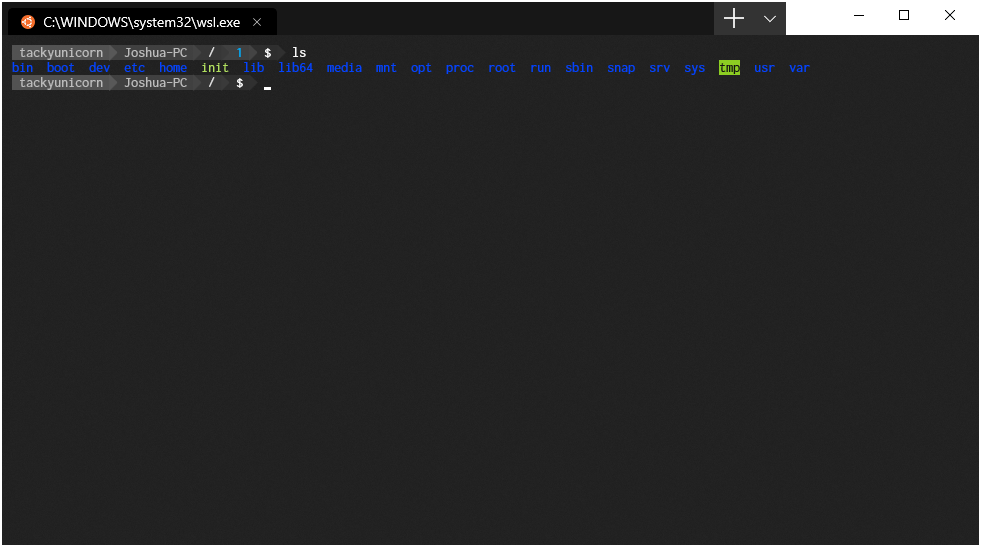
This results in wsl starting up in the Windows user folder
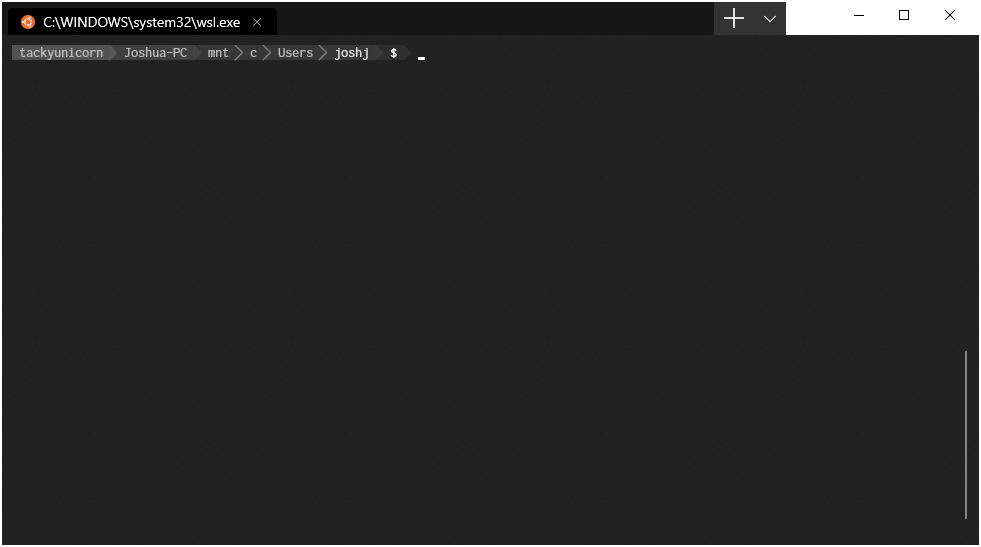
The
startingDirectoryprofile setting is not being applied correctly on a wsl profile@caksoylar commented on GitHub (May 8, 2019):
it looks like it expects Windows paths but passing the WSL fs paths under AppData directly doesn't work. Using the new UNC path works for me:
"startingDirectory":"//wsl$/Ubuntu/home/cem/src"->~/srcSo do regular Windows locations:
"startingDirectory":"C:/wd"->/mnt/c/wd@zadjii-msft commented on GitHub (May 8, 2019):
Hmm. We should maybe add a setting to suggest that the startingDirectory is a wsl path. Right now we're just manually setting the working directory of the client app we're starting, so we'd have to specifically know that the profile was trying to be wsl, and adjust our logic for passing in a working directory.
@sandeepkv93 commented on GitHub (May 19, 2019):
one easy hack would be inside
~/.bashrcfile of wsl, add the linecd ~Problem solved.
@DHowett-MSFT commented on GitHub (May 20, 2019):
This is also a great way to get weird and unexpected behaviour in everything else that uses bash on your machine. 😄
@JBanks commented on GitHub (Jun 9, 2019):
This method is a little bit of work. We could parse out the distribution name from the command in the profile so that
wsl.exe -d Ubuntugives us "Ubuntu", and then pass that toProfile::EvaluateStartingDirectory. Then, if it fails, before setting it to%userprofile%we can evaluate\\WSL$\[distributionName][directory]and see if that is a valid directory path.Or we could make the method a non-static method and draw the value from
_commandline.EDIT: I realize now that this won't work. The P9 server will likely not have been started, and if it had been, won't have all of the distros loaded as available shares under the UNC path.
@benc-uk commented on GitHub (Jun 22, 2019):
@sandeepkv93 - That hack isn't the best. When working in say VS Code and you want your WSL terminal to open inside your project directory, this will prevent that. Definitely going to cause other problems too
@jkugiya commented on GitHub (Jun 24, 2019):
My workaround
@siennathesane commented on GitHub (Aug 30, 2019):
I just edited my
/etc/passwdafter creating a new user to be my Windows' user's home directory/c/Users/MikeLloydand setstartingDirectoryto~in my profile.json. It works for me as expected on 18965.1005.@nanjj commented on GitHub (Sep 2, 2019):
@leolozes commented on GitHub (Oct 29, 2019):
What if I want to set the default directory to a directory in C:?
I tried
"commandline" : "wsl.exe /mnt/c/Programming -d Ubuntu-18.04"and other directories, with or without/mnt/c/, with or without singlequotes and no luck.@Herohtar commented on GitHub (Nov 3, 2019):
@LeoLozes The second post in this thread shows how to do exactly what you want.
@anikishov commented on GitHub (Nov 14, 2019):
in my case, it works this way
"startingDirectory": "//wsl$/Ubuntu-18.04/home/username"@pluma commented on GitHub (Dec 13, 2019):
Both the
wsl.exe ~ -d <distro>and//wsl$/home/<username>workarounds worked for me, but it would be nice if thestartingDirectorywere interpreted by WSL rather than Windows. E.g."startingDirectory": "$HOME/projects"should just work.@mr-cn commented on GitHub (Jan 24, 2020):
It will be nice if Windows Terminal could convert the path. I followed #1060 expecting to start my wsl quickly, but it doesn't work, because Windows Explorer always pass the original path to Terminal.
@mununki commented on GitHub (Jan 25, 2020):
I fix this issue with
"startingDirectory": "//wsl$/Ubuntu-18.04/home/myname"in
Microsoft Windows [Version 10.0.18363.592], ver0.8.100910.0@xianleon commented on GitHub (Mar 2, 2020):
My way to always start WSL on $HOME:
Create the link of wt.exe,
C:\Users\YOURNAME\AppData\Local\Microsoft\WindowsApps\wt.exe wsl.exe ~ -d Ubuntu
and just pin it on my start menu, and keep "startingDirectory" in profile as null
If you don't pass the "starting directory" to "wsl.exe", it will always start from your current directory.
@baoanhng commented on GitHub (Mar 3, 2020):
My solution is to create a new profile with starting command line
wsl.exe ~. Latest version on MS store.@troy-mac commented on GitHub (Mar 17, 2020):
Easy fix
"startingDirectory": "//wsl$/Ubuntu/home/",
@antoineco commented on GitHub (Mar 17, 2020):
@troy-mac that will literally start in the "home" directory, not your home directory. Please see above answers for countless working solutions (example)
@Acris commented on GitHub (Mar 18, 2020):
I use Ubuntu and my workaround is:
"commandline" : "ubuntu.exe"@troy-mac commented on GitHub (Apr 5, 2020):
Thanks I figured it out... next thing that needs resolving is the /etc/resolv.conf file getting overwritten. Tried a few work arounds non work
@mikemklee commented on GitHub (Apr 9, 2020):
How do I start WSL at a specific directory?
For instance, If I want to start at
~/devwhat do I write in thecommandlineproperty?I tried
"commandline": "wsl.exe ~/dev", but got an error like below:Edit:
nvm. Figure it out by writing
"startingDirectory":"//wsl$/Ubuntu/home/myname/dev"@codinronan commented on GitHub (Apr 26, 2020):
With the latest release a couple of days ago (profile.json renamed to settings.json),
startingDirectorynow doesn't work at all. Not one single variation in this thread works at all for me, is anyone else seeing the same?@max-arias commented on GitHub (Apr 30, 2020):
Setting
startingDirectoryworked for me, but it seems that you have to place it in the profile you're using. So for example, Ubuntu:@saadanerdetbare commented on GitHub (May 1, 2020):
I have 4 wsl distros installed, Ubuntu, Debian, Kali-Linux and CentOS. When I use the setting
"startingDirectory": "\\\\wsl$\\<distroname>\\home\\jakob"For the most part Debian respect the starting directory but not always, the others do not. However, when I open a second tab with one the other 3 distos they always open in ~ It seems that using"startingDirectory": "//wsl$//<distroname>/home/jakob"makes no difference but using\\is more reliableEdit: I am running Insider preview build 19619 and wsl2. It seems that when the VMs is up and running they respect the startingDirectory setting. If the VMs are stopped and has to start when opening a tab they do not.
@blacklightpy commented on GitHub (May 15, 2020):
It should be /home/username not /home
@antoineco commented on GitHub (May 15, 2020):
Just to repeat something that was already said, this is how you set your starting directory for a given WSL instance:
Replace "Ubuntu" with the name of your distro.
@blacklightpy commented on GitHub (May 15, 2020):
This is because //wsl$/ folder is not initialized until a wsl instance is started. So the first instance wont start in ~, but the others will start in ~ because the first instance initialized the //wsl$/ folder
@troy-mac commented on GitHub (May 15, 2020):
@antoineco I am using Ubuntu (not sure if that matters) but It does put me in my home directory /home/troymac so for me I get the results I was looking for...
@antoineco commented on GitHub (May 15, 2020):
@troy-mac I just tried on Ubuntu, and it doesn't. You probably have another directive, either in your settings file, or your bashrc file, but this alone does not put you in your home directory.
Anyway, my main point was that we should keep this thread free of erroneous information. A working solution was proposed, let's encourage users to use that instead of sharing inaccurate alternative tricks.
@sanyer commented on GitHub (Jul 16, 2020):
For me (perhaps because of zsh), workaround
"commandline": "wsl.exe /mnt/d/workspace -d Debian"doesn't work:but
"startingDirectory": "D:/workspace"without any"commandline"works just fine, as was suggested in the very beginning.@DHowett commented on GitHub (Jul 16, 2020):
There no world in which specifying the directory by doing
wsl /directorywill work. That will always (not just when using zsh!) result in the shell attempting to execute the directory and then exit. That's never what you want.@maximgeerinck commented on GitHub (Sep 8, 2020):
any update on this?
@zadjii-msft commented on GitHub (Sep 8, 2020):
@maximgeerinck Nope. We'll make sure to update this thread when there is. In the meantime, might I recommend the Subscribe button?

That way you'll be notified of any updates to this thread, without needlessly pinging everyone on this thread ☺️
@troy-mac commented on GitHub (Oct 2, 2020):
Hi all I know I got a few thumbs down for this suggestion that I posted earlier, but I just installed WSL and Ubuntu-20.04 on a new system and all I did was add the below lines to my settings.json file and it 100% worked for dropping me into my home directory. I am not saying it will work for everyone as I am not sure the thumbs down users actually tested this or not, but it has worked for me on 2 different systems both with Ubuntu-20.04 and 18.04. I think it is the easiest thing to try first and if it does not work for you then try a couple other suggestions on this thread.
"startingDirectory": "//wsl$/Ubuntu-20.04/home/troy-mac"
"startingDirectory": "//wsl$/Ubuntu-18.04/home/troy-mac"
or use @antoineco suggestion which may work all the time...
"commandline": "wsl.exe ~ -d Ubuntu"
@antoineco commented on GitHub (Oct 2, 2020):
@troy-mac I'm speaking for myself here, but the thumb down was a way to say "Warning, reader. The solution suggested in this message doesn't work for everyone, please refer to the accepted solution instead". It wasn't an attempt to dismiss you.
Like you said,
"commandline": "wsl.exe ~ -d <distro_name>"(https://github.com/microsoft/terminal/issues/592#issuecomment-504947429) works in pretty much any case, so let's make sure this solution is visible to people who go through this issue, instead of trying to come up with new, approximate solutions.@mslot commented on GitHub (Oct 13, 2020):
When installing Ubuntu, can use
"startingDirectory":"\\\\wsl$\\[DISTRONAME]\\home\\[USERNAME]"If not certain what [DISTRONAME] is, do:
Now you will get the fileshare in an explorer. Fx
Simply follow the path to where you want to start from when opening a new tab in Windows Terminal. Remember:
Like:

when construcing the
startingDirectory. Restart Windows Terminal, and you are good to go.@Ratismal commented on GitHub (Jan 21, 2021):
I feel like I must be missing something obvious here. Everything I've read in this issue indicates that if you set your startingDirectory to
//wsl$/ubuntu/whatever/path/you/want, it will start in that directory. But that's not the case for me? No matter what I set startingDirectory, it always always takes me to my home directory. This is not what I want.I've tried making new profiles, and I've tried updating the existing ubuntu profile. I've tried forward slashes, back slashes,

~, everything has the same result. See:Is it intentional that you're essentially locked into starting at the home directory, or am I missing something?
@zadjii-msft commented on GitHub (Jan 21, 2021):
You might need to use backslashes (instead of forward slashes), because it definitely works:
Is there anything else in your
.bashrcthat might be changing directories?@mariusstrom commented on GitHub (Jan 21, 2021):
@Ratismal
What's the output of
wsl.exe -l? Make sure thestartingDirectorypath matches the name of the WSL distro fromwsl.exe -lexactly. If case sensitivity is required there, I'm guessing yours should be Ubuntu, and not ubuntu. Some distros include the LTS version in the distro name (like you can see in @zadjii-msft's post above with Ubuntu-18.04).I think it's case-sensitive to the distro name.
@mariusstrom commented on GitHub (Jan 21, 2021):
@zadjii-msft forward slashes unescaped work for me:
@Ratismal commented on GitHub (Jan 22, 2021):
@mariusstrom
You were exactly right, thank you! I think there might be a bug somewhere in there, though? Did some experimenting.
//wsl$/ubuntu/path/that/does/exist- brings me to my home directory//wsl$/ubuntu/path/that/doesnt/exist- brings me to my home directory in the C: drive//wsl$/Ubuntu/path/that/does/exist- brings me to that directory//wsl$/Ubuntu/path/that/doesnt/exist- brings me to my home directory in the C: driveI would expect that case sensitivity would cause
/ubuntu/to always bring me back to the home directory on the C: drive, since its an invalid path. But that doesn't seem to be the case. Is that... intended behaviour?@zadjii-msft commented on GitHub (Jan 22, 2021):
Frankly, I have no idea how the WSL filesystem driver works. The best place to ask would be over at https://github.com/microsoft/WSL
@stephenmartindale commented on GitHub (Feb 5, 2021):
This seems to be the commonly accepted solution but it has one fatal flaw: if you use
wsl.exe ~as thecommandline, then the--startingDirectory(or-d) parameter towt.execeases to function, properly.I use the Windows Subsystem for Linux for spinning up sand-boxes for developer experiments, using
wsl.exe --exportand--importto load up and pack away these sand-boxes as required. At any given time, my default WSL distribution is the one that contains the tool-chain that I'm currently using for my work. For this reason, I've created a WT profile that always spawns whatever the default WSL distribution happens to be:This works great because I can use commands like
wt.exe --profile "{75155ba1-aebb-4196-af68-117807257cff}" --startingDirectory "D:\Project1". However, as soon as I append~, then~overrides any and all paths passed towtvia the--startingDirectorycommand-line parameter.Obviously, not appending
~means that starting this profile without--startingDirectory, from within the Terminal's U.I. for example, opens up the new shell inSystem32which is sub-optimal.@dark-swordsman commented on GitHub (Apr 20, 2021):
Using the new UNC path as suggested by caksoylar worked great for me, but just a note to others that, for example, if you have "Ubuntu", it may not just be "Ubuntu". Mine was actually
Ubuntu-20.04.I was able to confirm this by opening up VSCode and using "reveal in explorer" on a file, to which it then opened
\\wsl$\Ubuntu-20.04\....You can also just do
\\wsl$in the address bar and see it there, I had just forgotten that Windows paths use\, not/, lol.@LeaveTheCapital commented on GitHub (May 28, 2021):
for me since version 1.9.1445.0 (preview) this no longer worked
{
"commandline": "wsl.exe ~",
"name": "Ubuntu-20.04",
"source": "Windows.Terminal.Wsl",
"startingDirectory": "/home/henry/source"
}
however this works
{
"name": "Ubuntu-20.04",
"source": "Windows.Terminal.Wsl",
"startingDirectory": "//wsl$/Ubuntu-20.04/home/henry/source"
}
@saadanerdetbare commented on GitHub (May 28, 2021):
This works for me: cd into the directory where I want to start and type
wslpath -w .Example output:
\\wsl.localhost\Ubuntu-20.04\home\bobPut that in the
"startingDirectory":and escape any\with another\@ednl commented on GitHub (Jul 19, 2021):
Is this still true?? I seems to be, it is for me. So is there no way to always (even the first time) start up a WSL instance in the Linux home directory? That seems really strange, especially in WSL2 where the division between file systems is greater because of performance differences.
@ghost commented on GitHub (Aug 31, 2021):
:tada:This issue was addressed in #9223, which has now been successfully released as
Windows Terminal Preview v1.11.2421.0.🎉Handy links:
@Seefer commented on GitHub (Sep 18, 2021):
I've recently discovered that having
cd ~in the.bashrcor.zshrcfile of a Linux distro breaks VS Code's integrated terminal behaviour. Withcd ~in one of these shell script files, if you are in a project folder in VS Code and open the integrated terminal, the terminal directory does not point to the project directory. It always opens at~.Is there some other way via WSL to specify the working directory for the distro instead of it always pointing at
/mnt/c/Users/<username>?