mirror of
https://github.com/microsoft/terminal.git
synced 2026-07-08 18:16:28 +00:00
0xc0000022 startup error when opening wt from file explorer or Run window #9859
Closed
opened 2026-01-31 02:05:44 +00:00 by claunia
·
51 comments
No Branch/Tag Specified
main
dev/cazamor/patch/1.25/action-name
dev/cazamor/sui-rejuv/actions
dev/cazamor/sui-rejuv/expander-groups
user/migrie/per-window-prequel
dev/cazamor/bugfix/export-text-enter
dev/cazamor/bugfix/refresh-hyperlink-hover
dev/cazamor/sui-rejuv/profiles
dev/cazamor/selfhost/2026-06-18
dev/cazamor/sui-rejuv/profile-rejuv
dev/duhowett/onebranch-terrapin
dev/migrie/per-window-final
dev/cazamor/sui-rejuv/setting-container
dev/cazamor/toast/activity
dev/migrie/f/new-profile-subcommand
dev/cazamor/sui-rejuv/profiles-v2
dev/duhowett/asan-for-all
dev/cazamor/sui-rejuv/profiles-new
dev/cazamor/sui-rejuv/expander-groups-new
dev/cazamor/auto-save/refresh-settings
release-1.24
release-1.25
feature/llm
dev/cazamor/auto-save/model/json-manager
dev/migrie/overview-for-pr
dev/cazamor/auto-save/settings-model
dev/migrie/s/snippet-params
users/merlinbot/1es-pt-auto-baselining-pr
niels9001/inactive-tab-foreground
dev/cazamor/selfhost/2026-05-20-home
dev/duhowett/fzf-vcxproj
dev/cazamor/selfhost/2026-05-20
dev/cazamor/selfhost/2026-05-19
dev/cazamor/selfhost/2026-05-18
niels9001/fontweight-fixes
niels9001/page-transitions
dev/duhowett/fhl-2026/rewrite-paste-and-dragdrop-handling-writeinputstring
dev/duhowett/fhl-2026/remove-paste-hairpin-handler
dev/migrie/f/overview-view
dev/cazamor/selfhost/2026-05-13
dev/cazamor/selfhost/2026-05-13-sui
dev/yeelam/f/BuildTest
dev/duhowett/hax/our-own-tabview
dev/cazamor/bugfix/close-scratchpad
dev/cazamor/selfhost/2026-05-05
dev/cazamor/selfhost/2026-05-04-workspaces
dev/cazamor/selfhost/2026-05-04
dev/duhowett/win7-wpf-termcontrol-squash
dev/lhecker/20149-hotfix
dev/lhecker/osc-7-wsl
dev/lhecker/19977-kkp-altgr
dev/migrie/workspaces-real
dev/migrie/fhl-spring-2026/quake-4
dev/lhecker/pwsh-5.1
dev/cazamor/sui/dropdown-page
dev/cazamor/selfhost/2026-04-08
dev/cazamor/selfhost/2026-04-06
dev/migrie/fhl-spring-2026/confirmCloseOn
dev/cazamor/confirmCloseOn/dont-ask-me-again
dev/lhecker/inproc-conpty
dev/duhowett/powershell-module-supercharger
dev/cazamor/a11y/vt-seq-prototype
dev/migrie/fhl-spring26/osc777-2
dev/migrie/fhl-spring26/2/notification-infrastructure
dev/migrie/fhl-spring-2026/side-tabs
dev/cazamor/copilot/playground
dev/migrie/fhl-spring-2026/quake-3.5
dev/migrie/fhl-spring26/osc777
dev/migrie/fhl-spring26/unpackaged-notify
dev/migrie/fhl-spring26/bellStyle-notification
dev/migrie/fhl-spring26/activity-notifications
dev/migrie/fhl-spring-2026/x-open
dev/migrie/fhl-spring-2026/quake-5
dev/migrie/fhl-spring26/nextTab-filter
dev/duhowett/atlas-draw-d2d-dots-curlies-consistently
dev/lhecker/14165-conhost-font-size
dev/lhecker/ottosson-by-default
dev/duhowett/hax/unix-pty
dev/duhowett/hax/cmake
dev/lhecker/generate-256-colors
dev/lhecker/dcs-perf
dev/lhecker/1410-large-scrollback
dev/cazamor/selfhost/2026-02-10
dev/lhecker/11509-kitty-keyboard-protocol-wip
dev/cazamor/selfhost/2026-01-29
dev/lhecker/benchcat-fix
dev/duhowett/eoy-25/allow-set-foreground
release-1.23
dev/cazamor/bot/deprecate-area-atlasengine
dev/cazamor/selfhost/2026-01-20
dev/cazamor/selfhost/2026-01-12
dev/cazamor/spec/auto-save
dev/duhowett/fhl-2024/asciicast-recorder
dev/duhowett/eoy-25/underline-colors-in-atlas-bug
dev/duhowett/hax/serial-port-support
dev/duhowett/connection-utf8
dev/lhecker/fused-event
dev/lhecker/18928-wip
dev/duhowett/fhl-2024/clang
dev/duhowett/vt-cache-changes
dev/cazamor/uia-leak
release-1.22
dev/cazamor/selfhost/11-18-v3
dev/cazamor/selfhost/11-18
dev/duhowett/fhl-2025/bitmap-fonts
dev/duhowett/server-2025-vms
dev/duhowett/cant-believe-gotta-do-this-shit
dev/lhecker/dark-mode
dev/cazamor/sui/invert-cursor-color
dev/duhowett/fhl-2025/wt-command-palette-cmdpal-integration
dev/duhowett/fhl-2025/wt-json-relative-icons
dev/lhecker/fucking-service-locator
dev/duhowett/unicode-17
dev/duhowett/multi-blern
dev/lhecker/wellp2-alt
dev/duhowett/wellp2
dev/lhecker/1860-horizontal-scrollbar
dev/lhecker/fix-window-count
dev/cazamor/sui/tab-color-old
dev/duhowett/hax/conhost-icon
dev/duhowett/hax/sui-color-chip-border
dev/duhowett/hax/terminalsettings-as-a-lib-/with-types-merged-into-tsm
dev/pabhoj/page_control_input_cleanup
dev/duhowett/padding-in-atlas-rebase-20250729
dev/lhecker/attach-thread-input
dev/duhowett/portable-shader-members
msbuildcache-reenable
dev/cazamor/selfhost/1.24-2025-06-10
dev/cazamor/upgrade-settings-containers
dev/cazamor/sui/ext-page/powershell-stub
dev/cazamor/selfhost/1.24-2025-05-15
dev/pabhoj/sui_action_overhaul
dev/cazamor/selfhost/1.24-2025-05-06
dev/cazamor/selfhost/1.24-2025-04-29
dev/cazamor/sui/ext-page/lazy-load-objects
dev/cazamor/sui/ext-page/badge
dev/cazamor/selfhost/1.24
dev/lhecker/sdk-26100
dev/duhowett/testing
dev/jadelaga/VS-Pty.Net-1.22
dev/duhowett/fhl-2025/what-if-no-content-ids
dev/lhecker/18584-part2
dev/lhecker/get-lang-id
dev/duhowett/hax/clogs
release-1.21
dev/pabhoj/featurellm_fix_paste
dev/lhecker/grapheme-backup
dev/jadelaga/VS-Pty.netFixes
dev/lhecker/atlas-engine-compute-shader
dev/migrie/s/ai-providers
dev/lhecker/animated-cursor-wip
dev/pabhoj/featurellm_timeout
dev/lhecker/dark-mode-alt
dev/duhowett/osc-strided-table
dev/lhecker/bugbash
dev/pabhoj/featurellm_improve_parsing
dev/duhowett/coast-to-coast
dev/lhecker/curly-improvements
dev/duhowett/net8
dev/duhowett/onebranch-custom-pool
dev/lhecker/renderer-overhaul-2nd-attempt
dev/lhecker/cleanup
dev/cazamor/sui/confirmation-announcements
dev/lhecker/theme-quality
dev/lhecker/winconpty-cleanup
dev/duhowett/learn/rewrite-highlights
dev/migrie/b/no-nesting-when-searching
release-1.20
dev/duhowett/sel-2-spans
dev/lhecker/7118-cursor-color
dev/lhecker/remove-glyph-width
dev/lhecker/igfw-scroll-region
dev/lhecker/17656-win32im-double-encoding
dev/duhowett/fhl-2024/merge-idls
dev/duhowett/feed-forward-variables
dev/lhecker/remove-chrome-math
dev/duhowett/copylink
dev/duhowett/applicableactions
gh-readonly-queue/main/pr-17566-de50310295b7d92ed3d51f07974a2a945776bf9d
dev/lhecker/atlas-engine-stride-copy
dev/migrie/b/bump-nuget-in-c
dev/migrie/f/992-redux-redux
dev/migrie/f/filter-weight-input-too
dev/migrie/f/disable-nesting
dev/migrie/f/local-snippets-cleaner
dev/migrie/s/1553-mouse-bindings
selfhost-1.22-bugbash-2024-06-04
selfhost/1.22-bugbash-2024-06-04
dev/lhecker/15689-tab-drag-crash-fix
dev/migrie/f/sxnui-font-size-change
dev/migrie/f/local-snippets-on-action-refactor
dev/migrie/f/just-local-snippets
dev/migrie/save-input-patches
dev/migrie/f/md-pane-official
dev/migrie/base-pane
dev/migrie/fhl/tasks-pane
release-1.19
dev/migrie/b/17130-clear-marks-2
dev/migrie/b/17075-its-me-the-killer
dev/duhowett/i-figured-out-why-sometimes-the-publish-build-failed
dev/duhowett/nuget-publication-with-aad-app-id
selfhost-1.20
dev/duhowett/graph
dev/migrie/b/15803-activate-dont-copypasta
dev/duhowett/is-pgo-broken-because-of-sui-being-slower
dev/migrie/b/remove-terminaltab
dev/migrie/fhl/md-pane
dev/migrie/fhl/local-tasks-2024
dev/migrie/fhl/2024-inline-notebook
dev/duhowett/interface-projects
dev/duhowett/dead-loc
release-1.18
dev/migrie/fhl/2024-spring-merge-base
dev/duhowett/hax/l9
inbox
dev/migrie/14073-on-main
dev/duhowett/hax/conhost_dump_replay
user/lhecker/atlas-engine-srgb
dev/migrie/fhl/sxnui-tooltips-3
dev/migrie/7718-notifications-experiments
dev/migrie/fhl/7718-notifications
dev/migrie/fhl/7718-notifications-reboot
dev/lhecker/remove-gsl
dev/lhecker/16575-TerminateProcess
dev/lhecker/window-thread-climate-control
dev/lhecker/client-context-input-output-mode
dev/lhecker/ring-buffer-input-buffer
release-1.17
dev/lhecker/propsheet-fontdlg-refactor
dev/lhecker/renderer-overhaul
dev/pabhoj/test
dev/duhowett/chop
dev/lhecker/til-ulong-cleanup
dev/lhecker/til-env-cleanup
dev/migrie/f/16005-a11y-pane
dev/cazamor/a11y/fastpass
dev/migrie/b/15487-push-cwd
dev/migrie/b/15536-or-15219-idk
dev/duhowett/move-timers-down-into-core-interactivity-etc
dev/migrie/b/15812-broadcast-paste-two
dev/migrie/fhl-fall-2023/11162-quake-III-arena
dev/migrie/fhl-fall-2023/1620-automatic-tab-progress
dev/migrie/fhl-fall-2023/9992-quake-II
dev/migrie/fhl-fall-2023/9992-default-quake-settings
dev/migrie/fhl-fall-2023/9992-window-name-settings
dev/migrie/fhl-fall-2023/oceans
dev/lhecker/ColorScheme-improvements
dev/migrie/search-v2-v3
dev/migrie/pr-15717/its-dangerous-to-go-alone
dev/migrie/f/4768-taskbar-icons
dev/duhowett/padding-in-atlas
dev/migrie/f/3121-tooltips
dev/duhowett/sticky-control
dev/duhowett/fix-tracing-2
dev/migrie/b/add-support-for-vsc-marks
dev/migrie/f/1860-this-is-literally-what-less-is-for
dev/migrie/s/5916-draft
dev/lhecker/tracy
dev/migrie/s/north-star
dev/cazamor/tag-youre-it
dev/migrie/f/12336-let-it-mellow
dev/migrie/f/now-with-more-compat-settings
dev/migrie/f/compatibility-sui
dev/duhowett/hax/wpf-atlas
dev/duhowett/fgb
dev/migrie/b/15487-relative-paths-are-hard
dev/lhecker/colrv1
loc-update
dev/migrie/fhl/dyndep-csharp
dev/migrie/fhl/dyndep
dev/migrie/fhl-clickable-send-input
dev/migrie/f/cwd-hijinks-5506-15173
dev/lhecker/openconsole-async-start
1.17
dev/migrie/bump-scratch
dev/migrie/f/3726-restartConnection
dev/migrie/b/cxn-restarting-attempt-1-backport
dev/migrie/b/9053-part-3-the-actual-doing-of-the-thing
dev/migrie/b/13388-focus-logger
dev/migrie/b/9053-part-4-i-guess-defterm
dev/migrie/oop/3/of-the-silmarils
of-the-darkening-of-valinor
dev/migrie/fhl/notebook-proto-000
dev/migrie/f/narrator-buddy
dev/migrie/mux-2.8.2-march-2023
dev/migrie/f/roast-mutton
dev/migrie/f/12861-preview-input
dev/lhecker/clang-tidy
dev/migrie/f/3121-wE-dOnT-hAvE-dEv-DaYs
dev/duhowett/compiler-compliance
dev/duhowett/i-have-a-burning-hatred-for-ntstatus-of-later-so-why-not-fix-it
dev/duhowett/shorthand-namespaces
dev/duhowett/rename-all-dlls
dev/duhowett/errordialog
dev/lhecker/gsl-narrow
dev/migrie/b/11522-dumb-idea
release-1.16
dev/miniksa/env
dev/duhowett/hax/embed-everything
dev/migrie/b/13388-attempt-003
dev/migrie/b/14512-test-research
dev/migrie/b/13388-attempt-002
dev/migrie/b/14464-copyOnSelect-moving-text
dev/migrie/s/thema-schema-for-1.16
dev/migrie/s/theme-pair-schema
dev/migrie/b/13388-experiments-1
dev/cazamor/spec/a11y-vt-seq
dev/migrie/b/14557-empty-folder-dropdown
dev/cazamor/spec/a11y-vt-seq-v2
release-1.15
dev/migrie/f/process-model-v3-test-0
dev/lhecker/vsconfig
dev/migrie/s/5000-presentation
dev/lhecker/5907-startup-perf
dev/lhecker/winrt-file-api-benchmark
dev/duhowett/128-bit-compiler
dev/duhowett/hax/arm64-native-build
dev/migrie/fhl/more-shell-integration
dev/migrie/b/13388-experiments-0
dev/lhecker/til-to-ulong-improvements
dev/migrie/s/markdown-notebooks
dev/cazamor/a11y/nav-by-page
dev/cazamor/a11y/system-menu-support
dev/duhowett/no-private-registry-keys
dev/cazamor/wpf/uia-expose-enable-events
dev/cazamor/wpf/uia-events
extendAISpec
dev/migrie/fhl/clickSendInput
dev/migrie/fhl/save-command
dev/migrie/b/theme.profile
dev/migrie/b/13943-a-test-for-this
dev/migrie/oop/2/endgame
dev/duhowett/hax/merge_idl
dev/migrie/oop/2/infinity-war
dev/migrie/spellbot-cve
dev/cazamor/a11y-sev3/new-profile-announcement
dev/migrie/fhl/upside-down-mode
release-1.14
dev/migrie/f/9458-startupInfoToTerminal
dev/migrie/fhl/5916-triggers
dev/migrie/b/13523-context-menu
dev/migrie/b/6523-endpaint-outside-lock
dev/migrie/b/12413-OnUnhandledException
dev/lhecker/render-snapshot
dev/cazamor/1.15/scroll-to-point
dev/migrie/mux-2.8-aug-2022
dev/lhecker/lock-console-guard
dev/migrie/f/1504-final
dev/pabhoj/sui_follow_ups
dev/migrie/f/til-winrt.h
dev/cazamor/color-picker-redesign
dev/migrie/fhl/vscode-autocomplete-prototype
dev/migrie/f/1504-prototype
dev/migrie/oop/2/loki
dev/migrie/oop/2/wandavision
dev/migrie/b/8698-YOURE-OUT-OF-ORDER
fabricbot-configuration-migration
dev/migrie/b/12788-did-it-work
dev/migrie/b/localtests-ci-2022
dev/cazamor/1.14/replace-compareInBounds
dev/pabhoj/preview_string
dev/cazamor/ks/switchSelectionEndpoint
dev/migrie/oop/2/COM-ISwapChainProvider-attempt-1
dev/migrie/b/dxd-marker
release-1.13
dev/migrie/b/13066-for-defterm
dev/cazamor/revert-dwm
dev/migrie/b/13066-sw_flash_repeatedly
dev/migrie/b/no-cloaky-cloak
dev/migrie/f/apples-to-oranges
dev/migrie/f/no-custom-caption-btns
dev/migrie/f/10509-mica-and-transparent-titlebars
dev/migrie/b/12911-wpf-focus-fg
dev/migrie/titebar-colors
dev/lhecker/4015-cursor
dev/migrie/fhl/rgb-rainbow-window-frame
dev/migrie/fhl/scroll-marks-prototype
release-1.12
dev/miniksa/compliance
dev/migrie/f/default-icons
dev/migrie/fhl/10175-web-search-for-text
dev/migrie/fhl/menu-complete-prototype
dev/migrie/b/2988-merged-prototypes
dev/migrie/b/2988-niksa-msgs-prototype
dev/migrie/fhl/9583-colorSelection
dev/migrie/b/10609-sui-leak
dev/migrie/b/32-attempt-3
dev/migrie/release-1.12-rejuv-attempt-2
dev/migrie/demo-for-presentation
dev/migrie/b/32-but-im-here-for-12567
dev/duhowett/conpty_first_frame_blug
dev/migrie/b/11092-unfocused-acrylic-settings
dev/migrie/localtests-in-ci
dev/migrie/b/12356-attempt-2
dev/migrie/b/12353-with-null
dev/migrie/b/12387-trim-spaces
dev/migrie/b/5033-bad-start
dev/lhecker/12351-broken-locales
dev/migrie/b/8663-input-to-oem-crash
dev/migrie/b/11743-win10-opacity-is-hard
dev/migrie/f/ctrl-click-elevate
dev/migrie/b/12196-shim-localization
dev/lhecker/issue-4015-til-rect
dev/cazamor/eim/mvvm
dev/migrie/f/--elevate
dev/migrie/b/11668-i-think
dev/migrie/b/11994-wsl-mangline
dev/migrie/eim/3475-action-xmacros
dev/migrie/eim/incremental-build-000
dev/cazamor/a11y/fake-uia-data
dev/migrie/f/non-terminal-content-elevation-warning
dev/migrie/f/632-on-warning-dialog
dev/lhecker/rgba
dev/migrie/b/8480-keybindings-in-tabs
release-1.11
dev/migrie/b/11561-dead-ends
dev/migrie/oct-21-roadmap-update
dev/migrie/fhl/adaptive-card-extension
dev/cazamor/test/11440
dev/migrie/f/warning-dlg-automation
dev/migrie/b/1.12-crash-on-exit
dev/migrie/b/11146-next-tab-in-cmdpal
release-1.10
dev/migrie/5ff9a24-and-75e2b5f
dev/duhowtt/hax/cpal-jumplist-async
dev/lelian/actionid/1
dev/migrie/f/just-elevated-state
dev/lhecker/terminal-settings-cleanup
dev/migrie/gh-10824
dev/pabhoj/cursor_light
dev/migrie/oop/wandavision
dev/migrie/oop/endgame
dev/migrie/oop/infinity-war
dev/lhecker/app-state-actually-hidden
dev/migrie/b/6160-dynamic-default-warning
dev/mgirie/b/more-nchhittest-ideas
dev/migrie/b/9320-interfacial-separation
cinnamon/fhl/find-contextmenu
dev/lhecker/wsl-distro-generator-cleanup
dev/migrie/b/10875-but-more-clever
dev/migrie/b/broken-globalsummon-overloading
dev/duhowett/hax/rle-row
dev/migrie/fhl-2021/cmdpal-select-list
dev/migrie/fhl-2021/differential-pixel-shading
dev/duhowett/hax/no-writable-glyphat
dev/migrie/fhl-2021/more-shader-variables
dev/migrie/titlebar-shenannigans
dev/miniksa/win10_font_matching
dev/lhecker/conhost-oom
dev/migrie/b/10332-less-snappy-scrolling
dev/migrie/b/7422-1px-top-border
release-1.9
dev/cazamor/move-scratch
release-1.8
dev/miniksa/manifest_2
release-1.6
release-1.7
dev/migrie/oop/the-whole-thing
dev/migrie/oop/connection-factory
dev/migrie/f/quake-dropdown-2
dev/miniksa/rle2
dev/migrie/f/quake-toCurrent-experiments-2
dev/migrie/f/quake-toCurrent-experiments
dev/migrie/f/quake-dropdown
dev/cazamor/actions-page/template
dev/duhowett/hax/cursor_stamp_foreground_background
dev/migrie/f/1860-hey-might-was-well-hack-during-a-hackathon
dev/migrie/oop-terminal.control-split-control
dev/duhowett/hax/build-with-wholearchive
dev/cazamor/spec/tsm-actions-temp
dev/migrie/oop-tear-apart-control
dev/migrie/oop-scratch-3
dev/cazamor/sui/bugfix-reload-crash
dev/migrie/f/xmacro
dev/cazamor/sui/proto/profile-nav-view
dev/migrie/f/name-windows
dev/migrie/dol/messing-with-shaders-take-1
release-1.5
dev/cazamor/sui/inheritance-hyperlinks-test
dev/migrie/r/commandline-lib-002
dev/migrie/f/com.fabrikam.toaster
dev/cazamor/adaptive-cards-prototype
dev/migrie/f/commandline-lib
dev/miniksa/zipzoom2
dev/migrie/f/remote-commandlines
dev/migrie/f/632-elevated-profiles
dev/migrie/oop-broker-000
dev/migrie/fix-pr-7015
dev/duhowett/clang
dev/miniksa/input_tests_2
dev/miniksa/input2
dev/migrie/oop-rpc-000
release-1.4
dev/migrie/oop-mixed-elevation-1
dev/migrie/oop-window-content-1
cinnamon/open-json
dev/miniksa/input_tests
dev/duhowett/hax/tsm-graphviz
dev/miniksa/input
dev/duhowett/hax/caption_buttons
release-1.3
dev/cazamor/a11y/expand-line-under-viewport
dev/cazamor/acc/ch/word-nav-perf
dev/cazamor/spec/settings-ui-architecture-draft
dev/duhowett/hax/tap_upgrade
dev/migrie/f/pane-exit-animation
release-1.2
dev/migrie/move-lib-up-and-dll-down
release-1.1
dev/migrie/f/branch-2-backup
dev/migrie/f/settings-getters-only
dev/duhowett/hax/command_palette_search
dev/migrie/f/6856-let-terminalpage-expandcommands
dev/migrie/f/theming-2020
dev/migrie/oop-scratch-4
dev/duhowett/hax/punchout
dev/migrie/s/action-ids
dev/migrie/f/lets-just-generate-these
dev/migrie/oop-scratch-2
dev/miniksa/dcomp
dev/miniksa/gotta_go_fast_spsc
dev/miniksa/gotta_go_fast
dev/miniksa/perf_skip_checks
dev/miniksa/perf_buffer_dig
dev/migrie/s/1203-cursorTextColor
dev/migrie/f/fix-intellisense-i-guess-backup
release-1.0
dev/migrie/f/execute-commandlines
dev/migrie/f/2046-Command-Palette-v2
dev/migrie/b/6421-passthrough-alt
dev/migrie/b/moving-focus-is-hard
dev/miniksa/set
dev/migrie/f/1203-phase-1
dev/migrie/f/get-localtests-in-ci
dev/cazamor/drag-panes
dev/cazamor/tile-background
release-0.11
dev/duhowett/dev/duhowett/hax/appstate_remember
dev/duhowett/hax/wpf_win_8_hax
dev/migrie/b/3088-weird-exact-wrap-resize
release-0.10
dev/migrie/b/4591-custom-scaling-bug
dev/duhowett/hax/attr_smuggling
dev/migrie/b/5161-mingw-vim-fix
dev/miniksa/dx_bitmap
dev/migrie/b/1503-try-messing-with-cooked-read
dev/duhowett/eyebeam
dev/migrie/b/5113-experiments
dev/duhowett/hax-selection-exclusive
dev/migrie/f/more-vt-renderer-tracing
dev/miniksa/bitmap
dev/duhowett/wprp
dev/miniksa/bitmap-mad-with-power
dev/migrie/f/resize-quirk
dev/migrie/f/reflow-buffer-on-resize-002
wpf-renderer-revert
dev/miniksa/draw
release-0.9
dev/miniksa/tabs-color-fix
dev/miniksa/4309
dev/migrie/f/just-wrapping
dev/migrie/b/3490-try-another-resize-algo
release-0.8
dev/migrie/b/3490-a-simpler-resize
dev/migrie/b/3490-resize-down
dev/miniksa/4254
dev/migrie/f/conpty-wrapped-lines-2
dev/migrie/b/be-better-at-hiding
dev/migrie/f/3327-xaml-theming-proto
dev/miniksa/gardening2
release-0.7
dev/duhowett/conpty-flags
dev/migrie/f/603-vintage-opacity
dev/migrie/PR#3181-comments
dev/duhowett/font-64
release-0.5
dev/migrie/b/663-paste-lf-always
dev/migrie/b/2011-reordered-fallthrough-strings
dev/migrie/b/411-init-tab-stops
dev/migrie/b/json-patching-is-hard
dev/migrie/b/2455-try-getting-tests-working
dev/migrie/b/1223-change-256-table
dev/migrie/f/2171-openterm.cmd
dev/migrie/f/drag-panes
dev/migrie/f/2046-command-palette
release-0.3
dev/miniksa/manager
dev/migrie/f/non-terminal-panes
dev/migrie/f/passthrough-2019
dev/miniksa/shared_pch
dev/migrie/f/1897-less-duplicated-work
release-0.2
dev/cazamor/mcs/viewport-selection
dev/duhowett/version_hack
v1.25.1322.0
v1.24.11321.0
v1.25.1241.0
v1.25.1171.0
v1.25.923.0
v1.24.10921.0
v1.25.622.0
v1.24.10621.0
v1.24.10212.0
v1.23.20211.0
v1.24.3504.0
v1.23.13503.0
v1.24.2812.0
v1.23.12811.0
v1.24.2682.0
v1.23.12681.0
v1.24.2372.0
v1.23.12371.0
v1.23.12102.0
v1.22.12111.0
v1.23.11752.0
v1.22.11751.0
v1.22.11141.0
v1.23.11132.0
v1.23.10732.0
v1.22.10731.0
v1.21.10351.0
v1.22.10352.0
v1.23.10353.0
v1.22.3232.0
v1.21.3231.0
v1.22.2912.0
v1.21.2911.0
v1.22.2702.0
v1.21.2701.0
v1.22.2362.0
v1.21.2361.0
v1.21.1772.0
v1.20.11781.0
v1.21.1382.0
v1.20.11381.0
v1.21.1272.0
v1.20.11271.0
v1.20.11215.0
v1.19.11213.0
v1.20.10822.0
v1.19.10821.0
v1.20.10572.0
v1.19.10573.0
v1.20.10303.0
v1.19.10302.0
v1.18.10301.0
v1.20.10293.0
v1.19.10292.0
v1.18.10291.0
v1.18.3181.0
v1.19.3172.0
v1.19.2831.0
v1.18.2822.0
v1.19.2682.0
v1.18.2681.0
v1.18.1462.0
v1.17.11461.0
v1.18.1421.0
v1.17.11391.0
v1.17.11043.0
v1.16.10261.0
v1.17.1023
v1.16.10231.0
v1.15.3465.0
v1.16.3463.0
v1.15.2712.0
v1.15.2874.0
v1.16.2641.0
v1.16.2523.0
v1.15.2524.0
v1.15.2282.0
v1.14.2281.0
v1.14.1962.0
v1.15.2002.0
v1.15.2001.0
v1.15.1862.0
v1.14.1861.0
v1.14.1451.0
v1.14.1432.0
v1.13.11431.0
v1.13.10983.0
v1.12.10982.0
v1.13.10733.0
v1.12.10732.0
v1.13.10395.0
v1.12.10393.0
v1.13.10336.0
v1.12.10334.0
v1.12.3472.0
v1.11.3471.0
v1.12.2931.0
v1.12.2922.0
v1.11.2921.0
v1.11.2731.0
v1.10.2714.0
v1.11.2421.0
v1.10.2383.0
v1.10.1933.0
v1.9.1942.0
v1.9.1523.0
v1.8.1521.0
v1.9.1445.0
v1.8.1444.0
v1.8.1092.0
v1.7.1091.0
v1.8.1032.0
v1.7.1033.0
v1.7.572.0
v1.6.10571.0
v1.5.10411.0
v1.6.10412.0
v1.6.10272.0
v1.5.10271.0
v1.5.3242.0
v1.4.3243.0
v1.5.3142.0
v1.4.3141.0
v1.4.2652.0
v1.3.2651.0
v1.3.2382.0
v1.2.2381.0
v1.1.2233.0
v1.2.2234.0
v1.1.2021.0
v1.2.2022.0
v1.1.1812.0
v1.0.1811.0
v1.1.1671.0
v1.0.1401.0
v0.11.1333.0
v0.11.1251.0
v0.11.1191.0
v0.11.1111.0
v0.11.1121.0
v0.10.781.0
v0.10.761.0
v0.9.433.0
v0.8.10261.0
v0.8.10091.0
v0.7.3451.0
v0.7.3382.0
v0.7.3291.0
v0.7.3252.0
v0.6.3181.0
v0.6.2951.0
v0.6.2911.0
v0.5.2762.0
v0.5.2761.0
v0.5.2681.0
v0.5.2661.0
v0.3.2321.0
v0.4.2342.0
v0.4.2382.0
v0.3.2171.0
v0.3.2142.0
v0.2.1831.0
v0.2.1715.0
v0.2.1703.0
v0.1.1621.0
v0.1.1581.0
v0.1.1502.0
v0.1.1431.0
v0.1.1361.0
v0.1.1093.0
v0.1.1161.0
v0.1.1204.0
experiment-master
v0.1.1025.0
experiment-OutsideBuild
broken-tabstops
RS2-final
v0.1.1002.0
experiment-rel-windows-inbox
experiment-f-ServerApp
v0.1.1211.0
1904.29002
1810.02002
1708.14008
Labels
Clear labels
⛺ Reserved
A11yCO
A11yMAS
A11ySev1
A11ySev2
A11ySev3
A11yTTValidated
A11yUsable
A11yVoiceAccess
A11yWCAG
Area-Accessibility
Area-AtlasEngine
Area-AzureShell
Area-Build
Area-Build
Area-Chat
Area-CmdPal
Area-CodeHealth
Area-Commandline
Area-CookedRead
Area-DefApp
Area-Extensibility
Area-Fonts
Area-GroupPolicy
Area-i18n
Area-Input
Area-Interaction
Area-Interop
Area-Localization
Area-Output
Area-Performance
Area-Portable
Area-Quality
Area-Remoting
Area-Rendering
Area-Schema
Area-Server
Area-Settings
Area-SettingsUI
Area-ShellExtension
Area-ShellExtension
Area-ShellExtension
Area-Suggestions
Area-Suggestions
Area-TerminalConnection
Area-TerminalControl
Area-Theming
Area-UserInterface
Area-VT
Area-Windowing
Area-WPFControl
AutoMerge
Blocking-Ingestion
Culprit-Centennial
Culprit-WinUI
Disability-All
Disability-Blind
Disability-LowVision
Disability-Mobility
External-Blocked-WinUI3
Fixed
Gathering-Data
good first issue
HCL-E+D
HCL-WindowsTerminal
Help Wanted
Impact-Compatibility
Impact-Compliance
Impact-Correctness
Impact-Visual
In-PR
InclusionBacklog
InclusionBacklog-Windows TerminalWin32
InclusionCommitted-202206
Issue-Bug
Issue-Docs
Issue-Feature
Issue-Feature
Issue-Question
Issue-Samples
Issue-Scenario
Issue-Task
Needs-Attention
Needs-Author-Feedback
Needs-Bisect
Needs-Discussion
Needs-Repro
Needs-Tag-Fix
Needs-Tag-Fix
Needs-Triage
No-Recent-Activity
Priority-0
Priority-1
Priority-2
Priority-3
Product-Cmd.exe
Product-Colortool
Product-Colortool
Product-Colortool
Product-Conhost
Product-Conpty
Product-Meta
Product-Powershell
Product-Terminal
Product-WSL
pull-request
Resolution-Answered
Resolution-By-Design
Resolution-Duplicate
Resolution-External
Resolution-Fix-Available
Resolution-Fix-Committed
Resolution-No-Repro
Resolution-Won't-Fix
Severity-Blocking
Severity-Crash
Severity-DataLoss
spam
this-will-be-a-breaking-change
Tracking-External
WindowsTerminal_Win32
Work-Item
zAskModeBug
zInbox-Bug
Mirrored from GitHub Pull Request
Milestone
No items
No Milestone
Projects
Clear projects
No project

Notifications
Due Date
No due date set.
Dependencies
No dependencies set.
Reference: starred/terminal#9859
Reference in New Issue
Block a user
Blocking a user prevents them from interacting with repositories, such as opening or commenting on pull requests or issues. Learn more about blocking a user.
Delete Branch "%!s()"
Deleting a branch is permanent. Although the deleted branch may continue to exist for a short time before it actually gets removed, it CANNOT be undone in most cases. Continue?
Originally created by @JakubKoralewski on GitHub (Jul 26, 2020).
Environment
Found this in my PATH:
Alias settings:
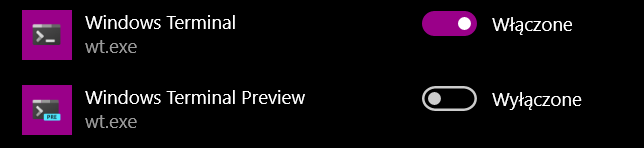
I tried turning my computer off and on again 😉 This error started popping up very recently, maybe I could try to install an old version to try to find the one that triggers this. I install from Windows Store, and don't really know how to do that.

I think this shows the time of last update:
I think the time when the bug started to appear might coincide.
Steps to reproduce
Type
wtin the file explorer, orRunwindow.It works if I search for
wtand open it. Also works if I navigate toC:\Users\<USERNAME>\AppData\Local\Microsoft\WindowsAppsand run it manually. Doesn't work though from both theRunwindow and file explorer.I also tried typing
wtin the Run window, then pressing Ctrl+Shift+Enter, a popup appeared to ask for permission, but the same error appeared after allowing.Expected behavior
It opens.
Actual behavior
I get 0xc0000022 error
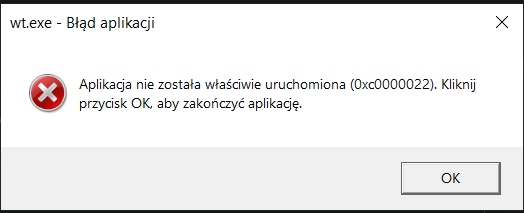
@DHowett commented on GitHub (Jul 26, 2020):
If you turn this switch off and on again, does it work?
Can you open up Command Prompt and run
where wt? I wonder if there is another copy somewhere that is broken.@JakubKoralewski commented on GitHub (Jul 27, 2020):
Unfortunately not.
From command prompt:
From Windows Terminal (git bash):
I guess the preview shouldn't be there? And why would it only show up when called from the Windows Terminal?
I thought this was because of git bash so I changed directory into the same folder as before with Windows Terminal, but the output from git bash is kind of different:
Also opening from the cmd prompt by typing
wtworks fine. The cwd working directory is correctly assigned and all is good, but Run window and File explorer still throws the error.Also trying to open
wtfrom git bash:@DHowett commented on GitHub (Jul 27, 2020):
If you turn the non-preview one off and the preview one on, does the behavior change?
@JakubKoralewski commented on GitHub (Jul 28, 2020):
I uninstalled the Preview version and now everything seems to work.
It didn't. I restarted, tried again and it was the same error. Only difference was
where wtshowed only the path toWindowsApps\wt.exeand the Preview had disappeared.@DHowett commented on GitHub (Jul 31, 2020):
This is very strange. Thank you for reporting. Just to confirm: now that you've removed preview, it works fine? That is very unexpected 😄
@JakubKoralewski commented on GitHub (Jul 31, 2020):
Yes, it's been working fine since I removed Preview. Seems weird, but I'm just happy everything's working 🥰 . Also since it seems tab renaming has hit stable, Preview lost the major thing I've been using it for, so all is good now in my book.
@DHowett commented on GitHub (Aug 4, 2020):
Thanks for following up! I'm gonna close this out as not reproducing, but please do let me know if it comes back.
@JakubKoralewski commented on GitHub (Sep 28, 2020):
It did :(
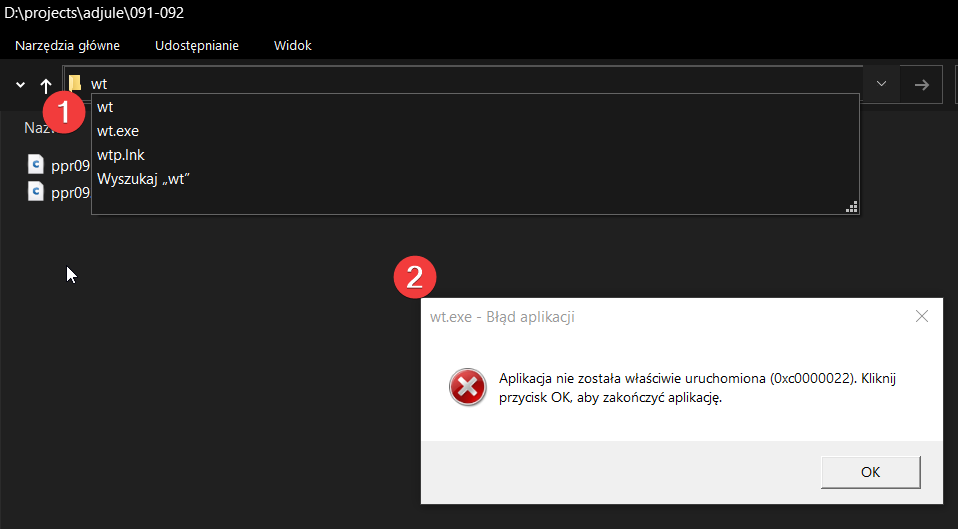
It seems when I type
wtinto the explorer it's using this path:C:\Program Files\WindowsApps\Microsoft.WindowsTerminal_1.3.2651.0_x64__8wekyb3d8bbwe\wt.exe(it flashes very briefly in the explorer URL input and can be retrieved), whilewhere wtreturns a more saneC:\Users\Admin\AppData\Local\Microsoft\WindowsApps\wt.exe. And opening the first path incmdreturns the same error as running in explorer, but running the second path is not a recognized command...:After the above, I tried reinstalling, but the same error happens. So I tried to uninstall it again and this time I tried removing all these folders:
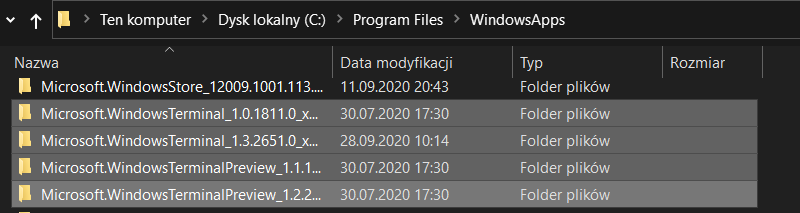
but I can't remove it all because some files are either opened in another program or I need "SYSTEM" permissions to remove them. I tried changing one of the folder's owner to myself, but when trying to uninstall it says I need permissions from myself to uninstall.
After reinstalling, I removed
%USERPROFILE%\AppData\Local\Microsoft\WindowsAppsfolder from userPathand now the error remains when starting from the explorer, but it doesn't work at all when typed into thecmd:Is there a way to force the use of
%USERPROFILE%\AppData\Local\Microsoft\WindowsAppsinstead ofC:\Program Files\WindowsApps\Microsoft.WindowsTerminal_1.3.2651.0_x64__8wekyb3d8bbwe?@DHowett commented on GitHub (Sep 28, 2020):
This usually happens when you change the permissions on
C:\Program Files\WindowsApps. It is an important part of the app platform on Windows and not something Terminal can recover from when it is broken.Given that you had no trouble accessing that folder, consider restoring the permissions and removing and reinstalling all instances of Terminal so that they get put back with the correct permissions.
@JakubKoralewski commented on GitHub (Oct 18, 2020):
This is crazyyy. I did a restore first with and then without keeping data, but the WindowsApps permissions problem was still there, where the Windows Store or any other built-in app for that matter would not turn on. I am now very finickly at a reverse stage where it works when called from the explorer, but doesn't (incorrect parameter) when called from a shortcut.
I have no idea how a permission problem can persist after system reinstall. This is crazy. I guess somehow it's in the cloud in my Windows user profile... 🤷
EDIT: Is there a way something could have persisted if I chose to restore the system? Is it identical to a clean install cause I want to get rid of this for goood
EDIT2: 🎉 solution as simple as drive format, ez fix 😄
@zachHixson commented on GitHub (Oct 20, 2020):
I am getting this issue starting this morning. Windows updated something (I think security related) and when I booted up I get the same error. Unfortunately for me, drive formatting isn't really an option as it's just not worth it.
Currently I'm just switching back to powershell, but it would be nice if there was a fix/solution for this
@dwright726 commented on GitHub (Oct 21, 2020):
I too started getting this error out of the blue this morning no updates have been applied (to my knowledge) worked yesterday afternoon, I've already spent 1-2hours trying to figure it out. My answer is just to abandon the terminal all together this is the second time I have ran into issues with it that has led to multiple hours of troubleshooting, at this point the benefits of wt are no longer worth the technical debt
@dexeonify commented on GitHub (Oct 25, 2020):
I've found a solution from another thread which seems to solve this issue.
@zachHixson commented on GitHub (Oct 25, 2020):
@dexeonify I had to take control of the WindowsApps folder first, and while I was able to take ownership of vcruntime140.dll, when I go to edit permissions it gives me an error saying "The access control entry is corrupt. Delete it and Create a new one." Guides online on how to do this seem spotty at best.
@dexeonify commented on GitHub (Oct 26, 2020):
Hmm, weird. I didn't face any issues when using that method.
Here's how I did it:
vcruntime140.dll.If it's corrupt, I guess you have to remove it and add a new one.
@zachHixson commented on GitHub (Oct 26, 2020):
The problem was I wasn't able to access WindowsApps without first taking ownership. I also have no idea how to delete that file, or where it is.
@Gameghostify commented on GitHub (Oct 29, 2020):
Suddenly got this issue as well,
without touching my installationafter updating through the StoreHowever, @dexeonify's steps have helped. To be exact, taking ownership of the Windows Terminal folder in C:\Program Files\WindowsApps fixed the problem
Please consider reopening this issue
@cjpellicci commented on GitHub (Oct 29, 2020):
Just for another data point, I am also suddenly experiencing this issue since a few days ago. I do have permission to the WindowsApps folder, but wt previously worked fine despite that until a few days ago. Same as above, the issue only occurs when trying to run wt from the start menu or file explorer.
It appears as if I have three copies of wt.exe as well, in the same locations as above:
C:\Users\cjpel\AppData\Local\Microsoft\WindowsApps\Microsoft.WindowsTerminal_8wekyb3d8bbwe\wt.exeC:\Users\cjpel\AppData\Local\Microsoft\WindowsApps\wt.exeC:\Program Files\WindowsApps\Microsoft.WindowsTerminal_1.3.2651.0_x64__8wekyb3d8bbwe\wt.exeIt seems as if an update to either Windows or Windows Terminal has done something to suddenly cause this issue, as I and others have chimed in saying that it just started happening in the past few days without changing anything.
Edit: The fix above that seems to be working for others does not fix the issue for me unfortunately.
@cjpellicci commented on GitHub (Oct 29, 2020):
I was able to fix the issue by resetting permissions to the WindowsApps folder. wt works as expected after running the command below in an elevated PowerShell:
icacls "C:\Program Files\WindowsApps" /reset /t /c /q@sokolinivan commented on GitHub (Oct 29, 2020):
Thank you so much. This really solves the problem.
@zachHixson commented on GitHub (Oct 29, 2020):
I tried
And said "Access Denied," on each line that appeared. I tried it with System, and myself as the folder owner and same result
@zachHixson commented on GitHub (Oct 31, 2020):
Ok, now terminal just refuses to open from the start menu. I can't use "wt" to open it from explorer, running "wt" from powershell (which worked until yesterday), or Start > Terminal to open it, or Start > typing "Terminal," and then opening it that way.
After a reinstall, launching from start, search, and "wt" from powershell worked correctly, but file explorer still gave the 0x0...22 error
@butgit commented on GitHub (Nov 3, 2020):
I found this problem yesterday when I tried running it by typing wt and Enter from Start menu. Strange enough, typing windows terminal and Enter in Start menu opens the terminal normally.
I reinstalled it from MS Store but still get the same error message. I tried
icacls "C:\Program Files\WindowsApps" /reset /t /c /qin the elevated powershell window to no avail.@0x15f2d commented on GitHub (Nov 10, 2020):
I thought this issue was my SSD breaking up files since it has signs of making files incorrectly usable (a jar file broken).
So I went through a
DISM,SFC,DSKCHKbut they aren't working at all.Plus upgrading to 20H2 doesn't seem to fix it since upgrading windows will reinstall drivers, Windows apps.
Edit:
My problem is that I'm afraid I messed up the permissions of
WindowsAppsandMicrosoft.WindowsTerminal_versionNumber_arch__probablyGUIDOrSomethingwithout notices and I don't want to mess up the permissions of WindowsApps anymore so I got a fix for this:Use powershell under Administrator and run
Remove-AppxPackage [Whatever is the full name of the Windows Terminal package name is for example: Microsoft.WindowsTerminal_1.3.2651.0_x64__8wekyb3d8bbwe].This will ACTUALLY DELETE the program's folder and not keeping the app files when uninstalling them in Settings app.
Go back to Microsoft Store and reinstall it and you're done.
@KyleCrowley commented on GitHub (Nov 10, 2020):
I'm running into this same error seemingly out of nowhere (I suspect a Windows update as others have alluded to).
Steps I've taken to try and resolve:
icacls "C:\Program Files\WindowsApps" /reset /t /c /qwith Windows Terminal installed [FAIL]Neither solution worked.
I should point out that I'm installing Windows Terminal via chocolatey, not through the Windows Store (my organization prevents me from doing so), so this issue doesn't seem to be isolated to just the Windows Store installation method.
@0x15f2d commented on GitHub (Nov 12, 2020):
@KyleCrowley doing
icacls "C:\Program Files\WindowsApps" /reset /t /c /qdoes not actually restore 100% WindowsApp's folder original permissions and owners. It just restores to default owners and permissions. Usually You (Part of the Administrators) not NT Authority\TrustedInstaller or in this case Windows can't display it because Administrators can't even have permissions to see it. So you had toTakeOwnit.You need an actual backup of owners and permissions from WindowsApps folder also made by
icaclssoicaclsitself can use the backed up permissions and ownership file to restore the folder's owners and permissions correctly.Otherwise if you are like me who messed that up. Upgrading existing Windows will fix this since it's like a reinstallation (better than doing
dismandsfcthing. I tried and it partially works for the WindowsApps folder alone. The rest of the folder's content that has permissions altered must be reinstalled (deleted).Or reinstall Windows.
And about wt.exe. Check the Settings app for enabling Alias and Command Prompt
where wt.exe.If it returns to WindowsApps folder. Use Powershell to uninstall it. (Do not try to delete the one from AppData because it just a some sort of a symlink. The one you need to delete was from Program Files.)
If it said it doesn't reference to anything but running it from Run still saying 0xc0000022 then that means the Windows Terminal's app is still has folders and files permissions and ownership altered. Use Powershell or anything to get rid of that folder and go to MS Store to reinstall it correctly after you fixed the WindowsApps folder.
One more thing is that when I download the msix file (Currently version 1.3) when installing the file the program works fine. But when I reboot the machine (It was deep freezed) and reinstall the same file. It doesn't work outright anymore it just give me a cross and it said it can't find the file because the path to the execution binary file was shortened for some reason????
https://github.com/microsoft/terminal/issues/7188
But yeah if you downloaded it from github it was installing fine. But when you got it from other places it just can't be launched.
Other appx files and msix files that I got offline seems installing and working fine. Like the Language Pack.
@KyleCrowley commented on GitHub (Nov 13, 2020):
@0x15f2d Thanks for the note about restoring the original permissions. You led me down a path that eventually allowed me to get Windows Terminal working again.
The method I followed was the one laid out here. At some point, I must've taken control of the WindowsApps folder via my local admin account (separate account my organization provisions). Once I followed the procedure, things started working again (barring some irregularities with the Chocolately install, but that is out of scope as far as this issue is concerned).
@zachHixson commented on GitHub (Nov 16, 2020):
@KyleCrowley Wow for some reason this worked. When I first started getting the bug, somebody else here suggested modifying the some files in the folder, but I didn't have access. I took ownership to gain access to WindowsApps and edit the files, but it didn't fix my problem. Restoring ownership to TrustedInstaller fixed my problems. Weird.
@0x15f2d commented on GitHub (Nov 16, 2020):
@KyleCrowley oh yeah that makes sense to me now. because reinstalling windows is like using SYSTEM to do stuff.
psexec.exe -s -i cmd@0x15f2d commented on GitHub (Nov 16, 2020):
@zachThePerson there will be more issues to come if you still can see if you still have permissions to see (read permissions) who owns WindowsApps folder (not its contents) because i have multiple built in apps reinstalled from ms store (not actually deleting the folder itself because altered ownerships and I don't know this method yet) and they are all starting up crashed like Weather app or Xbox Companion app.
Repairing, clean app data won't help from Settings app.
But it should be like you have zero permissions and ownerships towards WindowsApps folder.
Only special roles like NT Authority\SYSTEM, NT Authority\TrustedInstaller or CREATOR OWNER can have full access.
@zachHixson commented on GitHub (Mar 4, 2021):
It happened again. Same error, but nothing I did last time seems to fix it. As far as I can tell all the permission settings are the same
@JamesWZM commented on GitHub (Mar 4, 2021):
icaclsdoes not work for me at all!The WindowsTerminal.exe is still available, but wt.exe just won't work and returns to me a 0xc0000022 error.
I have no idea what has happened to it. It's still working well yesterday and I have not restarted my computer.
Also, OpenConsole.exe returns to me the same error.
It is amazing that, in shell (any shell including cmd, pwsh...), command "wt" worked well. But it just won't work with double click or Win+R run
@wuqiling97 commented on GitHub (Mar 4, 2021):
icaclsnot working, but I found a workaround:Then I can run
wtfromRunwindow.@zachHixson commented on GitHub (Mar 4, 2021):
Great workaround! Wouldn't be surprised if a future update breaks this folder too though
@Gameghostify commented on GitHub (Mar 18, 2021):
Happened to me again as well. Same thing as last time, taking ownership of the folder the app is in fixed the issue
@barnemesh commented on GitHub (Mar 30, 2021):
A solution I found-
changing the values in the following registries:
Computer\HKEY_CURRENT_USER\SOFTWARE\Microsoft\Windows\CurrentVersion\App Paths\wt.exe
from the C:\Program Files\WindowsApps\ path, to the path in C:\Users\USERNAME\AppData\Local\Microsoft\WindowsApps\
@zachHixson commented on GitHub (Apr 9, 2021):
Changing the registry path worked like a charm. Since it points to an AppData folder, I think this should be the default as we wouldn't ever have to worry about security bugs like this
@DHowett commented on GitHub (Apr 9, 2021):
App packages are installed and registered per-user; this is the only effective way to give users specific control over which app package is invoked :)
@zachHixson commented on GitHub (Apr 9, 2021):
Ok. Also it broke again so I retract my previous statement. Don't know why it only worked once or twice, registry entries are still the new value so idk what is going on anymore
@mihirsavadi commented on GitHub (May 29, 2021):
This worked perfectly!!!!!!!!! Tried literally everything else in this thread only more problems, but this worked
@pashza commented on GitHub (Jan 30, 2022):
This worked perfectly!
@PennRobotics commented on GitHub (Feb 8, 2022):
For anyone else who messed up their WindowsApps permissions running the command above, running the script at https://github.com/AgentRev/WindowsAppsUnfukker made everything (mostly) well again. Except now Windows Store thinks Terminal Preview is installed while it cannot be found via Start Menu or Add/Remove Programs. (It is, in fact, installed.)
@liudonghua123 commented on GitHub (Mar 12, 2022):
This method works for me. I found that
"C:\Program Files\WindowsApps\Microsoft.WindowsTerminal_1.11.3471.0_x64__8wekyb3d8bbwe\wt.exe"is a uwp, and can not directly run. You should run%LOCALAPPDATA%\Microsoft\WindowsApps\wt.exe(It's a zero sized file, maybe called app execution alias) instead.But I find other items in
Computer\HKEY_CURRENT_USER\Software\Microsoft\Windows\CurrentVersion\App Pathsare using path likeC:\Program Files\WindowsApps\MicrosoftCorporationII.WindowsSubsystemforLinux_0.51.3.0_x64__8wekyb3d8bbwe.@plutonium-239 commented on GitHub (Mar 23, 2022):
@liudonghua123 Thank you so much!
Finally works after 6 months lol
@Anonymous87549236 commented on GitHub (Mar 26, 2022):
https://superuser.com/questions/1288014/reset-default-acls-for-c-program-files-windowsapps worked for me.
@LeoZeolite commented on GitHub (Sep 23, 2022):
This method works for me.
@petryaevve commented on GitHub (Nov 19, 2022):
Thanks!!! It works good
@ghost commented on GitHub (Mar 5, 2023):
Why won't Microsoft fix this registry issue on Windows Terminal installation?
@smurpau commented on GitHub (Nov 17, 2023):
I've run into this issue as well, reproducibly, by building a Hyper-V VM with Vagrant, the "gusztavvargadr/windows-10-22h2-enterprise-nocm" base box, chocolatey, and
choco install microsoft-windows-terminal(tried the latest version as well as 1.18.2822.0 which is running fine on my host Win10 machine).icacls "C:\Program Files\WindowsApps" /reset /t /c /qdoesn't work, nor does the registry change.@r1ght0us commented on GitHub (Dec 7, 2023):
thanks, this work for me
@petryaevve commented on GitHub (May 24, 2024):
Thank you! It's working now