mirror of
https://github.com/microsoft/terminal.git
synced 2026-09-24 16:05:21 +00:00
[Feature Request] Border-/Titleless windows for displaying dynamic information with the Terminal #3121
Closed
opened 2026-01-30 23:13:30 +00:00 by claunia
·
28 comments
No Branch/Tag Specified
main
dev/duhowett/fhl-2026/remove-paste-hairpin-handler
dev/duhowett/win7-wpf-termcontrol-squash
dev/lhecker/20226-present-leaks
dev/duhowett/wpf-1-autoscroll-to-interactivity
dev/duhowett/wpf-3-swapchain-handle
dev/duhowett/wpf-2-midi-audio-timer
dev/migrie/overview-for-pr
dev/migrie/b/markdown-paste
dev/duhowett/padding-in-atlas
fix/german-split-pane-tooltip
release-1.25
dev/cazamor/sui-rejuv/fix-spaces
dev/migrie/per-window-final
dev/cazamor/selfhost/2026-08-31
dev/migrie/b/independent-animations
dev/pabhoj/wtcli
dev/cazamor/conhost/bugfix-a11y-find
dev/cazamor/conhost/bugfix-a11y-find-1.24
dev/lhecker/theme-quality-test
dev/lhecker/theme-quality
dev/cazamor/selfhost/sui-rejuv
dev/cazamor/fix/search-selection-off-by-one
dev/duhowett/even-more-builtin-glyphs
dev/crutkas/kitty-pr1
dev/cazamor/toast/activity
release-1.24
users/GitHubPolicyService/d8615b98-f5fa-4462-bf7f-c44a1cc12096
dev/cazamor/selfhost/2026-06-18
dev/migrie/f/new-profile-subcommand
dev/cazamor/sui-rejuv/profiles-v2
dev/duhowett/asan-for-all
dev/cazamor/sui-rejuv/profiles-new
dev/cazamor/sui-rejuv/expander-groups-new
dev/cazamor/auto-save/refresh-settings
feature/llm
dev/cazamor/auto-save/model/json-manager
dev/cazamor/auto-save/settings-model
dev/migrie/s/snippet-params
users/merlinbot/1es-pt-auto-baselining-pr
niels9001/inactive-tab-foreground
dev/cazamor/selfhost/2026-05-20-home
dev/duhowett/fzf-vcxproj
dev/cazamor/selfhost/2026-05-20
dev/cazamor/selfhost/2026-05-19
dev/cazamor/selfhost/2026-05-18
niels9001/fontweight-fixes
niels9001/page-transitions
dev/duhowett/fhl-2026/rewrite-paste-and-dragdrop-handling-writeinputstring
dev/migrie/f/overview-view
dev/cazamor/selfhost/2026-05-13
dev/cazamor/selfhost/2026-05-13-sui
dev/yeelam/f/BuildTest
dev/duhowett/hax/our-own-tabview
dev/cazamor/bugfix/close-scratchpad
dev/cazamor/selfhost/2026-05-05
dev/cazamor/selfhost/2026-05-04-workspaces
dev/cazamor/selfhost/2026-05-04
dev/lhecker/20149-hotfix
dev/lhecker/osc-7-wsl
dev/migrie/workspaces-real
dev/migrie/fhl-spring-2026/quake-4
dev/lhecker/pwsh-5.1
dev/cazamor/sui/dropdown-page
dev/cazamor/selfhost/2026-04-08
dev/cazamor/selfhost/2026-04-06
dev/migrie/fhl-spring-2026/confirmCloseOn
dev/cazamor/confirmCloseOn/dont-ask-me-again
dev/lhecker/inproc-conpty
dev/duhowett/powershell-module-supercharger
dev/cazamor/a11y/vt-seq-prototype
dev/migrie/fhl-spring26/osc777-2
dev/migrie/fhl-spring26/2/notification-infrastructure
dev/migrie/fhl-spring-2026/side-tabs
dev/cazamor/copilot/playground
dev/migrie/fhl-spring-2026/quake-3.5
dev/migrie/fhl-spring26/osc777
dev/migrie/fhl-spring26/unpackaged-notify
dev/migrie/fhl-spring26/bellStyle-notification
dev/migrie/fhl-spring26/activity-notifications
dev/migrie/fhl-spring-2026/x-open
dev/migrie/fhl-spring-2026/quake-5
dev/migrie/fhl-spring26/nextTab-filter
dev/duhowett/atlas-draw-d2d-dots-curlies-consistently
dev/lhecker/14165-conhost-font-size
dev/lhecker/ottosson-by-default
dev/duhowett/hax/unix-pty
dev/duhowett/hax/cmake
dev/lhecker/generate-256-colors
dev/lhecker/dcs-perf
dev/lhecker/1410-large-scrollback
dev/cazamor/selfhost/2026-02-10
dev/lhecker/11509-kitty-keyboard-protocol-wip
dev/cazamor/selfhost/2026-01-29
dev/lhecker/benchcat-fix
dev/duhowett/eoy-25/allow-set-foreground
release-1.23
dev/cazamor/bot/deprecate-area-atlasengine
dev/cazamor/selfhost/2026-01-20
dev/cazamor/selfhost/2026-01-12
dev/cazamor/spec/auto-save
dev/duhowett/fhl-2024/asciicast-recorder
dev/duhowett/eoy-25/underline-colors-in-atlas-bug
dev/duhowett/hax/serial-port-support
dev/duhowett/connection-utf8
dev/lhecker/fused-event
dev/lhecker/18928-wip
dev/duhowett/fhl-2024/clang
dev/duhowett/vt-cache-changes
dev/cazamor/uia-leak
release-1.22
dev/cazamor/selfhost/11-18-v3
dev/cazamor/selfhost/11-18
dev/duhowett/fhl-2025/bitmap-fonts
dev/duhowett/server-2025-vms
dev/duhowett/cant-believe-gotta-do-this-shit
dev/lhecker/dark-mode
dev/cazamor/sui/invert-cursor-color
dev/duhowett/fhl-2025/wt-command-palette-cmdpal-integration
dev/duhowett/fhl-2025/wt-json-relative-icons
dev/lhecker/fucking-service-locator
dev/duhowett/unicode-17
dev/duhowett/multi-blern
dev/lhecker/wellp2-alt
dev/duhowett/wellp2
dev/lhecker/1860-horizontal-scrollbar
dev/lhecker/fix-window-count
dev/cazamor/sui/tab-color-old
dev/duhowett/hax/conhost-icon
dev/duhowett/hax/sui-color-chip-border
dev/duhowett/hax/terminalsettings-as-a-lib-/with-types-merged-into-tsm
dev/pabhoj/page_control_input_cleanup
dev/duhowett/padding-in-atlas-rebase-20250729
dev/lhecker/attach-thread-input
dev/duhowett/portable-shader-members
msbuildcache-reenable
dev/cazamor/selfhost/1.24-2025-06-10
dev/cazamor/upgrade-settings-containers
dev/cazamor/sui/ext-page/powershell-stub
dev/cazamor/selfhost/1.24-2025-05-15
dev/pabhoj/sui_action_overhaul
dev/cazamor/selfhost/1.24-2025-05-06
dev/cazamor/selfhost/1.24-2025-04-29
dev/cazamor/sui/ext-page/lazy-load-objects
dev/cazamor/sui/ext-page/badge
dev/cazamor/selfhost/1.24
dev/lhecker/sdk-26100
dev/duhowett/testing
dev/jadelaga/VS-Pty.Net-1.22
dev/duhowett/fhl-2025/what-if-no-content-ids
dev/lhecker/18584-part2
dev/lhecker/get-lang-id
dev/duhowett/hax/clogs
release-1.21
dev/pabhoj/featurellm_fix_paste
dev/lhecker/grapheme-backup
dev/jadelaga/VS-Pty.netFixes
dev/lhecker/atlas-engine-compute-shader
dev/migrie/s/ai-providers
dev/lhecker/animated-cursor-wip
dev/pabhoj/featurellm_timeout
dev/lhecker/dark-mode-alt
dev/duhowett/osc-strided-table
dev/lhecker/bugbash
dev/pabhoj/featurellm_improve_parsing
dev/duhowett/coast-to-coast
dev/lhecker/curly-improvements
dev/duhowett/net8
dev/duhowett/onebranch-custom-pool
dev/lhecker/renderer-overhaul-2nd-attempt
dev/lhecker/cleanup
dev/cazamor/sui/confirmation-announcements
dev/lhecker/winconpty-cleanup
dev/duhowett/learn/rewrite-highlights
dev/migrie/b/no-nesting-when-searching
release-1.20
dev/duhowett/sel-2-spans
dev/lhecker/7118-cursor-color
dev/lhecker/remove-glyph-width
dev/lhecker/igfw-scroll-region
dev/lhecker/17656-win32im-double-encoding
dev/duhowett/fhl-2024/merge-idls
dev/duhowett/feed-forward-variables
dev/lhecker/remove-chrome-math
dev/duhowett/copylink
dev/duhowett/applicableactions
gh-readonly-queue/main/pr-17566-de50310295b7d92ed3d51f07974a2a945776bf9d
dev/lhecker/atlas-engine-stride-copy
dev/migrie/b/bump-nuget-in-c
dev/migrie/f/992-redux-redux
dev/migrie/f/filter-weight-input-too
dev/migrie/f/disable-nesting
dev/migrie/f/local-snippets-cleaner
dev/migrie/s/1553-mouse-bindings
selfhost-1.22-bugbash-2024-06-04
selfhost/1.22-bugbash-2024-06-04
dev/lhecker/15689-tab-drag-crash-fix
dev/migrie/f/sxnui-font-size-change
dev/migrie/f/local-snippets-on-action-refactor
dev/migrie/f/just-local-snippets
dev/migrie/save-input-patches
dev/migrie/f/md-pane-official
dev/migrie/base-pane
dev/migrie/fhl/tasks-pane
release-1.19
dev/migrie/b/17130-clear-marks-2
dev/migrie/b/17075-its-me-the-killer
dev/duhowett/i-figured-out-why-sometimes-the-publish-build-failed
dev/duhowett/nuget-publication-with-aad-app-id
selfhost-1.20
dev/duhowett/graph
dev/migrie/b/15803-activate-dont-copypasta
dev/duhowett/is-pgo-broken-because-of-sui-being-slower
dev/migrie/b/remove-terminaltab
dev/migrie/fhl/md-pane
dev/migrie/fhl/local-tasks-2024
dev/migrie/fhl/2024-inline-notebook
dev/duhowett/interface-projects
dev/duhowett/dead-loc
release-1.18
dev/migrie/fhl/2024-spring-merge-base
dev/duhowett/hax/l9
inbox
dev/migrie/14073-on-main
dev/duhowett/hax/conhost_dump_replay
user/lhecker/atlas-engine-srgb
dev/migrie/fhl/sxnui-tooltips-3
dev/migrie/7718-notifications-experiments
dev/migrie/fhl/7718-notifications
dev/migrie/fhl/7718-notifications-reboot
dev/lhecker/remove-gsl
dev/lhecker/16575-TerminateProcess
dev/lhecker/window-thread-climate-control
dev/lhecker/client-context-input-output-mode
dev/lhecker/ring-buffer-input-buffer
release-1.17
dev/lhecker/propsheet-fontdlg-refactor
dev/lhecker/renderer-overhaul
dev/pabhoj/test
dev/duhowett/chop
dev/lhecker/til-ulong-cleanup
dev/lhecker/til-env-cleanup
dev/migrie/f/16005-a11y-pane
dev/cazamor/a11y/fastpass
dev/migrie/b/15487-push-cwd
dev/migrie/b/15536-or-15219-idk
dev/duhowett/move-timers-down-into-core-interactivity-etc
dev/migrie/b/15812-broadcast-paste-two
dev/migrie/fhl-fall-2023/11162-quake-III-arena
dev/migrie/fhl-fall-2023/1620-automatic-tab-progress
dev/migrie/fhl-fall-2023/9992-quake-II
dev/migrie/fhl-fall-2023/9992-default-quake-settings
dev/migrie/fhl-fall-2023/9992-window-name-settings
dev/migrie/fhl-fall-2023/oceans
dev/lhecker/ColorScheme-improvements
dev/migrie/search-v2-v3
dev/migrie/pr-15717/its-dangerous-to-go-alone
dev/migrie/f/4768-taskbar-icons
dev/migrie/f/3121-tooltips
dev/duhowett/sticky-control
dev/duhowett/fix-tracing-2
dev/migrie/b/add-support-for-vsc-marks
dev/migrie/f/1860-this-is-literally-what-less-is-for
dev/migrie/s/5916-draft
dev/lhecker/tracy
dev/migrie/s/north-star
dev/cazamor/tag-youre-it
dev/migrie/f/12336-let-it-mellow
dev/migrie/f/now-with-more-compat-settings
dev/migrie/f/compatibility-sui
dev/duhowett/hax/wpf-atlas
dev/duhowett/fgb
dev/migrie/b/15487-relative-paths-are-hard
dev/lhecker/colrv1
loc-update
dev/migrie/fhl/dyndep-csharp
dev/migrie/fhl/dyndep
dev/migrie/fhl-clickable-send-input
dev/migrie/f/cwd-hijinks-5506-15173
dev/lhecker/openconsole-async-start
1.17
dev/migrie/bump-scratch
dev/migrie/f/3726-restartConnection
dev/migrie/b/cxn-restarting-attempt-1-backport
dev/migrie/b/9053-part-3-the-actual-doing-of-the-thing
dev/migrie/b/13388-focus-logger
dev/migrie/b/9053-part-4-i-guess-defterm
dev/migrie/oop/3/of-the-silmarils
of-the-darkening-of-valinor
dev/migrie/fhl/notebook-proto-000
dev/migrie/f/narrator-buddy
dev/migrie/mux-2.8.2-march-2023
dev/migrie/f/roast-mutton
dev/migrie/f/12861-preview-input
dev/lhecker/clang-tidy
dev/migrie/f/3121-wE-dOnT-hAvE-dEv-DaYs
dev/duhowett/compiler-compliance
dev/duhowett/i-have-a-burning-hatred-for-ntstatus-of-later-so-why-not-fix-it
dev/duhowett/shorthand-namespaces
dev/duhowett/rename-all-dlls
dev/duhowett/errordialog
dev/lhecker/gsl-narrow
dev/migrie/b/11522-dumb-idea
release-1.16
dev/miniksa/env
dev/duhowett/hax/embed-everything
dev/migrie/b/13388-attempt-003
dev/migrie/b/14512-test-research
dev/migrie/b/13388-attempt-002
dev/migrie/b/14464-copyOnSelect-moving-text
dev/migrie/s/thema-schema-for-1.16
dev/migrie/s/theme-pair-schema
dev/migrie/b/13388-experiments-1
dev/cazamor/spec/a11y-vt-seq
dev/migrie/b/14557-empty-folder-dropdown
dev/cazamor/spec/a11y-vt-seq-v2
release-1.15
dev/migrie/f/process-model-v3-test-0
dev/lhecker/vsconfig
dev/migrie/s/5000-presentation
dev/lhecker/5907-startup-perf
dev/lhecker/winrt-file-api-benchmark
dev/duhowett/128-bit-compiler
dev/migrie/fhl/more-shell-integration
dev/migrie/b/13388-experiments-0
dev/lhecker/til-to-ulong-improvements
dev/migrie/s/markdown-notebooks
dev/cazamor/a11y/nav-by-page
dev/cazamor/a11y/system-menu-support
dev/duhowett/no-private-registry-keys
dev/cazamor/wpf/uia-expose-enable-events
dev/cazamor/wpf/uia-events
extendAISpec
dev/migrie/fhl/clickSendInput
dev/migrie/fhl/save-command
dev/migrie/b/theme.profile
dev/migrie/b/13943-a-test-for-this
dev/migrie/oop/2/endgame
dev/duhowett/hax/merge_idl
dev/migrie/oop/2/infinity-war
dev/migrie/spellbot-cve
dev/cazamor/a11y-sev3/new-profile-announcement
dev/migrie/fhl/upside-down-mode
release-1.14
dev/migrie/f/9458-startupInfoToTerminal
dev/migrie/fhl/5916-triggers
dev/migrie/b/13523-context-menu
dev/migrie/b/6523-endpaint-outside-lock
dev/migrie/b/12413-OnUnhandledException
dev/lhecker/render-snapshot
dev/cazamor/1.15/scroll-to-point
dev/migrie/mux-2.8-aug-2022
dev/lhecker/lock-console-guard
dev/migrie/f/1504-final
dev/pabhoj/sui_follow_ups
dev/migrie/f/til-winrt.h
dev/cazamor/color-picker-redesign
dev/migrie/fhl/vscode-autocomplete-prototype
dev/migrie/f/1504-prototype
dev/migrie/oop/2/loki
dev/migrie/oop/2/wandavision
dev/migrie/b/8698-YOURE-OUT-OF-ORDER
fabricbot-configuration-migration
dev/migrie/b/12788-did-it-work
dev/migrie/b/localtests-ci-2022
dev/cazamor/1.14/replace-compareInBounds
dev/pabhoj/preview_string
dev/cazamor/ks/switchSelectionEndpoint
dev/migrie/oop/2/COM-ISwapChainProvider-attempt-1
dev/migrie/b/dxd-marker
release-1.13
dev/migrie/b/13066-for-defterm
dev/cazamor/revert-dwm
dev/migrie/b/13066-sw_flash_repeatedly
dev/migrie/b/no-cloaky-cloak
dev/migrie/f/apples-to-oranges
dev/migrie/f/no-custom-caption-btns
dev/migrie/f/10509-mica-and-transparent-titlebars
dev/migrie/b/12911-wpf-focus-fg
dev/migrie/titebar-colors
dev/lhecker/4015-cursor
dev/migrie/fhl/rgb-rainbow-window-frame
dev/migrie/fhl/scroll-marks-prototype
release-1.12
dev/miniksa/compliance
dev/migrie/f/default-icons
dev/migrie/fhl/10175-web-search-for-text
dev/migrie/fhl/menu-complete-prototype
dev/migrie/b/2988-merged-prototypes
dev/migrie/b/2988-niksa-msgs-prototype
dev/migrie/fhl/9583-colorSelection
dev/migrie/b/10609-sui-leak
dev/migrie/b/32-attempt-3
dev/migrie/release-1.12-rejuv-attempt-2
dev/migrie/demo-for-presentation
dev/migrie/b/32-but-im-here-for-12567
dev/duhowett/conpty_first_frame_blug
dev/migrie/b/11092-unfocused-acrylic-settings
dev/migrie/localtests-in-ci
dev/migrie/b/12356-attempt-2
dev/migrie/b/12353-with-null
dev/migrie/b/12387-trim-spaces
dev/migrie/b/5033-bad-start
dev/lhecker/12351-broken-locales
dev/migrie/b/8663-input-to-oem-crash
dev/migrie/b/11743-win10-opacity-is-hard
dev/migrie/f/ctrl-click-elevate
dev/migrie/b/12196-shim-localization
dev/lhecker/issue-4015-til-rect
dev/cazamor/eim/mvvm
dev/migrie/f/--elevate
dev/migrie/b/11668-i-think
dev/migrie/b/11994-wsl-mangline
dev/migrie/eim/3475-action-xmacros
dev/migrie/eim/incremental-build-000
dev/cazamor/a11y/fake-uia-data
dev/migrie/f/non-terminal-content-elevation-warning
dev/migrie/f/632-on-warning-dialog
dev/lhecker/rgba
dev/migrie/b/8480-keybindings-in-tabs
release-1.11
dev/migrie/b/11561-dead-ends
dev/migrie/oct-21-roadmap-update
dev/migrie/fhl/adaptive-card-extension
dev/cazamor/test/11440
dev/migrie/f/warning-dlg-automation
dev/migrie/b/1.12-crash-on-exit
dev/migrie/b/11146-next-tab-in-cmdpal
release-1.10
dev/migrie/5ff9a24-and-75e2b5f
dev/duhowtt/hax/cpal-jumplist-async
dev/lelian/actionid/1
dev/migrie/f/just-elevated-state
dev/lhecker/terminal-settings-cleanup
dev/migrie/gh-10824
dev/pabhoj/cursor_light
dev/migrie/oop/wandavision
dev/migrie/oop/endgame
dev/migrie/oop/infinity-war
dev/lhecker/app-state-actually-hidden
dev/migrie/b/6160-dynamic-default-warning
dev/mgirie/b/more-nchhittest-ideas
dev/migrie/b/9320-interfacial-separation
cinnamon/fhl/find-contextmenu
dev/lhecker/wsl-distro-generator-cleanup
dev/migrie/b/10875-but-more-clever
dev/migrie/b/broken-globalsummon-overloading
dev/duhowett/hax/rle-row
dev/migrie/fhl-2021/cmdpal-select-list
dev/migrie/fhl-2021/differential-pixel-shading
dev/duhowett/hax/no-writable-glyphat
dev/migrie/fhl-2021/more-shader-variables
dev/migrie/titlebar-shenannigans
dev/miniksa/win10_font_matching
dev/lhecker/conhost-oom
dev/migrie/b/10332-less-snappy-scrolling
dev/migrie/b/7422-1px-top-border
release-1.9
dev/cazamor/move-scratch
release-1.8
dev/miniksa/manifest_2
release-1.6
release-1.7
dev/migrie/oop/the-whole-thing
dev/migrie/oop/connection-factory
dev/migrie/f/quake-dropdown-2
dev/miniksa/rle2
dev/migrie/f/quake-toCurrent-experiments-2
dev/migrie/f/quake-toCurrent-experiments
dev/migrie/f/quake-dropdown
dev/cazamor/actions-page/template
dev/duhowett/hax/cursor_stamp_foreground_background
dev/migrie/f/1860-hey-might-was-well-hack-during-a-hackathon
dev/migrie/oop-terminal.control-split-control
dev/duhowett/hax/build-with-wholearchive
dev/cazamor/spec/tsm-actions-temp
dev/migrie/oop-tear-apart-control
dev/migrie/oop-scratch-3
dev/cazamor/sui/bugfix-reload-crash
dev/migrie/f/xmacro
dev/cazamor/sui/proto/profile-nav-view
dev/migrie/f/name-windows
dev/migrie/dol/messing-with-shaders-take-1
release-1.5
dev/cazamor/sui/inheritance-hyperlinks-test
dev/migrie/r/commandline-lib-002
dev/migrie/f/com.fabrikam.toaster
dev/cazamor/adaptive-cards-prototype
dev/migrie/f/commandline-lib
dev/miniksa/zipzoom2
dev/migrie/f/remote-commandlines
dev/migrie/f/632-elevated-profiles
dev/migrie/oop-broker-000
dev/migrie/fix-pr-7015
dev/duhowett/clang
dev/miniksa/input_tests_2
dev/miniksa/input2
dev/migrie/oop-rpc-000
release-1.4
dev/migrie/oop-mixed-elevation-1
dev/migrie/oop-window-content-1
cinnamon/open-json
dev/miniksa/input_tests
dev/duhowett/hax/tsm-graphviz
dev/miniksa/input
dev/duhowett/hax/caption_buttons
release-1.3
dev/cazamor/a11y/expand-line-under-viewport
dev/cazamor/acc/ch/word-nav-perf
dev/cazamor/spec/settings-ui-architecture-draft
dev/duhowett/hax/tap_upgrade
dev/migrie/f/pane-exit-animation
release-1.2
dev/migrie/move-lib-up-and-dll-down
release-1.1
dev/migrie/f/branch-2-backup
dev/migrie/f/settings-getters-only
dev/duhowett/hax/command_palette_search
dev/migrie/f/6856-let-terminalpage-expandcommands
dev/migrie/f/theming-2020
dev/migrie/oop-scratch-4
dev/duhowett/hax/punchout
dev/migrie/s/action-ids
dev/migrie/f/lets-just-generate-these
dev/migrie/oop-scratch-2
dev/miniksa/dcomp
dev/miniksa/gotta_go_fast_spsc
dev/miniksa/gotta_go_fast
dev/miniksa/perf_skip_checks
dev/miniksa/perf_buffer_dig
dev/migrie/s/1203-cursorTextColor
dev/migrie/f/fix-intellisense-i-guess-backup
release-1.0
dev/migrie/f/execute-commandlines
dev/migrie/f/2046-Command-Palette-v2
dev/migrie/b/6421-passthrough-alt
dev/migrie/b/moving-focus-is-hard
dev/miniksa/set
dev/migrie/f/1203-phase-1
dev/migrie/f/get-localtests-in-ci
dev/cazamor/drag-panes
dev/cazamor/tile-background
release-0.11
dev/duhowett/dev/duhowett/hax/appstate_remember
dev/duhowett/hax/wpf_win_8_hax
dev/migrie/b/3088-weird-exact-wrap-resize
release-0.10
dev/migrie/b/4591-custom-scaling-bug
dev/duhowett/hax/attr_smuggling
dev/migrie/b/5161-mingw-vim-fix
dev/miniksa/dx_bitmap
dev/migrie/b/1503-try-messing-with-cooked-read
dev/duhowett/eyebeam
dev/migrie/b/5113-experiments
dev/duhowett/hax-selection-exclusive
dev/migrie/f/more-vt-renderer-tracing
dev/miniksa/bitmap
dev/duhowett/wprp
dev/miniksa/bitmap-mad-with-power
dev/migrie/f/resize-quirk
dev/migrie/f/reflow-buffer-on-resize-002
wpf-renderer-revert
dev/miniksa/draw
release-0.9
dev/miniksa/tabs-color-fix
dev/miniksa/4309
dev/migrie/f/just-wrapping
dev/migrie/b/3490-try-another-resize-algo
release-0.8
dev/migrie/b/3490-a-simpler-resize
dev/migrie/b/3490-resize-down
dev/miniksa/4254
dev/migrie/f/conpty-wrapped-lines-2
dev/migrie/b/be-better-at-hiding
dev/migrie/f/3327-xaml-theming-proto
dev/miniksa/gardening2
release-0.7
dev/duhowett/conpty-flags
dev/migrie/f/603-vintage-opacity
dev/migrie/PR#3181-comments
dev/duhowett/font-64
release-0.5
dev/migrie/b/663-paste-lf-always
dev/migrie/b/2011-reordered-fallthrough-strings
dev/migrie/b/411-init-tab-stops
dev/migrie/b/json-patching-is-hard
dev/migrie/b/2455-try-getting-tests-working
dev/migrie/b/1223-change-256-table
dev/migrie/f/2171-openterm.cmd
dev/migrie/f/drag-panes
dev/migrie/f/2046-command-palette
release-0.3
dev/miniksa/manager
dev/migrie/f/non-terminal-panes
dev/migrie/f/passthrough-2019
dev/miniksa/shared_pch
dev/migrie/f/1897-less-duplicated-work
release-0.2
dev/cazamor/mcs/viewport-selection
dev/duhowett/version_hack
v1.25.1912.0
v1.24.11911.0
v1.25.1322.0
v1.24.11321.0
v1.25.1241.0
v1.25.1171.0
v1.25.923.0
v1.24.10921.0
v1.25.622.0
v1.24.10621.0
v1.24.10212.0
v1.23.20211.0
v1.24.3504.0
v1.23.13503.0
v1.24.2812.0
v1.23.12811.0
v1.24.2682.0
v1.23.12681.0
v1.24.2372.0
v1.23.12371.0
v1.23.12102.0
v1.22.12111.0
v1.23.11752.0
v1.22.11751.0
v1.22.11141.0
v1.23.11132.0
v1.23.10732.0
v1.22.10731.0
v1.21.10351.0
v1.22.10352.0
v1.23.10353.0
v1.22.3232.0
v1.21.3231.0
v1.22.2912.0
v1.21.2911.0
v1.22.2702.0
v1.21.2701.0
v1.22.2362.0
v1.21.2361.0
v1.21.1772.0
v1.20.11781.0
v1.21.1382.0
v1.20.11381.0
v1.21.1272.0
v1.20.11271.0
v1.20.11215.0
v1.19.11213.0
v1.20.10822.0
v1.19.10821.0
v1.20.10572.0
v1.19.10573.0
v1.20.10303.0
v1.19.10302.0
v1.18.10301.0
v1.20.10293.0
v1.19.10292.0
v1.18.10291.0
v1.18.3181.0
v1.19.3172.0
v1.19.2831.0
v1.18.2822.0
v1.19.2682.0
v1.18.2681.0
v1.18.1462.0
v1.17.11461.0
v1.18.1421.0
v1.17.11391.0
v1.17.11043.0
v1.16.10261.0
v1.17.1023
v1.16.10231.0
v1.15.3465.0
v1.16.3463.0
v1.15.2712.0
v1.15.2874.0
v1.16.2641.0
v1.16.2523.0
v1.15.2524.0
v1.15.2282.0
v1.14.2281.0
v1.14.1962.0
v1.15.2002.0
v1.15.2001.0
v1.15.1862.0
v1.14.1861.0
v1.14.1451.0
v1.14.1432.0
v1.13.11431.0
v1.13.10983.0
v1.12.10982.0
v1.13.10733.0
v1.12.10732.0
v1.13.10395.0
v1.12.10393.0
v1.13.10336.0
v1.12.10334.0
v1.12.3472.0
v1.11.3471.0
v1.12.2931.0
v1.12.2922.0
v1.11.2921.0
v1.11.2731.0
v1.10.2714.0
v1.11.2421.0
v1.10.2383.0
v1.10.1933.0
v1.9.1942.0
v1.9.1523.0
v1.8.1521.0
v1.9.1445.0
v1.8.1444.0
v1.8.1092.0
v1.7.1091.0
v1.8.1032.0
v1.7.1033.0
v1.7.572.0
v1.6.10571.0
v1.5.10411.0
v1.6.10412.0
v1.6.10272.0
v1.5.10271.0
v1.5.3242.0
v1.4.3243.0
v1.5.3142.0
v1.4.3141.0
v1.4.2652.0
v1.3.2651.0
v1.3.2382.0
v1.2.2381.0
v1.1.2233.0
v1.2.2234.0
v1.1.2021.0
v1.2.2022.0
v1.1.1812.0
v1.0.1811.0
v1.1.1671.0
v1.0.1401.0
v0.11.1333.0
v0.11.1251.0
v0.11.1191.0
v0.11.1111.0
v0.11.1121.0
v0.10.781.0
v0.10.761.0
v0.9.433.0
v0.8.10261.0
v0.8.10091.0
v0.7.3451.0
v0.7.3382.0
v0.7.3291.0
v0.7.3252.0
v0.6.3181.0
v0.6.2951.0
v0.6.2911.0
v0.5.2762.0
v0.5.2761.0
v0.5.2681.0
v0.5.2661.0
v0.3.2321.0
v0.4.2342.0
v0.4.2382.0
v0.3.2171.0
v0.3.2142.0
v0.2.1831.0
v0.2.1715.0
v0.2.1703.0
v0.1.1621.0
v0.1.1581.0
v0.1.1502.0
v0.1.1431.0
v0.1.1361.0
v0.1.1093.0
v0.1.1161.0
v0.1.1204.0
experiment-master
v0.1.1025.0
experiment-OutsideBuild
broken-tabstops
RS2-final
v0.1.1002.0
experiment-rel-windows-inbox
experiment-f-ServerApp
v0.1.1211.0
1904.29002
1810.02002
1708.14008
Labels
Clear labels
⛺ Reserved
A11yCO
A11yMAS
A11ySev1
A11ySev2
A11ySev3
A11yTTValidated
A11yUsable
A11yVoiceAccess
A11yWCAG
Area-Accessibility
Area-AtlasEngine
Area-AzureShell
Area-Build
Area-Build
Area-Chat
Area-CmdPal
Area-CodeHealth
Area-Commandline
Area-CookedRead
Area-DefApp
Area-Extensibility
Area-Fonts
Area-GroupPolicy
Area-i18n
Area-Input
Area-Interaction
Area-Interop
Area-Localization
Area-Output
Area-Performance
Area-Portable
Area-Quality
Area-Remoting
Area-Rendering
Area-Schema
Area-Server
Area-Settings
Area-SettingsUI
Area-ShellExtension
Area-ShellExtension
Area-ShellExtension
Area-Suggestions
Area-Suggestions
Area-TerminalConnection
Area-TerminalControl
Area-Theming
Area-UserInterface
Area-VT
Area-Windowing
Area-WPFControl
AutoMerge
Blocking-Ingestion
Culprit-Centennial
Culprit-WinUI
Disability-All
Disability-Blind
Disability-LowVision
Disability-Mobility
External-Blocked-WinUI3
Fixed
Gathering-Data
good first issue
HCL-E+D
HCL-WindowsTerminal
Help Wanted
Impact-Compatibility
Impact-Compliance
Impact-Correctness
Impact-Visual
In-PR
InclusionBacklog
InclusionBacklog-Windows TerminalWin32
InclusionCommitted-202206
Issue-Bug
Issue-Docs
Issue-Feature
Issue-Feature
Issue-Question
Issue-Samples
Issue-Scenario
Issue-Task
Needs-Attention
Needs-Author-Feedback
Needs-Bisect
Needs-Discussion
Needs-Repro
Needs-Tag-Fix
Needs-Tag-Fix
Needs-Triage
No-Recent-Activity
Priority-0
Priority-1
Priority-2
Priority-3
Product-Cmd.exe
Product-Colortool
Product-Colortool
Product-Colortool
Product-Conhost
Product-Conpty
Product-Meta
Product-Powershell
Product-Terminal
Product-WSL
pull-request
Resolution-Answered
Resolution-By-Design
Resolution-Duplicate
Resolution-External
Resolution-Fix-Available
Resolution-Fix-Committed
Resolution-No-Repro
Resolution-Won't-Fix
Severity-Blocking
Severity-Crash
Severity-DataLoss
spam
this-will-be-a-breaking-change
Tracking-External
WindowsTerminal_Win32
Work-Item
zAskModeBug
zInbox-Bug
Mirrored from GitHub Pull Request
Milestone
No items
No Milestone
Projects
Clear projects
No project

Notifications
Due Date
No due date set.
Dependencies
No dependencies set.
Reference: starred/terminal#3121
Reference in New Issue
Block a user
Blocking a user prevents them from interacting with repositories, such as opening or commenting on pull requests or issues. Learn more about blocking a user.
Delete Branch "%!s()"
Deleting a branch is permanent. Although the deleted branch may continue to exist for a short time before it actually gets removed, it CANNOT be undone in most cases. Continue?
Originally created by @bmo-at on GitHub (Aug 4, 2019).
Originally assigned to: @zadjii-msft on GitHub.
Description of the new feature/enhancement
Basically I want (hopefully I am not alone) a mode for the Terminal where it is just a blank canvas.
This would allow me to run a Terminal for informational purposes (for example: htop on WSL, or sampler) to see stuff at a glance.
Since this is the only way this Terminal Window would be used (on a secondary monitor for example), it would be nice to reduce the space it takes up and make it more visually appealing by removing the title bar and window controls.
Linux users can achieve this through their window manager, and I have attached a screenshot of someone's config (it's i3 on Linux) to illustrate what I mean.
Proposed technical implementation details (optional)
Mind you, I have not done Windows App development in ages, and I am not sure wether it is even possible to remove the window controls here (Looking for feedback from the devs!).
If it is though, it could be exposed through a toggle with a customizable keybinding.
Quick Note
I know this is like a super superficial feature, and definitely the last thing that should be implemented once everything else is running smoothly. Just thought I'd document here that I think this should be a thing.
@mdtauk commented on GitHub (Aug 4, 2019):
I could see this being an option, to open a single tab as a compact overlay window. Or as it is not strictly a UWP app, an always on top borderless window.
Behavioural issues will need to be worked out. I imagine grabbing anywhere on the window should be able to move it, and it shouldn't accept keyboard input, unless the window has focus.
A focused state will be needed and how the cursor and text selection works when not focused, will need figuring out.
@zadjii-msft commented on GitHub (Aug 5, 2019):
This is actually one of the cooler feature requests I've seen in a while. I really like the idea, though I'm certainly worried about the implementation.
Right now, we can't drag the window with anything that's rendered using XAML. So the entire "Terminal Control" area can't be used to drag the window. If we did add support for this mode, while it was in this mode, the window would be stuck there.
There's a couple points all being laid out so let me see if I got them all:
I'm fairly certain 3 is being tracked with another issue somewhere (though I can't find the dupe ATM). As I mentioned above, 2 might be impossible with our architecture. So lets focus on 1.
I could envision a couple ways this ends up working:
I'm not sure how helpful 2 is (though I'm certainly open to user stories for it). As long as there's an action for toggling the visibility, then the user can always move the terminal to the position they want, then toggle the visibility off, work with the terminal, and then toggle the titlebar back on if they want to move the window again.
Implementing it actually seems super easy, as long as the user is using the "show tabs in titlebar" feature. Might not work with that setting disabled however, so that could use some spec'ing on how we want that to behave. Maybe pop a dialog at them saying "Hiding the titlebar is not supported when not using the "show tabs in titlebar" feature."?
@bmo-at commented on GitHub (Aug 5, 2019):
I think point 2 is not as important. Since it is hard to do architecture-wise, it might be better to leave it out for now. Though it certainly would be nice to have!
I originally only thought of point 1, but since @mdtauk brought it up I think it would also be pretty important to have it be always on top.
I'll go looking for the dupe in a second and update this comment accordingly.I couldn't find any issue concerning always on top mode...For the implementation, I think 1 would be the way to go (it would also be nice if this was somehow able to be triggered by a shell command, similar to setting the title).
@NicTanghe commented on GitHub (Oct 7, 2019):
People who use this function wil use things like Windows Powertoys to move the windows.
@daviox commented on GitHub (Oct 7, 2019):
I really like the idea of borderless terminal window.
How about something like possibility of dragging window while pressing MMB? Not sure if this would be possible to implement, since
Possibility of interacting with terminal borderless mode would be cool, too.
I - personally - wouldn't really need show tabs on focus feature, since I'm mostly working in
tmuxenviroment.Concept
@NicTanghe commented on GitHub (Oct 11, 2019):
tabs on focus are useless. if you're working without the titlebar you know your keyboard shortcuts and whould use ctrl + tab. you'd see what tab you are on and don't need the tabs to be shown.
@eugenesvk commented on GitHub (Nov 18, 2019):
Since my issue https://github.com/microsoft/terminal/issues/3610 was redirected here I'd add a couple of details
You may also read my issue to see how it's already possible to implement what you're asking for for a single-window (i.e. with only a single tab and
"alwaysShowTabs" : false) terminal with some AutoHotkey magic (you can also implement the "always on top" feature with an easily googleable script)@NicTanghe commented on GitHub (Apr 24, 2020):
Anny news on this?
annyone know's what needs to be done ?
its useless whit the normal windows ui bloat but i realy need terminal that can acces the neccecairy os layers to make an acrylic window.
@zadjii-msft commented on GitHub (Apr 24, 2020):
When there's news on this thread, we'll make sure to post here 😉
This is one of my favorite feature requests, but it's not about to land on this side of 1.0. I've got a good idea of the work that needs to be done:
toggleFullscreencalledtoggleBorderlessMode(or something), and plumb that through all the layers like toggle fullscreen currently does.I'd happily review a community contribution to add this feature 😄
@NicTanghe commented on GitHub (Apr 24, 2020):
wel i'd have a look if someone tells me where to look but i have never worked on other peoples large projects before.
the way you describe it it sound so eazy to do even i could do it.
maybe we could chat a bit on discord or something.
in dire need of windows terminal to be usable now becouse power-toys doesn't work with apps launched from cmder.
or wil they fix it in winui 3?
@zadjii-msft commented on GitHub (Apr 24, 2020):
I'd prefer to just leave the conversation here in the open, so everyone could learn from the questions and answers ☺️
I'd take a look at all the following places:
_fullscreenis used@NicTanghe commented on GitHub (May 1, 2020):
So i'm unable to build.
(haven't changed anny code yet.)
firs error is
i tried running
Install-Package Microsoft.Windows.ImplementationLibraryin ps.
this diden't fix the issue.
the next error i have no idea why it whould happen.
@zadjii-msft commented on GitHub (May 1, 2020):
@NicTanghe Please make sure to read the README. You need to restore the git submodules.
@NicTanghe commented on GitHub (May 1, 2020):
Si i'm trying to add a Toggle borderless shortcut action.
but i get the error
enum "winrt::TerminalApp::ShortcutAction" has no member "ToggleBorderless"
but it doesn't point me to where i could ad one.
@zadjii-msft commented on GitHub (May 1, 2020):
@NicTanghe commented on GitHub (May 3, 2020):
Do i set
CoreApplicationViewTitleBar.ExtendViewIntoTitleBar property to true (or is _ToggleBorderless)
in TerminalPage.cpp or TerminalControl.xaml.cs or in another file ?
and does it mattter where in the file i do this.
or do i have to use this.
ps. is there annyway i can just search for all occurences of using
Windows.ApplicationModel.Core;in all files ? in visual studio.@NicTanghe commented on GitHub (May 6, 2020):
PLZ assist or tel me ur not going to and then i'l spend my time more productive.
@zadjii-msft commented on GitHub (May 6, 2020):
Don't bother at all with the
CoreApplicationViewTitleBarorCoreApplicationAPIs. We're not a traditional UWP application, we're a modern Win32+XAML app, so the CoreApplication things don't realy apply to us.I thought I gave a pretty good map of how to add this feature. Let me elaborate more.
ShortcutActionwe defined earlier.ToggleFullscreenevent is implemented. See also:ToggleFullscreenon TerminalPage, and bubble it up throughAppLogic.TerminalPage, throughAppLogic, it'll need to be handled inAppHost.cpp, which should call a new method similar toToggleFullscreenonNonClientIslandWindow_GetTopBorderHeightin NonClientIslandWindow.cpp to also account for borderless mode_IsTitlebarVisible, and anywhere else_fullscreenis used inNonClientIslandWindow@NicTanghe commented on GitHub (May 8, 2020):
i already knew evrything u said.
in NonClientIslandWindow.cpp
When i change !_titlebar to _titlebar at line 705.
Exception thrown at 0x00007FF622CA9027 in WindowsTerminal.exe: 0xC0000005: Access violation reading location 0x0000000000000000.
when i allow tell vscode to not break with terminal it just throws
Unhandled exception at 0x00007FF622CA9027 in WindowsTerminal.exe: 0xC000041D: An unhandled exception was encountered during a user callback. (in windows.UI.xaml.comtrolls.h)
for what i can understand at
what happens is they paint the a backgroundcolor over the titlebar and then somewhere else they paint a menu over that.
causing me to think hiding the titlebar is impossible becouse it is stil there and having the console window itself start at the verry top wil cause the titlebar to stil be visable beneath the frostedglass effect ......
if this is indeed the case for all apps using the same windows libs u are using then this can't be solved from community input and someone working at windows needs to go tell people that its a better idea to have to turn the default titlebar on with a function then to try and hide it with a function or turn it of with a function.
i know for a fact some non uwp apps dont have a titlebar and are translucant. (cmder). so i am missing something.
In my understanding fullschreen is just a different mode and it doesn't have this problem because it doesn't have the fugly default windows titlebar.
Don't get me wrong much love for trying to help me and others out here and windows is moving in a gr8 direction lately.
new test at NonClientIslandWindow.cpp
(Reading about this _GetTopBorderHeight() is only able to make the titlebar larger.)
into.
nothing changes in the build.
if i change it to
or just
{
return 0;
return topBorderVisibleHeight;
}
i get an error/warning on line 266 (the return return topBorderVisibleHeight; line)
the following warning is treated as an error and unreachable code
@NicTanghe commented on GitHub (May 27, 2020):
i`m back from linux and i wil resume this effort when winui3 is released becouse i think it wil fix this issue.
@bmo-at commented on GitHub (Jul 13, 2020):
Cool seeing this come to light, the solution you guys came up with looks terrific. Thanks for making this happen!
@eugenesvk commented on GitHub (Jul 18, 2020):
My request to remove, among other things, window resize box (https://github.com/microsoft/terminal/issues/3610) was closed as a duplicate of this issue, and now this issue is closed with a PR that accomplishes some of the unneeded window elements, but doesn't actually remove those resize borders ("The edges of the window are draggable to resize, but the window can't be moved in borderless mode." https://github.com/microsoft/terminal/pull/6804)
So it appears that at the moment this part of the feature request seems to be lost in the issue tracker
@zadjii-msft would you then please reopen my old request (or maybe there is some other request that I haven't found) so that it's reflected in the tracker that the borderless mode is not fully impemented yet?
Thank you!
@ghost commented on GitHub (Jul 22, 2020):
:tada:This issue was addressed in #6804, which has now been successfully released as
Windows Terminal Preview v1.2.2022.0.🎉Handy links:
@n1ghtmare commented on GitHub (Mar 22, 2021):
This is a feature I never knew I wanted. Great job everybody!
@Eoic commented on GitHub (Nov 16, 2021):
How do I disable this "feature" on Windows 11? I cannot find any settings nor keybindings to make it have a titlebar and I am stuck with this window which I cannot minimize, close, resize or move / drag conveniently.
@zadjii-msft commented on GitHub (Nov 16, 2021):
@Eoic Out of curiosity, how did you enable the feature?
You should be able to get out of focus mode by
Then, go to the settings and disable
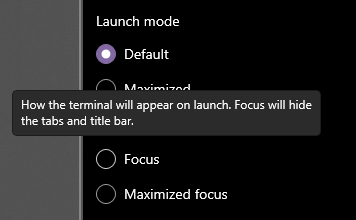
"launchMode": "focus"@Eoic commented on GitHub (Nov 16, 2021):
@zadjii-msft Thanks. I am not sure how or when I managed to enable it.
@dcraig327 commented on GitHub (Dec 19, 2021):
Thank you so much for adding this feature!
Just found out you added Quake Mode (Win+~), (that means hold Windows key, press tilde)
Now Focus mode + Windows logo key hotkeys, the terminal goes where it's needed.
Ctrl+Shift+W will close any tab, hit it repeatedly and it will close the Terminal window.
Reference Windows logo key keyboard shortcuts for your version of Windows, specifically:
It works well when you have 1-3 horizontal monitors. For vertical monitors I suggest Power Toys. For one monitor I suggest Virtual Desktops, same document above (Virtual desktops keyboard shortcuts):